Map View in OKRs – Overview
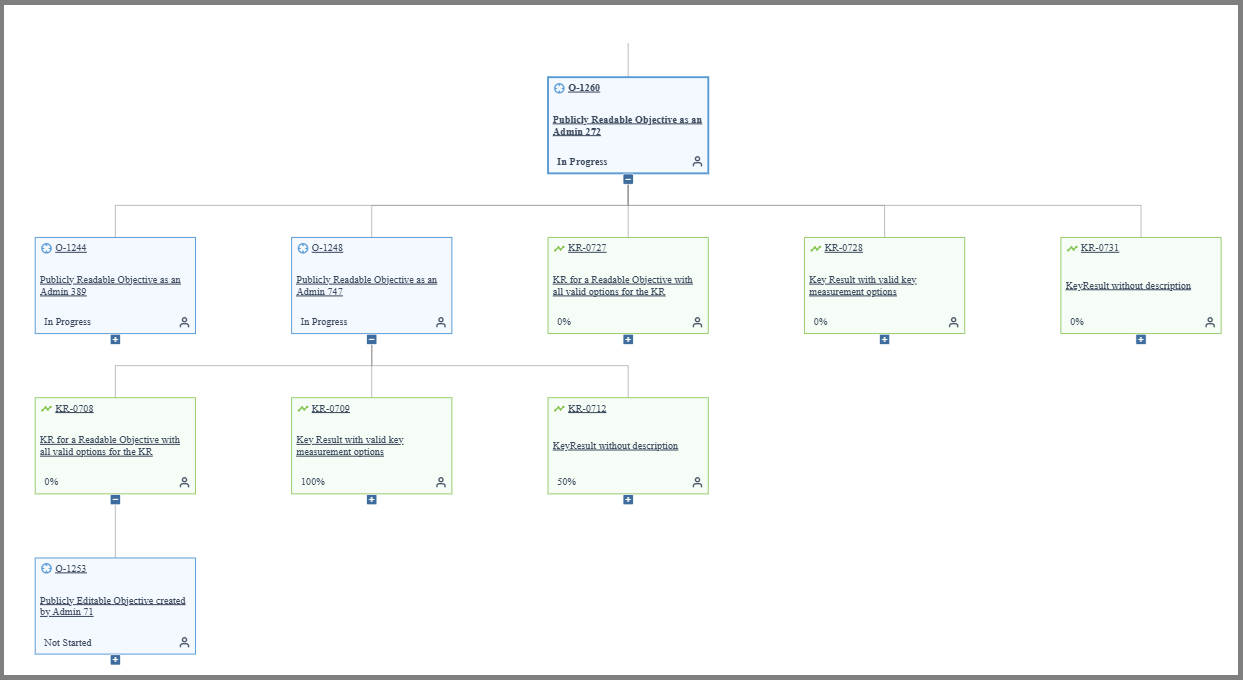
The Map View in OKRs gives a visual representation of the hierarchical relationship between Objectives and Key Results (KRs). With the traditional Dependencies tab, the users could only see one level of parent and child relationships. The Map View enables users to see an entire objective’s environment which can include nested objectives and their corresponding key results, everything structured in a collapsible tree format.
The Map View makes it simple for the users to understand how different goals are related. You can quickly see which OKRs depend on others, which ones contribute to your teams’ objective, and how they all fit into the overall company strategy.
Why Do We Need Map View in OKRs
Prior to Map View, the Dependencies tab only allowed users to view a limited number of relationships. Users could only see one level of parent or child linking. This was a drawback for users in charge of complex OKR structures with multi-level Objectives and Key Results.
Map View solves this limitation by:
- Allowing users to explore deeper hierarchical relationships.
- Enabling visibility into nested KRs and child objectives.
- Tracking alignment across teams or departments becomes easier with Map View.
- Providing a clear visual format for understanding how each objective fits into the broader organizational goals.
How to Access Map View in OKRs
- Log in to Agility, click the hamburger menu > OKRs.
- Select any Public or Editable Objective.
- From the OKR list view, click the Actions column associated with the objective.
- From the drop-down, choose Map View.
The Map View for the selected objective is displayed: