Archiving OKRs
Archiving OKRs (Objectives and Key Results) in Agility maintains an organized and efficient goal-setting system. The archival process moves completed or outdated OKRs to a dedicated section for future reference, ensuring that active OKRs remain uncluttered and accessible while preserving historical data.
Who Archives OKRs
Archiving supports system organization and historical analysis:
- Administrators archive completed objectives and sessions to maintain an organized OKR system and ensure active goals remain visible and actionable.
- OKR Program Leaders determine archival policies, deciding when to archive quarterly or annual sessions based on organizational review cycles.
- Portfolio Managers archive portfolio-level objectives after major initiatives conclude, preserving historical strategy for future reference.
- Product Owners may request archival of product objectives that have been superseded or are no longer strategically relevant.
Permission Requirement
To archive OKRs: Administrator privileges are required. Only administrators can archive objectives, key results, or sessions.
To view archived OKRs: All users with Agility Pro or Premium license can view archived objectives and sessions in the Archive tab based on their access permissions.
To unarchive OKRs: Only administrators can restore archived objectives or sessions to active status.
The benefits of archiving OKRs include:
- Preservation of Historical Data: Safeguards valuable information about past objectives and achievements, creating a comprehensive record of team progress
- Facilitating Knowledge Transfer: Helps new team members quickly understand the organization's past goals and strategies, enabling them to contribute effectively
- Trend Analysis and Future Planning: Supports identification of trends to set more informed goals, ensuring continuous improvement
- Improved Organization: Keeps active OKRs streamlined and focused by moving completed ones to a separate space
OKRs and Sessions are archived from the following locations:
- OKR Listing page
- Sessions page
As part of the OKR archival process, two new tabs are introduced in the OKR listing page and Session’s page. The new tabs are:
- Archive - displays archived OKRs with name, start date, end date, objectives and action attributes.
- Active - displays active OKRs with name, start date, end date, objectives and action attributes.
Archive an OKR from the OKR Listing Page
The OKRs are archived from the OKR listing page and Session's page. The following procedure outlines the steps for archiving OKR from the OKR listing page.
Prerequisites
To perform the archive action, the user must have Agility administrator privileges.
- Log in to Agility, click the hamburger menu
 > OKRs.
 - In the Objectives and Key Results page, select the OKR to archive.
- Click the archive
 icon.
Or
icon.
Or - Click the vertical ellipses under Action and select Archive
- Are you sure you want to archive the objectives along with their key results? is displayed, click OK.
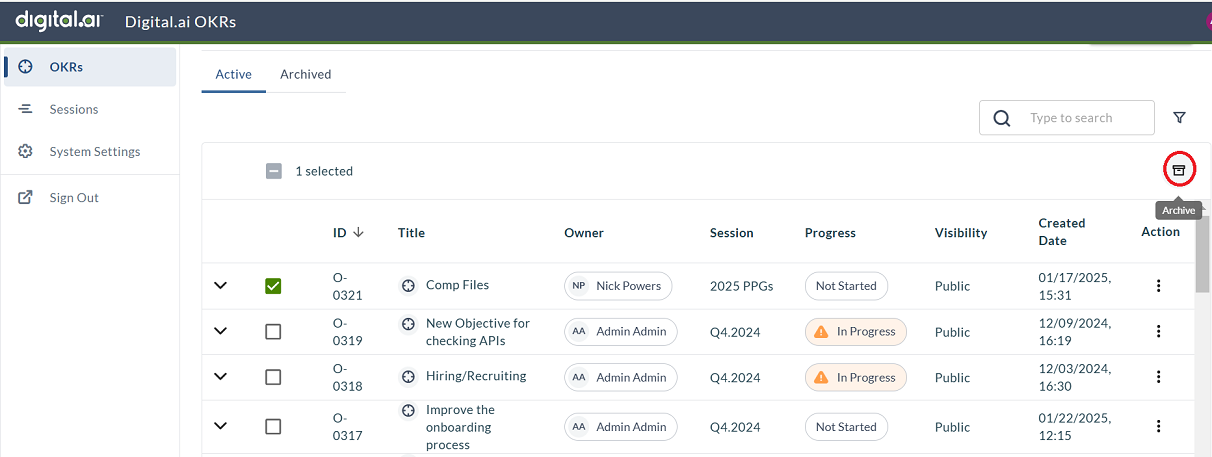
A success message indicates the Objective and Key results are archived. View the archived objective by clicking the Archive tab from the OKR listing page.
When you archive an Objective, the Key Results associated with objective are also archived.
Archive a Session from the Sessions Page
When a Session is archived in Agility, all the objectives and key results associated with the session are also archived.
Prerequisites
To perform the archive action, the user must have Agility administrator privileges.
- Log in to Agility and click the hamburger menu > OKRs > Sessions.
- From the Session page Select the session you want to archive.
- Click the archive icon.
Or
- Click the vertical ellipses under Action and select Archive
- Are you sure you want to archive the sessions along with their key results? is displayed, click OK.
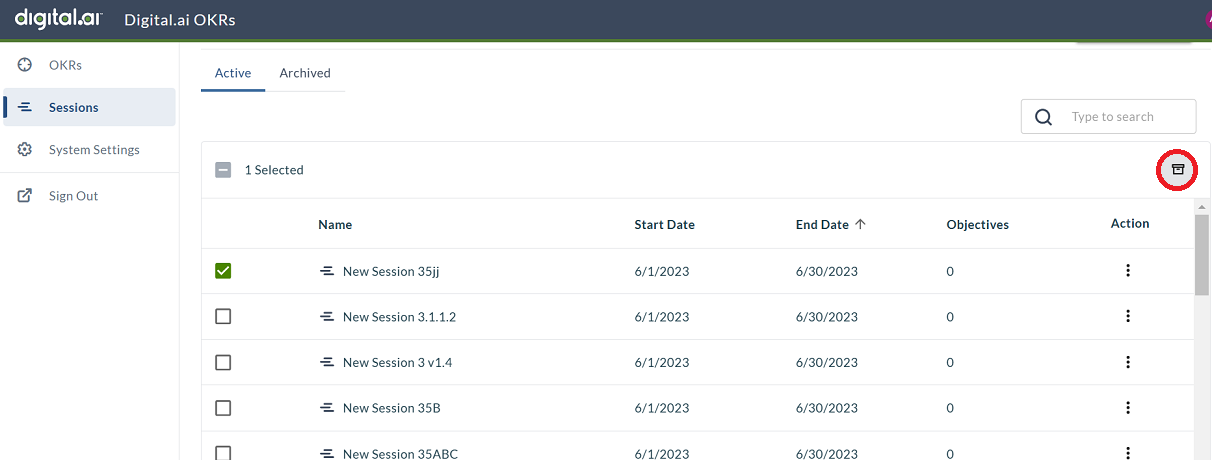
A success message indicating the Session along with the Objectives and Key results are archived is displayed. You can view the archived objective from by clicking the Archive tab from the Sessions page.
If you want to multi-select OKRs or Sessions, you must click the Select button next to each OKR or Session. If you want to select all the OKRs or Sessions in the page, click the Select All option.
How to Search for Archived OKRs in OKR listing page
The users can search for the archived OKRs using the filter option available in the OKR listing page. You can use the filters to search for archived OKRs by using the following options:
- Filter by owner - Allows user to search OKRs by owner name.
- Filter By session - Allows users to search OKRs by session name.
- Filter By progress - Allows users to search OKRs based status.
- Filter By visibility - Allows users to search OKRs based on whether they are private or public.
How to Search for Archived Sessions
The users can search for the archived sessions using the Search bar present at the top of the page. You can enter the session name to view the archived session details.
How to Unarchive an OKR
To unarchive an OKR from the OKR listing page, follow the instructions outlined below:
- Log in to Agility, click the hamburger menu > OKRs.
- In the Objectives and Key Results page, select the OKR to unarchive.
- Click the unarchive icon.
Or
- Click the vertical ellipses under Action and select Unarchive.
- You are about to Unarchive Objectives from different sessions message is displayed.
- Select the required Session from the drop-down menu and click OK.
A success message indicating the Objectives and Key results are unarchived is displayed. You can view the unarchived objective from by clicking the Archive tab from the OKR listing page.
How to Unarchive a Session
To unarchive an OKR session from the Sessions page, follow the instructions outlined below:
- Log in to Agility and click the hamburger menu > OKRs > Sessions..
- From the Session page Select the session you want to unarchive.
- Click the archive icon.
Or
- Click the vertical ellipses under Action and select Unarchive.
- Are you sure you want to unarchive the session(s)? message is displayed, click OK.
The session, objectives, and key results are unarchived. View them on the Active tab.
Troubleshooting
Why can't I archive an objective?
Only administrators can archive OKRs. If you are not an administrator, you cannot archive objectives or sessions. Contact your administrator to request archival.
What happens to work item associations when I archive an objective?
Work item associations (stories, portfolio items, defects) remain intact when objectives are archived. You can still view these associations in the Archive tab and in the work item's OKR tab.
Can I edit an archived OKR?
No. Archived OKRs are read-only. To make changes, unarchive the objective first (administrator access required), make the necessary updates, then archive it again if needed.
Why should I archive sessions instead of deleting them?
Archiving preserves historical data for trend analysis, future planning, and organizational learning. Deletion is permanent and removes all historical context. Archiving keeps the OKR system organized while maintaining a complete historical record.