Agility OKR
Objectives and Key Results (OKR) is a framework used by organizations to set and measure goals and track progress towards achieving them. The OKR capability in Agility lets you set clear and measurable objectives and define specific actionable key results to achieve those objectives.
Benefits of Using OKRs
Using OKRs in your organization provides:
- Alignment - Everyone works toward the same goals
- Focus - Teams concentrate on what matters most
- Accountability - Clear ownership of performance and results
Prerequisites
- You must have Agility Pro and Premium license to use the OKR feature in Agility.
- Use feature toggle option to enable OKR in Agility.
Objectives
Objectives are high-level, qualitative goals that describe what you or your team aims to achieve. You can define your own objectives and key results to align teams and individuals around a common goal, track progress, and achieve better results.
User Roles and Permissions
All Users can:
- Create their own Objectives and Key results.
- View all objectives in the system.
Objective Owners (users who created the objective) can:
- Create Objectives and Key results.
- Edit, update, delete, close, and reopen objectives they created.
- Assign or Remove Key results for objectives they created.
- Share their objectives with other users (add users with shared access).
Users with Shared Access (users granted shared access to an objective) can:
- Edit, update, close, reopen, and delete objectives they have been granted shared access to.
- View and comment on the objective.
- Associate work items with the objective.
System Administrators can:
- Reopen and delete any objective.
- Create sessions in the OKR sessions page.
- View and access all objectives regardless of ownership.
- Owner: Automatically set to the user who creates the objective and cannot be changed (read-only field).
- Shared Access With: Multi-value field where multiple users can be added to grant them editing, closing, reopening, and deleting permissions.
Key Results
Key results are measurable, quantitative outcomes that track progress toward your objectives. Use key results to assess whether your objective is met. Key results are specific, time-bound, and include numerical targets or milestones.
You can create key results using the dedicated Key Results tab within each objective. Pagination helps you navigate and organize multiple key results.
Example
The following example helps you understand OKRs better.
Objective
Improve customer satisfaction by 10% in Q3
Key Results
- Conduct customer satisfaction surveys and achieve an overall score of 8 out of 10.
- Reduce customer complaints by 10% by identifying and addressing common issues.
- Increase customer retention by 20% through in-time customer/technical support.
Objectives and Key Results Page
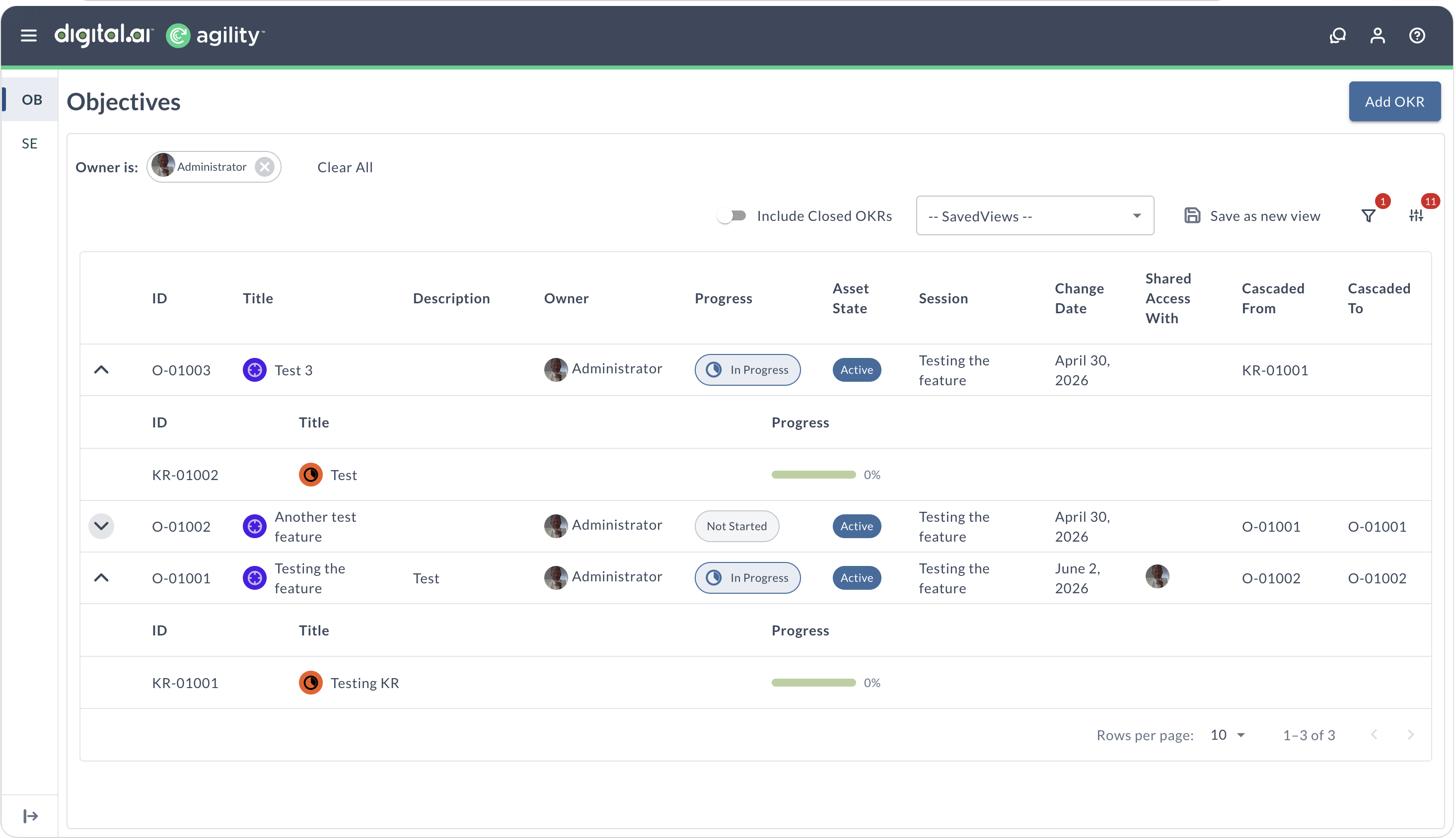
The Objectives and Key Results page shows all objectives and their associated key results in a grid view.
List View Columns
The OKR list page displays objectives and their associated key results in a hierarchical grid view with visual indicators:
- Visual Indicators - Objectives display with an objective icon, while key results display with a key result icon. Key result IDs are aligned with their parent objective for clear hierarchy visualization.
- Number - Displays the unique identifier for the objective or key result
- Name - Displays the objective title or key result summary
- Owner - Displays the objective owner
- Progress - Displays the progress state based on key result completion:
- Not Started - None of the key results have started
- In Progress - Some key results are in progress or completed
- Completed - All key results are completed
- State - Displays whether the objective is Active or Closed
- Session - Displays the session associated with the objective. Only system administrators can create sessions in the OKR sessions page
View Objective Details
When you click on an objective in the list, it opens in a side drawer showing the objective title and ID at the top, with detailed information organized in tabs below.
The side drawer provides five navigation tabs:
- Details - Shows the objective's configuration fields and associated work items:
- Session - The session associated with the objective (required field)
- Owner - The objective owner (required field, automatically set to the creator)
- Shared Access With - Multi-value field to add users who can edit, close, reopen and delete the objective
- Cascaded From - Shows the parent objective or key result if this objective is part of a hierarchy
- Description - Rich text editor for detailed objective description
- Information - Collapsible section displaying Created by, Changed by, Created date, and Changed date
- Linked Objectives - Section for aligning with higher-level goals (with Add button)
- Cascaded To - Section showing child objectives in the hierarchy
- Portfolio Items - Section for associated portfolio items (with Add button)
- Strategic Themes - Section for associated strategic themes (with Add button)
- Key Results - Displays all key results associated with the objective, with the ability to create, edit, and delete key results directly from this tab. Key result titles wrap to multiple lines for improved readability.
- Map View - Provides a visual representation of the objective and its relationships, including cascaded objectives and linked objectives in a hierarchical map format
- Comments - Dedicated tab for adding comments and updates to facilitate team collaboration and communication about the objective
- Activity - Shows the complete history of changes and updates made to the objective and its key results, including creation, modifications, status changes, and user actions with timestamps
Create and Manage Key Results
Key results are created and managed from within the objective details drawer:
- Click on an objective from the list to open the details drawer.
- Navigate to the Key Results tab.
- Click Add to create a new key result.
- Enter the required key result details and click Save.
To delete a key result, click the Delete icon next to the key result. A confirmation dialog appears—click Delete to confirm or Cancel to keep it.
For detailed instructions on creating key results, understanding key result types, and managing progress, see Add a New OKR.
View Key Result Activity History
When you click on a key result in the Key Results tab, it opens in a detail view with two tabs: Details and Activity. The Activity tab shows the complete change history for the key result, including updates to Type, Current Value, Initial Value, Target Value, and other field changes. Each change entry displays the user who made the change, when it occurred, and the specific fields that were updated.
Link Objectives for Alignment
Link objectives to show alignment with team, department, or organization-level goals. Linked objectives appear in the Linked Objectives section of the objective details drawer, showing how individual objectives contribute to broader priorities.
For detailed instructions on linking objectives, see Link Objectives.
Add Comments for Collaboration
The Comments tab in the objective details drawer provides a dedicated space for team collaboration. You can add comments to objectives and key results, enabling status updates and communication about progress. Comments appear in their own tab for easy access and improved organization. For detailed instructions, see Add Comments to Objectives and Key Results.
Associate Work Items with OKRs
Connect strategic objectives and key results with actual work by associating Agility work items. The objective details drawer displays dedicated sections within the Details tab for linking OKRs with portfolio items (portfolio items section) and strategic themes (Strategic Themes section).
What you can associate:
- With Objectives: Portfolio items and strategic themes
- With Key Results: Portfolio items, stories, and defects
Associating work items creates clear connections between strategic goals and execution, showing how day-to-day work contributes to organizational outcomes.
For detailed instructions on associating work items, see Associate Agility Assets with Objectives and Key Results.
OKR Hierarchy and Alignment
Cascade OKRs through parent-child relationships to align your objectives with manager, team, department, or organization-level goals. This creates a clear line of sight from individual objectives to company strategy.
Parent-Child Relationships:
- Objectives can be parent to objectives - Align your objective with higher-level organizational goals.
- Key results can be parent to objectives - Your objective can cascade from a specific key result for precise outcome alignment.
- Each objective can have one parent (either an objective or a key result).
- A parent can have multiple child objectives.
Benefits of OKR hierarchy:
- Align individual work with company strategy.
- See how objectives cascade across teams and departments.
- Understand dependencies and contributions.
- Track accountability and progress.
For detailed instructions on creating parent-child relationships, see Cascade OKRs in Agility.
Empty State
When no objectives are available, the OKR page displays an empty state message with options to create your first objective.
Filter and Search OKRs
The OKR page provides flexible filtering capabilities to help you find and focus on specific objectives:
- Field-Based Filtering - Use Rooms 2-style filtering to create custom filter criteria by selecting fields (Owner, OkrSession, Department, etc.), operators (is, is not), and values
- Include Closed OKRs Toggle - Show or hide closed objectives in the grid
- Multiple Filter Criteria - Combine multiple filters to create complex views
For detailed instructions on filtering, searching, and managing views, see Filter and Search OKRs.
Visualize OKRs in Roadmap Views
You can view your portfolio items organized by Objectives and Key Results in the Roadmap page. This helps you understand whether your planned portfolio items align with specific outcomes and strategic goals.
Roadmap Group By Options:
- Group by Objective - View portfolio items organized by the objectives they support
- Group by Key Result - View portfolio items organized by the key results they contribute to
This visualization works in both Roadmap Board Layout and Timeline Layout views. Only objectives and key results that have associated portfolio items appear in the roadmap.
For detailed instructions on using these grouping options, see Configuring the columns on the Roadmap board layout.