Add a New OKR
Adding a new OKR (Objectives and Key Results) involves a thoughtful process to set clear goals and measurable outcomes. Learn how to add a new OKR that aligns with your teams' goal or with your organizations' goal. Add key results to the OKR to measure the progress towards achieving your objective.
- Log in to Agility, click the hamburger menu > OKR's.
- In the Objectives and Key Results page, click New OKR.
- Enter the Title and Description.
- Click the Session drop-down and choose an existing session from the drop-down.
- Select the values for the custom fields available (such as Department and Country from the drop-down).
- Click Save.
The user is notified that a new Objective is added to Agility.
Fields marked with * are mandatory fields. In this case Title and Session are mandatory fields.
Add New Key Result
After you complete adding the OKR, it is saved and displayed on screen. Key results are organized in a dedicated Key Results tab within each objective. This provides better organization and the ability to create up to 50 key results per objective.
To add Key Results to the OKR, follow the steps given here:
- Select the newly created Objective.
- Click on the Key Results tab.
- Click New Key Results.
- Enter the Key Result Summary for the selected Objective.
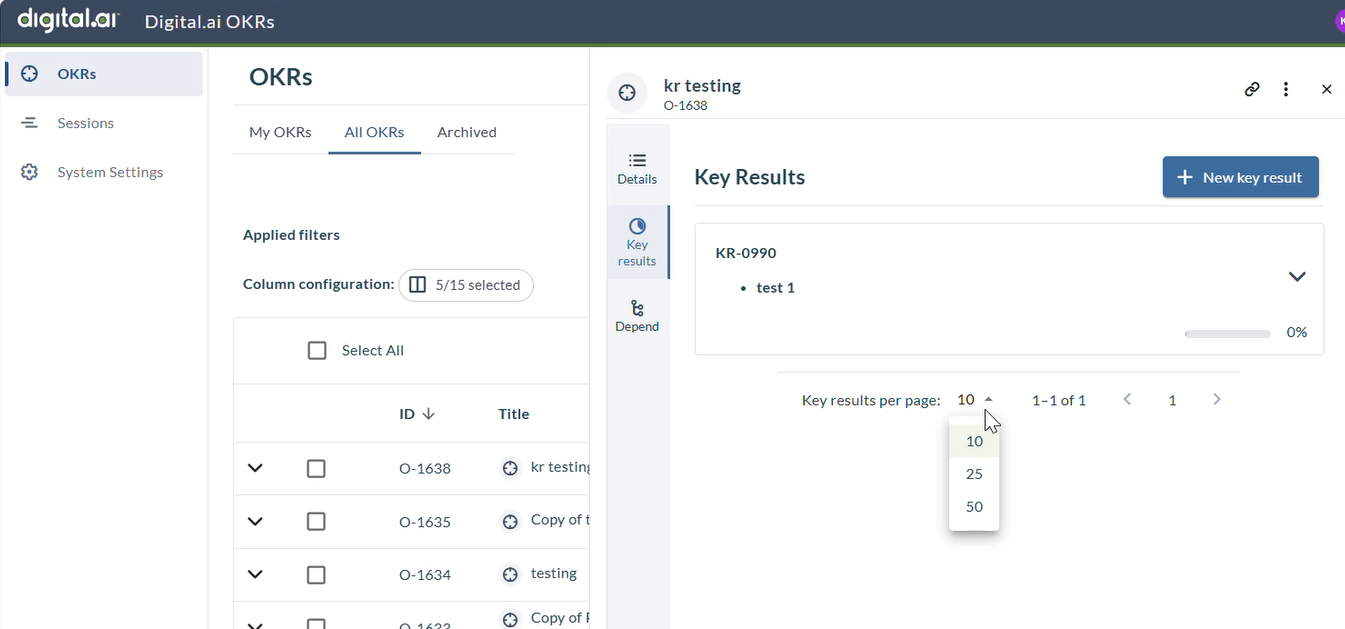
The dedicated Key Results tab provides improved organization and supports pagination for better navigation when managing multiple key results. You can display 10, 25, or 50 key results per page.
You can create up to 50 key results per objective to support comprehensive tracking of your objectives.
-
Enter a description for the key result.
-
Select the Key result type.
a. Quantitative - Measurable in numbers using four different calculation methods
b. Qualitative - Descriptive and measurable through achievement
- Not Achieved - indicates that the key result was not achieved
- Achieved - indicates that the key result was achieved
Quantitative Key Result Types
A Quantitative Key Result uses numbers to track measurable progress toward an objective. Agility automatically calculates progress as you update values, so manual calculations are not required.
Choose the right type based on what you want to measure:
| Key Result Type | When to Use | Example Metrics |
|---|---|---|
| Should Increase To | When you want a number to grow | Active users, revenue, completed features |
| Should Decrease To | When you want a number to go down | Bug count, response time, customer complaints |
| Should Stay Above | When you need to maintain a minimum level | Uptime %, customer satisfaction, quality score |
| Should Stay Below | When you need to stay under a maximum limit | Churn rate, error rate, cost per user |
Understanding the values:
- Initial Value - Your starting point (where you are now)
- Current Value - Your latest number (update this as you make progress)
- Target - Your goal (where you want to be)
- Critical Value - The warning threshold (only for "Stay Above" and "Stay Below" types)
- Unit - How you measure (%, count, $, hours, etc.)
Should Increase To
Use this type when you want your metric to grow from a starting point to a higher target.
What happens as you update:
- Start at your Initial Value = 0% progress
- Reach your Target = 100% progress
- Go beyond your Target = over 100% (exceeding your goal!)
- Fall below Initial Value = progress goes negative (moving backward)
Example: Growing Monthly Active Users
You want to grow your user base from 5,000 to 10,000 users.
| Field | Value | What It Means |
|---|---|---|
| Initial | 5,000 | Starting user count |
| Target | 10,000 | Goal to reach |
| Current | 7,200 | Latest count |
| Progress | 44% | You're 44% of the way to your goal |
The system calculates: You've added 2,200 users out of the 5,000 needed, which is 44% progress.
Should Decrease To
Use this type when you want your metric to go down from a higher number to a lower target.
What happens as you update:
- Start at your Initial Value = 0% progress
- Reach your Target = 100% progress
- Go below your Target = over 100% (you reduced more than planned!)
- Go above Initial Value = progress goes negative (the problem is getting worse)
Example: Reducing Bug Count
You want to reduce bugs from 120 to 40.
| Field | Value | What It Means |
|---|---|---|
| Initial | 120 | Starting bug count |
| Target | 40 | Goal to reach |
| Current | 75 | Latest count |
| Progress | 56.25% | You're 56% of the way to your goal |
The system calculates: You've fixed 45 bugs out of the 80 needed, which is 56.25% progress.
Should Stay Above
Use this type when you need to maintain performance above a minimum acceptable level. This type includes a Critical Value that marks the danger zone.
What happens as you update:
- Meet or exceed Target = 100% progress (you're doing great!)
- Between Critical and Target = partial progress (you're on track but not quite there)
- Fall to or below Critical Value = 0% progress (you've fallen into the danger zone)
Example: Maintaining System Uptime
You need to keep uptime at 99.9% or higher, and can't let it drop below 99.5%.
| Field | Value | What It Means |
|---|---|---|
| Initial | 99.8% | Where you started |
| Target | 99.9% | Your goal |
| Critical | 99.5% | The danger threshold |
| Current | 99.85% | Latest measurement |
| Progress | 87.5% | You're close to your target |
The system calculates: You're 87.5% of the way from the critical threshold to your target. If you reach 99.9% or higher, you'll be at 100% progress.
Should Stay Below
Use this type when you need to keep something under control and below a maximum limit. This type includes a Critical Value that marks when things have gotten too high.
What happens as you update:
- Stay at or below Target = 100% progress (you're meeting your goal!)
- Between Target and Critical = partial progress (you're above target but not critical yet)
- Reach or exceed Critical Value = 0% progress (you've exceeded the acceptable limit)
Example: Control Customer Churn Rate
You need to keep churn at or below 5%, and must not let it reach 7%.
| Field | Value | What It Means |
|---|---|---|
| Initial | 6.5% | Where you started |
| Target | 5% | Your goal (maximum acceptable) |
| Critical | 7% | The danger threshold (maximum limit) |
| Current | 5.2% | Latest measurement |
| Progress | 90% | You're very close to your target |
The system calculates: You're 90% of the way from the critical level down to your target. If you get to 5% or below, you'll be at 100% progress.
Agility automatically calculates progress based on the values you enter. You only need to update the Current Value as you track your progress; the system performs all required calculations..
- Based on the selected key result type, enter the required values:
- Current Value - The current value of the key result
- Initial Value - The starting value of the key result
- Target - The target value to be achieved
- Critical Value (for "Should Stay Above" and "Should Stay Below" types only) - The critical threshold value
- Select the Unit value (percentage, number, count, currency, hours, days, etc.).
- The system automatically calculates and displays the key result's progress based on the values entered.
- Select the required Commitment from the drop-down menu:
- Committed - Represents the objectives that must be achieved by the end of session
- Aspirational - Represents the objectives that might stretch beyond the session
- Click Save.
The new key result is saved and associated with the selected objective. By outlining your OKRs with these components, you ensure your key results are specific, measurable, achievable, relevant, and time-bound (SMART). This clarity helps teams understand success and track progress effectively.
Access an Objective or Key Result directly
Agility allows users to access an objective or key results directly using the Copy URL option.
To access objectives or key results directly, follow the steps given here.
- From the OKR listing page, select an OKR
- In the Objective screen or key results screen, click copy URL
- Open a new browse window and paste the URL and hit enter
- The selected Objective or Key results is displayed
Adding Comments to Objective or Key Results
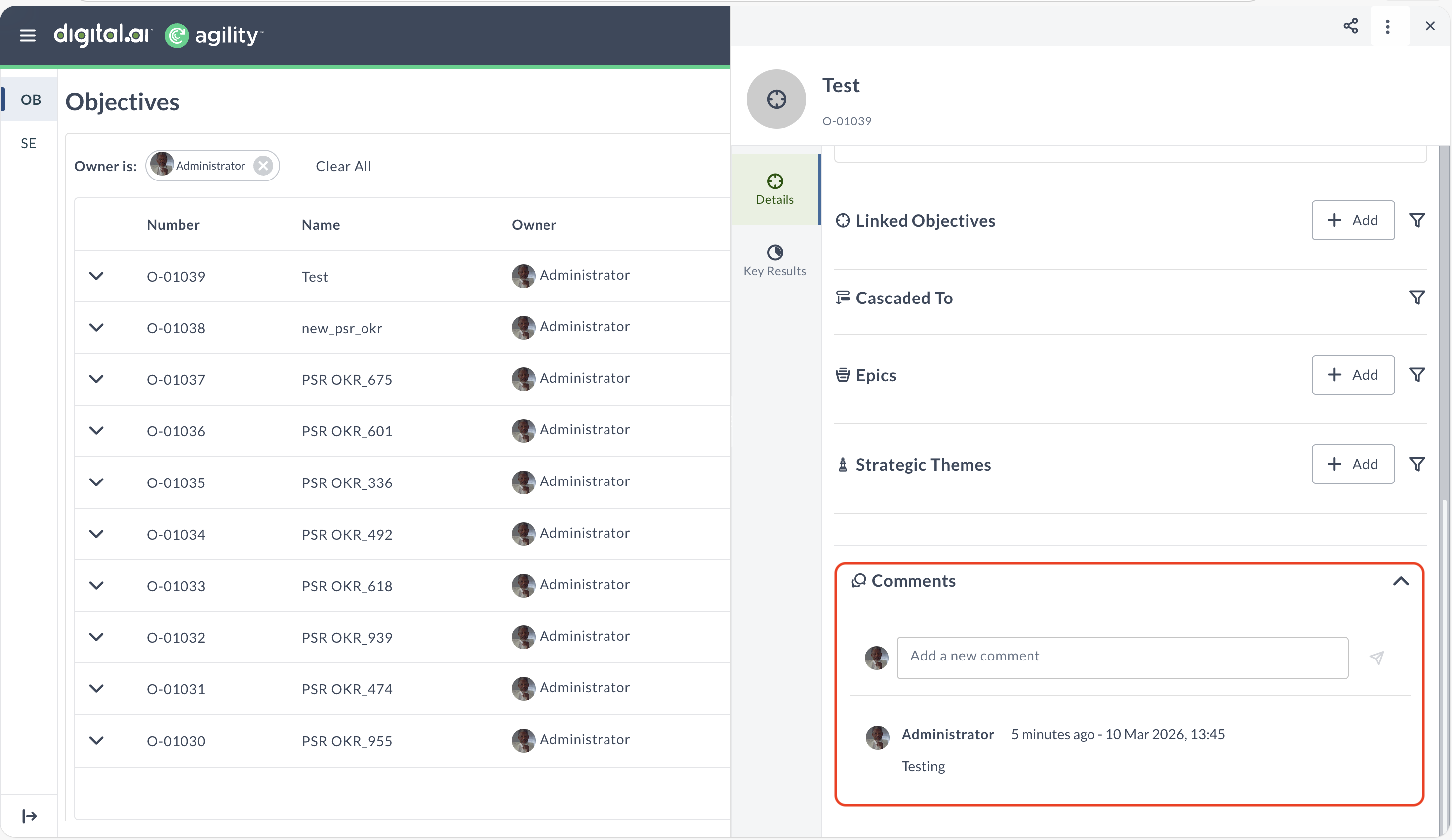
Agility allows users to add comments to objectives or key results directly from the comments section. To create a comment > Click on anObjective/KeyResult > Click on Show More > Comments