Getting Access to Your Workspace
Digital.ai Agility is available as SaaS (cloud-hosted) or self-hosted deployment. How you receive and access your workspace depends on your deployment model.
For SaaS (Cloud-Hosted) Customers
What Happens During Provisioning
Your Customer Success Manager works with Digital.ai's Deal Desk to provision your cloud instance:
- Deal Desk submits provisioning request - After your purchase, Deal Desk sends a ticket to Agility Support via Zendesk
- Agility Support provisions your instance - Your dedicated cloud workspace is created with your organization's configuration
- You receive access credentials - Your system administrator receives:
- Unique workspace URL (format:
https://www7.v1host.com/YourOrganization) - Administrator login credentials
- Welcome email with getting started information
- Unique workspace URL (format:
- Administrator invites users - Your admin can then create user accounts and send invitations to your team
What You Need to Know
No installation required - Digital.ai manages all infrastructure, updates, backups, and security. You simply log in through your web browser.
Your workspace URL is unique - It's different from the Digital.ai marketing site (digital.ai/agility). Bookmark your organization's specific URL.
Timeline - Workspace provisioning typically completes within 24-48 hours of the request.
How to Log In (SaaS)
- Navigate to your workspace URL (provided in your welcome email)
- Enter your username and password
- Complete authentication (may include SSO if configured)
- Access your dashboard and assigned projects
After logging in:
- Bookmark your workspace URL for future access
- Update your profile settings
- Explore your assigned projects and teams
- See Get Started with Digital.ai Agility for next steps
For Self-Hosted Customers
What You'll Receive
Your Customer Success Manager coordinates with Digital.ai to provide installation materials:
- Deal Desk identifies deployment type - Deal Desk submits a ticket identifying your organization as self-hosted
- Agility Support provisions license - Your license is generated and linked to your organization
- You receive installation package - Agility Support sends you:
- Installation zip file containing setup.exe files
- PDF with step-by-step installation instructions
- License key for activation
- Support contact information
- Your IT team installs Agility - Your infrastructure team deploys Agility on your servers following the provided instructions
Installation Documentation
For complete installation procedures, system requirements, and configuration:
- Installing Digital.ai Agility - Official installation documentation
- System Requirements - Hardware, software, and network specifications
How to Access After Installation (Self-Hosted)
- Navigate to your organization's Agility URL (configured during installation)
- Enter your administrator credentials (set during installation)
- Complete any additional authentication (LDAP, Active Directory, SSO as configured)
- Access your instance and begin configuration
After installation:
- Create user accounts for your team
- Configure projects and planning levels
- Set up integrations with your development tools
- See Get Started for Administrators for configuration workflows
Troubleshooting Access
Find Your Workspace URL
Common issues:
- Using digital.ai/agility instead of your workspace URL
- Bookmarking incorrect links
- URL changed during migrations
- Browser cache storing old credentials
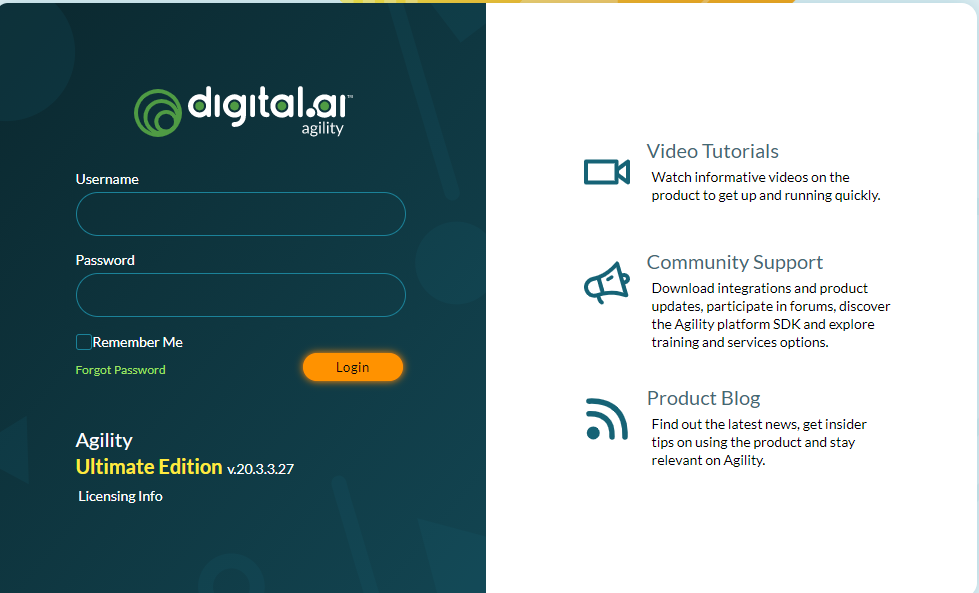
Locate your URL
Trial users
- Visit Digital.ai Agility Free Trial.
- Check your trial confirmation email for the access link.
- Use your registration information to retrieve the URL.
Existing users
- Search browser history for URLs with your organization name.
- Search email for "Welcome" or "Digital.ai Agility".
- Check browser bookmarks.
- Review mobile app settings if you use mobile access.
Get help
- Contact your system administrator who created your account.
- Ask your IT department for URL verification.
- Check with project managers for access information.
- Review shared team documentation.
Contact support
If you cannot locate your URL:
- Contact Digital.ai Support at support.digital.ai.
- Provide your company name, user name, and email.
- Support will notify your system administrator.
Related Topics
- Introduction to Digital.ai Agility - Learn about Agility's capabilities and benefits
- Understand Agility Editions - Compare SaaS and self-hosted deployment features
- Get Started with Digital.ai Agility - Complete onboarding and role-specific workflows
- System Requirements - Technical specifications for self-hosted installations