Map View
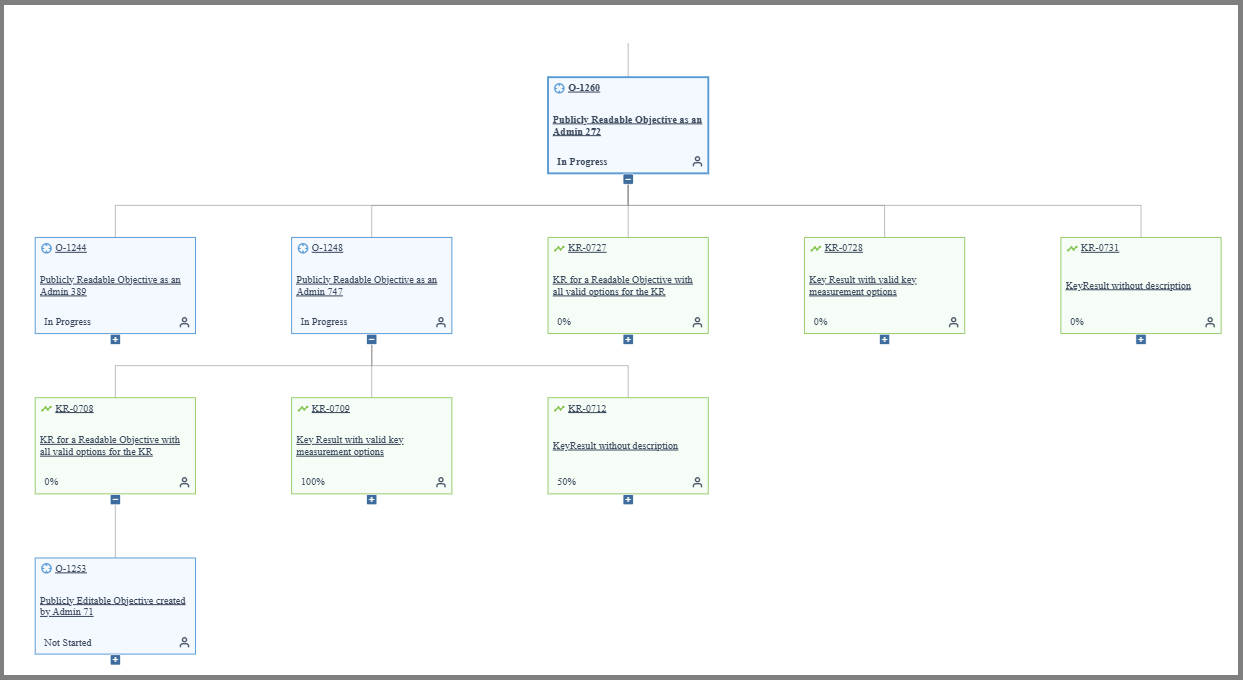
Map View provides a visual representation of the hierarchical relationship between Objectives and Key Results (KRs). The traditional Dependencies tab displays only one level of parent and child relationships. Map View enables users to see an entire objective's environment, including nested objectives and their corresponding key results, structured in a collapsible tree format.
Map View helps users understand how different goals are related. Users can see which OKRs depend on others, which ones contribute to team objectives, and how they all fit into the overall company strategy.
Who Uses Map View
Map View supports hierarchical OKR visualization:
- Portfolio Managers use Map View to visualize how portfolio objectives cascade down through programs and teams, ensuring strategic alignment.
- Product Owners explore Map View to understand how product objectives connect to company goals and how team key results roll up to product outcomes.
- Team Leads review Map View during planning to verify that team objectives align with department or company strategic priorities.
- Program Managers use Map View to identify dependencies between objectives across value streams and coordinate delivery accordingly.
Permission Requirement
To access Map View: Users need Agility Pro or Premium license. Map View is available for all publicly visible objectives (Publicly Readable or Publicly Editable).
To view objectives in Map View: You can only see objectives and key results you have permission to view based on visibility settings.
To update OKRs from Map View: You need edit access to the specific objective or key result. Private OKRs or those marked as Publicly Readable cannot be edited from Map View unless you are the owner.
Benefits of Map View
Prior to Map View, the Dependencies tab only allowed users to view a limited number of relationships. Users could only see one level of parent or child linking.
Map View solves this limitation:
- Explore deeper hierarchical relationships
- View nested KRs and child objectives
- Track alignment across teams or departments
- Understand how each objective fits into broader organizational goals
Access Map View
- Log in to Agility and click the hamburger menu > OKRs.
- Select any Public or Editable Objective.
- From the OKR list view, click the Actions column associated with the objective.
- From the drop-down, choose Map View.
The Map View for the selected objective displays:
Review and Update OKRs in Map View
Use Map View to visualize your team's Objectives and Key Results, verify their alignment with parent company goals, and update progress without losing context.
- Log in to Agility and click the hamburger menu > OKRs.
- Select your Team Objective.
- Click on the Actions tab associated with the objective.
- From the drop-down, choose Map View.
- Review the hierarchical structure:
- Confirm your objective is aligned with a parent objective
- Expand child objectives and associated Key Results
- Locate the specific Key Result and update its progress or value (for example, update the current value of a metric from 40% to 50%).
- Click Save.
- Return to the Map View tab to see the changes reflected in real-time.
Frequently Asked Questions
What is the purpose of Map View?
Map View visualizes the hierarchy of OKRs, enabling better planning and alignment tracking. You can see nested objectives and key results, understand dependencies, and track how objectives fit into broader organizational goals.
Why can't I see the Map View option?
Map View is not available for private or restricted objectives. You must have access to a public or editable objective with appropriate permissions (read/write access). If the option is missing, confirm the objective's visibility settings.
Can I view and update nested KRs and objectives?
Yes. Use the + icon beside any node to load deeper levels. Objectives and KRs are clickable and open in new tabs. To update a key result, locate it in the hierarchy, update its progress or value, and click Save. Changes reflect in real-time.
Why is Map View slow or not loading?
Refresh the page or clear your browser cache. Ensure you have a stable internet connection. Rendering time depends on the number of nested objectives or KRs—wait a few seconds for large trees. If KR updates don't show immediately, try collapsing and re-expanding the node to force refresh.
How do I see who owns an objective or key result?
Hover over the user icon to see the owner's name.