Tracking Your Work in My Room
My Room provides a personalized workspace where you can track your assigned work, manage notifications, view dashboards, and collaborate across all your projects. This centralized hub helps you stay focused on your current priorities without switching between multiple views or projects.
Who uses My Room
All users rely on My Room as their personal workspace:
- Team Members: Track assigned work, log time on timesheets, and update effort and status
- Scrum Masters: Review team timesheets, monitor multiple team dashboards, and respond to notifications
- Product Owners: Track backlog items across projects, watch critical features, and monitor release progress
- Portfolio Managers: View dashboards with portfolio-level metrics and activity streams across multiple programs
Personal workspace: My Room content is private to each user. Your My Work page, My Dashboard, and My Inbox are not visible to others unless you explicitly share information.
Access My Room
To access My Room:
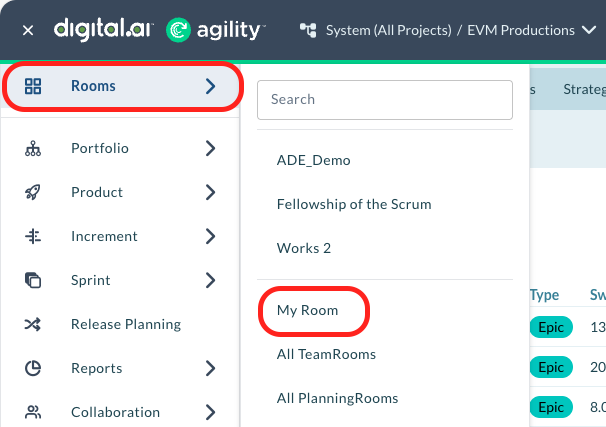
- Click the hamburger menu
 > Rooms
From here, you can access a variety of tools to manage your current work assignments, including TeamRooms and PlanningRooms.
Key Features in My Room
My Work Page
View and manage all work assigned to you across active sprints and iterations in a single, centralized dashboard. Update effort and status, customize your view with different grids, and track your progress without opening individual items. For details, see My Work Page.
My Dashboard
Create and customize charts to visualize your work, track release progress, and monitor key metrics. Add, configure, and arrange charts to match your reporting needs. For details, see My Dashboard.
Tracking Hours with Timesheets
Log time against your work items, submit timesheets for approval, and track hours worked across projects and sprints. Managers can review and approve team member timesheets. For details, see Tracking Hours with Timesheets.
My Inbox
Send and receive notification messages within Digital.ai Agility. Archive, delete, mark as read or unread, and create new messages to communicate with team members. For details, see My Inbox.
Notifications and Subscriptions
Manage notification subscriptions to receive alerts about work item changes, status updates, and other events. Configure email notifications, RSS feeds, push notifications, and Slack integrations. For details, see Managing Notifications and Subscriptions.
Watching Assets
Watch specific stories, defects, tests, and other assets to receive automatic notifications when updates occur. Start or stop watching items from their detail pages or from grid views. For details, see Watch Assets.
Activity Streams
View a chronological feed of recent activity and changes across your projects and work items. For details, see Viewing Activity Streams.
Change History
Review the complete change history of any work item to track modifications, understand evolution, and audit updates. For details, see Viewing the Change History of a Work Item.
Common Use Cases
Morning routine for remote developer
A developer working remotely starts each day by opening My Room at 9am. They first check My Work page to see eight assigned items across two active sprints, identifying today's priorities. They review My Inbox for 12 overnight notifications, marking routine status changes as read while flagging three comments requiring responses. They check My Dashboard to verify the Sprint Burndown shows the team is on track for the current sprint. They update To Do hours on three items completed yesterday and log time in their Timesheet. This entire morning ritual takes 10 minutes, providing complete situational awareness before joining the daily standup meeting.
Multi-project contributor workflow
A senior engineer assigned to three different projects uses My Room to manage cross-project work efficiently. Their My Work page displays 15 items from all three projects in one consolidated view, eliminating the need to navigate between projects. They configure custom grids on My Work to show Project, Sprint, Priority, and Estimate columns, allowing quick prioritization across projects. They watch five high-priority defects from Projects A and B to receive notifications for any updates. They create a My Dashboard with three separate Sprint Burndown charts (one per project) to monitor progress across all assignments. My Room serves as their unified command center for multi-project coordination.
Weekly manager review routine
A Scrum Master manages two teams and uses My Room for weekly oversight. Every Friday afternoon, they open My Dashboard displaying six charts: velocity trends for both teams, combined Sprint Burndown, Defect Count by Priority, and Test Pass Rate. They review these metrics to identify trends and risks. They switch to Timesheets to review and approve timesheet submissions from 16 team members across both teams, checking for unusual hours or overtime patterns. They check Activity Streams for both TeamRooms to understand major decisions and changes from the week. They use this information to prepare status reports for stakeholders and identify coaching opportunities for the following week.
Frequently Asked Questions
What is the difference between My Room, My Work, and My Dashboard?
My Room is the top-level personal workspace containing all your individual tools. My Work is one page within My Room showing your assigned work items across active sprints. My Dashboard is another page within My Room displaying customizable charts and metrics. Think of My Room as the container, with My Work and My Dashboard as specialized views within it for different purposes (work management vs. visualization).
Can my manager see my My Room content?
No, My Room is a personal workspace visible only to you. Managers cannot see your My Work page, My Dashboard configurations, or My Inbox messages unless you explicitly share information with them. However, managers can approve your Timesheets and can view public work item updates you make. This privacy ensures your personal workspace remains focused on your individual needs.
Does My Work show items from closed sprints?
No, My Work focuses on active sprints only. It displays work items assigned to you in currently active sprints and iterations to help you focus on immediate priorities. To view work from closed sprints, use grid pages like Product Backlog or Sprint Backlog with appropriate filters, or use Advanced Search to locate historical work items.
If I watch an item and have a subscription for the same event, do I get duplicate notifications?
Yes, you may receive notifications through multiple channels if both Watching and Subscriptions trigger for the same event. For example, if you watch a specific story and also have a subscription for "any story assigned to me changes status", you will receive notifications through both mechanisms when that story's status changes. Review your watches and subscriptions periodically to eliminate redundant notifications and reduce inbox clutter.
Why am I receiving so many notifications in My Inbox?
High notification volume typically results from too many subscriptions or watching too many items. Review your active subscriptions in the Notifications and Subscriptions page and delete subscriptions for events you no longer need to track. Review your watched assets list and stop watching items that are no longer high priority. Adjust notification delivery options to send less-critical updates to email instead of My Inbox, keeping your inbox focused on urgent items.
Can I customize what appears when I open My Room?
You can customize the grids displayed on your My Work page and the charts shown on your My Dashboard. However, you cannot change which page opens by default when you first access My Room or reorder the top-level My Room menu structure. Focus your customization on grid configurations (add/remove columns, filters) and dashboard chart layouts to match your workflow needs.
Can I see My Room on mobile devices?
Yes, Digital.ai Agility provides mobile access through web browsers and dedicated mobile apps. My Room features are accessible on mobile devices, allowing you to check My Work, review My Inbox notifications, and update work items from smartphones or tablets. The mobile interface may have a simplified layout compared to desktop, but core My Room functionality remains available for on-the-go access.