Use the Header
The header toolbar appears at the top of every page and provides quick access to frequently used tools and actions.

Who uses the header toolbar
All users rely on the header toolbar for quick access to essential tools:
- All roles: Use Create (+) to add work items, Search to find content, and Notifications to track updates
- Active contributors: Check My Recent Changes to review your updates and verify completed actions
- Admins and power users: Access Apps for integrated tools and manage connected Applications
Note on creation permissions: The Create (+) menu shows only work item types you have permission to create based on your project role.
Header toolbar reference
The header toolbar (top-right corner) provides these tools:
- Search (magnifying glass): Find work items, projects, and content across Agility using quick search or advanced search options
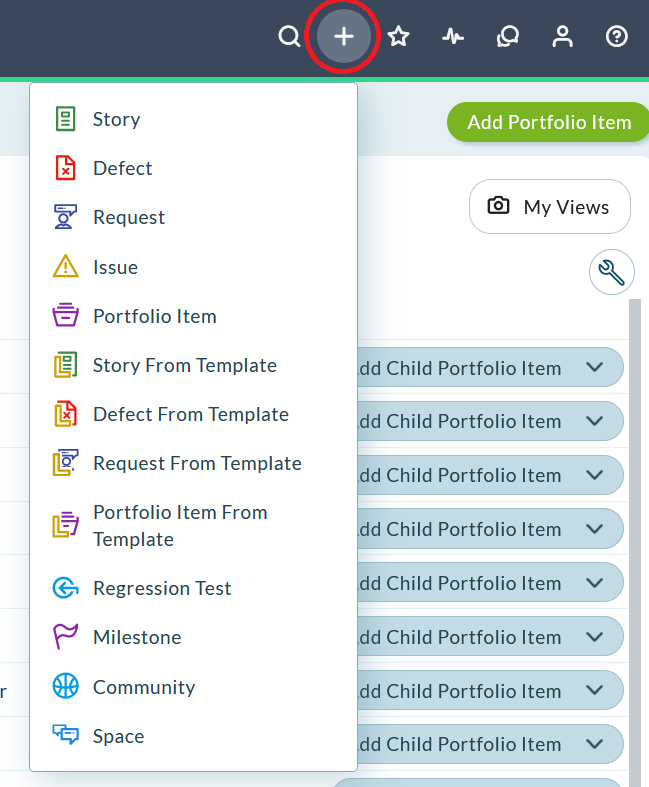
- Create (+ button): Add new work items including stories, defects, requests, issues, portfolio items, regression tests, milestones, and community items. Many item types support creation from templates for faster setup.
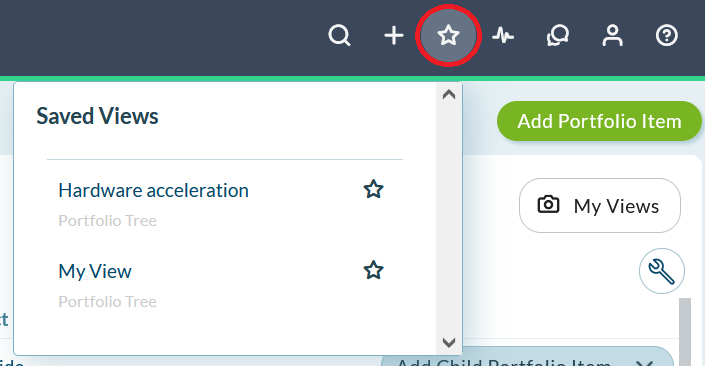
- Saved Views (star): Access all your saved grid views grouped by page. Mark frequently used views as favorites by clicking the star icon next to each view.
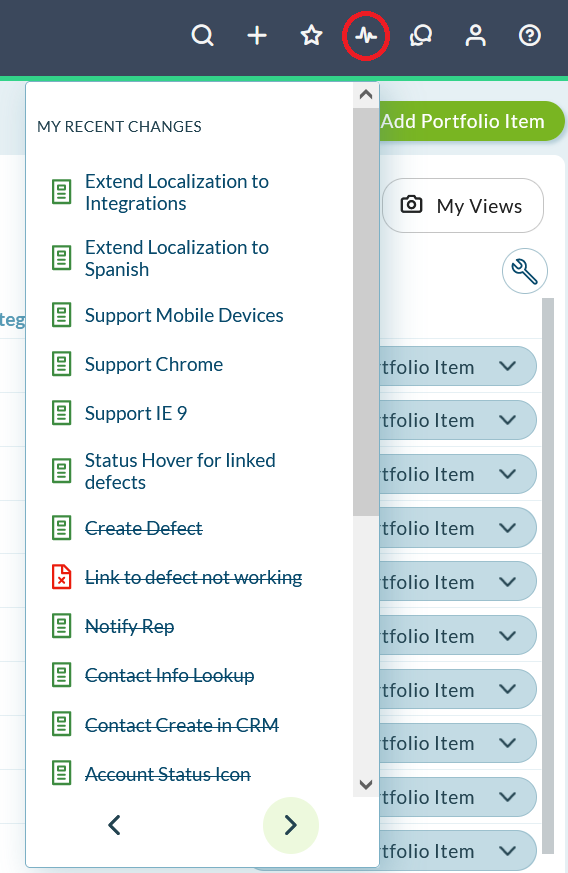
- My Recent Changes (activity icon): Browse your recent changes and updates across the system
- Notifications (bell): View recent updates and alerts for work items you're watching
- Apps (grid): Launch integrated tools and applications
- Profile (avatar): Access your account settings and preferences
- Help (? icon): Access documentation, contextual help, support resources, and interactive tours
Header features in detail
Search
Search for any artifact including projects, sprints, conversations, and work items. Use Advanced Search for more robust searches by selecting specific categories.
Use the Find deleted items option to recover accidentally deleted artifacts.

For more information, see Search Agility.
Add new asset
Use the + icon to quickly create new work items from any page:
- Backlog items (stories, defects)
- Requests
- Issues
- Portfolio items

For more information, see Add a new work item from the header.
My Recent Changes
Browse all recent changes you have made in Agility, including changes to owners, iteration schedules, and backlogs.

For more information, see View recent changes from the header.
Profile menu
Click your avatar (profile icon) in the top-right to access:
- My Details: Update your personal information, contact details, and profile settings
- Agility Preferences: Configure personal preferences and enable experimental features
- Push Notifications: Set up webhook notifications for work item updates and alerts
- Applications: Manage connected applications and API integrations
- Logout: Sign out of your Agility session
Troubleshooting
Why is my Quick Add (+) menu empty or missing asset types?
The Quick Add menu only displays asset types you have permission to create. If the menu is empty or missing expected options:
- Verify project assignment: You must be assigned to at least one active project. Contact your administrator to assign you to projects.
- Check your role: Team Members see limited options (stories, defects, tasks). Product Owners and Project Admins see additional types. Ask your administrator to verify your project role.
- Project context: Some asset types only appear when you are in the correct project context. Use the Project Navigator to select the appropriate project.
Why doesn't search find items I know exist?
Search results depend on permissions and context:
- Permission-based visibility: You can only find items in projects you have access to. Items in restricted projects won't appear even if you know their ID.
- Search indexing delay: Recently created items may take a few minutes to appear in search results. Try refreshing the page or waiting briefly.
- Deleted items: Use the Find deleted items option (trash icon) to search the Recycle Bin for accidentally deleted work items.
- Advanced search: Click Advanced Search to filter by specific categories (stories, defects, portfolio items) for more precise results.
Why don't I see My Recent Changes?
If the My Recent Changes list is empty:
- Recent activity: The list only shows changes you personally made. If you haven't created, edited, or updated any items recently, the list will be empty.
- Time window: Recent changes may have a time limit (typically last 30-90 days depending on system configuration). Very old changes may no longer appear.
- Browser cache: Try refreshing your browser or clearing cache if you know you made recent changes that aren't showing.
Related Topics
- Basic Navigation - Quick orientation to navigation tools
- Agility User Interface - Complete interface overview
- Use the Hamburger Menu - Main navigation reference
- Select Planning Levels - Context filtering
- Search Agility - Search methods and techniques
- Add a New Work Item - Quick create feature
- View Recent Changes - Track your activity
- Recover Deleted Items - Restore deleted work