My Views

Save customized grid views to quickly access your preferred filters, columns, and sorting configurations. My Views helps you focus on relevant work by preserving your grid customizations.

Personal views: My Views are private—only you can see the views you create. Other users cannot access your saved views. Share view configurations by sending the view URL to team members.

What My Views saves

Each saved view preserves:

  • Filter selections: Active filters applied to the grid
  • Visible columns: Which columns appear in the grid
  • Editable columns: Which fields can be edited inline
  • Grid sorting: Sort order and direction
  • Items per page: Number of rows displayed
  • Project scope (optional): Current project tree selection

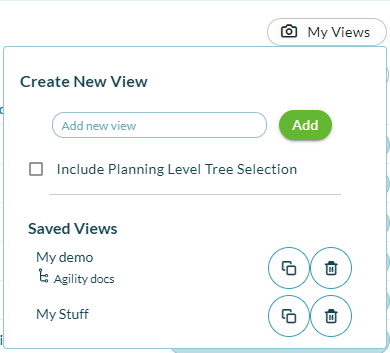
My Views dropdown showing saved view options

Add a view

  1. Navigate to any grid (e.g., Product > Backlog from the hamburger menu).
  2. Configure your desired view:
    • Apply filters to narrow the item list
    • Show/hide columns as needed
    • Set sorting preferences
    • Adjust items per page
  3. Click the My Views button at the top of the grid.
  4. In the Create New View section, enter a name in the text field.
  5. (Optional) Select Include Project Tree Selection to save the current project scope.
  6. Click Add.

The view is now available in your Saved Views list for quick access.

Delete a view

  1. Click the My Views button.
  2. In the Saved Views list, click the trash icon next to the view you want to remove.

Update a view

You cannot directly update or rename an existing view. Instead, modify the view and save it as new:

  1. Select the view you want to update from the Saved Views list.
  2. Make your changes (filters, columns, sorting, etc.).
  3. Click the My Views button.
  4. In the Create New View section, enter a new name (or use the same name with a version number).
  5. Click Add.
  6. Delete the old view using the trash icon if no longer needed.

Share a view

Share your view configuration with other users via URL:

  1. Click the My Views button.
  2. In the Saved Views list, click the copy icon next to the view.
  3. Share the copied URL with colleagues.

Recipients can use the URL to see your filter and column configuration, then save their own version if desired.

Common Use Cases

Daily work focus view

A developer creates a My View called "My Active Work" to streamline their daily routine. They configure the Product Backlog grid with filters (Owner equals their name, Status equals "In Progress" or "Ready for Dev"), add columns (Story, Estimate, Iteration, To Do), make the To Do column editable for quick updates, and select "Include Project Tree Selection" to save the correct project context. Every morning, they select "My Active Work" from their Saved Views list, and their personalized work queue loads instantly without reconfiguring filters or columns.

Iteration planning recurring view

A Scrum Master facilitates iteration planning every two weeks and needs the same grid configuration each time. They create a My View called "Iteration Planning" with filters (Iteration equals Current, Status not equals Closed), columns (Story, Priority, Estimate, Owner, Tasks, Tests), sort by Priority descending, and set 50 items per page to see the full backlog. During every iteration planning meeting, they load this view in seconds, eliminating setup time and ensuring consistent planning sessions.

Team performance reporting view

A manager creates a My View called "Team Performance" for weekly status reports. They configure the grid with filters (Team equals "Team A", Iteration equals Current), add columns (Owner, Story Count, Total Estimate, Completed, To Do), sort by Owner, and set 100 items per page. Every Friday, they open this view, export to Excel, and generate stakeholder reports showing individual and team progress without manual configuration.

Frequently Asked Questions

How is My Views different from Custom Filters?

My Views saves your complete grid configuration including filters, visible columns, editable columns, sorting, items per page, and optionally the Context Navigator selection. Custom Filters (managed on the My Filters page) saves only filter criteria without column settings. Use My Views for complete workspace configurations, Custom Filters for reusable filter-only sets.

Can I rename an existing My View?

No, you cannot directly rename a My View. To change a view name, open the view, make any updates if needed, save it with the new name, then delete the old view. This two-step process (create new, delete old) effectively renames your view.

Why do my views not appear for my colleague?

My Views are personal and private to your account. Other users cannot see or access your saved views. To share your configuration with colleagues, click the copy icon next to the view to generate a shareable URL. Colleagues can open the URL to see your configuration, then save their own My View if they want to reuse it.

What happens to my views if I leave the company?

My Views are tied to your user account. If your account is deactivated or deleted, your saved views are lost. There is no way to transfer views to another user or export them for backup. Consider documenting important view configurations or sharing URLs with your team before account deactivation.

Can I set a default view that opens automatically?

No, Agility does not support setting a default My View that opens automatically when you navigate to a page. You must manually select your desired view from the My Views dropdown each time you visit a page. Bookmark the shareable URL of your most-used view for faster access.