Use Filters
Filters help you narrow the list of work items displayed in grids and boards, allowing you to focus on specific criteria such as priority, status, owner, or team. Apply filters to find relevant work items quickly and save custom filter configurations for repeated use.
Who uses filters
All users apply filters to focus on relevant work:
- Team members: Filter by owner to see assigned work or by status to track progress
- Product owners: Filter by priority and sprint to manage backlog grooming
- Scrum masters: Filter by team and status to facilitate standups and remove blockers
- Portfolio managers: Filter by program and release to track strategic initiatives
Saved filters: Use My Views to save filter configurations for repeated use. Filters are personal and do not affect other users' views.
Apply filters across planning pages
Filters are available in both grid and board views across key planning pages:
- Portfolio pages: Portfolio Kanban, Portfolio Tree, Roadmap
- Product Backlog: Stories, defects, backlog items
- Release pages: Release backlog and planning views
- Sprint pages: Sprint backlog, Storyboard, Taskboard, Testboard
- Reports: Filter report data by various criteria
Filters work consistently across these views, allowing you to apply the same filtering logic whether you're planning at the portfolio level or executing at the sprint level.
Filter by field type
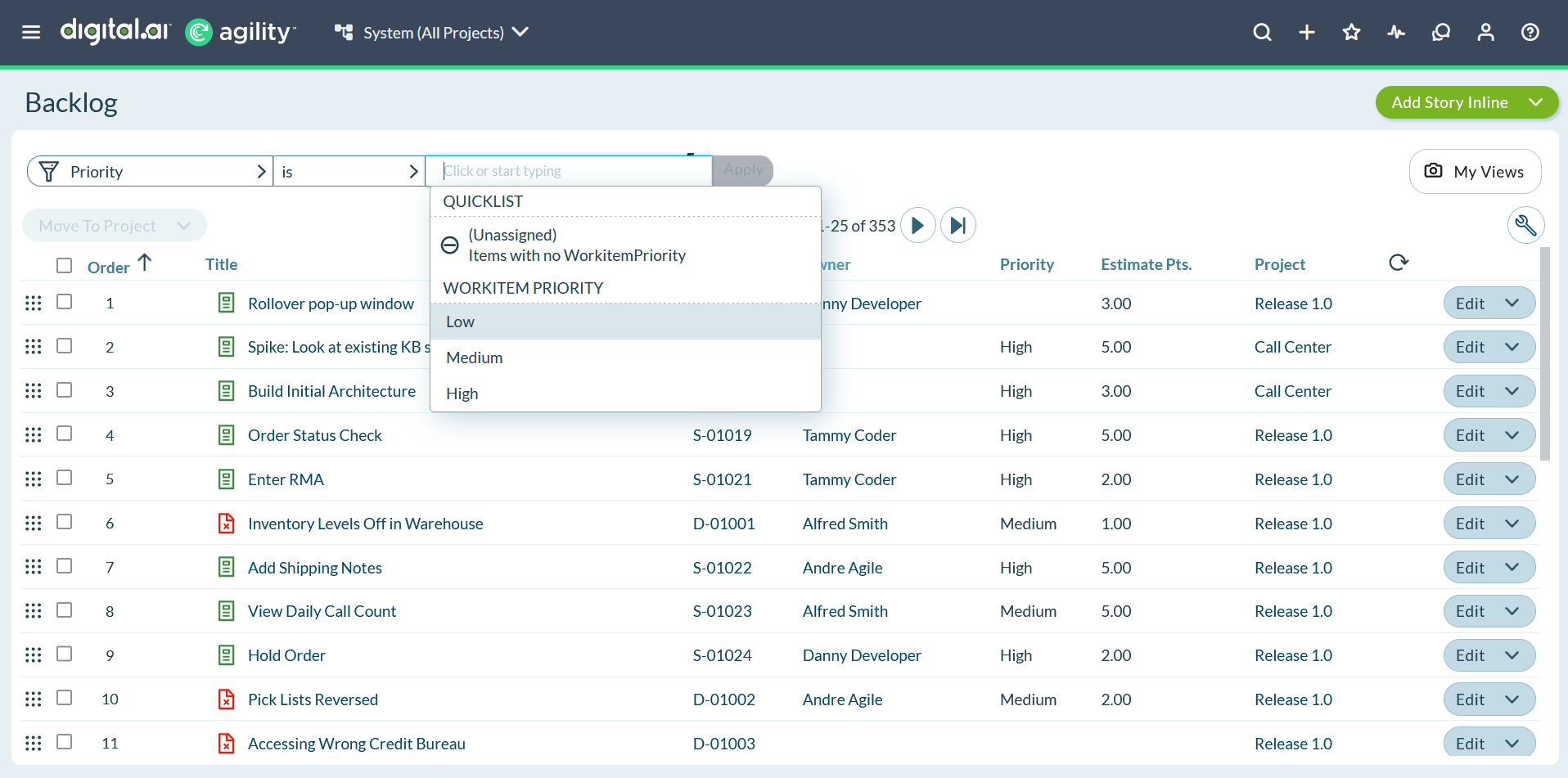
Apply filters to different field types using appropriate operators:
- Text fields: Partial matches or exact values
- Dropdown lists: Select one or multiple values
- Checkboxes: Filter by true/false values
- Number fields: Operators include equals, less than, greater than
- Date fields: Operators include equals, before, after, between
- Owner and Team fields: Select multiple owners or teams
Combine multiple filter criteria to narrow results precisely:
- Select multiple values within a single field (for example, filter by Owner A or Owner B)
- Add multiple fields to create AND conditions (for example, Priority equals High and Status equals In Progress)
- Use keyboard shortcut
CTRL+SHIFT+Fto quickly open filter options - Press
Enterwhile typing in the Find field to apply the search
Understand filter scope
Filters apply at the top level of the project hierarchy. When you filter a view:
- The filter applies to all visible items in the current context
- Tree grids display the active filters
- Child projects inherit the filter settings
This hierarchical filtering ensures that you see consistent results across your project structure while maintaining the ability to drill down into specific areas.
Save filters as My Views
If you regularly use the same filter combinations, save them as My Views for quick access. My Views preserve your filter settings along with column configurations and sorting preferences. This feature eliminates the need to repeatedly configure the same filters, improving your workflow efficiency.
For more information, see My Views.
Common Use Cases
Prepare for daily standup
A developer prepares for the daily standup meeting by opening the Product Backlog grid and applying two filters: Owner equals their name, and Status equals "In Progress". The grid displays five active items they are currently working on. They quickly review the list, identify one blocked item needing discussion, and mentally prepare their standup update in under two minutes.
Assess release risk
One week before the Release 3.0 deadline, a Product Owner applies three filters to the Product Backlog: Release equals "3.0", Priority equals "High", and Status not equals "Done". The grid reveals eight high-priority incomplete stories. The Product Owner realizes the release is at risk, schedules an emergency planning meeting to reduce scope, and reprioritizes the remaining work to ensure critical features ship on time.
Focus test execution
A QA engineer starts their testing day by opening the Testboard and applying filters: Owner equals their name, Status equals "Ready to Test". The filtered view shows 12 tests ready for execution. They work through the list systematically, updating test status as they complete each one. The filters eliminate distractions from tests not yet ready or already completed, maintaining focus throughout the testing session.
Frequently Asked Questions
Can I save filter combinations for reuse?
Yes, use My Views to save complete filter combinations along with column settings and sorting preferences. My Views appear in a dropdown menu for instant access. Alternatively, use Custom Filters (managed on the My Filters page) to save and reuse filter-only configurations across different grids.
Why do I not see items I know exist?
Check your active filters at the top of the grid. Items may be filtered out based on criteria like status, owner, sprint, or project. Click "Clear All Filters" to remove all filters and see the complete dataset. Also verify your Context Navigator selection shows the correct project.
Can I filter by multiple owners at once?
Yes, when filtering by Owner or Team fields, you can select multiple values to show items assigned to any of the selected people. This creates an OR condition (Owner A OR Owner B), allowing you to view work for multiple team members simultaneously.
Do filters affect Context Navigator?
No, filters and Context Navigator are independent controls. Context Navigator determines which project or planning level data you see, while filters narrow that data based on field criteria. Use both together: Context Navigator for project scope, filters for field-based refinement.
Can I search within filtered results?
Yes, combine filters with the Find field for powerful data refinement. First apply field-based filters (status, priority, owner), then use the Find field to search for specific text within the filtered results. Both work together to help you locate exactly what you need.
Why did my filters disappear when I navigated away?
Filters are temporary unless saved as a My View. When you navigate to a different page or log out, filter settings reset to defaults. To preserve your filter configuration, save it as a My View before leaving the page. My Views retain all settings for instant reapplication.
Related Topics
- Apply filters to grids: Step-by-step filtering instructions
- Manage custom filters: Create and organize saved filters
- My Views: Save complete grid configurations
- Use grids: Grid basics and capabilities
- Clear filters: Remove active filters