Apply Filters to Grids
Filters focus views on specific work items and relevant data subsets in grids, narrowing or expanding the information displayed to show exactly what's needed.
Who applies filters: All users apply filters to focus on relevant data. Filters are personal and do not affect other users' views. Save frequently used filter combinations as My Views for quick access.
Filter Capabilities
Filters provide the following capabilities:
- Narrow down large datasets to focus on specific items
- Expand views to include additional data when needed
- Apply multiple filters simultaneously for precise data selection
- Clear individual filters or reset all filters to defaults
- Work with filtered data across different grid views
How filters work
Filter display and scope
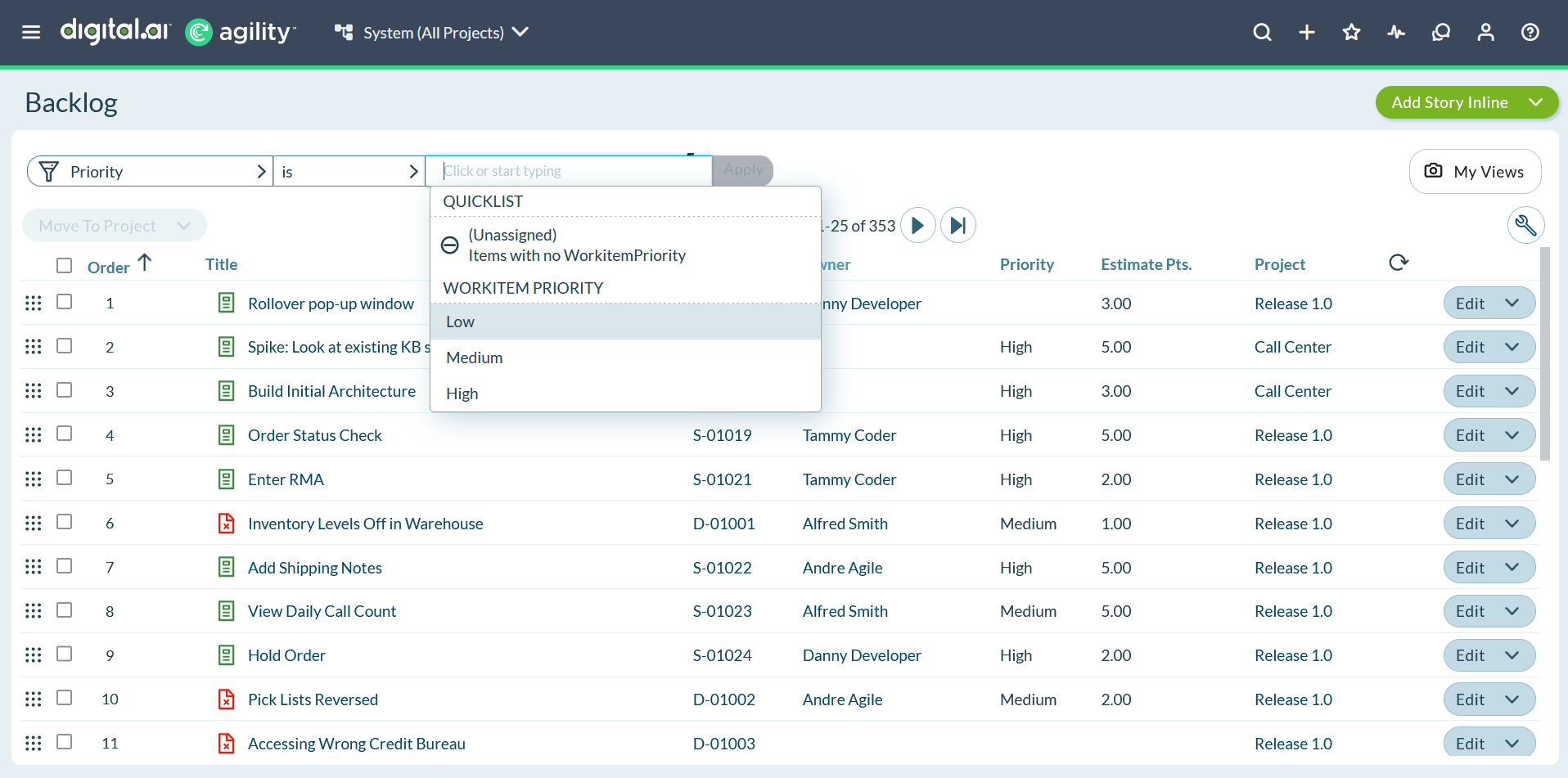
- Filter location: Filters appear at the top of each grid or report
- Hierarchy impact: Filters apply at the top level of the project hierarchy
- Tree grid visibility: Applied filters display in tree grid views
- View persistence: Filter settings remain active as you navigate
Filter behavior
- Data subset focus: View only items matching your selected criteria
- Multiple filter support: Combine multiple filters for precise results
- Real-time application: Filters update the grid immediately when applied
- Context awareness: Available filter options depend on your current view
Apply filters to grids
Focus your grid view by selecting and applying relevant filters.
How to apply filters
- Select a project from the Project Navigator.
- Click or start typing in the filter field at the top of the grid.
- Select from the available filter options that appear.
- Repeat to add additional filters as needed.
- Click Apply to activate all selected filters.
Filter selection tips
- Type-ahead support: Start typing to quickly find specific filter options
- Multiple selection: Add as many filters as needed to get the right data view
- Immediate feedback: See available options change as you type
- Context-sensitive: Filter options vary based on the type of data in your grid
Clear filters
Remove filters to expand your view or start fresh with different criteria.
Clear individual filters
- Click the - symbol next to any filter name to remove just that filter
- Other filters remain active
- Grid updates immediately to show additional items
Clear all filters
- Click Clear All Filters in the top right corner of the grid
- Removes all applied filters at once
- Restores the default, unfiltered view of your data
- Useful for starting over with a clean slate
When to clear filters
- Expand your view: When you need to see more items than currently displayed
- Different focus: When switching to analyze different aspects of your data
- Troubleshooting: When you're not seeing expected items (they might be filtered out)
- Fresh start: When you want to begin with the complete dataset
Filter management best practices
Effective filtering strategies
- Start broad, then narrow: Begin with fewer filters, then add more specific ones
- Layer filters logically: Apply filters in order of importance or scope
- Test combinations: Try different filter combinations to find the most useful views
- Clear when done: Remove filters when switching tasks to avoid confusion
Common filter use cases
- Sprint focus: Filter by current sprint to see only active work
- Team assignments: Show only items assigned to specific team members
- Status tracking: Display items in particular workflow states
- Priority management: Focus on high-priority items requiring attention
Related topics
- Grid Basics - Essential grid operations and navigation
- Change Your Grid View - Customize columns and display options
- Export Grid Data - Export filtered data to external tools
- Using Filters in Digital.ai Agility - Comprehensive filter functionality
- Managing Custom Filters on the My Filters Page - Save and manage filter sets
- Using Grids - Overview of grid functionality
- Selecting Data Using the Context Navigator - Alternative data selection methods
- Applying Filters to Report - Filter reports and analytics