Select Data Using the Context Navigator
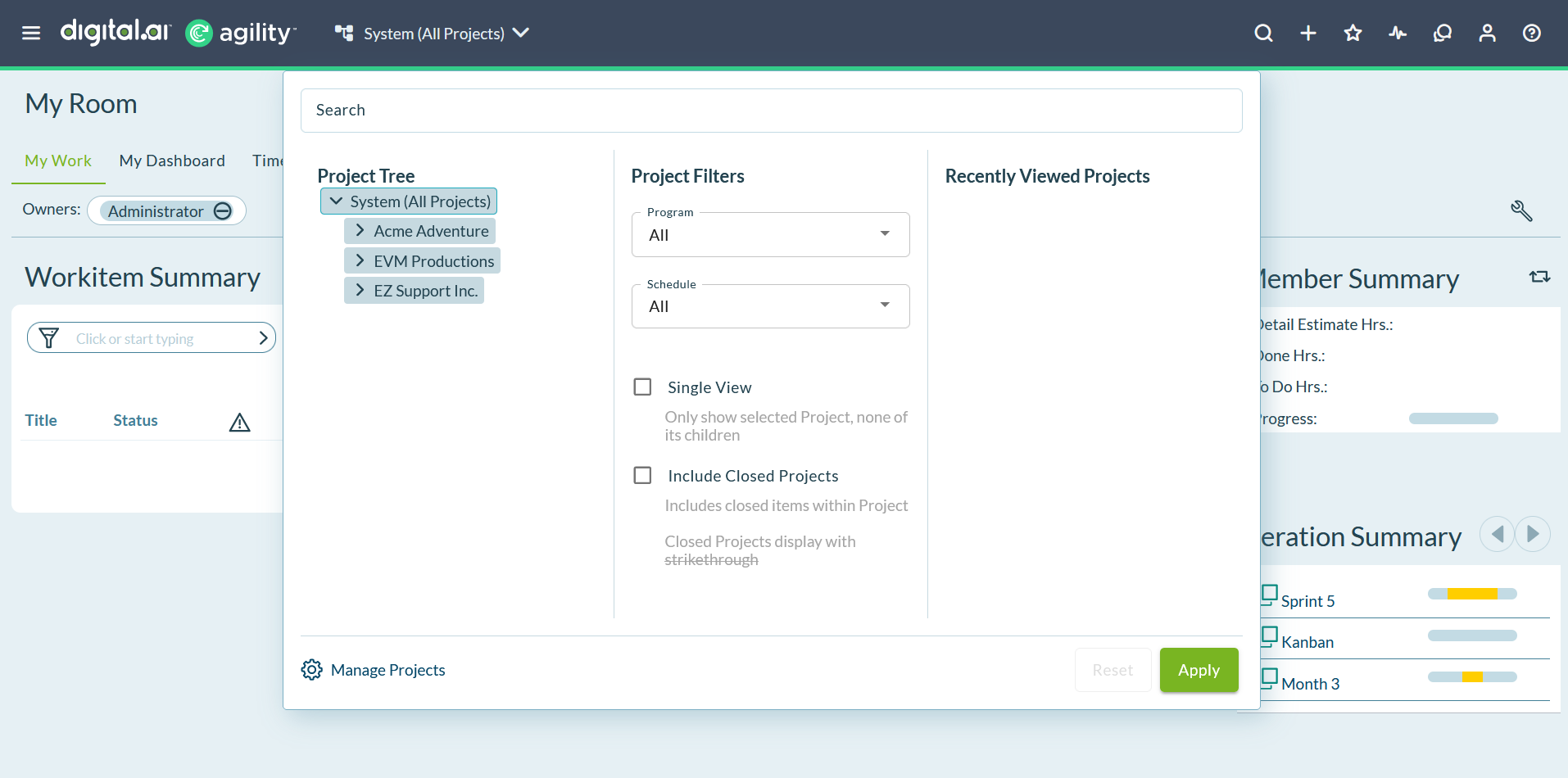
The Context Navigator (also called Planning Level Selector, Project Selector, or Project Navigator) selects planning levels containing data for grids, boards, visualizations, and reports. This control does not determine data for TeamRooms or PlanningRooms.
:::note Terminology The Context Navigator helps you navigate the "planning level tree," which is the hierarchical structure of your products, releases, and projects. Some older documentation may refer to this as "project tree," but both terms describe the same organizational hierarchy.
In Agility, "project" and "release" are used interchangeably to represent nodes in the planning level tree. A project (also called a release) comprises a set of activities that must be completed over a defined period of time. :::
Understanding the planning level tree
Organizations use the planning level tree to organize related work (releases, sprints, backlog items) for delivery over time. The Context Navigator provides access to this hierarchical structure of projects, releases, and teams.
Context Navigator capabilities
- Select a planning level (product, release, or project)
- Apply filters to focus on a subset of levels in a selected planning level
- View the entire planning level hierarchy
- Navigate between recently viewed contexts
When to use Context Navigator
Use Context Navigator when you need to:
- Focus on specific work - View backlog items, reports, or boards for a particular release or team
- Aggregate data - Roll up metrics and reports across multiple teams or projects
- Switch contexts quickly - Move between different projects you work on
- Troubleshoot data visibility - Verify which planning level is currently selected when data appears missing
Important: Context Navigator selection only affects grids, boards, visualizations, and reports. It does not change data scope for TeamRooms or PlanningRooms.
Permission note: You can only see and work in projects where you are a member. Contact your administrator to request access to additional projects.
Access the Context Navigator
Planning levels in Agility are organized hierarchically, and by default data rolls up through the hierarchy. Context Navigator allows you to navigate this hierarchy and select the planning level(s) containing the information you need.
The Context Navigator control appears in the top left of most pages. When closed, it displays the currently selected planning level and any applied filters. When you change context, you remain on the same page and the data refreshes for the selected context.
To open the Context Navigator:
- Locate the Context Navigator control in the top left corner of the page
- Click the control to open the Context Navigator dialog
- The dialog shows two tabs: Tree and Recent
Use the Tree tab
The Tree tab shows planning levels available to you and is divided into two sections: Hierarchy and Filters.
Navigate the hierarchy
The left side shows a hierarchical view of planning levels available to you.
- Expand the tree to view planning levels.
- Click the name of the node you want to view.
- The tree highlights the complete context being considered.
Apply filters
The right side of the Tree tab provides filters to refine the data displayed:
- Single View - Show only the selected level without rolling up data from child planning levels. Use this to isolate work at a specific level
- Include Closed Planning Levels - Include closed planning levels in results. Useful for historical reporting or viewing archived projects
- Program - Filter by program to see only planning levels associated with a specific program
- Schedule or Cadence - Filter by schedule to align with specific sprint cadences or release schedules
Tip: Combine filters to create precise data views. For example, select a program and enable "Single View" to see only work directly assigned to that program without team-level rollup.
Use the Recent tab
The Recent tab shows recently selected contexts and allows you to search for planning levels by name. This tab provides the fastest way to switch between planning levels you frequently access.

Features:
- Search box - Type to locate planning levels by name. Search matches partial names and is case-insensitive
- Recent list - Displays your most recently selected contexts. Each entry shows the planning level name plus any filters that were applied
- Quick switching - Click any recent entry to immediately apply that context
Tip: The Recent tab remembers both the planning level and the filters you applied, making it easy to return to complex filtered views without reconfiguring them.
Select a planning level
Choose one of these methods to select a planning level:
Method 1: Use the Tree tab
- Click the Context Navigator control at the top of any page
- Click the Tree tab
- Expand the hierarchy to locate your desired planning level
- Click the planning level name to select it
- (Optional) Apply filters on the right side to refine your selection
- Click Apply
Method 2: Use the Recent tab
- Click the Context Navigator control at the top of any page
- Click the Recent tab
- Select a planning level from your recent selections, or use the search box to find a specific planning level
- Click Apply
The selected planning level displays in the Context Navigator control, and the current page refreshes to show data for that context.
System (All Projects)
System (All Projects) is the root node of the planning level tree, created during installation. If you have access to multiple child planning levels but not their parent, "System (All Projects)" displays as a virtual container so you can navigate to your accessible planning levels.
Best practice: Create all projects under System (All Projects) to retain flexibility for future reorganization.
Permission note: Only the Admin user account has a role assigned to System (All Projects) by default. Administrator permissions alone do not grant access; you need an explicit role assignment. Contact your system administrator to request access.

Example Scenario
If you have access to Project A and Project C, but not "Company":
Company (no access)
├── Project A (access)
├── Project B (no access)
├── Project C (access)
└── Project D (no access)
The Context Navigator shows:
System (All Projects)
├── Project A
└── Project C
Grant Access (Administrators Only)
Administrators can assign roles through Admin > Members (single user) or Admin > Projects > Member Roles (multiple users).
Common Use Cases
Manage multiple releases as product owner
A Product Owner managing multiple releases selects Release 2.5 from the Tree tab and enables "Single View" to exclude child projects. The Product Backlog grid shows only Release 2.5 stories for focused prioritization.
Report on program velocity
A Portfolio Manager selects Program X from the Tree tab and leaves "Single View" unchecked. The Reports page displays aggregated velocity data rolling up from all teams in the program.
Troubleshoot missing work items
A Scrum Master discovers the Context Navigator is set to the wrong project when a developer reports missing stories. Selecting the correct team project from the Recent tab immediately displays the missing work items.
Frequently Asked Questions
Why don't I see my work items in the grid?
The most common cause is incorrect Context Navigator selection. Check the Context Navigator control at the top left of the page to verify you have the correct project or planning level selected. Your data may exist in a different project than currently selected.
What is the difference between selecting a node with and without "Single View"?
Without "Single View", data rolls up from child planning levels. With "Single View", you see only data directly associated with the selected node, excluding children.
Does Context Navigator selection affect My Room or TeamRooms?
No. Context Navigator only affects grids, boards, visualizations, and reports.
If I select a Program, do I see all team-level work items?
Yes, if "Single View" is unchecked. Data rolls up from all teams, releases, and projects beneath the Program node.
How do I view data across multiple unrelated projects?
Use reporting features that support multi-project selection, or reorganize your hierarchy to group related projects under a common parent.
Why does my colleague see different data than me on the same page?
Each user maintains their own Context Navigator selection independently. Share your selection to align views.
Can I save my Context Navigator selection?
Yes, your most recent selections appear in the Recent tab for quick access. Additionally, if you save a My View that includes "Include Project Tree Selection", the Context Navigator setting is saved as part of that view.
Related Topics
- Basic Navigation - Quick orientation to navigation tools
- Agility User Interface - Complete interface overview
- Use the Hamburger Menu - Main navigation reference
- Use the Header Toolbar - Quick access tools
- Manage Projects and Releases - Project organization
- Design Your Project Hierarchy - Plan your project structure
- Apply Filters to Grids - Filter grid data
- Programs - Cross-cutting project groupings