Sprint Scheduling
Sprint Scheduling displays sprint details, schedules, and team work allocation across current and closed sprints.
Sprints are also called Iterations. These terms are used interchangeably throughout Digital.ai Agility.
Overview
Sprint Scheduling is the first step in the sprint planning process. The team selects work from the prioritized backlog and determines how much to schedule in each sprint using historical velocity as a guide.
The Sprint Scheduling page displays sprint details and schedules for individual teams or across all teams for a project:
- Sprint start and end dates
- Cumulative estimate for each sprint with progress bars for active sprints
- Number of stories and defects with their estimates
Closed sprints and their details are viewable by selecting "Show Closed". Only the most recent six closed sprints display in the Summary list. To view all closed sprints, see Viewing closed sprints from the project's Details page.
Add Stories to Sprints
Add backlog items to sprints directly from the Sprint Scheduling page.
- Click the hamburger menu
 > Iteration (or Sprint) > Iteration Scheduling (or Sprint Scheduling).
 - Select a sprint or iteration on the left.
- Choose one of the following:
- Select Add Story Inline or Add Story, enter the required information, and click Save.
- Scroll to the Backlog grid at the bottom of the page, select an item, and drag it into the sprint grid at the top.
- To schedule multiple items, select the checkbox next to each item, and click Move to Sprint. When the Sprint Assignment window opens, select a sprint, and click Move.
Expand any sprint container to view backlog within it. After an item is scheduled, it is removed from the Backlog grid. If a sprint schedule does not exist, create one using the steps below.
Create Sprint Schedules
Create new sprint schedules to define sprint timing and cadence.
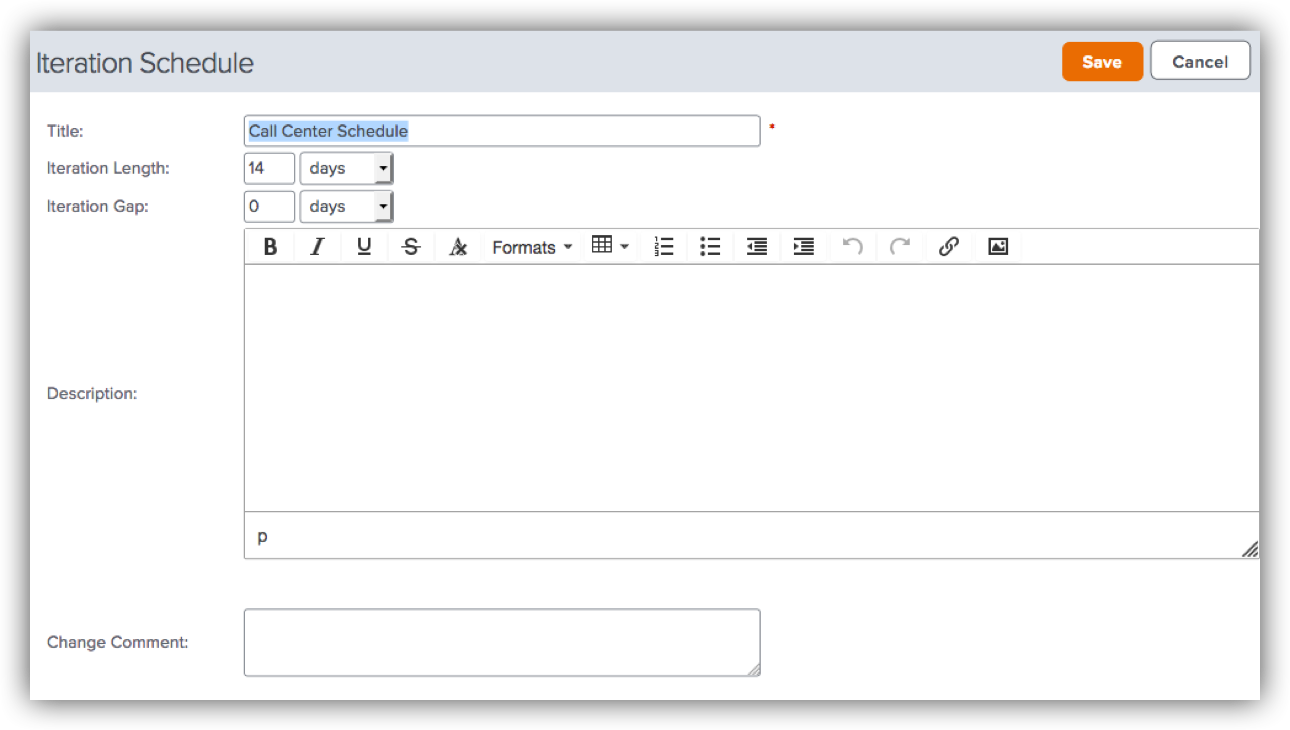
- Click the hamburger menu > Admin > Projects > Sprint Schedules.
- Click Add Iteration Schedule.
- Enter the details in the appropriate fields and click Save.
Edit Sprint Schedules
Edit existing sprint schedules to adjust dates or cadence.
Before You Begin
- You must have Project Administration rights on the project.
- The project cannot have any existing scheduled backlog in any sprint or iteration.
Steps
- Click the hamburger menu > Admin > Sprint Schedules (or Iteration Schedules).
- Modify the iteration schedule as needed and click Save.
Common Scenarios
Review Team Capacity Across Sprints
A scrum master opens Sprint Scheduling to view active sprints. The page displays Sprint 22 (current), Sprint 23 (starting in 5 days), and Sprint 24 (starting in 12 days) with start/end dates, cumulative estimates, and story counts. Sprint 22's progress bar shows 18 of 32 points complete (56% done). The scrum master drags stories from the backlog into Sprint 24, targeting the team's average velocity of 30 points per sprint.
Compare Schedules Across Multiple Teams
A product owner selects "All Teams" to view sprint schedules across three teams. Team A has 35 points in Sprint 15, Team B has 28 points, and Team C has 42 points. Team C's average velocity is 35 points, indicating overcommitment. The product owner meets with Team C's scrum master to move 8 points of lower-priority work to Sprint 16.
Analyze Historical Velocity
A team lead clicks "Show Closed" to view the six most recent closed sprints with cumulative estimates: Sprint 16 (30 points), Sprint 17 (28 points), Sprint 18 (35 points), Sprint 19 (32 points), Sprint 20 (30 points), and Sprint 21 (33 points). The average of 31.3 points per sprint helps set realistic commitments for upcoming sprints.
Frequently Asked Questions
What's the difference between Sprint Scheduling and Team Scheduling?
Sprint Scheduling displays high-level sprint summary information (start/end dates, cumulative estimates, story counts, progress bars). It provides quick visibility into sprint health and capacity. Team Scheduling is the detailed planning page where you drag-and-drop specific backlog items, assign work to team members, and allocate capacity at the task level. Use Sprint Scheduling for overview and monitoring; use Team Scheduling for detailed sprint planning.
Why does Sprint Scheduling show only six closed sprints?
Sprint Scheduling limits display to the six most recent closed sprints for page performance. Six closed sprints (typically 12-18 weeks of history) provide sufficient context for velocity trends. To view complete sprint history, navigate to the project's Details page where all closed sprints are accessible.
How do I see sprint details for a specific team?
Use the context navigator to select a specific team from the project hierarchy. The Sprint Scheduling page displays only that team's sprints. To view all teams' sprints, select the project level in the context navigator.
What does the progress bar show?
The progress bar for active sprints shows the ratio of completed estimate to total planned estimate. For example, if Sprint 20 has 32 points planned and 18 points marked "Done" or "Accepted", the progress bar displays 56% complete. A sprint nearing its end date with low progress signals risk and may trigger discussions about scope adjustment or impediments.
Why can't I edit sprint schedules?
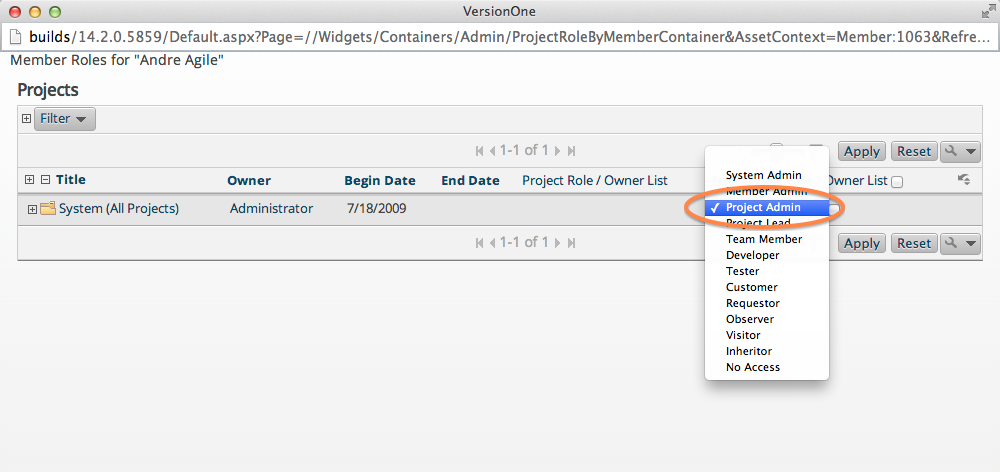
Sprint schedules are system assets and your Admin Privileges role determines whether you can manage them. To edit sprint schedules, both your Admin Privileges role and your Project Role must be set to "Project Admin" or higher.
If the roles are not set correctly:
- Select your avatar on the top right corner of any page.
- Change the Admin Privileges role to "Project Admin" or higher.
- For the project, change the Project Role to "Project Admin" or higher. This role change applies to the selected project and any child projects with inherited roles.