Sprint or Iteration Review
At the end of each sprint or iteration, or periodically if using Kanban, the team reviews the backlog to see what was completed and determine what work is unfinished.
Overview
The review process involves several key activities:
- Review completed and unfinished work
- Move unfinished workitems to another sprint so the team gets partial credit for work completed
- Close or move all items before closing the sprint
- Conduct a Retrospective meeting to ensure processes and norms continue to evolve positively
- Record identified issues on the Digital.ai Agility Retrospectives page and create additional stories as needed
The Sprint or Iteration Review page provides a good end-of-sprint view that shows the status of the work performed during the sprint.
First Sprint Review Checklist
Has your team finished its first sprint in Digital.ai Agility? Congratulations! This checklist helps you quickly verify four key areas to ensure you have everything ready before starting the next sprint.
TeamRoom Setup Checklist
Verify the following:
- The TeamRoom has a mascot
- The team members are visible and have an avatar
- The correct backlog is visible
How to Verify:
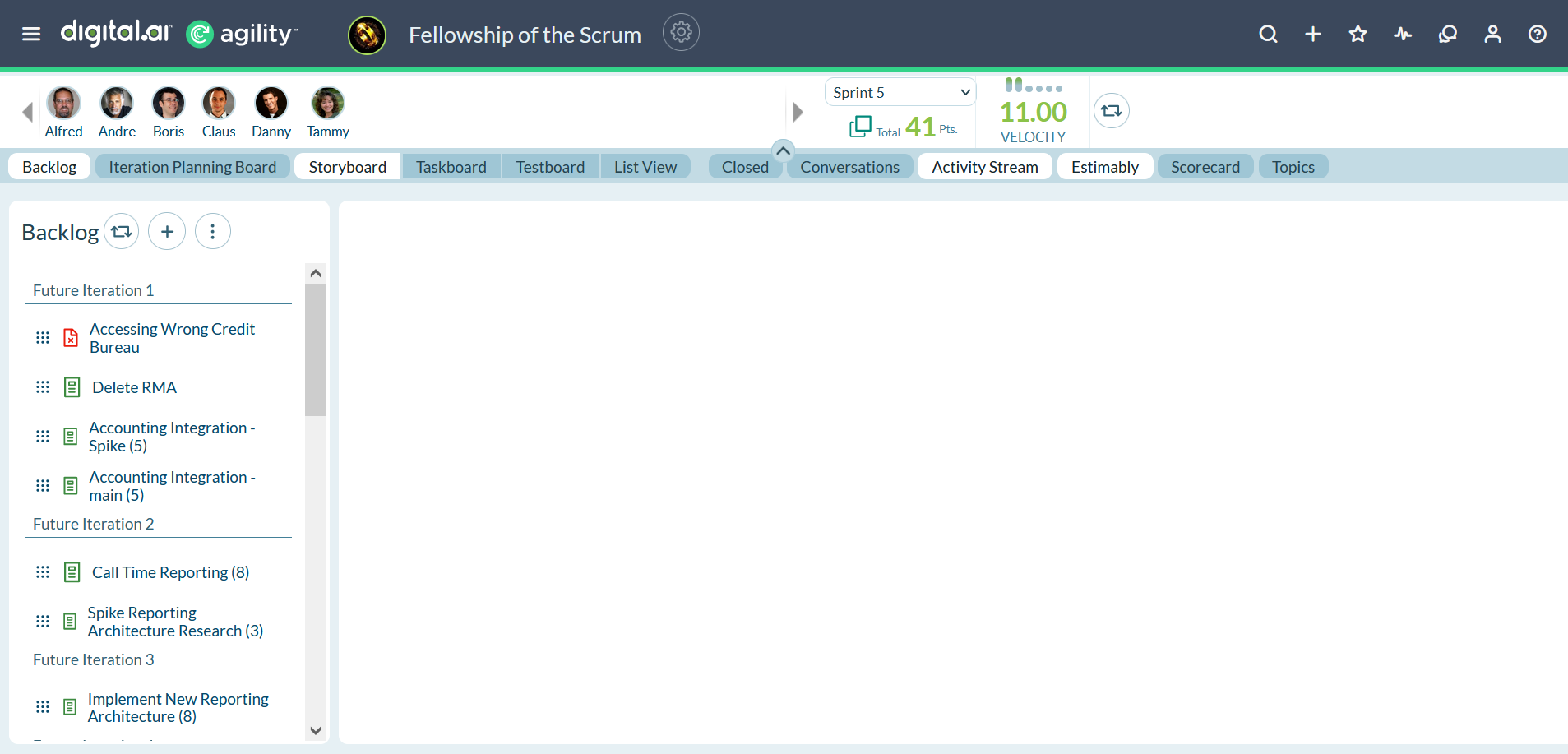
In the TeamRoom, look in the top bar to make sure the TeamRoom and all team members have an avatar. Open the Backlog panel and make sure it is the right project backlog.
Backlog Checklist
Verify the following:
- Items have an estimate
- Items are rank ordered
- Items have one or more tasks and tests
- Tasks and tests are aligned to usage plan
How to Verify:
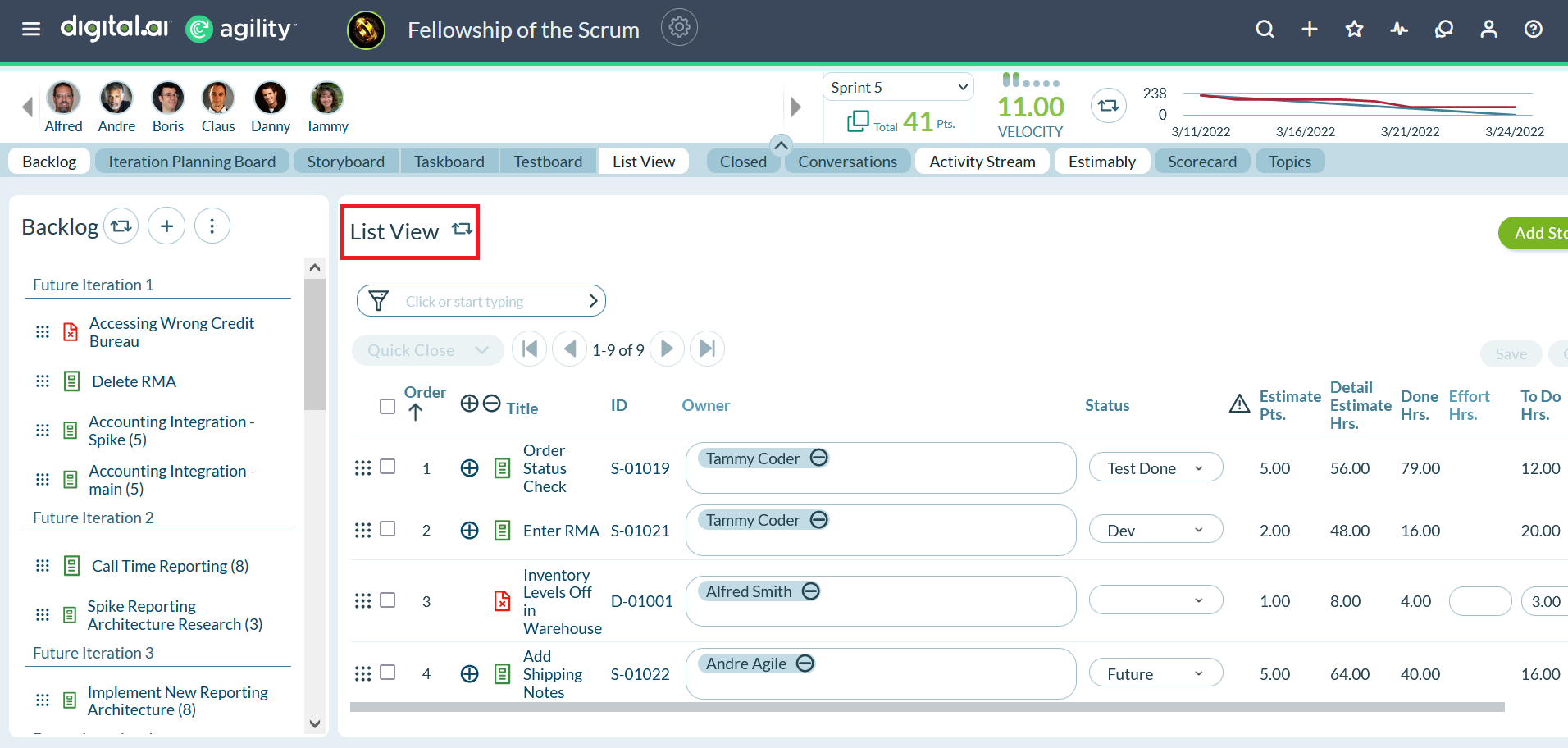
From the TeamRoom List View, click the column label to sort on Estimate to determine items without an estimate. Click the Reset Sort button to return the sort to rank. The top item should be the highest priority item. Expand All to view tasks and tests and verify they are in alignment with team's usage plan.
Tracking Work Checklist
Verify the following:
- Burndown shows task progress
- Workitem Trend shows story progress
- Workitem Trend contains no open estimate
- Detail Estimate Trend shows effort entered (optional)
How to Verify:
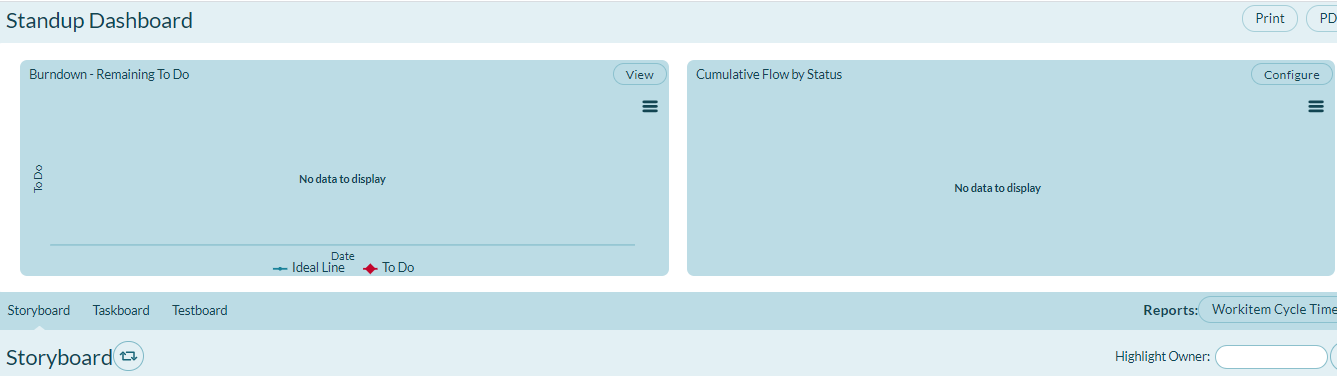
Go to Reports > Standup Dashboard for that team's sprint. Check that the report results match the team's actual progress.
Close Sprint Checklist
Verify the following:
- No open items remain in the sprint
- Incomplete Items were split
How to Verify:
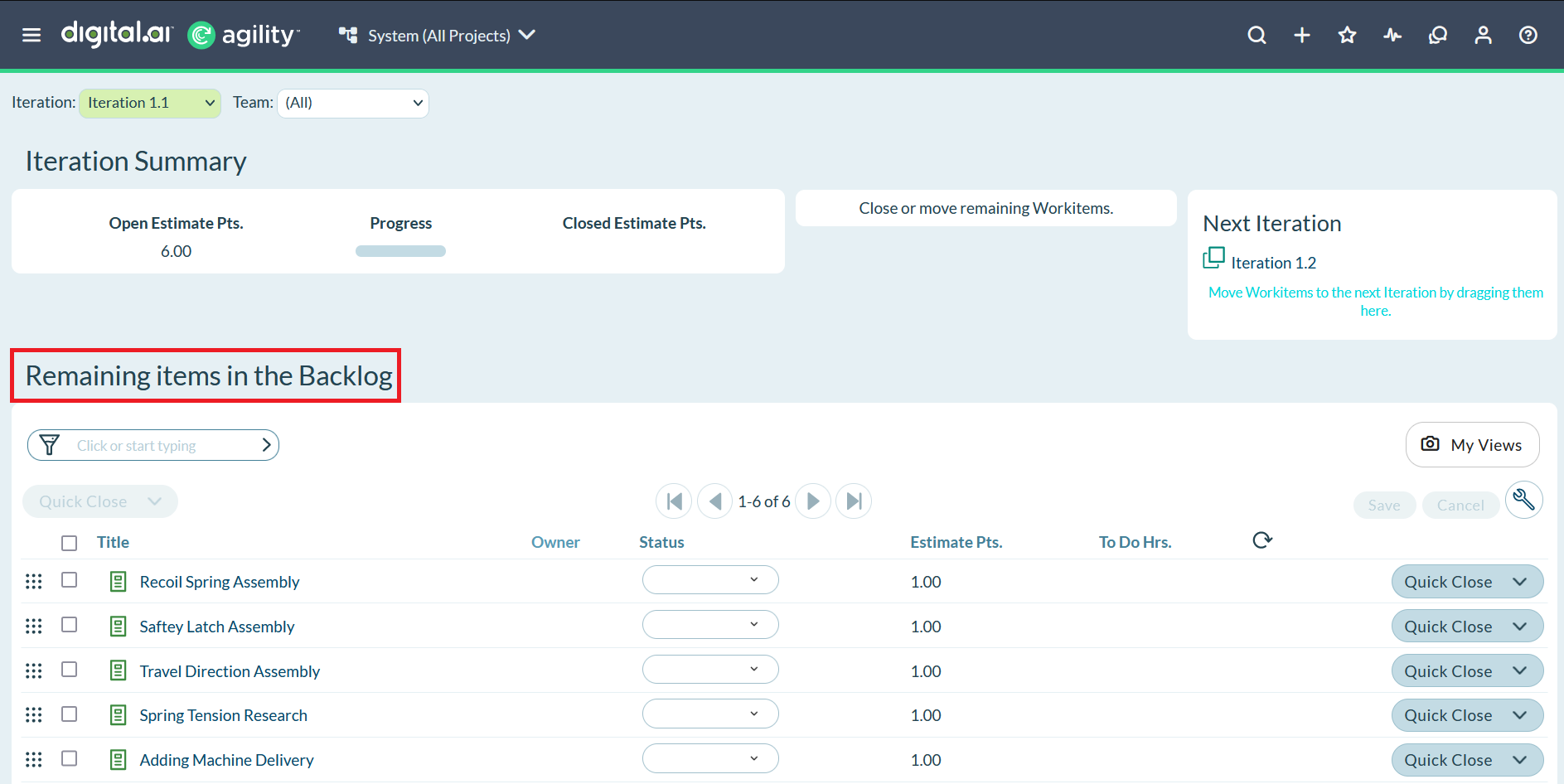
Click the hamburger menu  > Sprint > Review > Close Sprint (or Close Iteration). Check that remaining items in the backlog is empty and any started but unfinished work has a closed item that was split. Items that were split usually have an estimate of zero.
Sprint Review Reports
These Sprint or Iteration Review reports are helpful in focusing on the work performed in a sprint:
- Active Members Trend Report
- Cumulative Flow by Status Report
- Current Member Load Report
- Detail Estimate Trend Report
- Estimate Trend Report
- Estimation Accuracy Report
- Load by Sprint or Iteration Report
- Member Actuals Report
- Member Group Load Trend Report
- Member Load Trend Report
- Pipeline Run Contents Report
- Project or Release Burndown Report
- Quicklist Reports
- Sprint or Iteration Burndown Report
- Sprint or Iteration Dashboard Report
- Standup Dashboard Report
- Test Runs Report
- Test Trend Report
- Timesheet Audit Report
- Velocity Trend Report