Detail Tracking
The Detail Tracking page shows all open work in a sprint or iteration and is used to view or update time and status.
Overview
The Detail Tracking page is divided into two sections: Sprint or Iteration Summary and Backlog Grid.
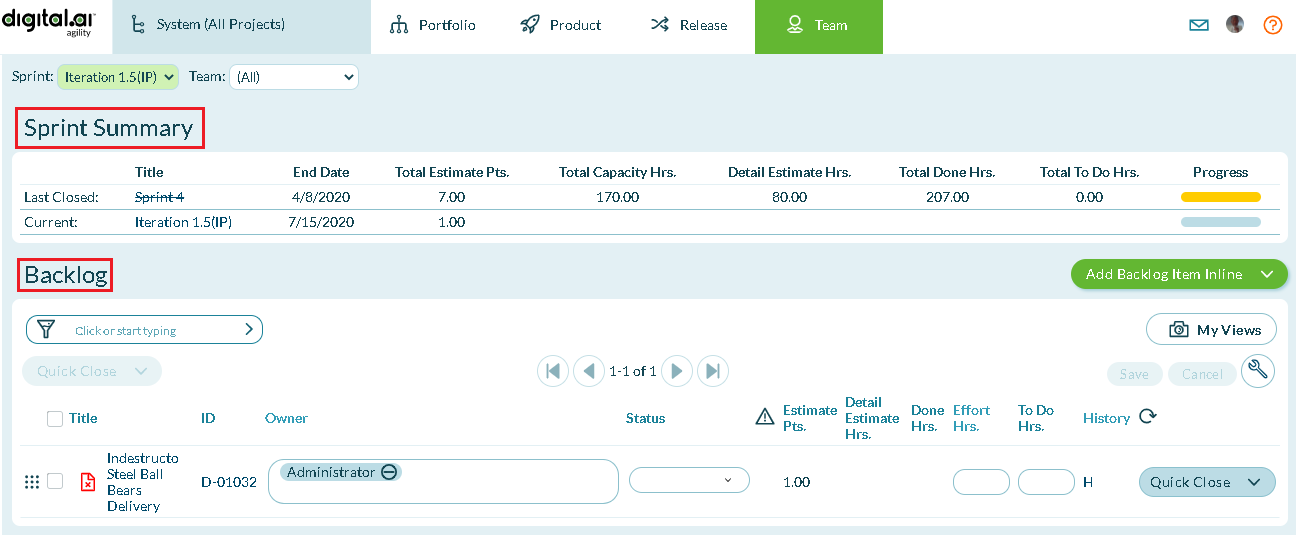
Here, you can perform the following tasks:
- Enter effort (if applicable) and remaining effort (To Do) against each workitem
- Update task, test, backlog item, or defect information as appropriate
Track Progress in the Backlog Grid
The bottom of the Detail Tracking page displays the Backlog grid. Here, you can enter Effort Hrs. (if tracked) and update the remaining To Do Hrs. estimate for each item that has changed.
Detail Estimates are also set for each task and, optionally, tests during sprint planning. These Detail Estimates are generally left as is once sprint planning is complete.
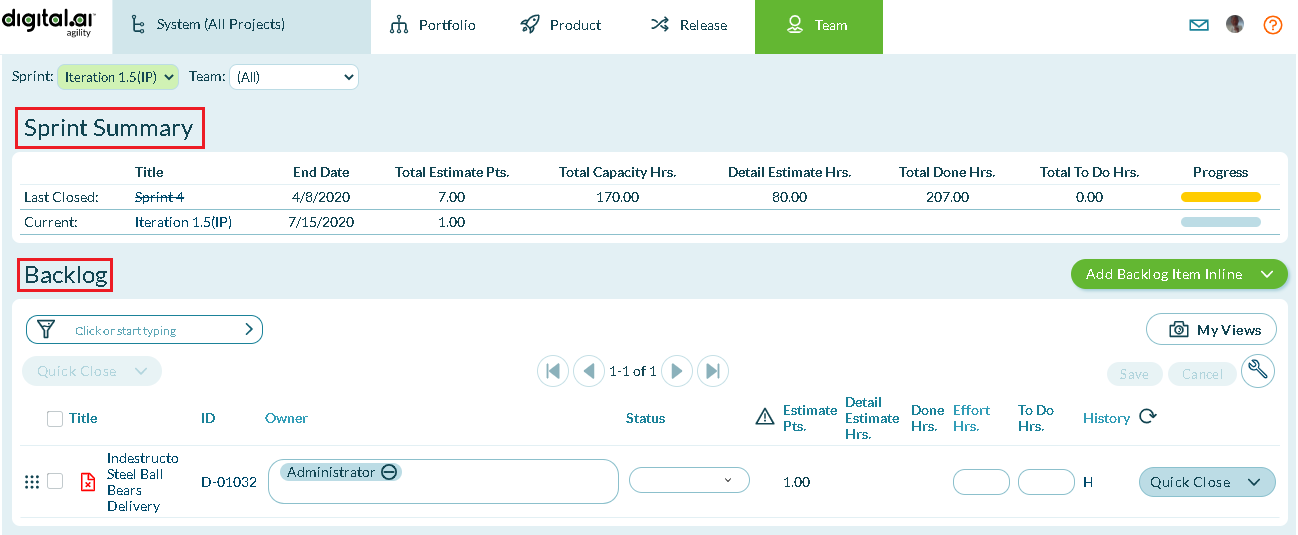
Tracking can also be done on each team member's My Home page. The My Home page provides a filtered view for each team member. As such, it is often preferred when individuals are doing their own entry.
Access the Backlog Grid
To access the Backlog Grid on the Detail Tracking page, go to the main menu and click Team > Detail Tracking.
Things You Can Do
- Update Status Values
- Update a task, test, backlog item, or defect
- Close stories and defects
- View and Modify Blocked Items
- View Item History
Checking the Include Closed Items checkbox in the filter will display tasks with zero remaining To Do values.
Understand the Sprint Summary
The Sprint or Iteration Summary section is located at the top of the Detail Tracking page. It compares the rollup values in the current sprint with that of the last closed sprint. Here, you can interpret the progress bars to see exactly where you stand. Note that rollups of Detail Estimate, Done (the accumulated Effort) and remaining To Do at the backlog item or defect level and at the sprint level include any and all amounts entered for backlog items, defects, tasks, and tests.
Access the Sprint Summary
Click the hamburger menu  > Sprint > Detail Tracking.
Update Effort and Status
The Detail Tracking page offers another place to update Status, Effort, and To Do. This is helpful for team members who might be transitioning from Microsoft Excel, as it displays the information in a similar grid format.
Update Backlog Details
- Click the hamburger menu > Sprint > Detail Tracking.
- Double-click on a row to enable editing, make changes, and click Save. To see workitems by a specific owner, you can use the Filter option.
Time entered in the system is attributed to the member logged in to the system, so it is usually easier for each team member to do their own tracking rather than trying to do it all together as a team.
Change Effort or Done Values
By default, the Detail Tracking and Member Tracking grids only allow you to add effort for yourself for the current date or time. The default setup does not allow you to enter effort for someone else or for a different date. The good news is that you can do it with a few adjustments to the columns displayed in the grid.
Why Change Effort?
You may need to change in the following situations:
- If you forgot to add effort for a past date
- If you want to assign effort to another team member
- If effort was entered incorrectly
Before You Begin
Keep these important things in mind:
- To update effort, your project role must be one of the following: System Admin, Member Admin, Project Admin, Project Lead, Team Member, Developer, or Tester
- By default, Digital.ai Agility sets the Effort and To Do in hours, but this can be updated to reflect the metric your team uses for tracking
- The Effort Quicklist report provides a detailed Effort (done) transaction listing by team member and task
Change Your Grid View
- Click the hamburger menu > Sprint > Detail Tracking or Member Tracking.
- Click on the wrench in the top-right corner of the grid and click Customize.
- In the Display column, clear the checkbox next to Effort field, and then select one of the following:
- Effort Hrs. - allows you to enter time and attribute it to the owner
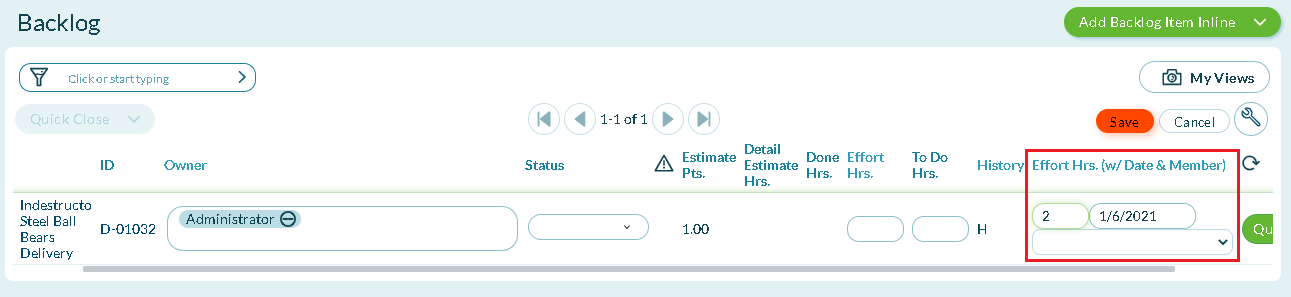
- Effort Hrs. (with Date & Member) - allows you to select both the person to attribute the time and the date on which that time was worked
- Click Save.
Enter Effort for Another Member or Choose a Date
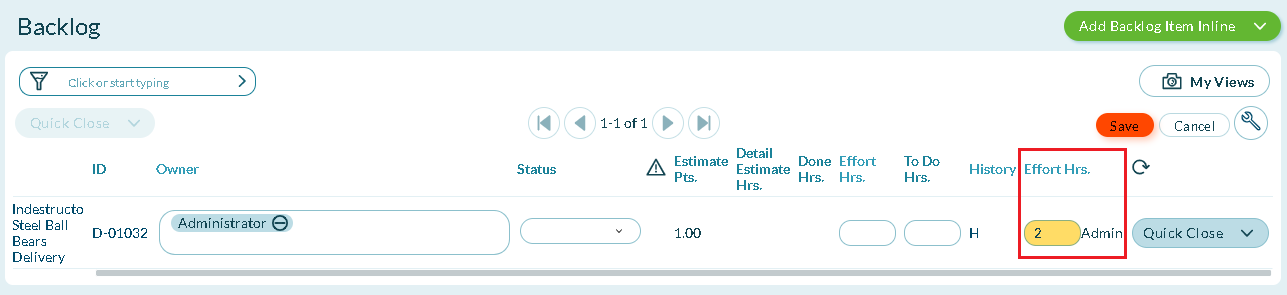
If you added the Effort Hrs. column, enter the value in the Effort Hrs. field and click Save. Note that the column name displays as Effort Hrs..
If you added the Effort (Date & Member) column, enter the effort, select a member and click Save.
You can back out an erroneous entry by entering a negative number in the Effort field.
Making any changes to effort and done could impact any billing activities. Digital.ai Agility does not support the use of these fields to track billing.
Additional Fields Related to Effort
In addition to the fields mentioned above, you can also add these fields to the grid:
- Effort (hrs)
- Effort (hrs) by Owner
- Effort (hrs) with Date & Member
- Done (hrs)
- Done (hrs) Details Only
- Done (hrs) Total
View Team Member's Allocated Time
Use the Detail Tracking page to view the time allocated to a team member.
- Click the hamburger menu > Sprint > Detail Tracking.
- Customize the grid by enabling allocated time columns.
- Click on the wrench in the top-right corner of the grid and click Customize.
- In the Display column, check the Display boxes for Allocated Detail Estimate Hrs. or Allocated To Do Hrs. columns.
- Click Save.
- With reporting, be sure to select the Allocate option if your estimates represent total work hours and not pair hours (reports allow you to allocate the Detail Estimate and To Do amounts across owners when pair hours are not being used).
Troubleshoot Total Mismatches
If the totals on the Detail Tracking page don't match the sum of the stories displayed, review these potential causes:
| Potential Cause or Resolution | Issue |
|---|---|
| All backlog items aren't displayed | Check to see if Closed items have been filtered out. Use the filter in the grid to check the Include Closed Items checkbox. Check other filters if this doesn't fix the problem. |
| Items moved to or from another sprint | Done Hrs. amounts can differ if Effort Hrs. was logged in one sprint and the item is subsequently moved to another sprint. The Total Done Hrs. in the sprint summary is a total of Effort Hrs. logged against that sprint. The Total Done Hrs. for each item in the grid shows the total Effort logged against that item, regardless of project or sprint. View the Tracking History (the 'H' link in the grid rows) to see where the Effort Hrs. was logged against a specific item. The Effort Quicklist (Reports > All Reports > Sprint Reports > Effort Quicklist) shows the details across a number of items. These views show why those two values are different. |
| Item was deleted after hours were logged to it | Prior to being deleted, an item could have had hours logged to it. That would leave the hours in the Sprint Summary without showing the details in the grid. Go to the Effort Quicklist report (Effort Tracking must be enabled) to see Effort transactions. If the effort was logged and then the item was deleted, it would still show the transaction but without the associated task. |