Plan Increment Capacity
Increment Capacity Planning displays capacity for increments, projects, and teams, helping identify bottlenecks early and optimize work schedules.
Permission requirement: Viewing increment capacity requires read access to projects, increments, and teams. Configuring capacity (setting Target Swag, Target Estimate, or Target Velocity) requires modify permissions or Project Admin role.
Who Plans Increment Capacity
Capacity planning supports realistic commitment and bottleneck identification:
- Product Owners configure increment capacity by setting Target Estimate or Target Swag for projects, then monitor capacity indicators to avoid overcommitment.
- Program Managers view capacity across multiple projects and increments to identify resource constraints and balance workload strategically.
- Scrum Masters set team Target Velocity based on historical performance, then track team capacity indicators to ensure achievable sprint commitments.
- Team Leads review team capacity details to understand workload from multiple projects and negotiate realistic increment commitments.
Increments are also called Releases. These terms are used interchangeably throughout Digital.ai Agility.
Overview
Increment Capacity Planning enhances increment scheduling activities by showing bottlenecks early and supporting commitment only to work that can be successfully completed. Increment capacity can be defined and viewed at two levels: increments/projects and teams.
Increment and Team Capacity Planning applies to all sprints in a increment. It is not the same as Sprint planning, which is done on a sprint-by-sprint basis.
Capacity planning for increments or projects
The Increment Scheduling page provides insight into an increment or project to optimize increment plans. Increment capacity details show bottlenecks early.
Enable capacity planning for increments or projects
Increment capacity details don't automatically display on the Increment Scheduling Page. To see capacity values, configure them by entering Target Swag or Target Estimate (depending on what is used for increment planning) for each increment or project. Once configured, capacity details appear in the increment progress bars and summary sections.
Increment and Project Capacity Visibility
The Increment Scheduling page provides insight into the following capacity indicators:
- The size of each increment compared to other increments
- How much progress has been made to date
- When the available capacity has been exceeded
- How much capacity remains
- If extra capacity is available to schedule new work
- The amount of time left in the increment
Enable capacity planning for increments or projects
Increment capacity details don't automatically display on the Increment Scheduling Page. To see capacity values, you must first configure them by entering Target Swag or Target Estimate (depending on what you use for increment planning) for each increment or project. Once configured, capacity details appear in the increment progress bars and summary sections.
-
Open an existing project or create a new project.
-
Click the drop-down next to the project name followed by Edit.
-
Enter dates in the Begin Date and End Date (optional) fields to display the time indicator on the increment progress bars.
-
If your increment activities are driven by:
- Estimates, enter the Target Estimate Pts. (value only). The increment progress bars will display the target estimate points only.
- Swag estimates, enter the Target Swag only. The progress bar will display the target swag values only.
-
Click Save.
- If values are entered for both Target Swag and Target Estimate Pts., the increment progress bar will only show Target Swag.
- If the entire organization only uses one of the capacity fields (either Target Estimate Pts. or Target Swag, but not both), the unused field can be turned off to reduce clutter. To remove the field, go to Administration > Display Fields. Note that this is a system-wide setting that will remove the field from all projects.
View increment capacity details for increments or projects
On the Increment Scheduling page, there are two ways to view capacity details:
- The increment progress bars show a graphical view of the target values and the relative size of the increment in relation to other increments. This enables quick scanning of the page to see where to make adjustments across increments.
- To view details, click the Assets tab.

Capacity planning for teams
With the Teams feature enabled, Increment Capacity Planning helps teams determine bottlenecks early. View team capacity details on the Increment Scheduling page.
Team Capacity Visibility
All the increment/project capacity information plus:
- Any work outside the increment that is consuming the team's time
- Each team's current load in relation to its capacity
- For component teams planning across multiple projects, the impact on capacity from work in other projects
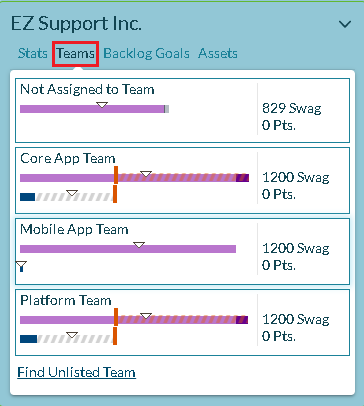
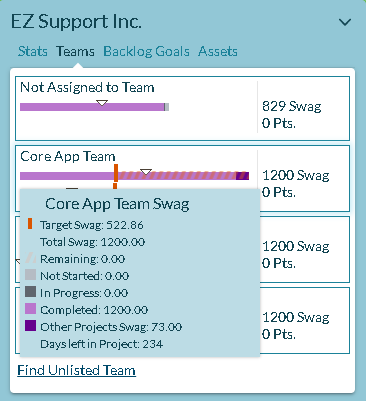
As teams negotiate and detail their workload during increment planning, the system shows each team's current load in relation to its capacity.
Enable capacity planning for teams
Team capacity details don't automatically display by default. Configure them by setting the Target Velocity for each team. The Target Velocity field is located in the Team details view and allows teams to record their typical velocity using their own recent history as a guide.
-
Click the hamburger menu
 > Admin > Teams.
 -
Click Add Team to create a new team or click the Edit button next to a team to view the team details.
-
Enter the project details as appropriate, enter the Target Velocity, and click Save.
After you enter the team's target velocity, the system automatically calculates the team's increment capacity based on the duration of the increment and the team's velocity.
When setting the team's target velocity, the team's historical velocity is available to help guide what's realistic for them. Review this information from time to time to ensure that the target set is realistic given the team's current velocity.
View team capacity details
On the Increment Scheduling page, team details can be seen in two ways:
- In the progress bars, which show a high-level graphical view of the team's target estimate.
- By clicking the Teams tab to see team-level allocations vs. team capacity.
The dark blue progress bar shows any work assigned to the team in other projects within the same timeframe. This highlights the need for multiple product owners to coordinate their relative priorities with respect to the team's workload.
Hovering over bars for an individual team will reveal the following metrics that can be used to ensure the team is not over-committed for the selected increment:
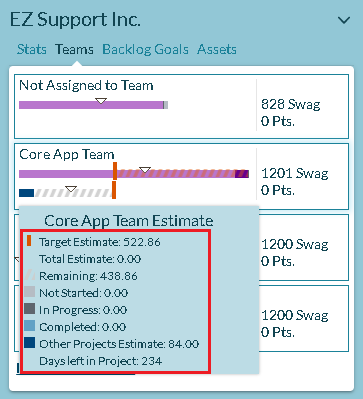
| Metric | Explanation |
|---|---|
| Closed Estimate | The total amount of completed Estimate for the selected Team in the selected Increment and any sub-increments. This number includes Backlog Items that are Closed and those that are in a Status value assigned to the Complete status. |
| Other Projects Estimate | Total remaining Estimate, assigned to the selected Team, in other Projects or Increments that have overlapping dates. This number is calculated by determining the Estimate per day in the overlapping Project or Increment and then multiplying that by the number of days the two Projects or Increments overlap. |
| Open Estimate | The total amount of remaining Estimate for the selected Team in the selected Increment. |
| Target Estimate | The amount of Estimate the Team can deliver based on the Team's Target Velocity and the amount of time in the Increment. The number is calculated by multiplying the Team Target Velocity value by the number of Target Velocity periods in the Increment. |
| Days left in Project | The total number of days remaining in the Increment. |
Use Cases
Setting Realistic Capacity Targets for a New Increment
Scenario: Product owner needs to set Target Estimate for Q1 increment based on team's historical performance.
Approach:
- Review team's velocity from past 3 increments: 120, 135, 115 points
- Calculate average velocity: (120 + 135 + 115) / 3 = 123 points
- Account for known factors:
- 2 team members taking vacation (reduce by 15%)
- New team member ramping up (reduce by 5%)
- Adjusted capacity: 123 × 0.80 = 98 points
- Set Target Estimate for Q1 increment to 95 points (conservative buffer)
- Set Begin Date and End Date for increment
- Monitor progress bars on Increment Scheduling page
Outcome: Team commits to realistic capacity target, preventing overcommitment and improving predictability.
Managing Overcommitment Across Multiple Teams
Scenario: During increment planning, capacity bars show 3 of 5 teams overcommitted (red progress bars exceeding target).
Approach:
- Open Increment Scheduling page, click Teams tab
- Identify overcommitted teams:
- Team A: 150 points scheduled vs. 120 target (125% loaded)
- Team B: 95 points scheduled vs. 70 target (135% loaded)
- Team C: 110 points scheduled vs. 100 target (110% loaded)
- Review "Other Projects Estimate" showing Team A has 30 points committed to parallel project
- Options considered:
- Move lower-priority stories to next increment
- Increase Team B's target velocity (hire contractor)
- Reallocate work from Team B to underutilized Team D
- Decision: Move 30 points from Team A to next increment, add contractor to Team B
Outcome: All teams within 90-100% of target capacity, reducing risk of sprint failures and burnout.
Component Team Planning Across Multiple Projects
Scenario: Platform team supports 4 product teams and needs to balance capacity across projects in Q2 increment.
Approach:
- Platform team reviews Increment Scheduling showing work from all 4 projects
- Other Projects Estimate shows overlapping commitments:
- Project 1: 40 points
- Project 2: 35 points
- Project 3: 25 points
- Project 4: 30 points
- Total: 130 points vs. 100 point capacity
- Platform team Target Velocity: 100 points for 10-week increment
- Facilitate prioritization meeting with all 4 product owners
- Reprioritize to 100 points total across projects
- Set clear capacity allocation: Project 1 (35), Project 2 (30), Project 3 (20), Project 4 (15)
Outcome: Platform team avoids overcommitment, product owners have transparent view of shared capacity, priorities are explicit.
Mid-Increment Capacity Adjustment
Scenario: Week 4 of 10-week increment, 2 team members leave company unexpectedly.
Approach:
- Team velocity historically 50 points per 2-week sprint (5 sprints in increment = 250 points)
- Losing 2 of 8 members = 25% capacity reduction
- Remaining increment has 6 weeks = 3 sprints = 150 points at full capacity
- Adjusted capacity for 6 remaining members: 150 × 0.75 = 112 points
- Current open estimate: 180 points
- Deficit: 180 - 112 = 68 points must be descoped
- Product owner prioritizes remaining work, moves 70 points to next increment
- Update increment Target Estimate to reflect new reality
Outcome: Team resets to achievable capacity target, avoiding false commitments and maintaining trust with stakeholders.
Establishing Capacity Baseline for New Team
Scenario: New team forming to take over legacy product, no historical velocity data available.
Approach:
- Sprint 1-2 (Baseline sprints):
- Don't set Target Velocity yet
- Schedule conservative amount of work (30-40 points estimated by team)
- Measure actual completion at sprint end
- Sprint 1 velocity: 32 points, Sprint 2 velocity: 38 points
- Sprint 3 (Set initial target):
- Average first 2 sprints: (32 + 38) / 2 = 35 points
- Set Team Target Velocity: 35 points per 2-week sprint
- For 10-week increment: 35 × 5 = 175 points
- Set increment Target Estimate: 175 points
- Ongoing adjustment:
- Review velocity every 2-3 sprints
- Adjust Target Velocity as team matures and process improves
- After 6 months, team reaches stable velocity of 45 points/sprint
Outcome: New team establishes data-driven capacity baseline, improves predictability over time, avoids early overcommitment.
Frequently Asked Questions
How do I calculate appropriate Target Swag or Target Estimate for my first increment?
For teams with history, review past 3-4 sprints, calculate average completed per sprint, multiply by number of sprints in the increment, and apply 0.8-0.9 adjustment factor for conservative planning. For example, a team averaging 40 Swag per sprint in a 5-sprint increment: 40 × 5 × 0.85 = 170 Swag target.
For teams without history, multiply team member count by 5-10 Swag per person per sprint (or 3-8 Estimate points), then multiply by number of sprints. Adjust after first increment based on actual performance.
What's the difference between Target Swag and Target Estimate?
Target Swag uses high-level t-shirt sizing (XS, S, M, L, XL) for faster estimation and portfolio-level planning. Target Estimate uses numeric points (Fibonacci: 1, 2, 3, 5, 8, 13) for precise velocity tracking and sprint-level planning.
Use Swag for rapid estimation and strategic planning. Use Estimate for detailed velocity tracking and tactical planning. Choose one method per increment and use the same method your team uses for sprint planning. If both are set, the system displays only Target Swag in progress bars.
How do I handle capacity when team members are split across multiple projects?
Set Team Target Velocity based on total available capacity. On the Increment Scheduling page, check Other Projects Estimate (dark blue bar in progress bar) to see capacity consumed by overlapping projects. The total (current project + other projects) should not exceed target capacity.
If total demand exceeds capacity (progress bar shows over 100%), reduce scope in one or more projects, facilitate cross-product-owner prioritization meetings, or escalate the capacity conflict. Review "Other Projects" indicator weekly to catch overcommitment early.
How do I account for holidays, vacations, and non-project work in capacity?
Use historical velocity, which already includes typical holidays, meetings, support work, and interruptions. For exceptional known events (major holiday week, company off-site), reduce your target by the expected time reduction. For example, if a 2-week holiday period represents 20% time reduction in a 100-point increment, set Target Estimate to 80 points.
Alternatively, use Sprint Member Capacity Planning to account for individual vacation days, specific holidays, and planned absences at the sprint level while keeping increment targets at standard capacity.
Why don't I see capacity indicators or why doesn't my capacity bar update?
Capacity indicators require configuration. Set Target Estimate or Target Swag in project settings for increment/project capacity. Set Target Velocity in Admin > Teams for team capacity. Ensure stories use the same estimation field as the increment target (Swag or Estimate). Verify stories are assigned to the increment and not closed. Refresh your browser if changes don't appear immediately.
If your team shows overcommitted (red) despite light workload, check "Other Projects Estimate" by hovering over the progress bar. Component teams supporting multiple projects often have overlapping commitments that consume capacity.
Access increment capacity planning
Once enabled, interpret the capacity details shown in the increment progress bars and summary sections of the Increment Scheduling page to optimize your increment plans.
Related topics
- Increment Scheduling - Schedule work items into increments
- Understanding Increment Scheduling Progress Bars - Interpret capacity indicators
- Sprint or Iteration Member Capacity Planning - Plan sprint-level capacity
- Increment Planner - Comprehensive increment planning guide
- Managing Projects or Increments - Administer increment settings