Schedule Work Items into Projects or Increments
Schedule unscheduled backlog items into projects or increments to plan your work. Items in the backlog are "unscheduled" until you assign them to a specific project or increment.
Permission requirement: Scheduling work items requires modify permissions on the items and the target project or increment. Moving portfolio items with children requires modify permissions on all affected work items.
Who Schedules Work Items
Work item scheduling supports increment and project planning:
- Product Owners schedule backlog items into increments using drag-and-drop or grid assignment to plan sprint work and increment scope.
- Program Managers schedule portfolio items to projects, choosing whether to unite child work items with parents or distribute them separately.
- Scrum Masters facilitate work item scheduling during sprint planning sessions, ensuring work aligns with team capacity and priorities.
- Portfolio Managers move unscheduled portfolio items from backlog to increments during strategic planning cycles.
Schedule Work Items with Drag-and-Drop
Use drag-and-drop to quickly move backlog items into a project or increment:
- Click the hamburger menu
 > Increment > Increment Scheduling.
 - Select a project from the project navigator (if not already selected).
- Drag a backlog item from the grid on the right to a project or increment on the left.
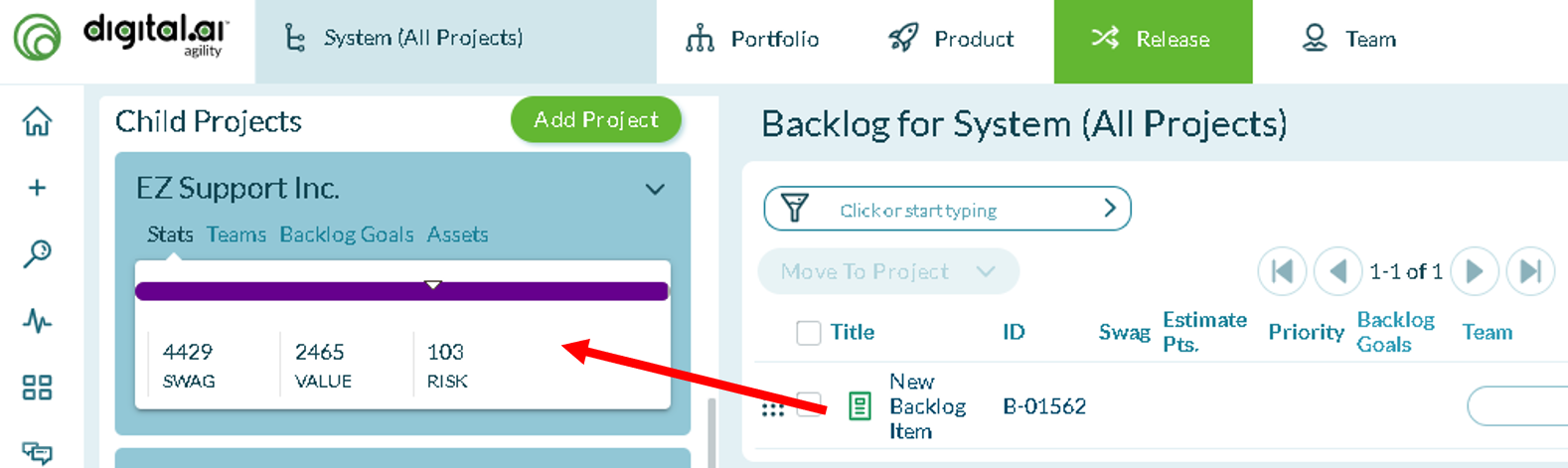
Result: The work item is scheduled into the selected project or increment and no longer appears in the unscheduled backlog grid.
Handle Child Work Items
If a portfolio item contains child work items assigned to other projects or increments, the system prompts you to choose:
- Yes, unite these work items: Move all child work items to the same project as the parent portfolio item
- No, leave them there: Keep child work items in their current projects
- Show what has already been moved: View work items already moved to the target project
Schedule Work Items from the Grid
Assign work items to a project or increment directly from the backlog grid:
- In the Backlog grid, check the box for the work item you want to schedule.
- Click the Move to Project dropdown.
- Select the target project from the dropdown.
- Click Move.
Result: The work item is assigned to the selected project and removed from the unscheduled backlog grid.
Troubleshooting
Why don't I see my work items in the unscheduled backlog?
Work items only appear in the unscheduled backlog if they have no project or increment assignment. Check that items aren't already scheduled to another project. Verify you have read permissions on the project containing the backlog items. Use filters to ensure you're viewing the correct project scope.
What's the difference between drag-and-drop and grid assignment?
Drag-and-drop provides visual, interactive scheduling directly to projects in the tree view. Grid assignment uses dropdowns for bulk assignment of multiple selected items. Use drag-and-drop for quick single-item scheduling and grid assignment when scheduling many items to the same project simultaneously.
Why does scheduling a portfolio item prompt me about child work items?
When portfolio items contain children assigned to different projects, the system prevents unintentional separation of work. You choose whether to unite the work (move all children to the parent's new project) or keep children distributed across current projects. This decision affects team assignments and cross-project dependencies.
Can I schedule work items to future increments not yet created?
No, work items can only be scheduled to existing projects and increments. Create future increments first (Admin > Projects > Add Project/Increment), then schedule work to them. This ensures proper capacity planning and prevents work from being scheduled to undefined timeframes.