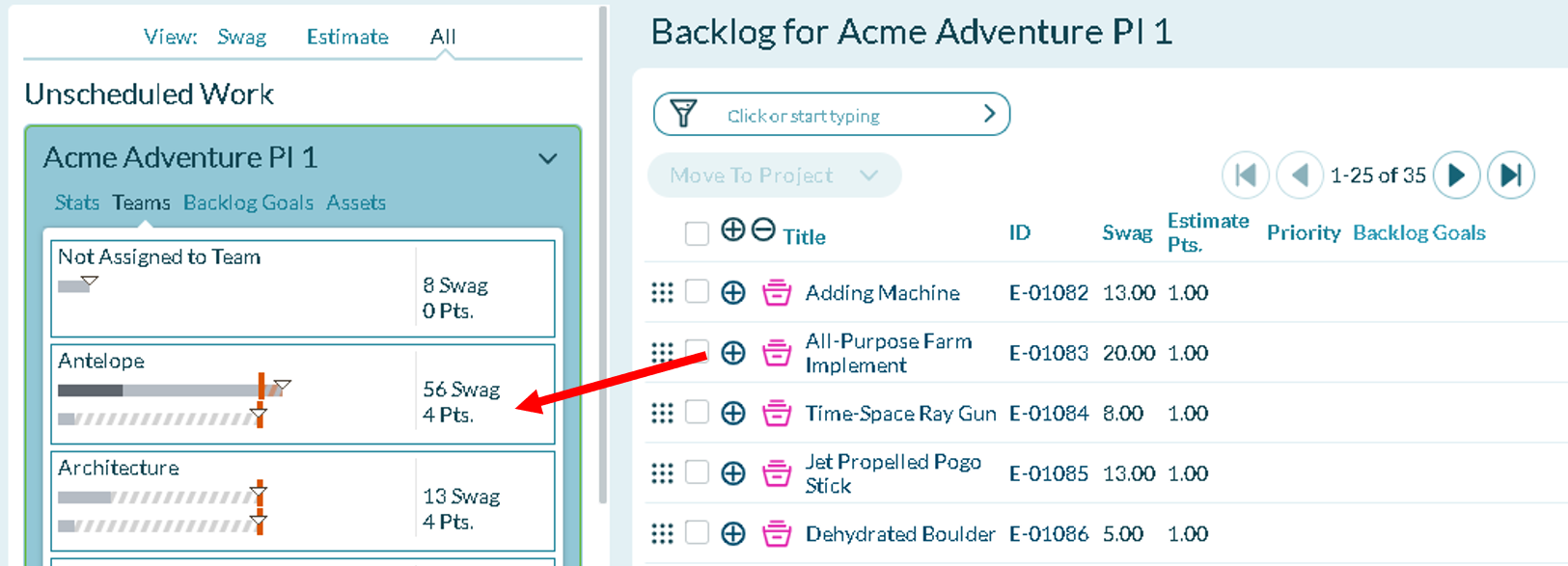
Assign Work Items to Teams
Assign backlog items and portfolio items to teams using drag-and-drop on the Team Scheduling page. This page provides a visual interface for distributing work across teams within a project or increment.
Permission requirement: Assigning work items to teams requires modify permissions on the work items and read access to teams. Moving portfolio items with child work items requires modify permissions on all affected items.
Who Assigns Work Items to Teams
Work item assignment supports capacity-based planning:
- Product Owners assign backlog items to teams based on skills, capacity, and dependencies during increment or sprint planning.
- Program Managers distribute portfolio items across teams using drag-and-drop, choosing whether to unite or separate child work items.
- Scrum Masters facilitate team assignment discussions during planning sessions, ensuring balanced workload and realistic commitments.
- Team Leads review team assignments to ensure work aligns with team expertise and available capacity.
Assign Work Items to a Team
To schedule backlog items to a team:
- Click the hamburger menu
> Increment > Team Scheduling.
- Select a project from the project navigator (if not already selected).
- Click the Teams tab for the project or increment.
- Drag a backlog item from the grid on the right to a team on the left.
Result: The backlog item is assigned to the selected team.
Quick Assignment: You can assign items to both a project or increment and a team simultaneously by dragging the item directly to a team within that scope.
Assign Portfolio Items to Teams
When you drag a portfolio item to a team:
- The portfolio item is assigned to the target team
- Any child work items within the portfolio item can also be assigned to the team
If the portfolio item contains child work items assigned to other projects or increments, the system prompts you to choose:
- Yes, Unite These Work Items: Move all child work items to the same project as the parent portfolio item
- No, Leave Them There: Keep child work items in their current projects
- Show what has already been moved: View work items already moved to the target project
Troubleshooting
Why can't I drag work items to a team?
Verify you have modify permissions on the work items you're trying to move. Check that the Teams feature is enabled in your project settings. Ensure you're viewing the Teams tab on the Team Scheduling page. If drag-and-drop doesn't work, try refreshing the page or using grid-based assignment instead.
What happens to child work items when I assign a portfolio item to a team?
Child work items within the portfolio item can be assigned to the same team, but the system prompts you to decide. If children are assigned to other projects, you choose whether to unite them with the parent or leave them in their current locations. This flexibility supports both consolidated team assignment and distributed work across teams.
Why don't I see my teams on the Team Scheduling page?
Ensure the Teams feature is enabled (Admin > Teams). Verify you have read access to the teams in the project. Check that teams are assigned to the project or increment you're viewing. If viewing a program-level increment, ensure teams are associated with child projects within the program.
Can I assign a work item to multiple teams?
No, each work item is assigned to a single team at a time. If work requires collaboration across teams, consider splitting the work item or using dependencies to coordinate between teams. Alternatively, create a cross-functional team that includes members from both teams.