Test Sets
Test Sets group regression tests into suites that are scheduled for execution in releases or sprints.
Overview
Test Sets are primary workitems (similar to backlog item, backlog item or defect) that contain all the regression tests in a test suite. After you have added regression tests to a test suite, you can then create a test set that can then be scheduled to a release or a sprint. Tests sets are created by default within the same project as the regression plan. You can move test sets to another (for example, a lower level) project if appropriate for work tracking purposes.
Use Cases
QA Lead Scheduling Smoke Tests for Every Sprint
A QA lead establishes a consistent testing approach across sprints by creating a reusable "Smoke Tests" regression suite containing 25 critical path tests. At the start of each sprint, they create a new Test Set workitem named "Sprint N Smoke Tests" scheduled to that sprint. They link the test set to the "Smoke Tests" suite and estimate it at 8 hours based on historical execution time. The test set appears on the sprint board alongside development stories. As testers execute the smoke tests, they update test statuses within the regression suite. The test set's completion status rolls up from individual test results, giving the team clear visibility when smoke testing finishes and the sprint can proceed to deployment.
Test Manager Creating Test Sets for Release Certification
A test manager prepares certification testing for Release 4.0. They create three test sets scheduled to the release: "Functional Regression" (60 tests, 40 hours), "Integration Testing" (35 tests, 30 hours), and "Performance Validation" (15 tests, 20 hours). Each test set links to a corresponding regression suite. During release planning, the product owner sees these test sets on the Release Planning Board with their hour estimates, understanding the testing effort required. As certification proceeds, the test manager monitors test set completion: Functional Regression shows 55 of 60 tests passed, Integration Testing shows 30 of 35 passed, and Performance Validation shows 12 of 15 passed. This tracking helps determine when the release is ready for production deployment.
Scrum Master Estimating Test Effort Using Test Set History
A scrum master plans Sprint 18 testing and needs to estimate a test set for "Payment Flow Regression" suite. They review past test sets linked to this suite: Sprint 12 took 12 hours, Sprint 14 took 11 hours, Sprint 16 took 13 hours. The average execution time is 12 hours. They create the Sprint 18 test set and estimate it at 12 hours, using historical data for accurate capacity planning. During sprint planning, the team sees the 12-hour test set alongside 70 hours of development stories, ensuring they account for testing effort when committing to sprint scope. This prevents the common mistake of planning only development work while forgetting regression testing time.
Product Owner Balancing Testing and Feature Development in Sprint
A product owner plans Sprint 22 with 80 hours of team capacity. They add feature stories totaling 55 hours to the sprint board. The QA lead adds a test set "Core Features Regression" estimated at 30 hours to validate previous sprint's features. The sprint board shows 85 hours total (55 development + 30 testing), exceeding 80-hour capacity. The product owner removes a 10-point enhancement story, reducing development work to 45 hours. The adjusted sprint shows 75 hours (45 + 30), fitting within capacity while ensuring both feature development and regression testing are completed. The test set on the sprint board makes testing effort visible during planning, preventing overcommitment.
Test Automation Engineer Tracking Manual vs Automated Test Execution
A test automation engineer manages a regression suite containing 100 tests, with 60 automated and 40 manual. They create a Test Set "Release 5.0 Regression" linked to the full suite and scheduled to the release. As the release progresses, automated tests execute nightly through CI/CD, and engineers update those test statuses to "Passed" based on automation results. Manual tests are executed by QA team members who update statuses after hands-on validation. The test set provides a single view of both automated and manual test execution status: 58 of 60 automated tests passed (97%), 35 of 40 manual tests passed (88%). This unified view helps release managers understand complete regression testing status regardless of execution method.
Access Test Sets
Test Sets are primary workitems that contain all the regression tests in a test suite.
To access test sets:
- Click the hamburger menu
 > Increment > Regression Planning.
 - Select a regression plan in the left menu, and then select the required regression test suite.
- Expand the Test Set section and click on a test set title.
Create Test Sets
You can generate a test set when you first create a sprint or iteration (and editing later) during sprint planning.
To generate or create a test set:
- Click the hamburger menu > Increment > Regression Planning.
- Select a regression plan in the left menu, and select a regression suite. The Summary window opens for the selected suite.
- Expand the Test Set section, and then click the Generate button.
- In the Generate Test Set window, enter a Title, and then select a Project to associate it with.
- Next, select an Environment, Sprint or Iteration, Team, Backlog Group, or Portfolio Item.
- Click OK to save the test set, or click OK & New to save and add another test set. The system adds your new test set and assigns it a unique ID (TS-nnnnn).
Manage Test Set Environments
You can pair a regression suite with an environment (or technology platform) to generate a test set that can be scheduled for execution within a sprint or iteration. In the process, each regression test becomes an executable acceptance test. To remove an environment from a test set, open the details page of the associated test set, click on the Environment field, and set it to empty.
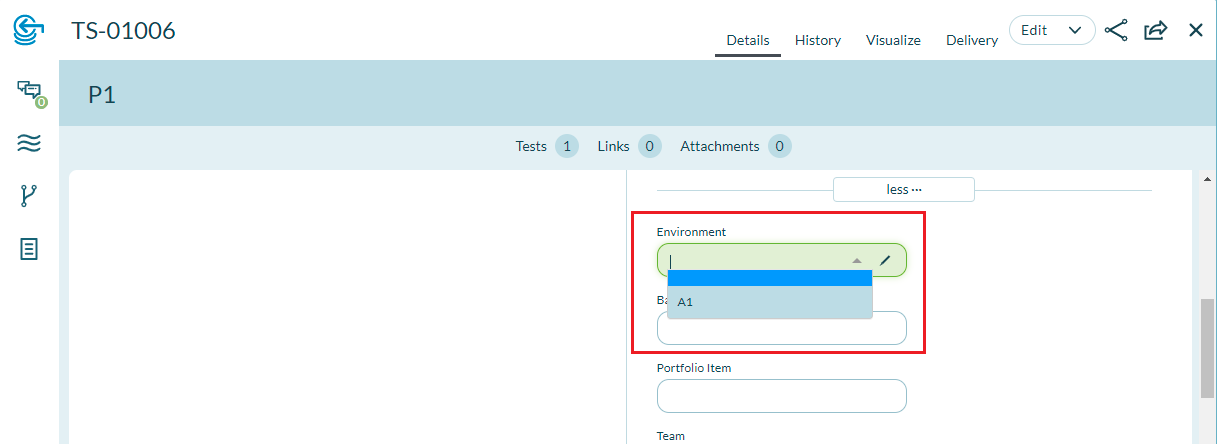
Manage Test Sets
Add a Test
To add a test to a test set:
- Click the hamburger menu > Increment > Regression Planning.
- Select a regression plan in the left menu, and then select the required regression test suite.
- Expand the Test Set section, and then click on a test set title.
- Select Add Test from the Edit button drop-down menu.
- Enter test details and click OK.
Edit a Test Set
To edit the details of a test set:
- Click the hamburger menu > Increment > Regression Planning.
- Select a regression plan in the left menu and select a regression suite.
- Expand the Test Set section and click on a test set title.
- Click on the Edit button.
- Modify the test set details as needed and click OK.
To learn more about Digital.ai Agility testing, see Some Nuggets about Testing in Digital.ai Agility and Reduce, Reuse, Recycle, Regress (ion Tests).
Copy a Test Set
To create a duplicate copy of a test set:
- Click the hamburger menu > Increment > Regression Planning.
- Select a regression plan in the left menu, and then select a regression suite.
- Expand the Test Set section, and then click on a test set title.
- Select Copy from the Edit button drop-down menu. A duplicate copy of the test set is added to the list. You can then edit as appropriate.
Close a Test Set
To close a test set so no more work can be logged against it:
- Click the hamburger menu > Increment > Regression Planning.
- Select a regression plan in the left menu, and then select a regression suite.
- Expand the Test Set section, and then click on a test set title.
- Select Close from the Edit button drop-down menu.
- In the pop-up window, select a status, and click the Close Test Set button.
Delete a Test Set
To delete a test set from Digital.ai Agility:
- Click the hamburger menu > Increment > Regression Planning.
- Select a regression plan in the left menu, and then select a regression suite.
- Expand the Test Set section, and then click on a test set title.
- Select Delete from the Edit button drop-down menu.
- In the pop-up window, select a status, and click the Delete button.
Add a Blocking Issue
To add a blocking issue to a test set:
- Click the hamburger menu > Increment > Regression Planning.
- Select a regression plan in the left menu, and then select a regression suite.
- Expand the Test Set section, and then click on a test set title.
- Select Block with New Issue or Block with Existing Issue from the Edit button drop-down menu.
Watch a Test Set
To "watch" a test set so you can receive notifications about changes as they occur:
- Click the hamburger menu > Release > Regression Planning.
- Select a regression plan in the left menu, and then select a regression suite.
- Expand the Test Set section, and then click on a test set title.
- Select Watch from the Edit button drop-down menu.
For more information, see Watch Assets.
Frequently Asked Questions
What's the difference between a Test Set and a Regression Suite?
A Regression Suite is a permanent container of regression tests, representing your test inventory organized by feature area or test type (e.g., "Payment Processing Tests", "Security Tests"). Regression Suites persist across releases. A Test Set is a schedulable workitem created for a specific sprint or release to schedule execution of tests from one or more suites. Think of Regression Suites as your test library and Test Sets as time-bound execution activities. The same "Core Features" regression suite can be executed multiple times by creating separate test sets for each sprint or release.
How do I create a Test Set in Digital.ai Agility?
Create Test Sets from multiple locations depending on your workflow. From the Regression Planning page, select a regression suite and click "Generate Test Set" to create a test set linked to that suite. From Sprint Planning or Release Planning boards, add a new workitem and select "Test Set" as the type, then link it to the desired regression suite. When creating a test set, specify the target sprint or release, add an estimate for execution time, and optionally assign a team or owner. After creation, the test set appears on planning boards alongside other workitems.
Can a Test Set link to multiple Regression Suites?
The linking approach depends on your Digital.ai Agility configuration. Typically, a test set links to a single regression suite for clarity and simplicity. If you need to execute tests from multiple suites in a single testing cycle, you have two options: create separate test sets for each suite (allowing independent tracking), or consolidate the tests into a single regression suite and link the test set to that suite. Creating separate test sets often provides better granularity for tracking progress and estimating effort for different test categories.
How do test statuses in Regression Suites relate to Test Set completion?
When you execute tests within a regression suite, you update individual test statuses (Pass, Fail, Blocked, Not Run). The linked Test Set workitem tracks overall execution progress by rolling up test results from the suite. For example, if a test set links to a suite with 40 tests and 35 are marked "Passed", the test set shows 87.5% complete. You can also manually update the test set's status field (In Progress, Complete, Blocked) to reflect overall testing state. Use test-level statuses for detailed execution tracking and test set status for sprint/release planning visibility.
Do I need Regression Planning enabled to use Test Sets?
Yes, Test Sets are part of the Regression Planning feature in Digital.ai Agility. If Regression Planning is disabled, Test Sets are not available as a workitem type. Regression Planning is optional and can be enabled or disabled by administrators based on your team's testing approach. Teams relying primarily on automated testing with external tools may choose to disable this feature. Teams performing significant manual regression testing or needing tight integration between test execution and agile planning benefit from enabling Regression Planning and using Test Sets.
How should I estimate Test Sets during sprint planning?
Estimate Test Sets based on historical execution time for the linked regression suite. Review past test sets that executed the same suite and average their actual hours spent. If this is the first test set for a new suite, estimate by counting tests and multiplying by average time per test (e.g., 40 tests × 30 minutes = 20 hours). Include time for test environment setup, bug reporting, and retesting in your estimate. As you accumulate history, refine estimates based on actual data. Accurate test set estimates ensure teams account for testing capacity during sprint planning and don't overcommit to development work.
Can I schedule a Test Set without linking to a Regression Suite?
While technically possible to create a test set workitem without linking to a regression suite, this approach defeats the purpose of test sets. Test Sets are designed to connect schedulable workitems (on sprint/release boards) with test inventory (in regression suites). Without the link, you lose test execution tracking, status rollup, and traceability between planned testing and actual tests executed. Best practice: always link test sets to regression suites, even if the suite contains only a few tests. If you need to track testing effort without specific test cases, use a regular Story or Task workitem instead.
How do Test Sets help coordinate testing with development work?
Test Sets make testing effort visible on the same planning boards as development stories, ensuring teams account for testing capacity during planning. When a test set appears on the Sprint Planning Board with a 15-hour estimate, the team recognizes that 15 hours of the 80-hour sprint capacity is allocated to testing. This visibility prevents the common mistake of planning 80 hours of development work and then discovering there's no capacity for testing. Test sets also create dependencies: development stories must complete before related test sets can execute, helping teams sequence work correctly within sprints.