Using the Portfolio Tree
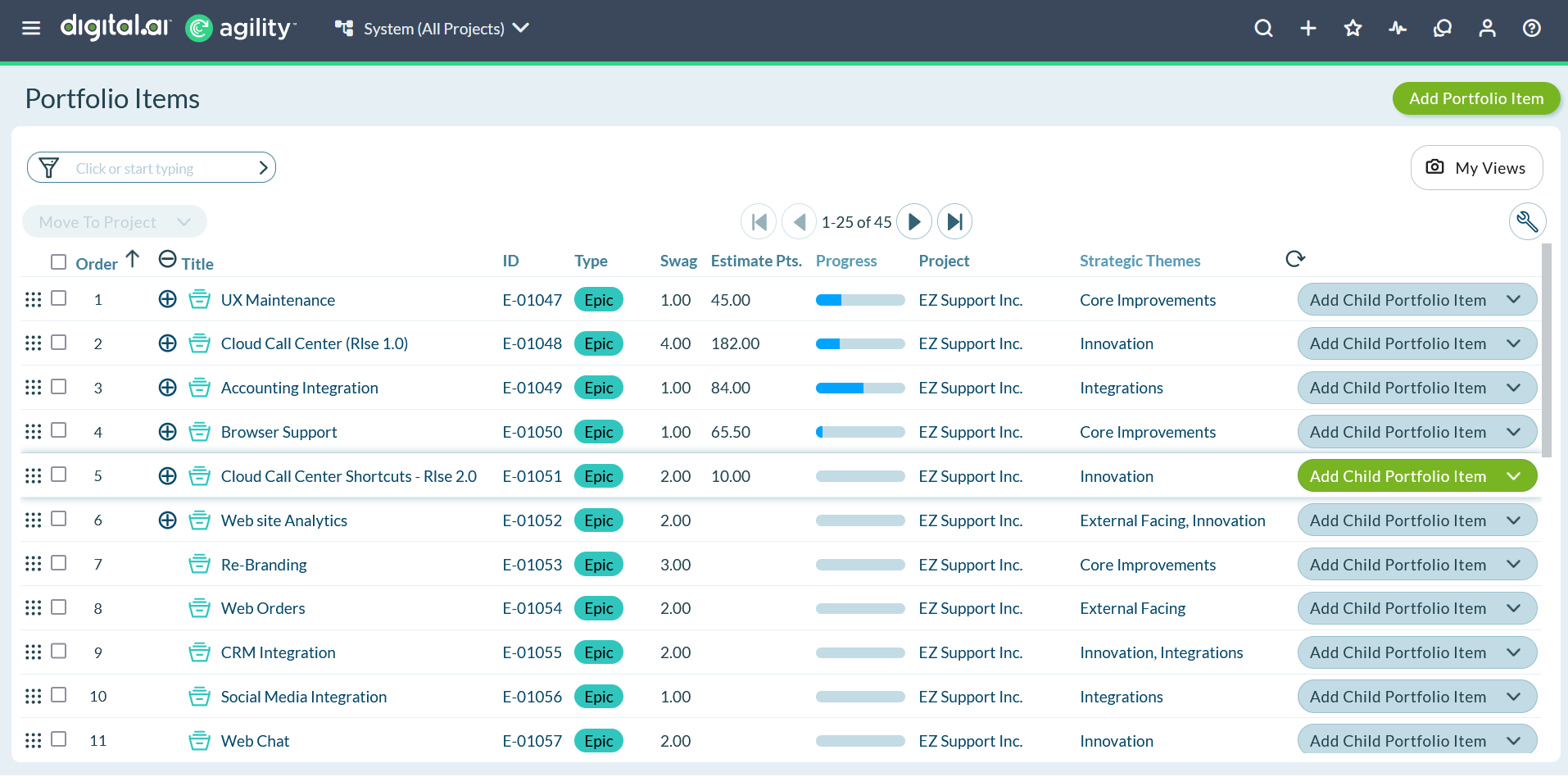
The Portfolio Tree organizes portfolio items in a hierarchical structure for defining, prioritizing, and tracking features from high-level strategic initiatives down to team-deliverable components. The Portfolio Tree visualizes the functional hierarchy of features, supports prioritization based on value and strategic alignment, and enables progress monitoring as teams deliver work.
Permission requirement: All users with project access can view the Portfolio Tree and see portfolio items they have read access to. Creating, editing, and moving portfolio items requires modify permissions on those items.
Who Uses the Portfolio Tree
The Portfolio Tree supports planning and tracking at multiple organizational levels:
- Portfolio Managers define top-level strategic initiatives, organize portfolio structure, and monitor progress toward strategic goals.
- Product Owners decompose features into deliverable components, prioritize work, and track delivery progress across teams.
- Program Managers coordinate portfolio items across multiple teams, manage dependencies, and align work with program increment planning.
- Team Leads view portfolio context to understand how team backlog items contribute to higher-level strategic objectives.
What Is the Portfolio Tree?
The planning and prioritization process often begins at a higher level than creating a flat backlog. The Portfolio Tree supports defining and evaluating a functional hierarchy of features, prioritizing them based on relative value and strategic direction, and decomposing them into deliverable components.
Portfolio items provide organizations with:
- Define big picture items at a strategic level
- Break down large features into smaller components
- Assign work to independent project teams
- Track progress of higher-level items that deliver business value
As project teams work on backlog items, the Portfolio Tree provides tools to monitor the progress of higher-level portfolio items and see how detailed work contributes to strategic objectives.
Key Capabilities
Hierarchical Organization
Build a multi-level hierarchy that reflects your planning structure:
- Top-level items: Strategic initiatives, epics, or major programs
- Mid-level items: Features, capabilities, or product components
- Lower-level items: Sub-features, story groups, or deliverable chunks
- Backlog items: Stories, defects, and tasks at the bottom level
The tree structure maintains relationships between items, showing how detailed work rolls up to strategic goals.
Visual Differentiation
Portfolio item types use color coding to help you distinguish between hierarchy levels at a glance:
- Custom colors: Assign specific colors to each portfolio item type
- Consistent visualization: Colors appear across Portfolio Tree, Portfolio Kanban, Roadmap Timeline, and Portfolio Details
- Quick identification: Easily differentiate between high-level initiatives and lower-level features
To configure colors for portfolio item types, see List Type Administration.
Strategic Alignment
Group portfolio items using Strategic Backlog Groups to connect strategic planning activities at the company or organization level with portfolio item prioritization. This ties your portfolio work directly to strategic themes and organizational objectives.
Navigate the Portfolio Tree
Access the Portfolio Tree
- From the main navigation, click Plan.
- Select Portfolio Tree from the menu.
The tree view displays your portfolio item hierarchy with expand/collapse controls for each node.
Expand and Collapse Nodes
- Expand a node: Click the arrow icon next to a portfolio item to reveal its children
- Collapse a node: Click the arrow again to hide children
- Expand all: Use the toolbar option to expand all nodes at once
- Collapse all: Use the toolbar option to collapse all nodes
View Item Details
Click any portfolio item in the tree to open its details panel, where you can view and edit:
- Portfolio item attributes and fields
- Status and progress indicators
- Associated backlog items
- Relationships to other portfolio items
- Strategic themes and budgets
For more information, see View and Track Portfolio Items.
Work with Portfolio Items in the Tree
Add Portfolio Items
You can add portfolio items at any level of the hierarchy:
- Create new parent items: Add high-level strategic portfolio items
- Create child items: Add portfolio items under an existing parent
- Add backlog items: Link stories, defects, or tasks to portfolio items
For detailed instructions, see Create Portfolio Items and Add Items to Portfolio Tree.
Move and Rank Items
Reorganize your portfolio hierarchy using drag and drop:
- Move items: Drag portfolio items to different parents to restructure the hierarchy
- Rank items: Drag items up or down to change priority within the same level
- Reorder children: Prioritize child items under a parent
For more information, see Move and Rank Items.
Filter and Search
Apply filters to focus on specific portfolio items:
- Filter by type: Show only specific portfolio item types
- Filter by status: Display items in particular workflow states
- Filter by owner: View items assigned to specific teams or people
- Filter by strategic theme: See items aligned with specific themes
For details, see Apply Filters.
Track Progress
Monitor portfolio item completion and status:
- Rollup indicators: See aggregate status of child items
- Progress metrics: View completion percentages and estimates
- Color-coded status: Identify items by state using visual indicators
- Dependency tracking: Monitor relationships between portfolio items
Switch Views
The Portfolio Tree offers multiple ways to visualize your portfolio:
Tree View
The default hierarchical tree structure shows parent-child relationships and allows drag-and-drop organization.
Roadmap Timeline
Switch to the Roadmap Timeline to see portfolio items plotted across time, showing planned delivery dates and milestones. For more information, see Roadmapping.
Portfolio Kanban
View portfolio items on a Kanban board organized by workflow state. For details, see Portfolio Kanban Board.
Best Practices
Start with strategic items: Begin by defining high-level portfolio items that represent strategic initiatives or major features before decomposing them.
Maintain clear hierarchy: Keep your portfolio item type hierarchy consistent across the organization so everyone understands what each level represents.
Use color coding: Assign meaningful colors to portfolio item types to make hierarchy levels instantly recognizable.
Group strategically: Use Strategic Backlog Groups to align portfolio items with organizational priorities and themes.
Filter effectively: Apply filters to reduce visual complexity and focus on the portfolio items relevant to your current planning activity.
Track regularly: Review portfolio item progress frequently to ensure teams are delivering work that rolls up to strategic objectives.
Troubleshooting
Why can't I expand portfolio items to see their children?
Verify children exist under the portfolio item by checking the portfolio item details page. If children exist but don't appear, check your filters—child items may be filtered out by status, type, or other criteria. Try clicking "Clear All Filters" to reset the view. Also confirm you have read permissions for the child items and their projects.
Why don't portfolio item colors appear in the tree?
Colors are assigned to portfolio item types, not individual items. If colors are missing, verify your administrator has configured colors for each type in List Type Administration. If types have colors assigned but don't display, try refreshing your browser or clearing your cache. Colors should appear consistently across Portfolio Tree, Kanban, and Roadmap views.
Why does the Portfolio Tree show items I don't work on?
The Portfolio Tree displays all portfolio items in the selected planning level context that you have permission to view. Use filters to narrow the view to your specific items. Filter by Owner to see only your items, by Strategic Theme to focus on specific initiatives, or by Project to limit to your team's work. Save common filter combinations for quick access.
How do I find a specific portfolio item in a large tree?
Use the search function in the top navigation bar to find portfolio items by ID or title. Alternatively, apply filters to reduce the tree size: filter by Type to show only specific levels, by Status to hide completed work, or by Strategic Theme to focus on specific initiatives. You can also use the "collapse all" feature then expand only the branches you need.
Related Topics
- Portfolio Item Overview - Understand portfolio items and their role in planning
- Portfolio Tree - Learn about Portfolio Tree capabilities and structure
- Create Portfolio Items - Add new portfolio items to the tree
- View and Track Portfolio Items - Monitor portfolio item details and progress
- Add Items to Portfolio Tree - Link backlog items and add children
- Apply Filters - Focus on specific portfolio items
- Move and Rank Items - Reorganize and prioritize portfolio items