View and Track Portfolio Items
View portfolio item details, track progress across development stages, and monitor delivery using multiple visualization tools in Digital.ai Agility.
Permission requirement: All users with project access can view portfolio item details for items they have read access to. Editing portfolio items requires modify permissions.
Who Views and Tracks Portfolio Items
Portfolio item visibility serves multiple stakeholder needs:
- Portfolio Managers view portfolio item dashboards to monitor strategic initiative progress and identify delivery risks.
- Product Owners track portfolio item details to understand feature status, dependencies, and child backlog item progress.
- Program Managers review portfolio item relationships and blocking issues to coordinate cross-team dependencies.
- Executives view high-level portfolio item status through scorecards and visualizations to assess strategic alignment.
- Team Members access portfolio item details to understand the strategic context and purpose of their work.
View Portfolio Item Details
The Portfolio Item Details page allows you to view and update all information related to a portfolio item, including managing parent portfolio items and their child portfolio items.
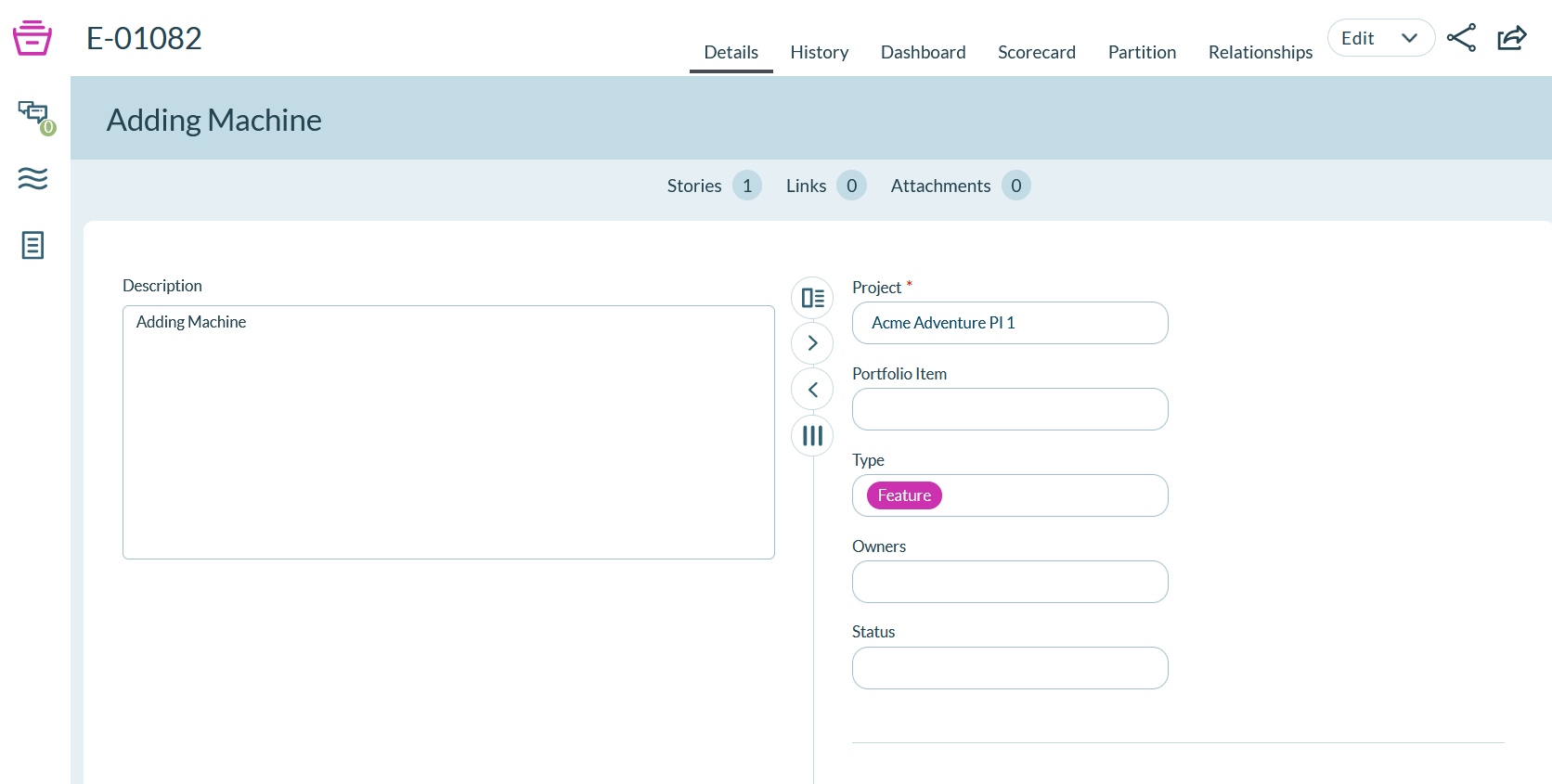
To access the Portfolio Item Details page, click on a portfolio item title or ID anywhere within the application.
Manage portfolio item details
From the Portfolio Item Details page, you can perform the following functions using the tabs at the top of the window:
| Function | Action |
|---|---|
| View and update all portfolio item details | Click the Details tab. |
| View the change history for a portfolio item | Click the History tab. |
| View the dashboard to see the progress of the backlog items, and its sub-portfolio items and delivery projects | Click the Dashboard tab. |
| View ideas submitted by the team for possible integration into project work | Click the Ideas tab. |
| View a graphical representation of the portfolio item's relationships with other assets | Click the Visualize tab and select either the Partition view or the Relationships view. |
| Edit portfolio item details | Click Edit to open the Portfolio Item Edit window. You can also open this drop-down menu to perform other functions (Block, Close Portfolio Item, Delete, Copy, Create From, and Watch Portfolio Item). |
| Assign a color to a Portfolio Item Type | Refer to List Type Administration. |
| View the Portfolio Item Scorecard | Click on Scorecard tab. |
Manage portfolio item relationships
In the Show Relationships section at the bottom of the Portfolio Item Details page, you can perform the following actions by clicking the Add or Assign buttons:
| Function | Action |
|---|---|
| Add a new child portfolio item | Go to Portfolio Items and click Add. |
| Add a new test | Go to Tests and click Add. |
| Add a new story or assign an existing story to the portfolio item | Go to Stories and click Add Inline, then select Add or Assign. |
| Add or assign backlog items to the portfolio item | Go to Backlog Items and click Add to add a backlog item, or click Assign from the drop-down to assign a backlog item to the portfolio item. |
| Assign an existing defect to the portfolio item | Go to Defects and click Assign. |
| Assign an existing test set to the portfolio item | Go to Test Sets and click Assign. |
| Select an existing issue to assign as a blocking issue | Go to Blocking Issues and click Assign. |
| Select an existing request | Go to Requests and click Assign. |
| Add a new link to remote documentation | Go to Links and click Add. |
| Add a new file attachment | Go to Attachments and click Add. |
| Add a Portfolio Item Dependency | Read how to Add Portfolio Item Dependencies. |
For any items you add or assign, you can click Remove in the grid to remove them from the portfolio item.
Track portfolio item progress
Access and track portfolio items using multiple tools based on your specific needs.
Portfolio Tree
Create, manage, and view the functional makeup of a portfolio item and its children. For each portfolio item, you can see key values and progress statistics that help identify any issues with delays or anomalies across functional lines.
To access the Portfolio Tree:
- Click the hamburger menu.
- Click Portfolio > Planning > Portfolio Tree.
Backlog
View and manage all work items grouped under a portfolio item. You can see all stories or backlog items, defects, and test sets that define work to be completed and scheduled within a sprint or iteration.
To access the backlog:
- Click the hamburger menu.
- Click Portfolio > Planning > Backlog.
Portfolio Kanban Board
Track the flow of portfolio items as they proceed through the approval and development process. The Portfolio Kanban is an at-a-glance dashboard of portfolio items grouped under a specific project. Visualize, plan, and track the progress of your strategic project development initiatives.
Note: Portfolio Kanban Board is available in Ultimate Edition only.
To access the Portfolio Kanban Board:
- Click the hamburger menu.
- Click Portfolio > Planning > Portfolio Kanban.
Roadmap Timeline
See when portfolio items are planned for delivery or get a historical view of what has actually been worked on and completed.
Note: Roadmap Timeline is available in Ultimate Edition only.
To access the Roadmap Timeline:
- Click the hamburger menu.
- Click Portfolio > Planning > Roadmaps.
- Click on the Timeline layout icon.
PlanningRooms
Create a focused view that allows for better collaboration within the development groups. Portfolio items form the backbone of planning and tracking activities in the PlanningRoom.
Note: PlanningRooms is available in Ultimate Edition only.
To access a PlanningRoom:
- Click the hamburger menu.
- Click Rooms > PlanningRoom.
Troubleshooting
Why don't I see all tabs on the Portfolio Item Details page?
Tab visibility depends on permissions, edition, and item state. The Ideas tab requires idea submission to be enabled. The Scorecard tab requires scorecard configuration. The Dashboard tab requires child items with progress data. If tabs are missing, verify your permissions allow full read access and that features are configured correctly by your administrator.
Why doesn't the Dashboard tab show progress for my portfolio item?
The Dashboard tab displays progress from child portfolio items and backlog items. If the dashboard is empty, verify the portfolio item has children assigned. Progress calculations require child items with estimates and status updates. Newly created portfolio items without children will show empty dashboards until work is decomposed and assigned.
Why can't I edit portfolio item details even though I have permissions?
Closed portfolio items cannot be edited without reopening them first. Verify the portfolio item status—if it's closed, reopen it using the Edit dropdown > Reopen option. Also confirm you have modify permissions on the specific portfolio item, not just read access to the planning level. Some fields may be read-only based on item state or workflow.
Why don't assigned items appear in the relationships section?
The relationships section at the bottom of the details page shows only items explicitly assigned to the portfolio item using the Assign function or created as children. Backlog items assigned to sprints but not linked to the portfolio item won't appear. Use the "Assign" buttons to establish relationships, or create items as children of the portfolio item to ensure they appear in the relationships section.
Related Topics
- Portfolio Item Overview - Understand portfolio items and their purpose
- Using the Portfolio Tree - Navigate and interact with the portfolio hierarchy
- Create Portfolio Items - Add new portfolio items
- Portfolio Kanban Board - Track portfolio items through workflow states
- Roadmapping - Visualize portfolio item delivery across time
- Strategic Themes Overview - Align portfolio items with strategic objectives
- List Type Administration - Configure portfolio item types and colors