Portfolio Tree
The Portfolio Tree defines and manages high-level features from strategic planning through delivery. Teams break down large initiatives into smaller components, prioritize work, and track progress across the organization.
Permission requirement: All users with project access can view the Portfolio Tree for projects they have read access to. Creating, editing, and organizing portfolio items requires modify permissions on those items and their parent planning level.
Who Uses Portfolio Items and the Portfolio Tree
Portfolio items support planning and tracking across organizational roles:
- Portfolio Managers define strategic initiatives and themes, organize portfolio structure, and track progress toward organizational goals.
- Product Owners decompose features into deliverable components, prioritize backlog items, and communicate status to stakeholders.
- Program Managers coordinate cross-team dependencies, align portfolio items with program increments, and balance capacity across teams.
- Team Members view portfolio context to understand how their backlog items contribute to strategic objectives and business value.
What Are Portfolio Items?
A Portfolio Item is a high-level entity representing large features used for planning and grouping project work. Portfolio Items help you organize work that delivers business value and can be decomposed into smaller components for delivery by project teams.
With Portfolio Items, you begin planning with a single, large, roughly-defined feature. Through investigation and discussion with product teams, you break down the feature into smaller components that can be delivered by one or more project teams. Backlog Items are eventually defined at the bottom level of the hierarchy—small enough for teams to deliver within a sprint while recognizing their relationship to the larger whole.
What Is the Portfolio Tree?
The Portfolio Tree gives you the ability to define and evaluate a functional hierarchy of features. You can:
- Prioritize features based on their relative value, high-level cost, and support of strategic direction
- Decompose portfolio items into detailed levels of child portfolio items and backlog items
- Track the progress of higher-level portfolio items as project teams work on backlog items
- Use Strategic Backlog Groups to tie strategic planning activities with portfolio item prioritization
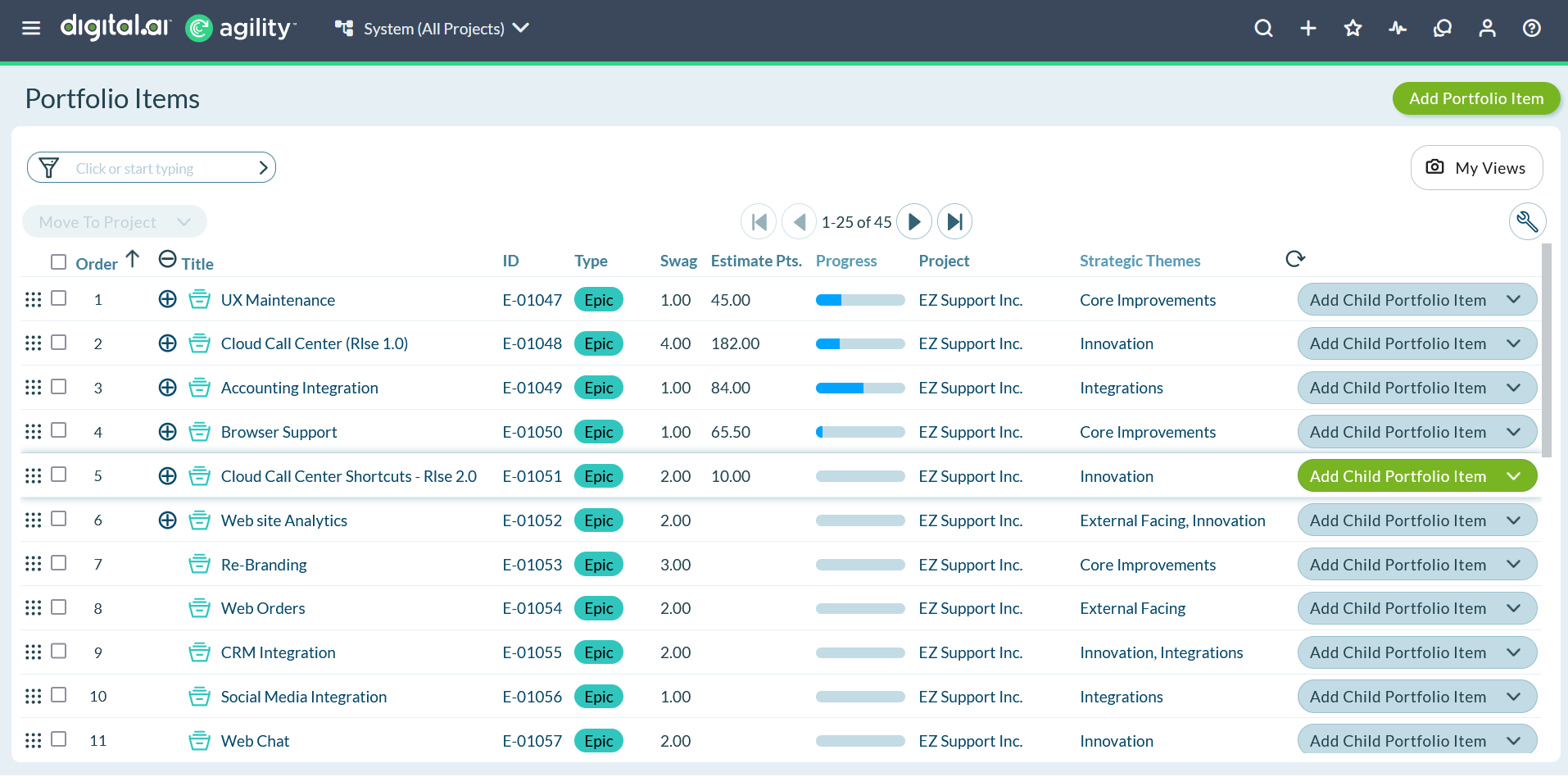
Portfolio Item Types and Levels
Use the Type field on portfolio items to define the levels of your Portfolio Tree. This allows you to use your internal terms for large, medium, and smaller grained features. You can have any number of levels, and therefore any number of types, in your Portfolio Tree.
To help you understand at a glance whether you're viewing high-level initiatives or lower level features, portfolio item types can be color coded. You can easily differentiate them in the Portfolio Tree, Portfolio Kanban, Roadmap Timeline, and Portfolio Details. To learn how to associate colors with portfolio item types, see List Type Administration.
Access the Portfolio Tree
Navigate to the Portfolio Tree to view and manage your portfolio items hierarchy.
- Click the hamburger icon
 > Portfolio > Portfolio Tree.
 - View the hierarchical structure of your portfolio items.
- Expand or collapse items to navigate through different levels.
Portfolio Planning with Portfolio Items
The Portfolio Tree is a key component of portfolio planning in Agility. As you plan and prioritize your portfolio:
- Align with strategic goals: Use Budgets to allocate resources across strategic themes and track spending against portfolio items
- Set key dates: Create Milestones to mark important delivery targets and communicate deadlines across the organization
- Visualize delivery: Build Roadmaps to show how portfolio items align with your delivery timeline
- Track capacity: Use Team Forecasting to understand team capacity and forecast delivery dates for portfolio items
Use Cases
Product Owner Building Initial Portfolio Hierarchy
A product owner starting a new product creates the Portfolio Tree structure. They create a top-level Epic "Customer Portal" representing the major initiative. Under this epic, they add four child Features: "User Authentication", "Dashboard Interface", "Report Generation", and "Admin Controls". They further decompose "User Authentication" into two sub-features: "Single Sign-On Integration" and "Multi-Factor Authentication". Finally, they add 12 stories under "Single Sign-On Integration" representing specific implementation tasks. This hierarchical structure allows the team to track progress from high-level epic down to individual stories delivered in sprints.
Portfolio Manager Using Types and Color Coding for Strategic Visibility
A portfolio manager configures three portfolio item types with color coding: Strategic Initiatives (blue), Epics (purple), and Features (green). They navigate to the Portfolio Tree and immediately see strategic initiatives at the top level in blue. Expanding an initiative reveals purple epics underneath, and expanding epics shows green features. During an executive review, they filter the tree to show only Strategic Initiatives, giving executives a clean view of the 8 major initiatives without lower-level detail. The color coding helps stakeholders quickly identify the planning level they're viewing across Portfolio Kanban, Roadmap, and Tree views.
Scrum Master Tracking Backlog Item Rollup to Portfolio Items
A scrum master monitors how sprint work contributes to portfolio items. They open the Portfolio Tree and expand the Feature "Mobile Checkout Flow" to see 15 associated stories with different statuses. The tree shows 8 stories "Done" (green), 4 stories "In Progress" (yellow), and 3 stories "To Do" (gray). The feature-level progress bar indicates 53% complete based on story point rollup (40 of 75 points done). During sprint planning, they reference this tree view to help the team understand how their sprint work advances the larger feature, maintaining alignment between tactical sprint execution and strategic feature delivery.
Program Lead Prioritizing Features Using Drag-and-Drop
A program lead reprioritizes features for Q3 planning. They open the Portfolio Tree and apply a filter to show only features assigned to Q3. The tree displays 20 features in current priority order. Using drag-and-drop, they move "Payment Gateway Upgrade" from position 12 to position 3 based on new business priorities. They move "Reporting Enhancements" from position 5 to position 15 to defer it. As they reorder features, the rank values update automatically, and this new prioritization flows to backlog views used by product owners and teams for sprint planning. The visual hierarchy helps them see how feature priorities align with parent epic goals.
Executive Using Strategic Backlog Groups for Initiative Tracking
An executive tracks three strategic initiatives using the Portfolio Tree and Strategic Backlog Groups. They've configured three groups: "Digital Transformation", "Customer Experience", and "Operational Efficiency". Each portfolio item is tagged with a strategic group. They apply a filter for "Digital Transformation" and the tree displays 5 epics with 22 features totaling 380 story points. Expanding the tree shows progress: 2 epics complete, 2 in progress, and 1 not started. The rollup indicators show Digital Transformation is 45% complete overall. They generate this view monthly for board meetings, providing strategic-level visibility without technical detail.
Frequently Asked Questions
What's the difference between portfolio items and backlog items?
Portfolio items represent high-level features used for strategic planning and organizational visibility (epics, features, capabilities). Backlog items are detailed work delivered by teams within sprints (stories, user stories, backlog items). Portfolio items decompose into smaller portfolio items or backlog items, creating a hierarchy from strategic initiatives down to sprint-level stories. The Portfolio Tree displays both: upper levels show portfolio items for planning, while leaf nodes often show backlog items that teams deliver. Use portfolio items for quarterly planning and executive visibility; use backlog items for sprint-level execution.
How many levels can I have in my Portfolio Tree?
You can create unlimited levels in your Portfolio Tree by defining multiple portfolio item types. Most organizations use 2-4 levels (e.g., Strategic Initiative > Epic > Feature, or Epic > Feature > Sub-Feature). Define types in the admin area under List Type Administration and associate them with colors for visual distinction. Each type represents a level, allowing flexibility to match your organization's planning structure. Avoid creating too many levels (more than 5) as this can complicate planning and make the tree difficult to navigate. Balance granularity with clarity.
How do I see progress rollup from stories to epics?
Portfolio Tree automatically rolls up progress from child items to parents. When backlog items (stories) are marked "Done", their estimate values contribute to parent portfolio item progress. For example, if a Feature has 50 story points of backlog items and 30 points are marked "Done", the feature shows 60% progress. This rollup continues up the hierarchy: features roll up to epics, epics to strategic initiatives. Progress bars appear at each portfolio item level showing completed vs. total estimates. Enable the "Show Progress" column in the tree grid to see numeric progress alongside visual progress bars.
Can I move a portfolio item to a different parent in the tree?
Yes, drag and drop portfolio items to change their parent relationship. Click and hold a portfolio item in the Portfolio Tree, then drag it onto the new parent item. Release to reparent the item. All child items move with it, maintaining the hierarchy below. This is useful when reorganizing initiatives, splitting epics, or adjusting scope. You can also use the Details page for a portfolio item and change the Parent field manually. After moving items, review dependencies and strategic theme assignments to ensure they still make sense in the new location.
Why don't I see backlog items (stories) in my Portfolio Tree?
The Portfolio Tree focuses on portfolio-level items by default to avoid overwhelming the view with hundreds of stories. To see backlog items that roll up to portfolio items, you have two options: expand a portfolio item fully (click the expand icon multiple times), or use filters to show backlog items explicitly. Some views show backlog items at leaf nodes when you drill down. For detailed story management, use Product Backlog or Sprint Planning views rather than Portfolio Tree. The tree excels at strategic and feature-level planning, not detailed story-level execution.
How do Strategic Backlog Groups relate to Portfolio Tree?
Strategic Backlog Groups are organizational tags that cross-cut the hierarchical Portfolio Tree structure. While the tree shows parent-child relationships (Epic > Feature > Story), Strategic Backlog Groups represent strategic themes or business priorities (Customer Experience, Platform Modernization). A single epic in the tree might contribute to multiple strategic groups. Use filters in Portfolio Tree to display only items assigned to specific strategic groups, creating theme-based views of your portfolio. This allows you to see progress toward strategic objectives regardless of where items sit in the hierarchical tree structure.
Can I export the Portfolio Tree structure for stakeholder presentations?
Yes, use the Export functionality available in most Digital.ai Agility pages. From the Portfolio Tree, apply filters to show the desired scope, then export to Excel or CSV. The export includes portfolio item details, hierarchy relationships, and progress metrics. You can also generate Portfolio Reports (Bubble Chart, Cumulative Flow) directly from the tree that visualize portfolio data in presentation-friendly formats. For roadmap presentations, use the Roadmap Timeline view which allows publishing snapshots that stakeholders can access without logging into Agility.
Related Topics
- Portfolio Planning - Establish strategic direction and coordinated delivery plans
- Portfolio Item Overview - Understand portfolio item types and hierarchies
- Using the Portfolio Tree - Navigate and interact with the portfolio hierarchy
- Create Portfolio Items - Add new initiatives, features, and sub-features
- View and Track Portfolio Items - Monitor progress across views
- Manage Portfolio Item Lifecycle - Split and close portfolio items
- Assign Teams and Owners - Allocate resources to portfolio items
- Add Items to Portfolio Tree - Add parent items, child items, and backlog work
- Manage Portfolio Item Relationships - Link blocking issues and generate parent items
- Apply Filters - Focus on specific portfolio items
- Move and Rank Items - Reorder and prioritize items