Portfolio Kanban Board
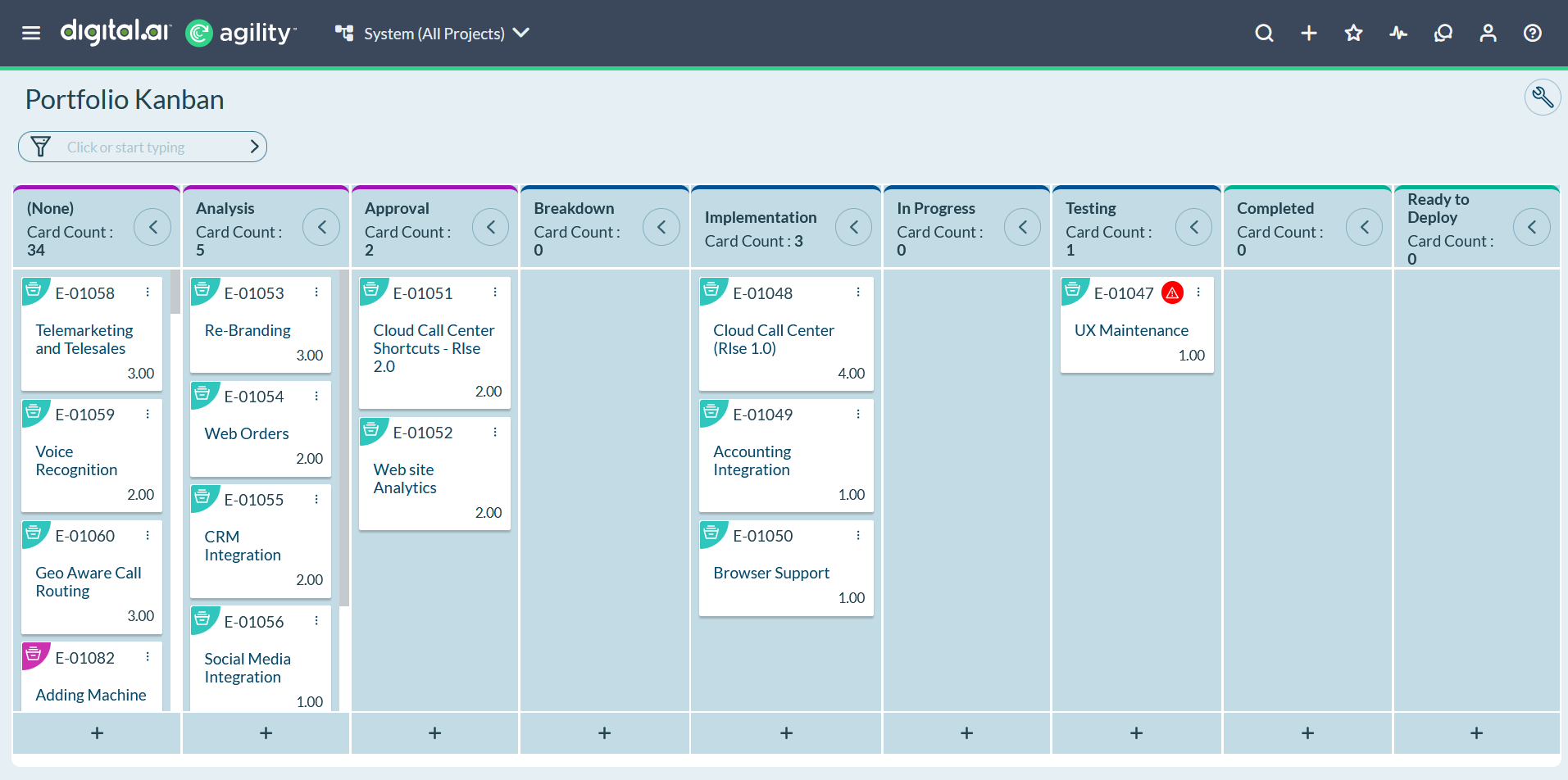
The Portfolio Kanban board displays an at-a-glance grid view of portfolio items in a project, visualizing, planning, and tracking strategic development initiatives. This board shows the highest level of detail available for any project view and provides editable access to details behind each portfolio item.
Permission requirement: All users can view the Portfolio Kanban Board. Editing portfolio items (dragging, dropping, updating details) requires modify permissions on those items. Customizing board columns, WIP limits, and policies requires Project Admin permissions.
Consider creating a PlanningRoom if different boards need frequent access.
Who Uses the Portfolio Kanban Board
The Kanban board serves different roles across the organization:
- Executives: Track the highest level business initiatives across the entire company
- Program and subsystem leaders: Monitor features that fall within their domain
- Development teams: Track production while understanding the broader context of how their work fits into the big picture
Access the Portfolio Kanban Board
Click the hamburger icon  > Portfolio > Portfolio Kanban.
Note: The initial unfiltered board displays only parent-level portfolio items. To view child-level portfolio items, filter by the parent portfolio item. You can add multiple portfolio items to that filter.
Use the Portfolio Kanban Board
The board is populated with groups of portfolio item cards. By default, each card shows the ID, title, owner (if applicable), and Swag (high-level estimate size). You can customize these fields to meet your needs.
Card Features
- Color coding: Portfolio item types are color coded so you can easily differentiate item types
- Blocking indicators: Blocked portfolio items are highlighted with a red blocking icon. Click the icon to view the issues causing the delay
- Hover details: Hover over any field on the card to view data details
- Drag and drop: Drag a portfolio item card to another place in the same column to prioritize ranking, or move it to another column to update status
Card Actions
Click the down arrow in the top right corner of a card to:
- Edit portfolio item details
- View portfolio item dashboards
- Block portfolio items
- Close portfolio items
- Watch portfolio items
Edit Portfolio Item Cards
Change the details on portfolio item cards displayed on the board.
Steps to Edit a Card
- Click the hamburger icon > Portfolio > Portfolio Kanban.
- Click the vertical ellipsis at the top right corner of the portfolio item card.
- Click Edit.
- In the Portfolio Item window, make the necessary changes.
- Click Save.
Customize the Portfolio Kanban Board
The Portfolio Kanban board is flexible and allows you to customize it to meet your organization's needs. Project administrators can configure process flows via Project Workspaces, allowing multiple boards at different levels (or in different organizations) with unique sets of status values for portfolio items within specific projects.
Note: To make changes to the board, your Digital.ai Agility project role must be set to Project Administrator or higher.
Customization Options
You can customize the following aspects of the Portfolio Kanban board:
- Columns: Define custom status columns that match your workflow
- WIP Limits: Set work-in-progress limits to control flow
- Portfolio Item Cards: Choose which fields appear on cards
- Board Policies: Define policies for each column
- Swimlanes: Add swimlanes to group portfolio items by criteria
For detailed instructions on each customization type, see the specific customization topics in the sidebar.
View Available Reports
Generate real-time status reports on how your portfolio items are progressing directly from the Portfolio Kanban board.
Portfolio Item Cumulative Flow by Status
Track the flow of portfolio items through the defined process. This report shows the number of portfolio items in each status value across the board for a selected range of time, creating a "burnup" chart as portfolio items move through the process.
Generate the Report
- Click the hamburger icon > Portfolio > Portfolio Kanban.
- Click Reports > Portfolio Item Cumulative Flow by Status in the top right corner of the page.
- Enter or select any filter options.
- Click Go.
Portfolio Item Bubble Chart
Identify the portfolio items (or development efforts) that provide the most value to the business. The chart shows portfolio items as bubbles on a scatter plot. The bubble sizes are proportional to each portfolio item's Swag.
Generate the Report
- Click the hamburger icon > Portfolio > Portfolio Kanban.
- Click Reports > Portfolio Item Bubble Chart in the top right corner of the page.
- Enter or select any filter options.
- Click Go.
- Hover over a bubble to see the portfolio item and its Swag.
- Click on a bubble to open the details page for that portfolio item.
Portfolio Item Dependencies
Identify upstream dependencies and downstream dependencies within a project or program.
Generate the Report
- Click the hamburger icon > Portfolio > Portfolio Kanban.
- Click Portfolio Dependencies in the top right corner of the page.
- The report shows active portfolio items and associated backlog items in the project.
- Enter or select any filter options.
- Click Go.
- Hover over any item to view descriptive information.
- Click on blocking icons to see the nature of the blocking issue.
- Click on any portfolio item or backlog item to update details.
Best Practices
Use color coding effectively: Train your team to recognize portfolio item types by color to speed up board scanning.
Set WIP limits strategically: Configure work-in-progress limits based on your team's actual capacity to prevent overload.
Keep cards updated: Encourage team members to update card status regularly through drag-and-drop for accurate flow tracking.
Review blocking issues promptly: Address blocking issues immediately when they appear to maintain flow.
Generate reports regularly: Use the cumulative flow and bubble chart reports in planning sessions to inform prioritization decisions.
Use Cases
Executive Tracking Strategic Initiatives Across the Organization
An executive uses the Portfolio Kanban board to monitor all strategic initiatives across multiple business units. They access the board from the hamburger menu, select "All Projects" in the context navigator, and view parent-level portfolio items representing major initiatives. Cards are color-coded by portfolio item type (Strategic Initiative, Epic, Feature). The executive identifies three blocked initiatives (red blocking icon), clicks each blocking icon to view issues, and directs leadership to resolve resource constraints blocking progress. They drag one Strategic Initiative from "Planned" to "In Progress" to signal executive approval for funding, immediately updating visibility for all teams.
Program Manager Using Swimlanes to Organize by Strategic Theme
A program manager manages ten epics aligned to three strategic themes: Customer Experience, Platform Modernization, and Security. They customize the Portfolio Kanban board to add swimlanes grouped by Strategic Theme. The board now displays three horizontal swimlanes with epics organized by theme across status columns (Backlog, Analysis, In Progress, Testing, Done). This layout shows that Customer Experience has 5 epics (3 in progress, 2 in testing), Platform Modernization has 3 epics (all in backlog), and Security has 2 epics (1 in progress, 1 done). The program manager drags a Platform Modernization epic from Backlog to Analysis to initiate planning.
Product Owner Setting WIP Limits to Control Flow
A product owner notices their team frequently has 8-10 epics simultaneously in "In Development" status, causing context switching and slow delivery. They configure WIP limits on the Portfolio Kanban board, setting "In Development" to 5 items max. The board immediately highlights the column in yellow (over limit). During the next planning session, the product owner explains the limit and the team agrees to complete 3 existing epics before starting new work. Over the next quarter, the team's average cycle time drops from 6 weeks to 3.5 weeks per epic due to improved focus.
Development Team Filtering by Parent Portfolio Item
A development team responsible for the "Mobile App Redesign" epic uses the Portfolio Kanban board to view only child-level features. They apply a filter for "Parent = Mobile App Redesign" and the board displays eight features (child portfolio items) related to the epic. Cards show feature ID, title, owner, and Swag. They drag the "User Profile Enhancement" feature from "Ready" to "In Progress" and add a blocking issue indicating API dependency. This filtered view keeps the team focused on relevant features without distractions from unrelated portfolio items.
Portfolio Manager Analyzing Progress with Cumulative Flow Report
A portfolio manager opens the Portfolio Kanban board and clicks Reports > Portfolio Item Cumulative Flow by Status. They select a 12-week date range and click Go. The report displays a burnup chart showing portfolio item counts across status values over time. They observe that "In Progress" items steadily decreased from 12 to 4 while "Done" items increased from 8 to 20, indicating healthy flow. However, "Backlog" items increased from 15 to 22, signaling growing intake. The manager uses this insight to discuss scope prioritization with stakeholders, ensuring the team maintains delivery momentum without overcommitment.
Frequently Asked Questions
Why doesn't the Portfolio Kanban board show child-level portfolio items by default?
The initial unfiltered board displays only parent-level portfolio items to avoid overwhelming the view with hundreds of items. This provides an executive-level perspective of top-tier initiatives. To view child-level portfolio items, apply a filter by parent portfolio item. For example, filter by "Parent = Customer Portal Epic" to see all features and stories associated with that epic. You can add multiple portfolio items to the filter to view children across several initiatives. This filtering design keeps the board manageable while providing drill-down capability when needed.
How do I change which fields appear on portfolio item cards?
Project administrators can customize portfolio item cards by navigating to the Portfolio Kanban board, clicking the gear icon or accessing Project Workspaces, and selecting the card customization option. You can add or remove fields such as Priority, Status, Strategic Theme, Team, Target Release, Business Value, and others. By default, cards show ID, title, owner, and Swag. Customizing cards allows you to surface the fields most relevant to your team's planning needs, such as adding "Target Release" for release planning or "Business Value" for prioritization discussions.
What causes a portfolio item card to display a red blocking icon?
A red blocking icon appears when someone marks a portfolio item as blocked by adding a blocking issue. To block a portfolio item, click the down arrow on the card and select "Block Portfolio Item", then describe the blocking issue (e.g., "Waiting for API specification" or "Budget approval required"). To view blocking details, click the blocking icon. Blocking indicators signal dependencies or impediments requiring resolution before the portfolio item can progress. Unblock items by resolving the issue and removing the blocking flag.
Can I use the Portfolio Kanban board for multiple projects simultaneously?
Yes, select "All Projects" in the context navigator (if available based on your permissions) to view portfolio items across all projects in a single board. This provides an organizational or portfolio-level perspective. You can also select a specific parent project to view portfolio items from that project and its child projects. The board aggregates items from the selected scope, allowing executives and portfolio managers to track strategic initiatives across the entire organization without switching between project-specific boards.
How do I configure custom status columns on the Portfolio Kanban board?
Project administrators configure custom status columns through Project Workspaces. Navigate to Admin > Project Workspaces, select your project, and manage the process flow for portfolio items. You can define custom status values such as "Ideation", "Analysis", "Ready for Development", "In Development", "In Testing", "Released", and "Archived". Each status becomes a column on the board. Define the order, set WIP limits per column, and configure policies (rules displayed at the top of each column). This customization tailors the board to your organization's specific workflow.
What's the difference between dragging a card across columns and dragging within a column?
Dragging a portfolio item card horizontally across columns updates the item's status. For example, dragging from "Backlog" to "In Progress" changes the status field, triggering status-based automation and updating reports. Dragging a card vertically within the same column changes the item's priority ranking. Items at the top of a column are higher priority than items at the bottom. This drag-and-drop prioritization is a quick alternative to editing numeric priority fields and immediately reflects the team's current prioritization decisions.
How do WIP limits help improve delivery flow?
Work-in-progress (WIP) limits restrict the number of portfolio items allowed in specific status columns, preventing overload. When a column reaches its WIP limit, the board highlights it (often in yellow or red), signaling the team should complete existing items before starting new work. This reduces context switching, shortens cycle time, and improves focus. Teams using WIP limits typically see faster delivery per item, better quality, and clearer bottleneck identification. For example, setting "In Development" to 4 items prevents spreading team capacity across 10 concurrent epics.
Related Topics
- Portfolio Tracking - Overview of portfolio tracking capabilities
- Customize the Portfolio Kanban Board - Detailed customization instructions
- Configure WIP Limits - Set work-in-progress limits
- Customize Columns - Define custom status columns
- Customize Portfolio Item Cards - Choose card fields
- Using the Portfolio Tree - Alternative portfolio visualization
- Portfolio Item Overview - Understand portfolio items and their structure