Understanding Roles and Project Membership
This article explains the different roles available in Agility.
Overview
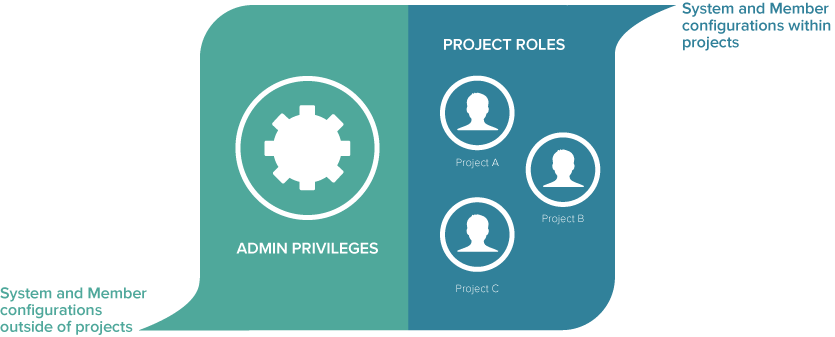
Digital.ai Agility uses two access levels to determine what each member can and cannot do within the system. The first level is called Admin Privileges (previously called "Default Role") and the second level is called Project Role (see explanations below). By grouping access levels in this way, system administrators can easily assign access to members based on the way they use the system.
Admin Privileges Role. The first level, called Admin Privileges, is the initial role assigned to each member when their account is created. It grants them basic access to Digital.ai Agility and controls the set of administrative tasks they can perform. These tasks include the maintenance and configuration activities required to manage the system, including system configuration, adding new members, and so on.
Project Role. When a member is assigned to a project, they receive a specific Project Role. The Project Role grants access to projects based on the role the member plays within each project they work on (for example, team member, project lead, tester, and so on). This role is important because it determines if a member can create, view, and modify project artifacts on a per-project basis. If a member has not been assigned a Project Role on a project, they cannot see the project listed in the project tree.
- The Project Role is not the same as the Admin Privileges role, even though the names in the selection list are similar.
- The Admin Privileges role (previously called the Default role) is the role assigned to each member when their account is first created.
Learn how to create and manage users in Digital.ai Agility.
Admin Privileges Roles
The Admin Privileges role (previously called the Default role) is the role assigned to each member when their account is first created. It grants them basic access to Digital.ai Agility and controls the set of administrative tasks they can perform, including system configuration, adding new members, and managing schedules.
The Admin Privileges role does not control project access. To grant access to projects, you must assign members to projects and give them a Project Role.
Admin Privileges Roles Control
Admin Privileges roles determine what system-level actions members can perform:
- System configuration changes: Configures features, terminology, integrations, and system settings.
- Member account management: Creates, edits, and manages user accounts.
- Schedule management: Creates and manages sprint or iteration schedules.
- Administrative tasks: Provides access to administration menus and system-level configuration.
Available Admin Privileges Roles
Digital.ai Agility provides the following Admin Privileges roles, listed from highest to lowest access:
- System Administrator: Full system configuration access, member management, and administrative functions
- Member Administrator: Member account and role management without system configuration access
- Project Administrator: Project administration and member management within assigned projects
- Project Lead: Schedule, goal, roadmap, and room management for assigned projects
- Team Member: Standard access for most users to view and work with project artifacts
- Developer: Limited access to create and edit development artifacts (tasks, defects)
- Tester: Limited access for testing and quality assurance activities
- Customer: Requirements creation, management, and feedback submission
- Requestor: Request submission with limited access to project details
- Observer: Read-only access to projects
- Visitor: Minimal access for external stakeholders
- Inheritor: Role inherited from parent project
- No Access: No system access
The Team Member role is recommended for most users, as it provides access to commonly used areas of the system.
Learn More About Admin Privileges
For detailed information about each role and their specific permissions, see:
- Assigning an Admin Privileges Role to an Existing Member — How to assign or change roles
- Managing Member Accounts — Member account management
Project Roles
The Project Role grants access to projects based on the role the member plays within each project they work on (e.g., team member, project lead, tester, etc.).
The Project Role is the role assigned to a member for each project they work on. It grants them access to projects based on the role they play (e.g., team member, project lead, tester, etc.). This role determines if they can create, view, and modify project assets.
Key Concepts for Project Roles
Here are a few important things to know:
- A member must be assigned to a project in order for the project to display in the project tree.
- Project role assignments automatically apply to all child projects (unless explicitly changed).
- At any level in the project tree hierarchy, a member's project role can be changed to increase or decrease project permissions.
- A member may have different roles on different projects.
Note that the Project Role is different than the Admin Privileges role (previously call the Default Role).
Learn More About Project Roles
For detailed information about assigning and managing project roles, see:
- Assigning Project Role — How to assign project roles to members
Related Topics
Configuring Digital.ai Agility Features
Managing Your Member Account Details
Related concepts
Related tasks
Tracking Your Work in the My Home Menu