Team Process Management
Who configures team processes: System admins enable the feature and manage global settings. Scrum masters define and maintain team-specific workflows. Product owners collaborate on process design to align with delivery goals.
Team Process Management allows teams to define custom workflows for their backlog items using status values and rollup categories. This flexibility enables teams to manage their work according to their specific processes while maintaining visibility across the organization.
Benefits of team-specific processes
- Workflow flexibility: Each team can define status values that match their working methods
- Rollup visibility: Group status values into categories for high-level reporting
- Process isolation: Changes to one team's process don't affect other teams
- Kanban support: Model kanban boards with custom status columns
- Reporting alignment: Team-specific cycle time and cumulative flow metrics
Getting started with team process
Before defining a team process:
- Enable the feature: System admins must enable Team Process Management in configuration settings
- Initialize if needed: Teams with existing backlog items must initialize their process first
- Plan your workflow: Design status values and rollup categories that reflect your team's process
Managing team processes
Team process management includes:
- Enable the feature: System admins must enable Team Process Management in configuration settings
- Initialize teams: Teams with existing backlog items must initialize their process first
- Add status values: Create new workflow states for your team
- Edit status values: Modify existing status names and properties
- Change order: Drag and drop status values to match your workflow sequence
- Remove status values: Delete unused states (requires moving active items first)
- Rollup categories: Group status values for executive reporting
Enable Team Process Management
Permission requirement: Only system administrators with configuration privileges can enable Team Process Management. This is a global setting that affects all teams in your instance.
Enable Team Process Management to allow teams to define custom workflows with their own status values and rollup categories.
Enable the feature
- Click the hamburger menu
 >
>  Admin > Configuration > System
 - Locate the Team Process Management setting
- Select Enable
- Click Save
Once enabled, teams can define their own processes with custom status values.
After enabling
After enabling Team Process Management:
- Initialize existing teams: Teams with active backlog items must initialize their process before customization
- Define status values: Add status values that match your team's workflow
- Configure rollup categories: Group status values for reporting
- Train team members: Help teams understand their new workflow options
Impact considerations
Enabling Team Process Management affects:
- Reporting: Cycle Time and Cumulative Flow reports become team-specific
- Boards: Teams can customize their board columns
- Grids: Status filters reflect team-specific values
- Initialization: Existing teams require initialization before customization
For detailed impact information, see What impact does defining team process have on my instance.
Troubleshooting
Why can't I see the Team Process Management setting?
You need system administrator privileges with access to Configuration > System settings. Contact your system administrator if you cannot access this area.
Why aren't teams seeing the Process tab?
After enabling the feature, teams with existing backlog items must initialize their process first.
Initialize a Team from Existing Backlog Items
Permission requirement: Any member with Admin Privileges to edit teams can initialize a team process. This is a one-time operation that cannot be reversed.
Initialize a team's process when the team owns active backlog items with existing status values. This prevents existing items from disappearing when you define a new team-specific process.
When initialization is required
You must initialize a team process when:
- The team has active backlog items in existing status values
- You want to define a custom team process
- You need to preserve existing work items on grids and boards
Without initialization, existing backlog items may disappear from grids, storyboards, and reports when you define a new process.
What happens during initialization
When you initialize a team's process:
- Copies of existing status values are created for the team
- Active backlog items are reassigned to the new status values
- The team's process is redefined with these copied status values
- Cycle Time and Cumulative Flow reports are temporarily impacted
If you have a Project Workspace dedicated to one team, Digital.ai Agility can convert status values without impacting Cycle Time or Cumulative Flow reports. Contact Support for assistance.
Initialize the team process
Any member with Admin Privileges to edit teams can initialize a team process.
The initialization process cannot be reversed. Review the impacts before proceeding.
- Click the hamburger menu > Admin > Teams
- Select a team and click the Process tab
- Click the Initialize button
- Review the initialization summary
- Click Commit Changes to begin the initialization process
- Wait for the process to complete
After initialization, you can configure the team's process by adding, editing, or removing status values.
Initialization troubleshooting
Why don't I see the Initialize button?
The Initialize button only appears under specific conditions:
- Feature not enabled: Team Process Management must be enabled for your instance. Contact your administrator to enable this feature.
- Already initialized: If the team's process was previously initialized, the button won't appear. You can only initialize a team once.
- Insufficient permissions: You need Admin Privileges to edit teams. Verify your role with your administrator.
- Wrong tab: Ensure you're on the Process tab of the team details page, not the Details or Members tab.
What happens to existing backlog items during initialization?
Items are preserved but reassigned to new status values:
- Status values copied: The system creates team-specific copies of all existing status values.
- Items reassigned: Active backlog items are moved from global status values to the new team-specific status values.
- No data loss: Items remain visible on grids and boards after initialization. They don't disappear.
- Status preserved: Each item's workflow state is maintained—items in "In Progress" before initialization remain "In Progress" after.
Can I undo initialization?
Initialization is a one-way operation:
- Cannot reverse: Once initialized, you cannot revert the team back to using global status values.
- Permanent change: This is by design to maintain data integrity and prevent workflow disruptions.
- Plan carefully: Review the initialization summary before clicking Commit Changes. Understand the impacts on reports.
- Contact support: If you initialized incorrectly, contact Digital.ai Support for guidance. They may be able to help in specific scenarios.
Why did my Cycle Time and Cumulative Flow reports change?
Initialization creates new status values with new timestamps:
- New status values: Initialized status values are treated as new, which resets historical tracking.
- Report gaps: Historical data before initialization may not flow seamlessly into post-initialization reports.
- Workaround available: Contact Digital.ai Support if your organization has a dedicated Project Workspace for one team. They can convert status values while preserving report continuity.
- Temporary impact: Reports will normalize as the team accumulates new activity data under the initialized process.
Manage Status Values
Add a New Status Value
Permission requirement: Any member with Admin Privileges to edit teams can add status values to a team's process. Scrum masters typically manage team workflows.
Add custom status values to a team's workflow process to model your team's unique way of working.
Prerequisites
Before adding status values:
- Team Process Management must be enabled for your instance
- If the team has existing backlog items, the team process must be initialized
Add a status value
Any member with Admin Privileges to edit teams can add a new status value/rollup category in a team's process.
- Click the hamburger menu > Admin > Teams
- Click on a team to open the Team Details page
- Click on the Process tab
- Click the + icon for the appropriate rollup category (or status value)
- Enter a Title, add a Threshold, WIP Limit, and Description
- Click Save
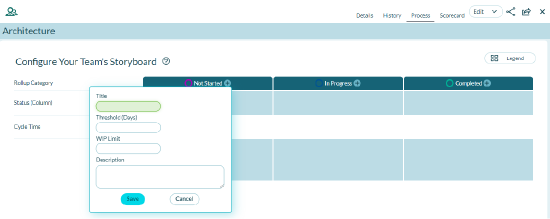
New Status values are immediately available for use on the team's Storyboard.
Troubleshooting adding status values
Why don't I see the Process tab?
The Process tab requires specific prerequisites:
- Feature not enabled: Team Process Management must be enabled for your instance. Contact your administrator to enable this feature at Admin > System Administration > Configuration.
- Team not initialized: If the team has existing backlog items, it must be initialized before the Process tab is accessible.
- Insufficient permissions: You need Admin Privileges to edit teams. Verify your role with your administrator.
- Wrong team: Ensure you're viewing a team detail page, not a project or other asset. Navigate through Admin > Teams.
Why can't I add status values?
Verify prerequisites are met:
- Not initialized: Teams with existing work items must be initialized first. Click the Initialize button on the Process tab if available.
- Permission denied: Only users with Admin Privileges to edit teams can add status values. Request permission from your administrator.
- System limitation: On-premises installations may have Team Process Management disabled. Check with your system administrator about feature availability.
Why doesn't my new status appear on the Storyboard?
Status values should appear immediately but check these factors:
- Wrong team view: Ensure you're viewing the correct team's Storyboard. The status value only appears for the team where it was created.
- Refresh needed: Try refreshing your browser. In rare cases, the page needs to reload to show new status values.
- Rollup category: Verify the status was added to the correct rollup category (column) on the board. Check the Process tab to confirm placement.
- Column width: The board may need horizontal scrolling if many status values exist. Scroll right to find newly added columns.
Rollup categories
Rollup categories group related status values for high-level reporting. For example:
- In Progress: Development, Testing, Review
- Done: Completed, Deployed, Closed
This grouping provides executive visibility without exposing detailed workflow states.
Edit a Status Value
Permission requirement: Any member with Admin Privileges to edit teams can edit status values or rollup categories. Changes affect only the selected team.
Modify status values or rollup categories in a team's process to refine your workflow terminology and properties.
Edit status values
Any member with Admin Privileges to edit teams can edit status values or rollup categories.
- Click the hamburger menu > Admin > Teams
- Select a team and click the Process tab
- Click the Pencil icon for the status value
- Make the desired changes
- Click Save
Changes take effect immediately for the selected team only.
Change the Status Value Order
Permission requirement: Any member with Admin Privileges to edit teams can reorder status values. The new order immediately affects all team boards and grids.
Reorder status values in a team's process to match your workflow sequence. The order determines how status values appear on boards and in dropdowns.
Change status value order
Any member with Admin Privileges to edit teams can reorder status values.
- Click the hamburger menu > Admin > Teams
- Select a team and click the Process tab
- Drag the status value or rollup category to the desired position
- Drop it in the new location
Changes take effect immediately. The new order appears on all team boards, grids, and reports.
Remove a Status Value
Permission requirement: Any member with Admin Privileges to edit teams can remove status values. You must move all active items to another status before deleting.
Delete unused status values from a team's process. Before removing a status value, you must move all active backlog items to another status to prevent them from disappearing.
Remove a status value
Any member with Admin Privileges to edit teams can remove status values.
- Click the hamburger menu > Admin > Teams
- Select a team and click the Process tab
- Click the Pencil icon for the status value
- Click the Delete Status button
- If active backlog items exist, choose a new status value for them
- Click Move and Delete
If no active backlog items use the selected status value, you are not prompted to move items and can delete immediately.
Troubleshooting status value removal
Why can't I delete this status value?
Active items must be moved before deletion:
- Items still assigned: Backlog items currently in this status must be moved to another status first. The system prevents deletion to avoid orphaning work items.
- Use Move and Delete: Follow the workflow that prompts you to select a new status for active items, then deletes the old status.
- Check all items: Verify no items are in the status by filtering your backlog grid by the status value. Move any found items manually if needed.
- Insufficient permissions: You need Admin Privileges to edit teams. Verify your role with your administrator.
What happens to items in this status when I delete it?
Items are preserved by moving them:
- Prompted to move: The system asks you to select a target status before deletion. All items are moved to the new status you choose.
- No data loss: Items are not deleted, only moved to a different workflow status. All history, comments, and attachments are preserved.
- Status change recorded: The status change is logged in item history, showing the migration from old status to new status.
- Cannot proceed without moving: If items exist, you cannot delete the status without selecting a target status for migration.
Why is the Delete button grayed out?
Several factors can disable deletion:
- System status values: Some status values are system-required and cannot be deleted (like "Done" or "To Do" in some configurations).
- Permission restriction: You need Admin Privileges to edit teams. Check with your administrator if you don't have access.
- Active workflow: The status may be referenced in team rules or workflows that prevent deletion. Review team process configuration.
- Default status: If this status is set as the default for new items, you must change the default to a different status before deleting.
Can I recover a deleted status value?
Status deletion is permanent:
- No recovery: Once deleted, status values cannot be restored. Items are moved to new status values permanently.
- Historical data affected: Reports referencing the deleted status may show gaps or different results.
- Recreate if needed: You can create a new status with the same name, but it will be treated as a completely new status with no historical continuity.
- Plan carefully: Verify the status is truly unused and no longer needed before deleting. Check with team members first.
Related Topics
- Use the Team Feature - Team feature overview
- What impact does defining team process have on my instance - Understand system effects