Task Summary Dashboard Panel
This article explains how to use the Task Summary Dashboard panel in Agility.
Overview
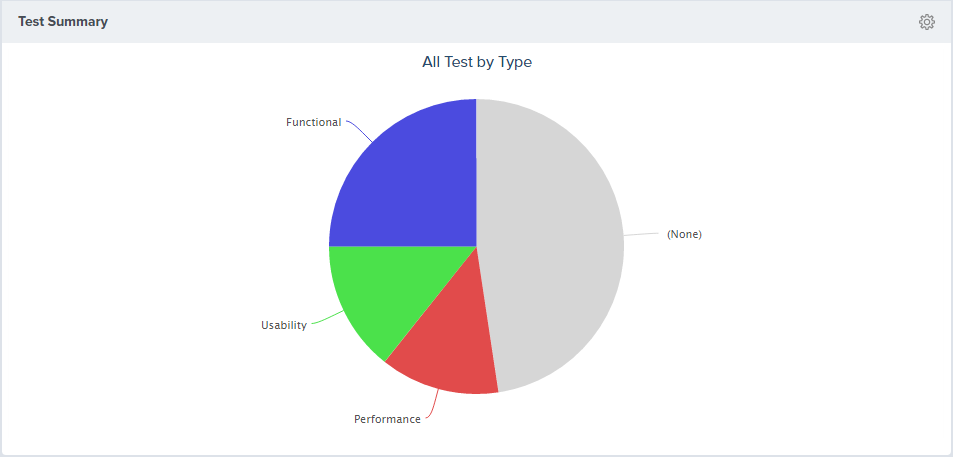
The Analytics Task Summary dashboard panel allows you to understand the break-down of tasks in a project or program by various dimensions.
Where to Find This Panel
The Task Summary panel is available on any of the following Analytics dashboards. See Adding a Panel to a Dashboard for instructions.
- Portfolio > Executive Dashboard
- Program > Product Owner Dashboard
- Team > Dashboard
- Team > Team Dashboard
- Team > Quality Dashboard
- Team > ScrumMaster Dashboard
Measures
This panel counts and groups current tasks based on the configuration options specified in panel parameters.
Configuring the Panel
- To configure the panel, click on the gear icon
 at the top-right corner and click Edit.
 - Choose from the panel parameters below.
Parameters for this panel may differ depending on the location of the dashboard.
Panel Parameter Descriptions
- Portfolio Item: Shows work items in the selected portfolio item and all of it's children. The default option is "Blank" and shows all work items.
- Team: Shows Team-specific data for the project or program. The default value is "All" or "Blank".
- Sprint or Iteration: Shows data assigned to the sprint or iteration. The default value is "All".
- Backlog Group: Shows work items in the selected backlog group. The default option is "All".
- Backlog Goal or Objective: Shows work items assigned to the selected backlog goal. The default option is "All".
- Group By: Shows results grouped by Type, Source, Priority (Default), or Status.
- Task State: Displays tasks in the following states: Open, Closed, All (default).