View Issue Details
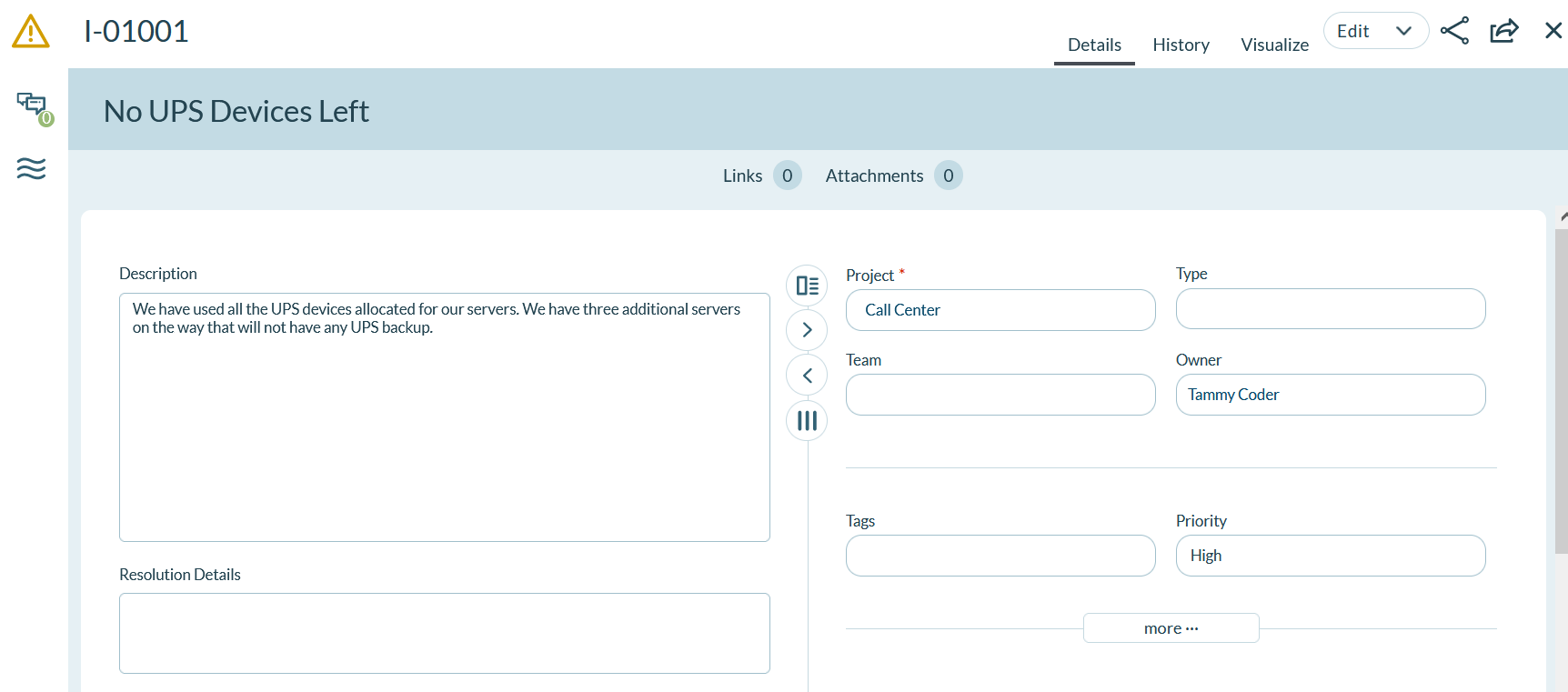
The Issue Details page allows you to view and update the details, relationships, and attributes of an issue.
Who Views Issue Details
- Team Members: View issue details to understand impediment impact, check resolution status, and review affected work items.
- Scrum Masters: Review issue details to facilitate resolution, manage relationships, and track impediment history.
- Product Owners: View issue details affecting backlog items to prioritize resolution work and understand impact on deliverables.
- Project Managers: Analyze issue details across projects to identify patterns and systemic impediments.
Permission Requirement
To view issue details, you must have Read access to the Product Planning or Team Planning area. To edit issue details, assign relationships, add links, or attach files, you must have Edit access. To close or delete issues from the details page, you must have Edit or Admin permissions.
Access Issue Details
Click on an issue title or ID anywhere within the application or, click the hamburger menu  and choose one of the following menu options:
- Product > Input > Issues
- Team > Sprint Planning > Issues
- Team > Sprint Tracking > Issues
Manage Issue Details
From the Issue Details page you can perform the following high-level functions using the tabs at the top of the window.
| If you want to... | Do this... |
|---|---|
| View and update all request details | Click the Details tab |
| View the change history for a request | Click the History tab. |
| View a graphic representation of the issue's relationships to other related assets | Click the Visualize tab and click View Options to select which relational backlog items appear (Defects, Portfolio Items, Ideas, Requests, Backlog Items, Test Sets) |
| Edit issue details | Click the Edit button to open the Issue Edit window. You can also open this drop-down menu to perform other more granular functions (Generate Backlog Item, Generate Defect, Copy, Close Issue, Delete, and Watch Issue). |
View or Manage Issue Relationships
Click Show Relationships at the bottom of the Issue Details page to manage the portfolio items, backlog items, defects, test sets, requests, and retrospectives to assign to an issue, and add, update, or remove links and attachments from the issue. For any items you add or assign, you click Remove in the grid to remove them from the selected issue.
| If you want to... | Do this... |
|---|---|
| Assign the issue to a backlog item to the issue to plan specific work to be done within the sprint. | Go to Backlog Items Blocked by This Issue and click Assign. |
| Assign a defect to plan and track specific bug fixing work that was identified as a result of this issue. | Go to Defects to Resolve This Issue and click Assign. |
| Assign a defect identified as blocked due to this issue. | Go to Defects Blocked by This Issue and click Assign. |
| Assign a test set identified as blocked due to this issue. | Go to Test Sets Blocked by This Issue and click Assign. |
| Assign a request to this issue. | Go to Requests and click Assign. |
| Assign a retrospective to this issue. | Go to Retrospectives and click Assign. |
| Add a new link to external documentation | Go to Links and click Add. |
| Add a new file attachment | Go to Attachments and click Add. |
Troubleshooting
Why can't I access the Issue Details page for a specific issue?
You must have Read access to the Product Planning or Team Planning area where the issue was created. Verify your permissions with your administrator. If the issue is in a different project, ensure you have access to that project.
Why don't I see the "Show Relationships" option at the bottom of the Issue Details page?
The "Show Relationships" link appears at the bottom of the Details tab. Scroll down to the bottom of the page to find it. If you still don't see it, verify you have at least Read access to view relationships.
Why can't I edit issue details from the Issue Details page?
You must have Edit access to the Product Planning or Team Planning area to edit issue details. Click the pencil icon next to fields to edit them inline, or use the Edit button to open the full Issue Edit window.
Why doesn't the Visualize tab show relationships to my blocked work items?
In the Visualize tab, click View Options to select which relational assets appear (Defects, Portfolio Items, Backlog Items, Test Sets, Ideas, Requests). Ensure the asset types you want to see are checked. If relationships still don't appear, verify the relationships are correctly established using "Show Relationships".