Rank Work Items
Prioritization and ranking are primary activities Product Owners perform to determine when items make it into the development backlog. By looking at each work item's priority value, complexity, size, and other factors, you can fine-tune which items to schedule in a sprint or iteration before others.
Ranking can occur on high-level portfolio items (epic or initiative) all the way down to individual stories and defects in a team's backlog. The ranked backlog is then used as input during release planning and sprint or iteration planning activities.
When moving backlog items into the backlog queue, optimize on both prioritization and ranking. However, some Agile methodologies such as DSDM promote the practice of taking a mix of high, medium, and low priority items within each sprint or iteration. That approach encourages teams to pay attention to both big and little things as they move through the release, spreads out risk, and allows for easier decision making.
Who Ranks Work Items
- Product Owners: Rank backlog items and portfolio items based on business value, stakeholder priorities, and strategic goals.
- Scrum Masters: Help teams rank work items during sprint planning and backlog refinement sessions.
- Team Members: Rank tasks and defects within their assigned work to optimize workflow and focus on highest-priority items.
- Portfolio Managers: Rank portfolio items (initiatives, epics, features) using SAFe WSJF or other prioritization frameworks.
Permission Requirement
To rank work items, you must have Edit access to the Product Planning area for the project containing the items you want to rank. To rank portfolio items using SAFe WSJF, you must have Edit access at the portfolio level. The grid must be set to the default sort order to enable ranking operations.
Rank by Drag and Drop
In any grid, you can rank your most valuable work items by dragging and dropping them up or down to their prioritized position in the backlog. This allows teams to see the order in which they should complete their work items.
The most important work items display at the top of the backlog. These are the items that should be considered for completing in the current or next release or sprint/iteration. The least important items are farther down the list. You can use filters to quickly rank a large number of work items.
To rank by drag and drop:
- Click the
 icon to reset the grid to the default sort order.
 - Click on a row, and then drag the work item up or down to the desired location in the grid.
- You can now sort the grid by priority (optional).
Rank Using Action Menu
In any grid, you can rank multiple work items simultaneously using the Action Menu. This method is efficient when ranking several items at once to specific positions in the backlog.
To rank using the Action Menu:
- Click the icon to reset the grid to the default sort order.
- Select the checkboxes next to the items you want to rank.
- From the Move to Project action list, select Rank, and choose a ranking option:
- Top of Selected Project: Move items to the top of the current project
- Top of List: Move items to the very top of the backlog
- Move to Page...: Move items to a specific page number
- Bottom of List: Move items to the bottom of the backlog
- Bottom of Selected Project: Move items to the bottom of the current project
- You can now sort the grid by priority (optional).
Rank by Numerical Order
In any grid, you can rank portfolio items and backlog items numerically using the Order column. This allows you to prioritize what items should be worked on first by assigning specific order numbers.
To rank by numerical order:
-
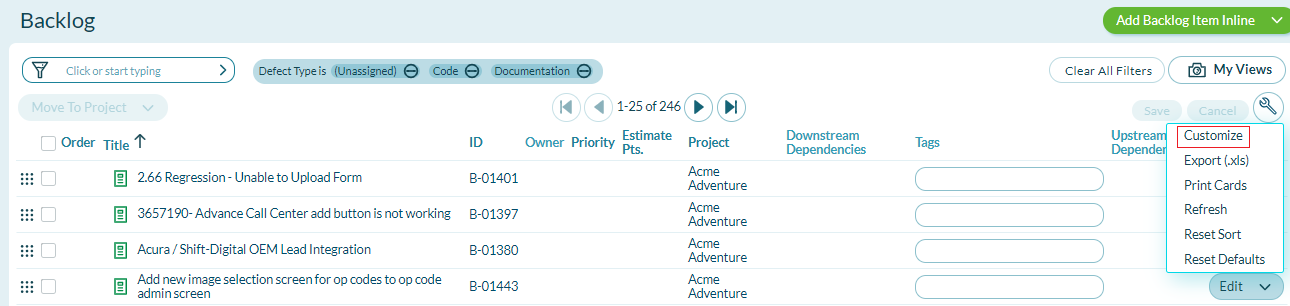
In the top right corner of a grid, click
 , and click Customize.
-
In the Customize Columns window, select both checkboxes next to Order and click Save.

-
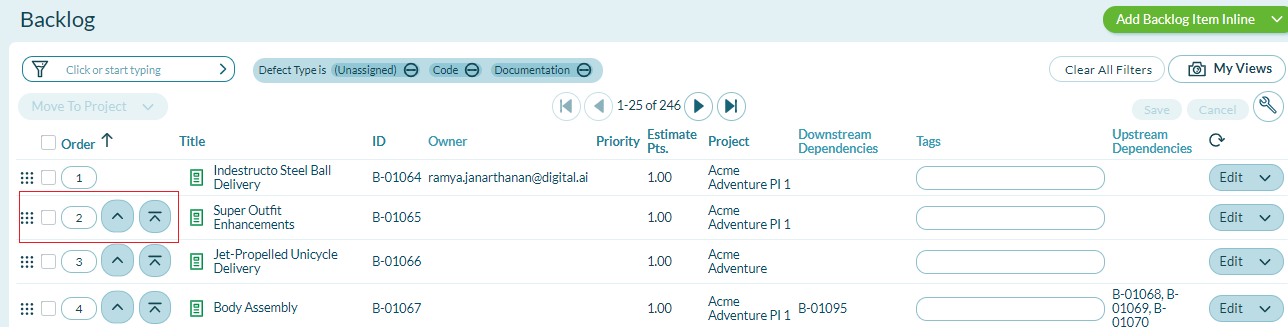
Enter a number to designate the ranking order in the Order column fields, or click the Up or Down arrows to change the order.
-
Click Order to sort and rank items by order. Double-click Order to disable editing the Order column.
-
You can now sort the grid by priority (optional).
Note: The grid must be set to the default sort order to rank work items. To learn more, see Resetting the Default Grid Columns.
Rank by Priority
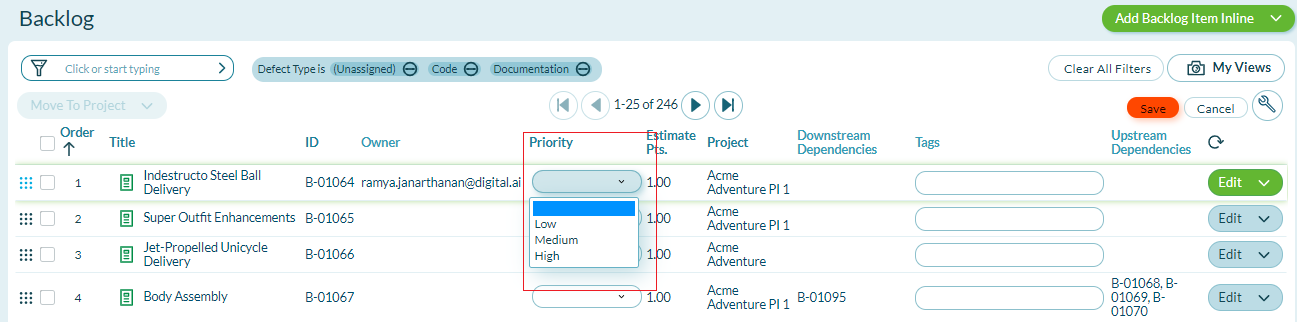
Ranking by priority allows you to separate your backlog with respect to overall stakeholder, strategic, or business value by assigning a priority: Low, Medium, or High. Ranking establishes when an item will be pulled into the queue and considers development factors such as cost, complexity, risk, and priority.
To rank by priority:
-
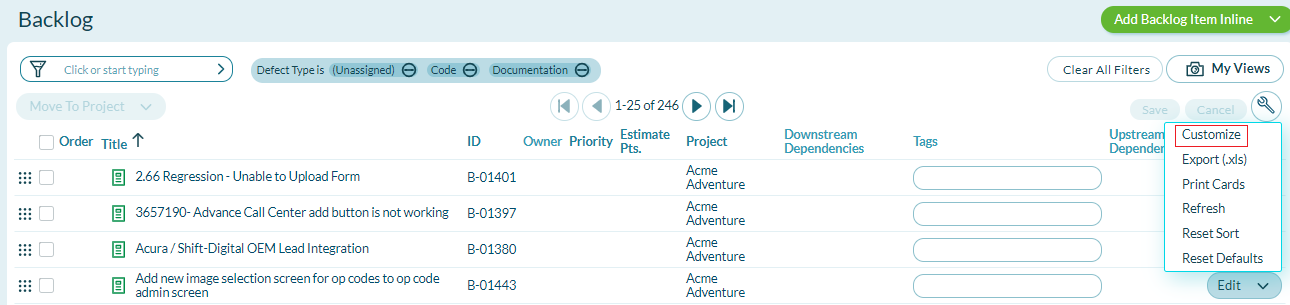
If the Priority column isn't visible, click
in the top right corner of the grid and click Customize.
-
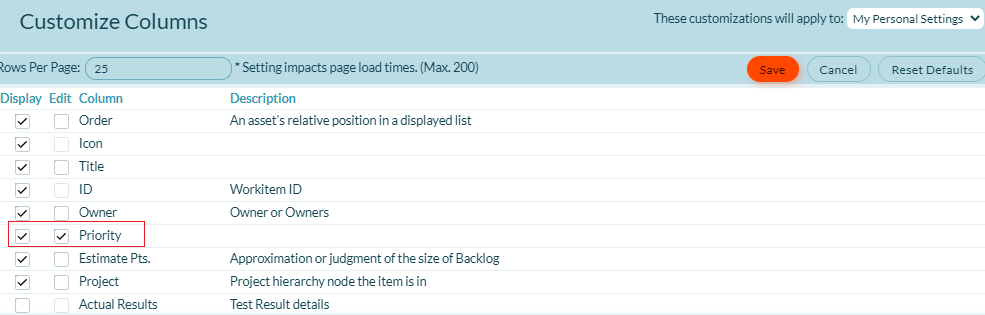
In the Customize Columns window, select both checkboxes next to Priority, and click Save to return to the grid.
-
For each item in the grid, select a status from the Priority drop-down list and click Save.
-
You can now sort the grid by priority (optional).
Note: The grid must be set to the default sort order to rank work items. To learn more, see Resetting the Default Sort Order.
Rank by SAFe WSJF
Weighted Shortest Job First (WSJF) is a Scaled Agile Framework (SAFe) method of deciding what features to work on first. This is a calculated value that combines Business Value, Time Criticality, and Risk Reduction inputs to create a combined Cost of Delay value. WSJF is then calculated by dividing the Cost of Delay by the job estimated size or Swag. The items with the largest WSJF value should be worked on first.
You can see the Business Value, Time Criticality, and Risk Reduction values on portfolio items at any level (Initiative, Epic, or Feature), and can be viewed or changed on portfolio item detail pages. WSJF ranking is available in all places where you view portfolio items, including:
- Portfolio Tree
- Release Scheduling
- PlanningRooms
- Portfolio Item Bubble Chart
To rank by SAFe WSJF:
-
Ensure the grid is set to the default sort order. To learn more, see Resetting the Default Sort Order.
-
Customize the grid to display any WSJF-related columns you want to see (Business Value, Risk Reduction, Time Criticality, Cost of Delay, and WSJF).
-
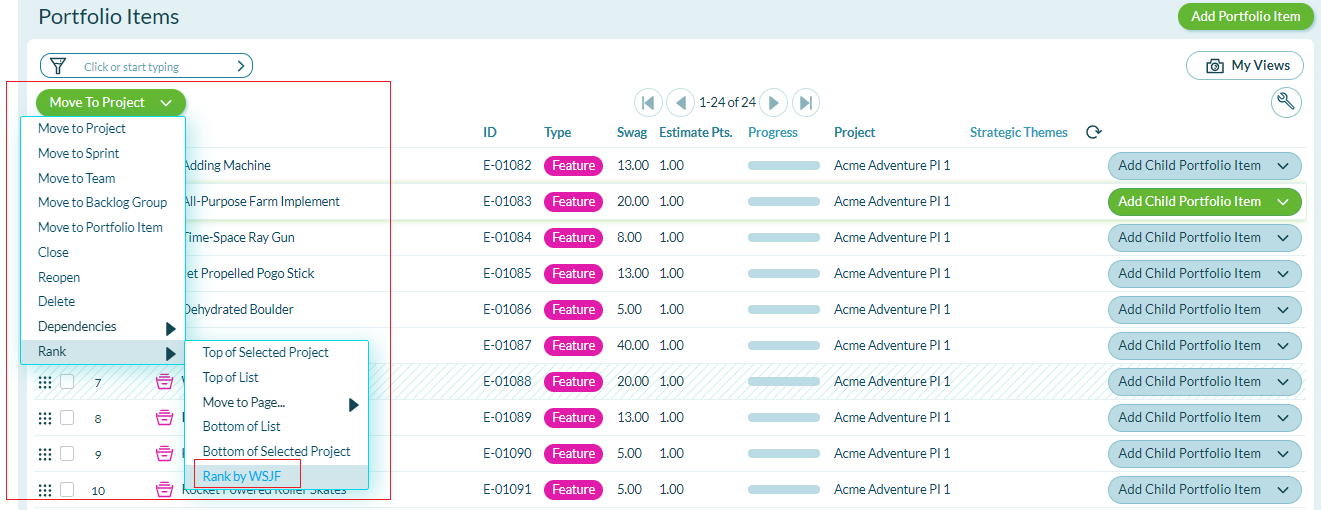
Select the checkboxes for the Portfolio Items you want to rank by WSJF.
-
Click the Action menu on the left side of the grid, and click Rank > Rank by WSJF.
-
You can now sort the grid by priority (optional).
Troubleshooting
Why can't I drag and drop items to reorder them?
The grid must be set to the default sort order to enable drag-and-drop ranking. Click the reset icon to restore default sort order. If you've applied custom sorting or filtering, disable those settings before attempting to rank items.
Why don't I see the Order column in my grid?
The Order column must be added through grid customization. Click the wrench icon in the top right corner, select Customize, check both boxes next to Order, and click Save. The Order column will then appear in your grid.
Why can't I rank items using SAFe WSJF?
WSJF ranking is only available for portfolio items (Initiatives, Epics, Features) and requires that Business Value, Time Criticality, Risk Reduction, and Swag values are populated on those items. Ensure the grid displays portfolio items and that WSJF-related fields contain values before attempting WSJF ranking.
Why did my ranking changes not persist after refreshing the page?
Ranking changes must be saved before navigating away. After dragging items, using the Action Menu, or updating Order values, verify that changes are saved. If using the Order column, press Enter or click Save to commit changes. Custom sorting applied after ranking may also hide your ranking changes.