Use the Backlog Page
The Backlog page serves as the primary workspace for managing stories, defects, and all product work. It provides capabilities to access the backlog, filter items, and use tags to organize backlog items.
Who uses the Backlog page: Product owners prioritize and refine backlog items for upcoming sprints. Team members review stories assigned to them and update progress. Scrum masters facilitate backlog grooming and sprint planning sessions. Stakeholders review planned work and provide feedback on priorities.
Permission requirement: All project members can view the Backlog page. Creating, editing, and closing backlog items requires appropriate project role permissions (typically Team Member or higher). Deleting backlog items requires elevated permissions (typically Project Admin).
Stories are also called "Backlog Items" in Digital.ai Agility. These terms are used interchangeably throughout the documentation.
Stories represent the primary agile planning and tracking assets—discrete pieces of functionality that deliver business value. They can include requirements, additions or changes to existing functionality, or activities the project team must perform to deliver the product.
Access the Backlog Page
To view and manage the product backlog:
Click the hamburger icon  > Product > Backlog
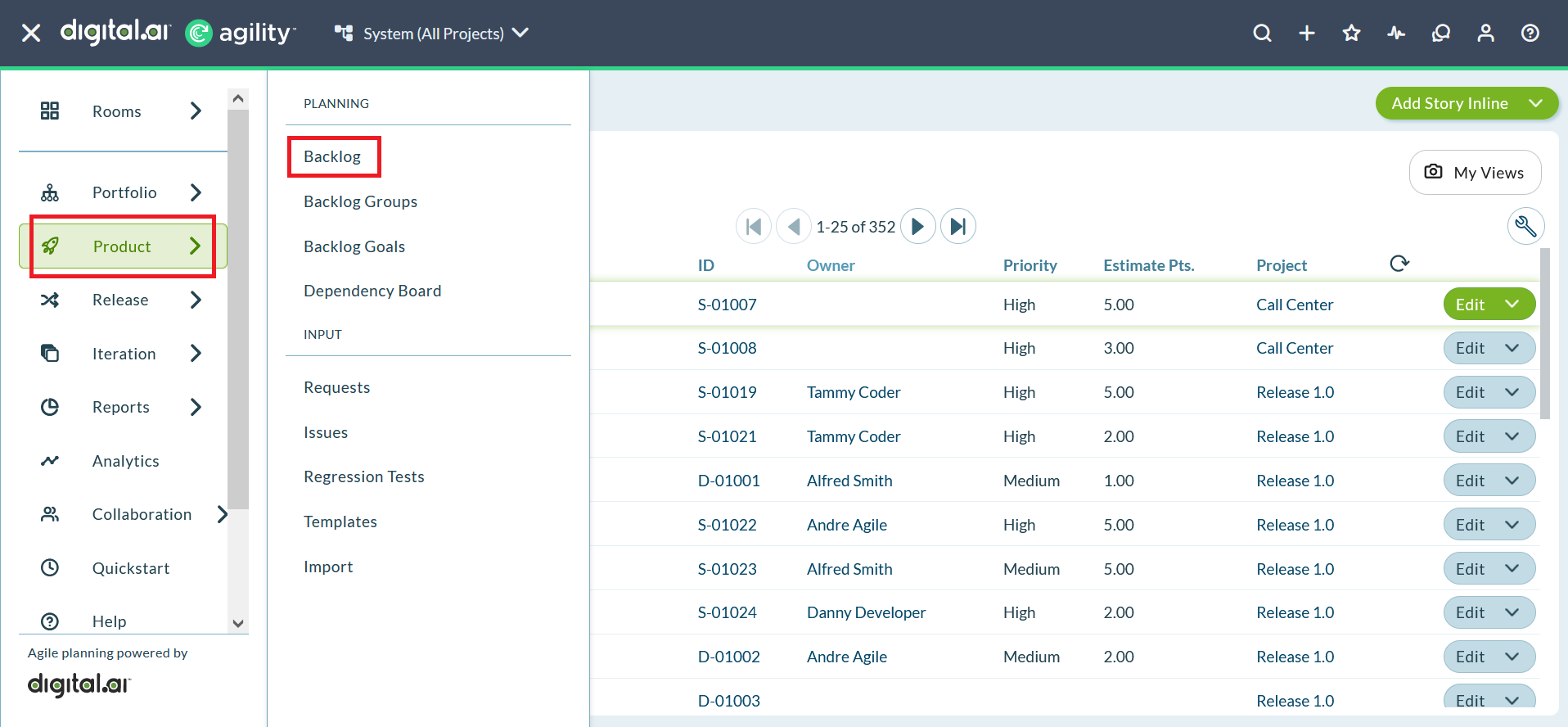
The Backlog page displays all stories, defects, and work items for the selected project. This central workspace supports viewing, editing, prioritizing, and managing all backlog items.
Asset relationships: Digital.ai Agility system assets have interconnected relationships. Stories connect to projects, sprints (also called iterations), releases, schedules, portfolio items, tasks, tests, and team members. The Asset Model Diagram illustrates these relationships and how assets interact.
Filter Backlog Items
Filters help you narrow or expand the list of backlog items to focus on specific work. Filters display at the top of each grid or report, allowing you to work with or view a subset of data at any given time.
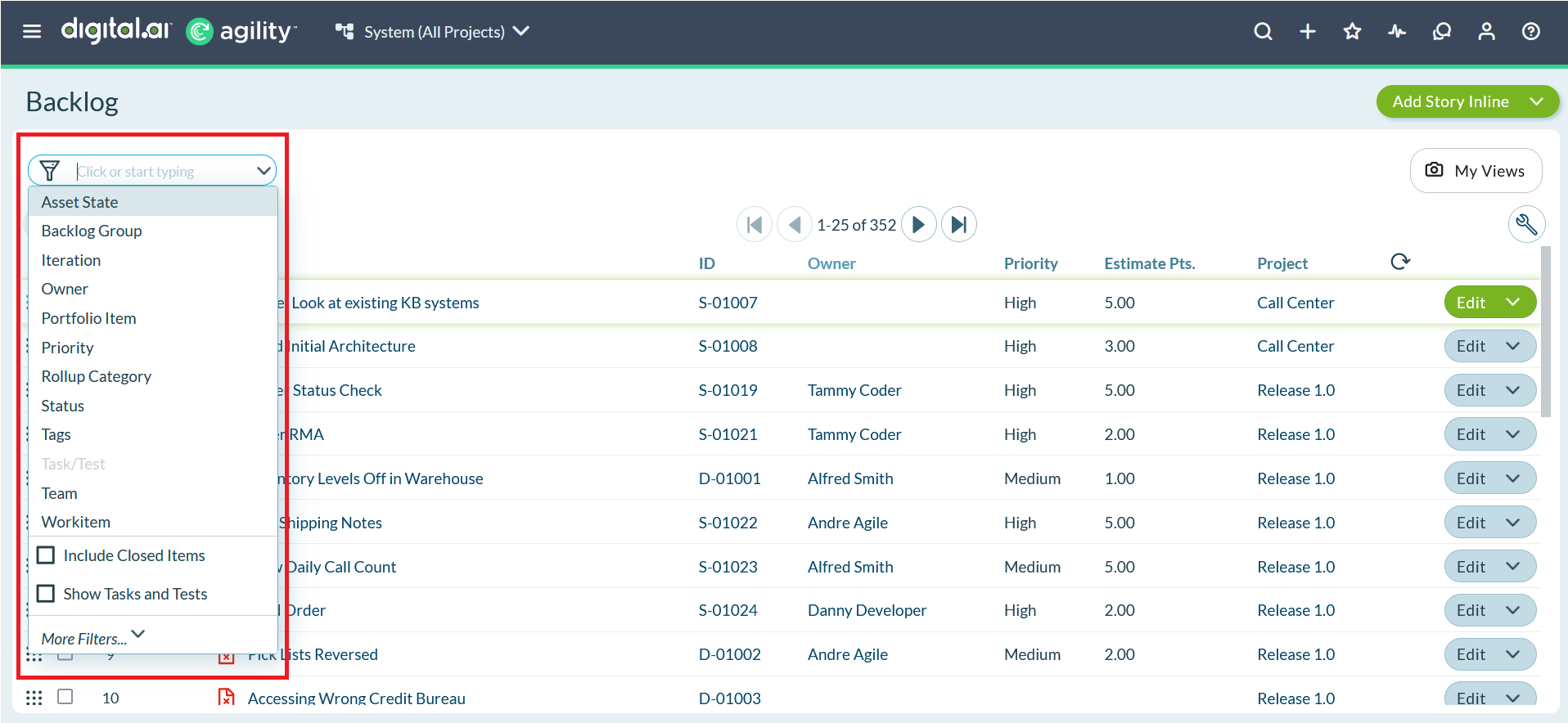
Filters applied at the top level of the project hierarchy also display in tree grids, ensuring consistent filtering across all views.
Apply Filters
- Select a project from the Project Navigator.
- Click or start typing in the filter field.
- Select any of the available filter options (status, owner, priority, tags, etc.).
- Repeat to add multiple filter criteria.
- Click Apply when done.
Available filter options:
- Status (active, closed, done, etc.)
- Owner (assigned team members)
- Priority (high, medium, low)
- Tags (organizational labels)
- Sprint or iteration
- Estimate values
- Custom fields
Filter tips:
- Combine multiple filters to create precise views
- Save frequently used filter combinations
- Clear filters to return to full backlog view
- Use filters to focus sprint planning sessions
Use Tags to Organize Work
Tags provide a lightweight, flexible way for different groups to organize data according to their needs. Tags enable cross-cutting categorization beyond the standard hierarchy, helping teams find and group related work quickly.
Assets That Support Tags
- Portfolio Items
- Backlog Items (Stories)
- Defects
- Tasks
- Tests
- Requests
- Issues
- Test Sets
- Regression Tests
Add Tags to Assets
Tags can be added to assets in several ways. As you type, matching frequently used tags appear for selection. You can choose an existing tag or create a new tag. Spaces and quotes are supported when creating tags.
Tag via the grid:
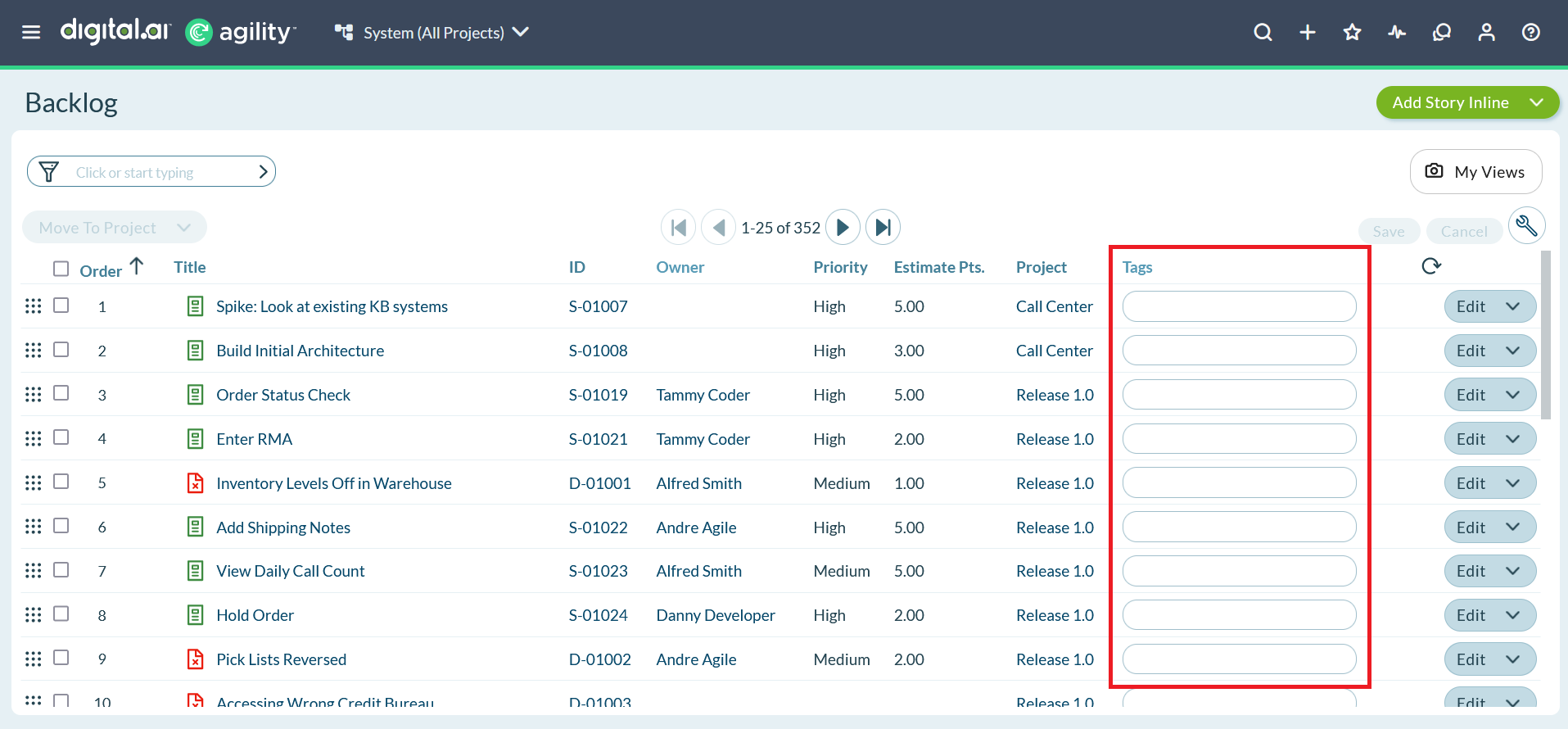
Click in the Tags column and start typing to add or select tags directly in the backlog grid.
Tag via inline edit:
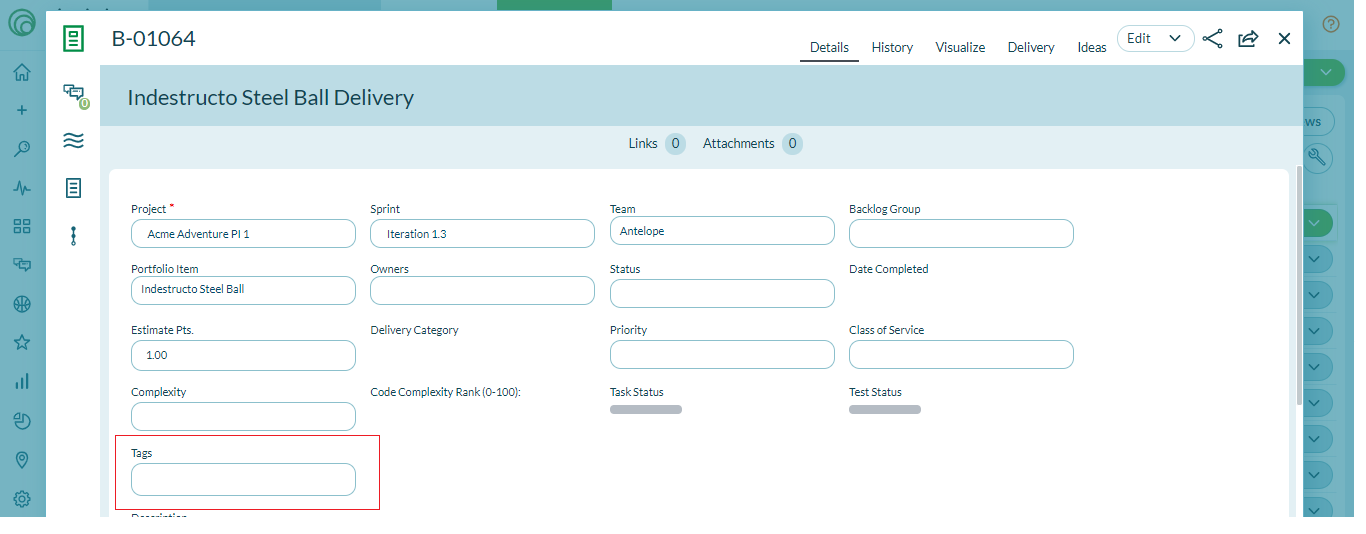
Open the inline editor for any asset and add tags without navigating away from the grid view.
Tag via asset edit form:
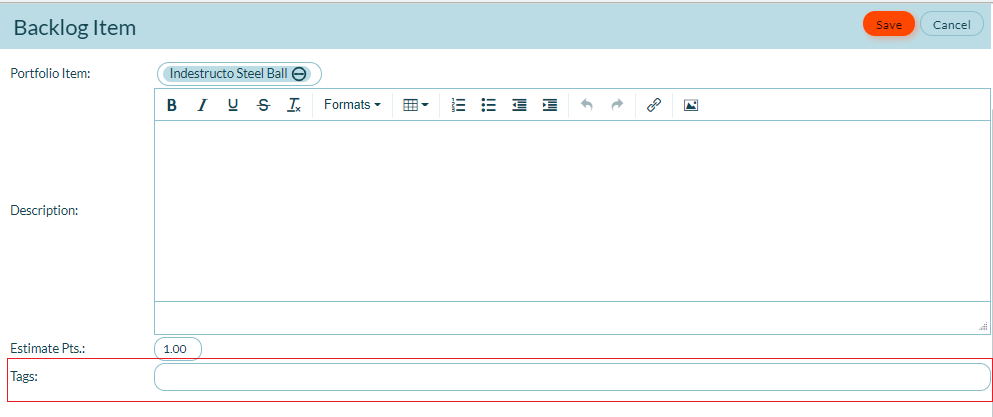
Open the full edit form for any asset to add or manage tags along with other asset details.
Note: Tags applied to workitems in a closed state remain visible in the application, allowing you to maintain organizational structure across active and completed work.
Filter by Tags
Once assets are tagged, use the filter option to narrow the backlog to specific tags:
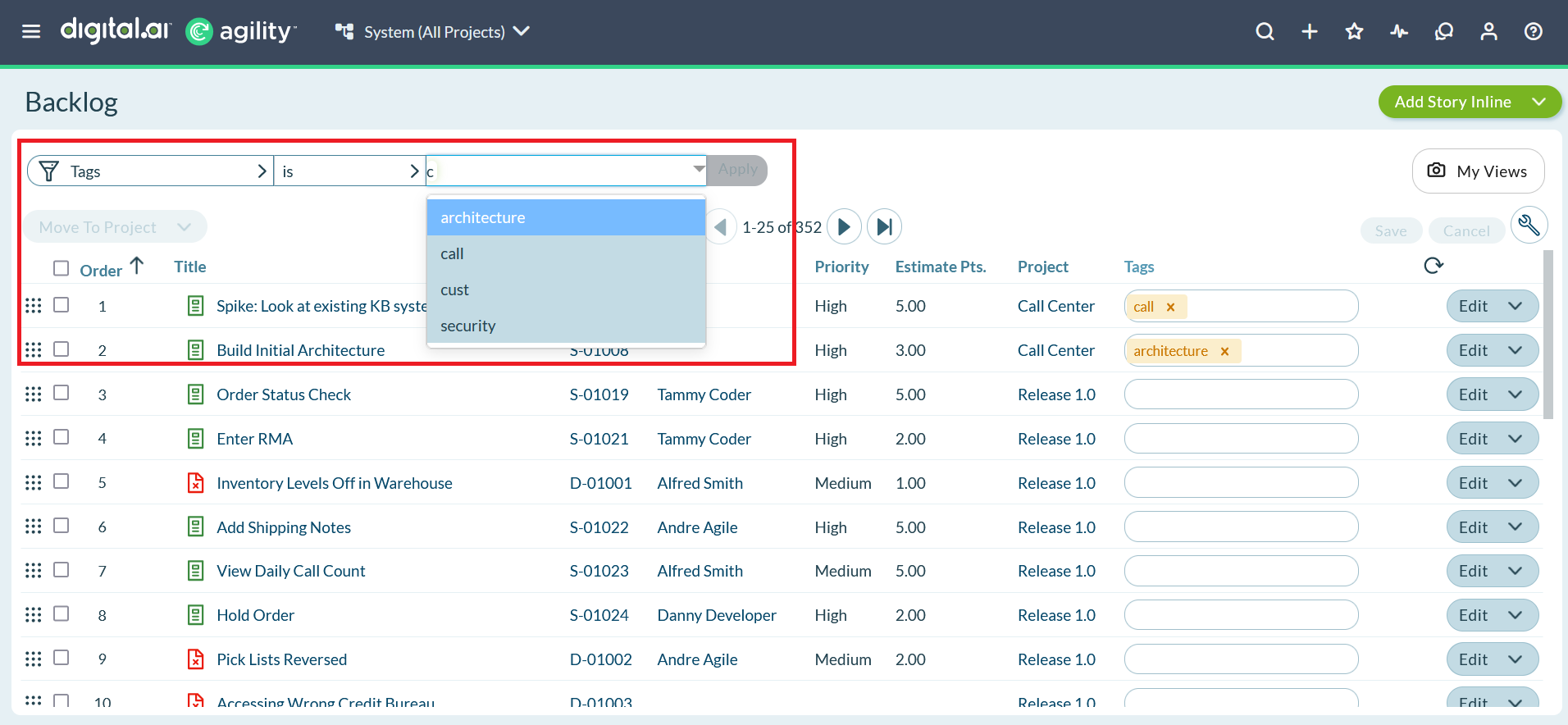
Select one or more tags in the filter to display only items with those tags. This helps teams focus on themed work, priorities, or specific initiatives.
Search by Tags
To find all assets using a specific tag across the system:
- Click on any tag displayed on an asset.
- The system performs an advanced search for that tag.
- Results show all assets (across projects) with that tag.

This cross-project search capability helps identify related work across your entire product portfolio.
Common Tag Strategies
Theme-based tags: Group stories by strategic theme (e.g., "mobile-experience", "security", "performance")
Technical tags: Identify technical characteristics (e.g., "database", "ui", "api", "infrastructure")
Risk tags: Flag high-risk or complex items (e.g., "high-risk", "technical-debt", "spike-needed")
Dependency tags: Mark items with external dependencies (e.g., "vendor-dependent", "blocked", "cross-team")
Release tags: Identify target releases or milestones (e.g., "mvp", "phase-2", "beta")
Customer tags: Associate work with specific customers or segments (e.g., "enterprise", "customer-request")
Best Practices
Use consistent tag names: Establish team conventions for tag naming to avoid duplicate or similar tags (e.g., "UI" vs "ui" vs "user-interface").
Create tag taxonomies: Define standard tag categories your team will use consistently (themes, technical areas, priorities).
Filter before sprint planning: Apply filters to focus planning sessions on specific priorities, themes, or team assignments.
Combine filters and tags: Use filters with tags to create powerful views (e.g., high-priority mobile stories assigned to Team A).
Tag during refinement: Apply tags during backlog refinement sessions when understanding of work is highest.
Review tags regularly: Clean up unused or obsolete tags to keep the system organized and searchable.
Save common filter views: Bookmark or save frequently used filter combinations for quick access.
Use tags for reporting: Leverage tags in custom reports to analyze work by theme, risk, or technical area.
Train new team members: Ensure everyone understands your team's tagging conventions and filter usage patterns.
Tag retrospective actions: Use special tags to track improvements or technical debt identified in retrospectives.
Troubleshooting
Why don't I see any backlog items on my Backlog page?
First, verify you've selected the correct project in the Project Navigator. If the project is correct, check if filters are applied - click the filter area at the top and clear all filters to see the full backlog. If items still don't appear, you may not have permission to view backlog items in this project, or the project may not contain any backlog items yet. Contact your Project Admin to verify your project role and permissions.
Why can't I edit a backlog item on the Backlog page?
Several factors prevent editing: (1) The item may be closed - closed items require reopening before editing. (2) You may lack edit permissions for this story type - check with your Project Admin. (3) The item may be in a closed sprint or project - items in closed containers are read-only. (4) The item may be locked by another user currently editing it - wait for them to finish or contact them. Check the item's status and your project role to identify the specific restriction.
Why don't my tags appear in the tag dropdown when filtering?
Tags only appear in filter dropdowns after they've been applied to at least one asset in the project. If you just created a tag but it's not showing in the filter, apply it to a backlog item first, then refresh the page. Tags are case-sensitive - ensure you're searching for the exact tag name including capitalization. Also verify you're viewing the correct project context - tags from parent or child projects may not be visible depending on your view scope.
Why does my filter return too many or too few results?
Filters are cumulative (AND logic) - adding multiple filter criteria narrows results. If you're seeing too few items, remove some filters to broaden the view. If you're seeing too many, add more specific filter criteria. Check if you've selected "Active" status filter - this excludes closed items. Also verify your Project Navigator selection - you might be viewing a parent project that includes child project items, or vice versa. Use the "Clear Filters" button to reset and start fresh.
Related Topics
- Product Planning - Overview of product planning capabilities
- Managing Stories or Backlog Items - Create and manage stories
- Working with Defects - Track and resolve quality issues
- Ranking Work Items - Prioritize backlog items
- Sprint or Iteration Planning - Plan sprint work
- Understanding Digital.ai Agility Interface - Learn the user interface