Manage Dependencies
Add, view, and track dependencies between work items to manage delivery commitments and coordinate across teams.
Who manages dependencies: Product owners identify and add dependencies during backlog refinement. Scrum masters monitor dependency status and coordinate resolution with other teams. Program managers track cross-team dependencies during PI planning. Release train engineers manage dependencies across agile release trains.
Permission requirement: Viewing dependencies requires project member access. Adding, editing, and removing dependencies requires Team Member role or higher on both the source and target work items. Viewing cross-project dependencies requires membership in both projects. Specific permissions depend on your organization's role configuration.
Understanding Dependencies
A dependency is a direct relationship between assets in which one asset relies on another asset to be completed.
- Upstream Dependencies: Other work items that must be completed before the current item can be completed.
- Downstream Dependencies: Work items that are dependent on the completion of the current item.
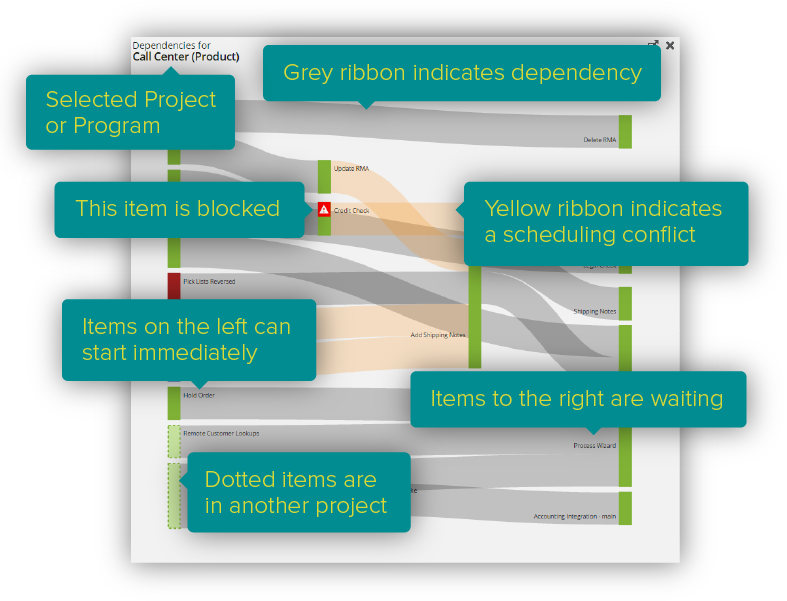
Work items can have an unlimited number of dependency relationships, whether they're backlog items, defects, test sets, or portfolio items.
Add Dependencies to Backlog Items
From the Grid (Fastest)
-
- Click the hamburger icon
 > Product > Backlog.
- Click the hamburger icon
- Select the item(s) with a dependency using the checkbox.
- Select Dependencies > Assign Upstream Dependencies or Assign Downstream Dependencies.
- Select the appropriate item(s) and click Add.
From the Details Page
- Open a backlog item, defect, or test set.
- Click the Assign button to the right of the Upstream Dependencies or Downstream Dependencies grid.
- In the pop-up window, click Add next to each item you want to add as a dependency.
- Click Close Window to return to the details page.
Add Dependencies to Portfolio Items
From the Grid (Fastest)
-
- Click the hamburger icon > Portfolio > Portfolio Tree.
- Click the hamburger icon
- Select the item(s) with a dependency using the checkbox.
- Select Dependencies > Assign Upstream Dependencies or Assign Downstream Dependencies.
- Select the appropriate item(s) and click Add.
From the Details Page
- Open a Portfolio Item.
- Click the Assign button to the right of the Upstream Dependencies or Downstream Dependencies grid.
- In the pop-up window, click Add next to each item you want to add as a dependency.
- Click Close Window to return to the details page.
Filter Dependencies
When you select Assign on the Upstream or Downstream Dependency grid, you'll get a listing of Portfolio Items that are pre-filtered to the selected project and the portfolio item Type of the selected portfolio item. These filters can't be cleared, but they can be changed.

To change the filters:
- Click in the Filter field and select Project or Type.
- Once you select a different project, the pre-selected filter is replaced by the new filtered project selection. The same applies to Type.
- After you change the filters, any additional filters you select are added as an OR filter. This enables the Clear All Filters button, which resets the filters back to the original pre-selected filters.
The filters show everything that matches the filter in the selected project and its child projects.
View Dependencies
In Release and Sprint Scheduling Grids
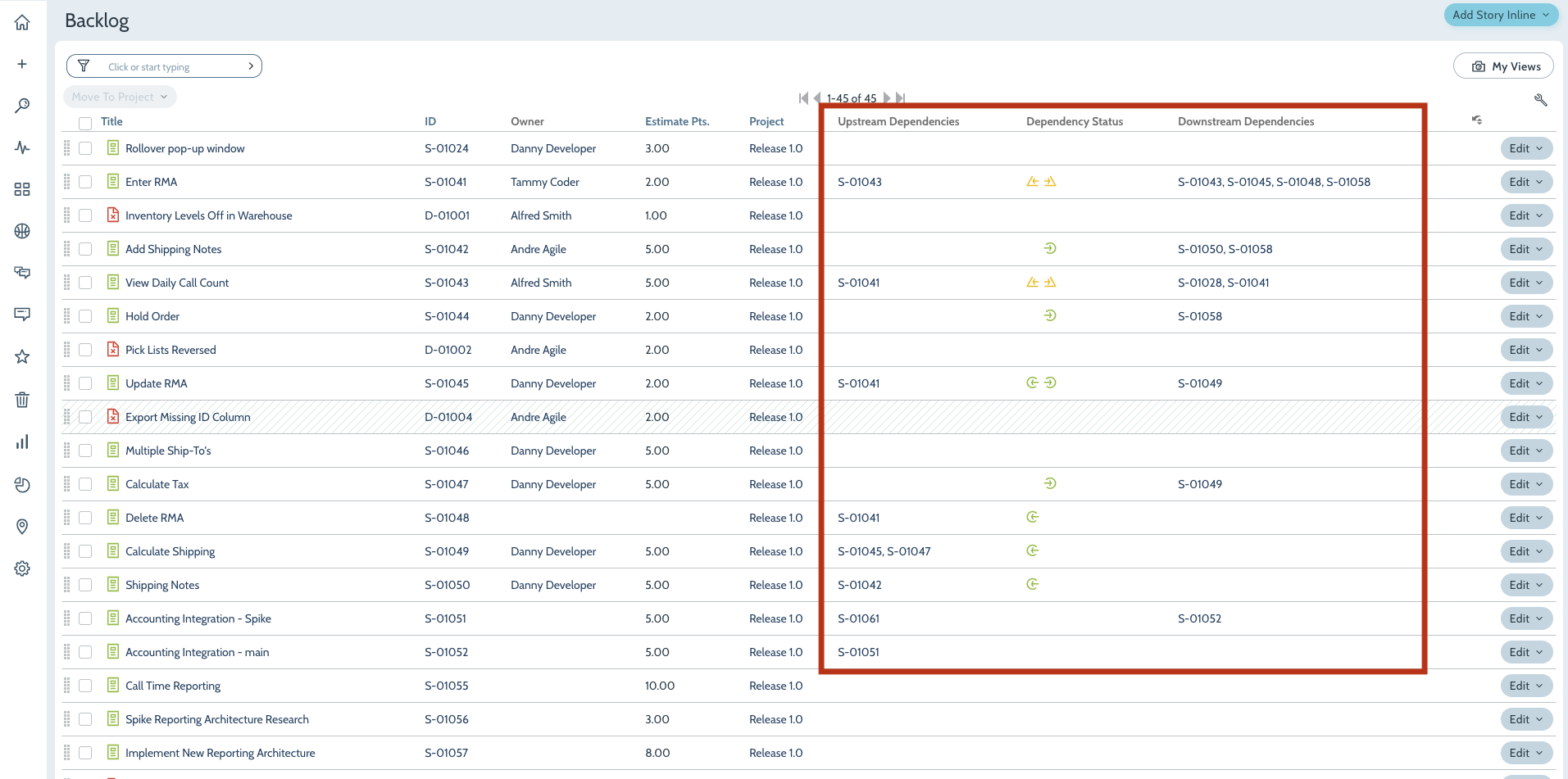
You can see dependencies in the Release Scheduling and Sprint Scheduling grids by adding the following columns to the grid. Note that these columns are hidden by default:
- Upstream Dependencies: Shows that other stories must be completed before the current story can be completed.
- Downstream Dependencies: Shows stories that are dependent on the completion of the current story.
- Dependency Status Icon: Indicates that the dependency is satisfied, broken, or overlapping. As the dependencies change during the course of a sprint or iteration, the status icon changes to reflect the status.
In Portfolio Item Grid
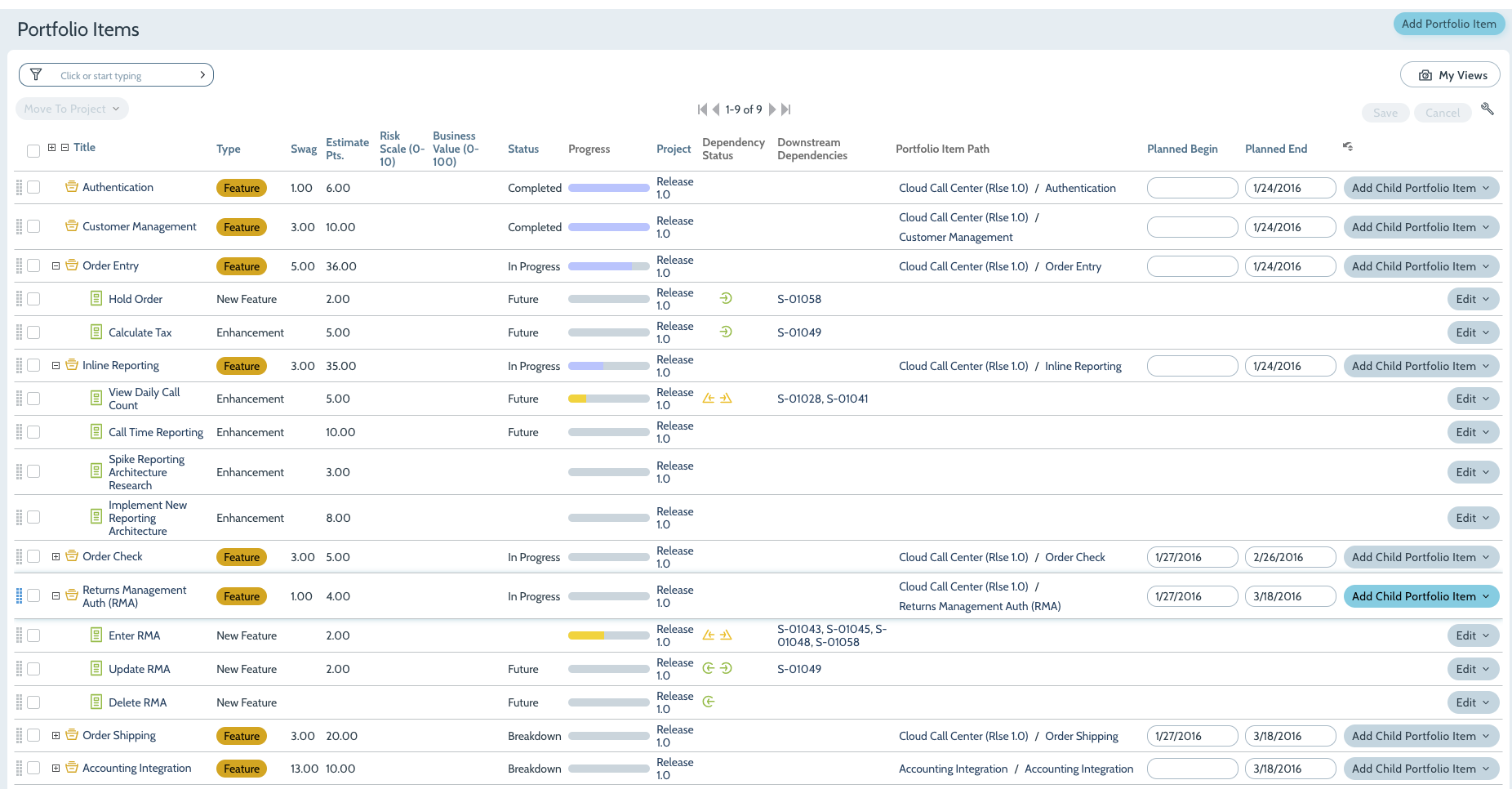
Portfolio Item Dependencies can be viewed on the Portfolio Item Grid.
On the Details Page
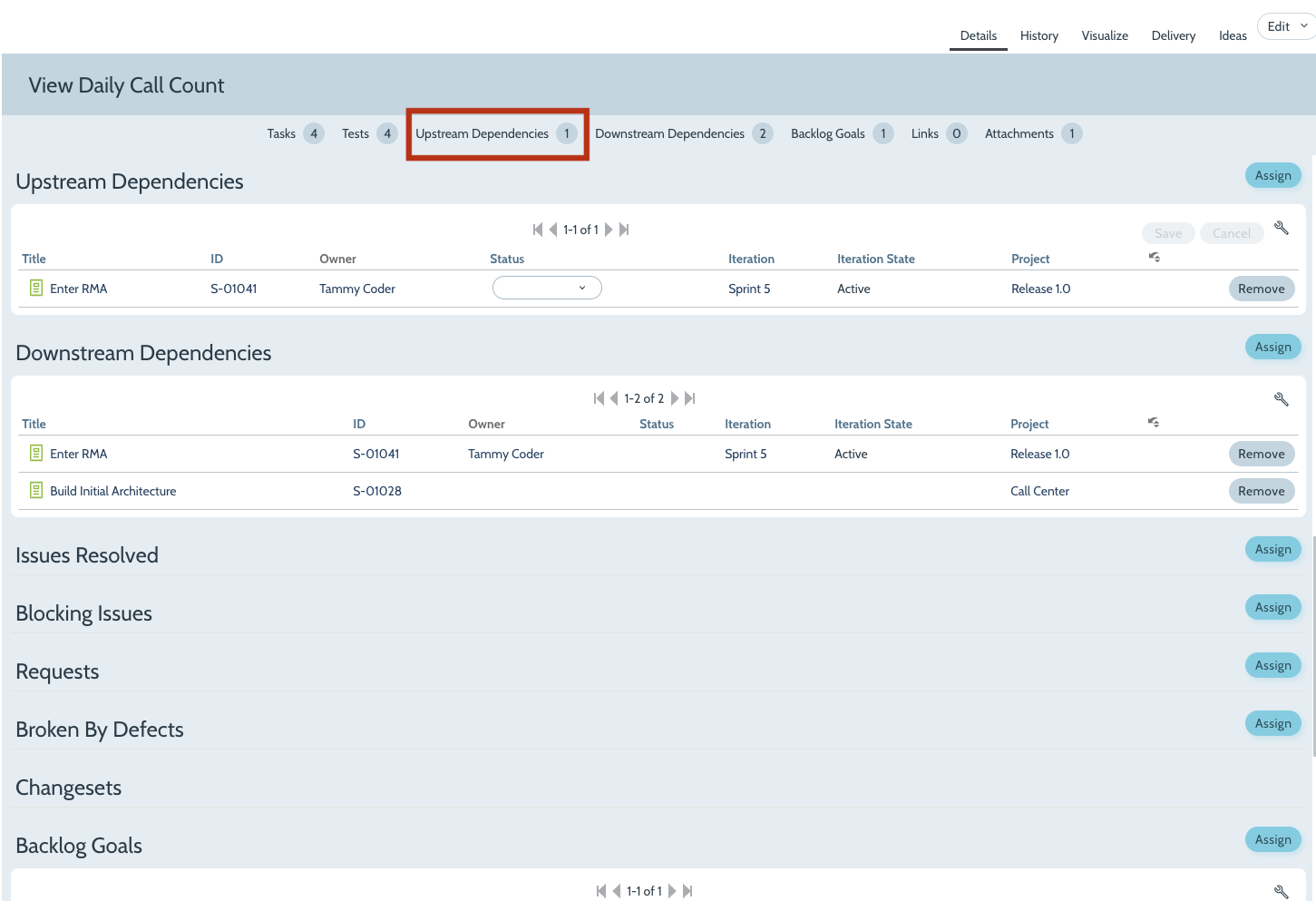
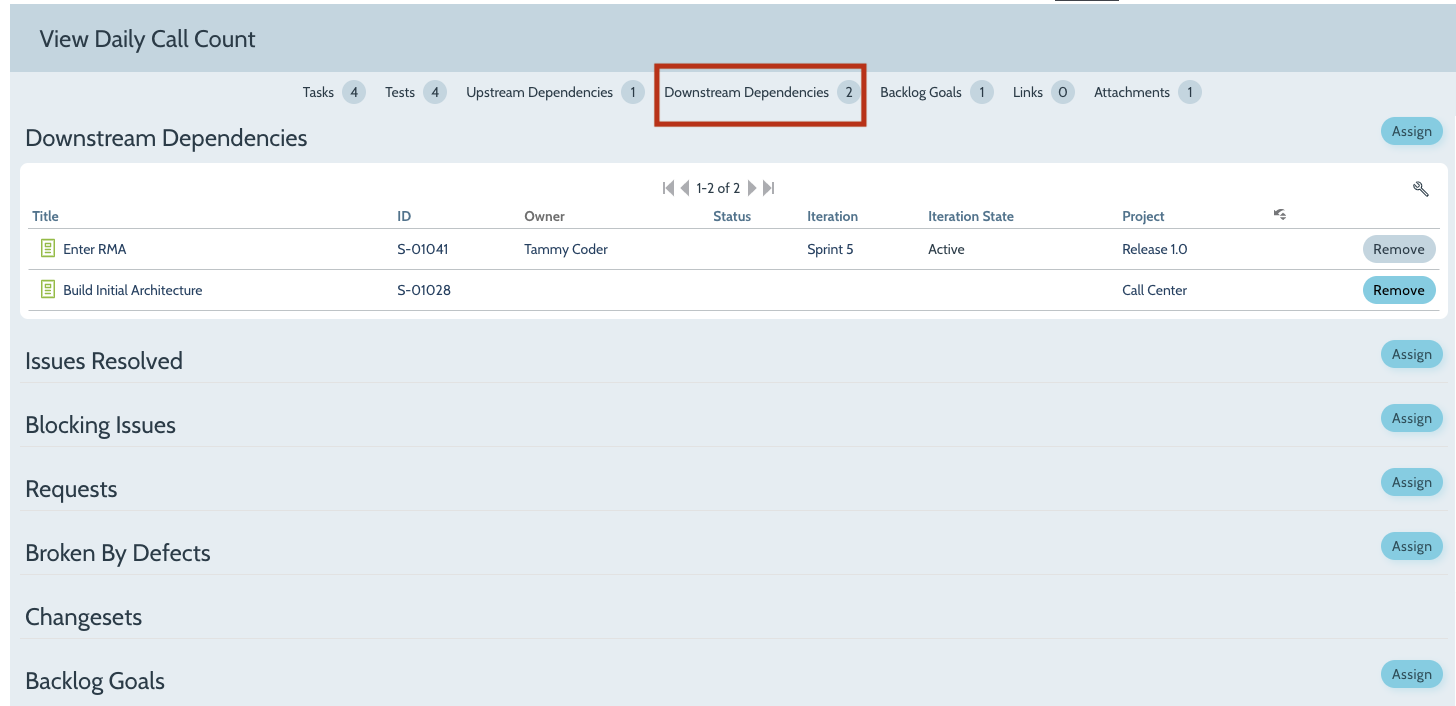
Dependencies for a specific Portfolio Item or Backlog Item can be viewed from the asset details page. Open the Details page and then click Downstream Dependencies or Upstream Dependencies. The dependencies grid displays the dependent relationships.
In Dependency Visualization Reports
These dependency reports allow you to view all active dependencies defined in a project or program. Reading from left to right, they show the sequence necessary to deliver backlog items, defects, test sets, and portfolio items (respectively) in a dependency chain.
- Workitem Dependencies Visualization Report
- Portfolio Item Dependencies Visualization Report
Understand Dependency Status
For Backlog Items
Dependency status is evaluated using the sprint dates for each item. This allows you to evaluate dependencies assigned to different teams or projects.
Dependencies can have three states:
- Green - Satisfied: Dependencies exist and are being satisfied by the current sprint scheduling.
- Yellow - Warning: Dependencies exist and the sprints in which they're scheduled overlap.
- Red - Broken: Dependencies exist and are broken by the current sprint scheduling.
For Portfolio Items
Dependency status is evaluated using the Planned End Date for each item. This allows you to evaluate dependencies assigned to different teams or projects.
Dependencies Status Colors are based on the following rules:
- Green - Satisfied: Dependency exists and the downstream end date is after the upstream end date.
- Yellow - Warning: Dependency exists and the downstream end date equals the upstream end date.
- Red - Broken: Dependency exists and:
- The downstream end date is before the upstream end date, or
- The downstream has an end date and the upstream end date can't be determined. In this case, you don't know if you can deliver on the commitment.
- No Dependency Status icon appears when:
- Both the upstream and downstream end dates can't be determined, or
- The upstream has an end date and the downstream end date can't be determined, or
- There are no dependencies.
Use Cases
Multi-Team Feature Coordination
Scenario: A mobile app team needs a new REST API endpoint from the backend team before they can implement the user profile feature.
Approach:
- Create upstream dependency: Mobile story "Implement User Profile UI" depends on backend story "Create User Profile API"
- Schedule backend API story for Sprint 3, mobile UI story for Sprint 4
- Dependency status shows green (satisfied) because sprints don't overlap
- If backend sprint slips to Sprint 4, status changes to yellow (warning) indicating potential risk
- Use Dependency Board during planning to visualize the relationship and adjust schedules
Outcome: Teams coordinate delivery schedules, preventing mobile team from starting work before the API is ready.
Epic-Level Infrastructure Dependency
Scenario: Multiple feature teams need a database migration epic completed before they can deliver customer-facing features in Q2.
Approach:
- Create portfolio item dependencies: Customer Management Epic, Order Processing Epic, and Reporting Epic all have upstream dependency on Database Migration Epic
- Set Database Migration Epic planned end date to March 31
- Set dependent epics planned start dates to April 1 or later
- Monitor dependency status on Portfolio Kanban Board
- If infrastructure epic delays, all dependent epics show red (broken) status, triggering escalation
Outcome: Leadership has visibility into cross-portfolio dependencies and can prioritize infrastructure work to unblock downstream features.
SAFe PI Planning Dependency Management
Scenario: During PI Planning, three Agile Release Trains identify 15 cross-ART dependencies for the upcoming Program Increment.
Approach:
- Create dependencies in real-time during PI Planning session
- Use Dependency Board filtered by program increment to visualize all cross-ART dependencies
- Identify critical path of dependencies that determines minimum PI duration
- Negotiate sprint scheduling to minimize broken (red) dependencies
- Assign dependency owners for coordination between ARTs
- Review dependency status weekly during Scrum of Scrums
Outcome: PI executes with clear visibility into cross-team commitments, reducing integration risks.
Broken Dependency Recovery
Scenario: Team discovers during sprint planning that multiple stories show broken (red) dependency status, jeopardizing sprint commitments.
Approach:
- Open Dependency Board to visualize broken dependencies
- Identify root cause: Upstream team's sprint was extended by one week
- Options considered:
- Move downstream stories to later sprint (adjusts timing)
- Request upstream team expedite work (accelerates dependency)
- Remove dependency if relationship is not hard blocker (eliminates constraint)
- Team decides to move 3 stories to next sprint, remove 1 soft dependency
- Re-validate dependency status shows green, proceed with adjusted sprint plan
Outcome: Team avoids committing to work they cannot complete and maintains realistic sprint velocity.
Frequently Asked Questions
What's the difference between dependencies and parent-child portfolio item relationships?
Dependencies represent delivery timing relationships (one item must finish before another starts). Parent-child relationships represent hierarchical decomposition (an epic breaks down into features).
Use dependencies when:
- Items are at the same level (story depends on story, epic depends on epic)
- Items are on different teams or projects
- Timing of completion matters
Use parent-child relationships when:
- Breaking down larger work into smaller work
- Establishing strategic-to-tactical traceability
Why are my dependencies showing as broken (red) or yellow?
Red (broken) means upstream item is scheduled to complete after the downstream item needs it:
- Downstream story scheduled in same or earlier sprint than upstream
- Upstream moved to later sprint after downstream was scheduled
- Portfolio item Planned End Dates in wrong order
Yellow (overlapping) means both items planned in same sprint with insufficient time buffer.
Green (satisfied) means upstream completes before downstream starts.
Fix: Reschedule items so upstream work completes at least one sprint before downstream work begins.
Can I create dependencies between portfolio items and backlog items directly?
No, dependencies must be between similar types:
- Backlog-level: Story → Story, Story → Defect, Defect → Story, Story → Test Set
- Portfolio-level: Epic → Epic, Feature → Feature, Epic → Feature
Workaround: Create dependencies at appropriate level. Dependencies inherit down (if Epic A depends on Epic B, features under Epic A implicitly depend on features under Epic B being complete).
Should I use dependencies for "nice to have" relationships or only hard blockers?
Use dependencies only for hard blockers where downstream work literally cannot be completed until upstream work finishes:
Use dependencies for:
- Technical blocking relationships (API must exist before UI can call it)
- Required infrastructure (database schema must be created before data can be stored)
- Regulatory sequences (security audit must pass before production deployment)
Don't use dependencies for:
- Soft preferences or optimizations
- Knowledge transfer
- Resource sharing
Why it matters: Too many dependencies create coordination overhead and make schedules brittle. Reserve dependencies for true blockers.
Why can't I add a dependency or see items when assigning dependencies?
Can't add dependency:
- Verify you have Team Member role or higher in both items' projects
- Check that neither item is closed (reopen before adding dependencies)
- Ensure you have edit permissions on both source and target items
Can't see item when assigning:
- Item may be filtered out by default project/type filters
- Click in filter field to change to other projects or types
- Verify item exists and isn't deleted
- Check if item is in a project you don't have access to
- Use search box to find items by name or ID
Why don't dependencies appear on the Dependency Board?
The Dependency Board only shows dependencies for items that are:
- Backlog items: Planned into sprints
- Portfolio items: Have Planned End Dates set
To make dependencies visible:
- Assign backlog items to sprints
- Set Planned End Dates on portfolio items
- Refresh the Dependency Board
- Ensure correct project scope selected in Project Navigator