Dependency Board
Visualize dependencies between portfolio items and backlog items to identify scheduling conflicts, coordinate cross-team work, and plan effectively.
Who uses the Dependency Board: Scrum masters identify dependency conflicts during sprint planning and coordinate resolution. Program managers visualize cross-ART dependencies during PI planning sessions. Portfolio managers track epic-level dependencies across value streams. Release train engineers monitor critical path dependencies and escalate scheduling conflicts.
Permission requirement: Viewing the Dependency Board requires project member access. The board displays only work items and dependencies you have permission to view based on your project membership. Modifying dependencies from the board requires edit permissions on both source and target work items. Configuring board parameters (Group By, Column By, filters) is available to all users. Specific visibility depends on your project access and role configuration.
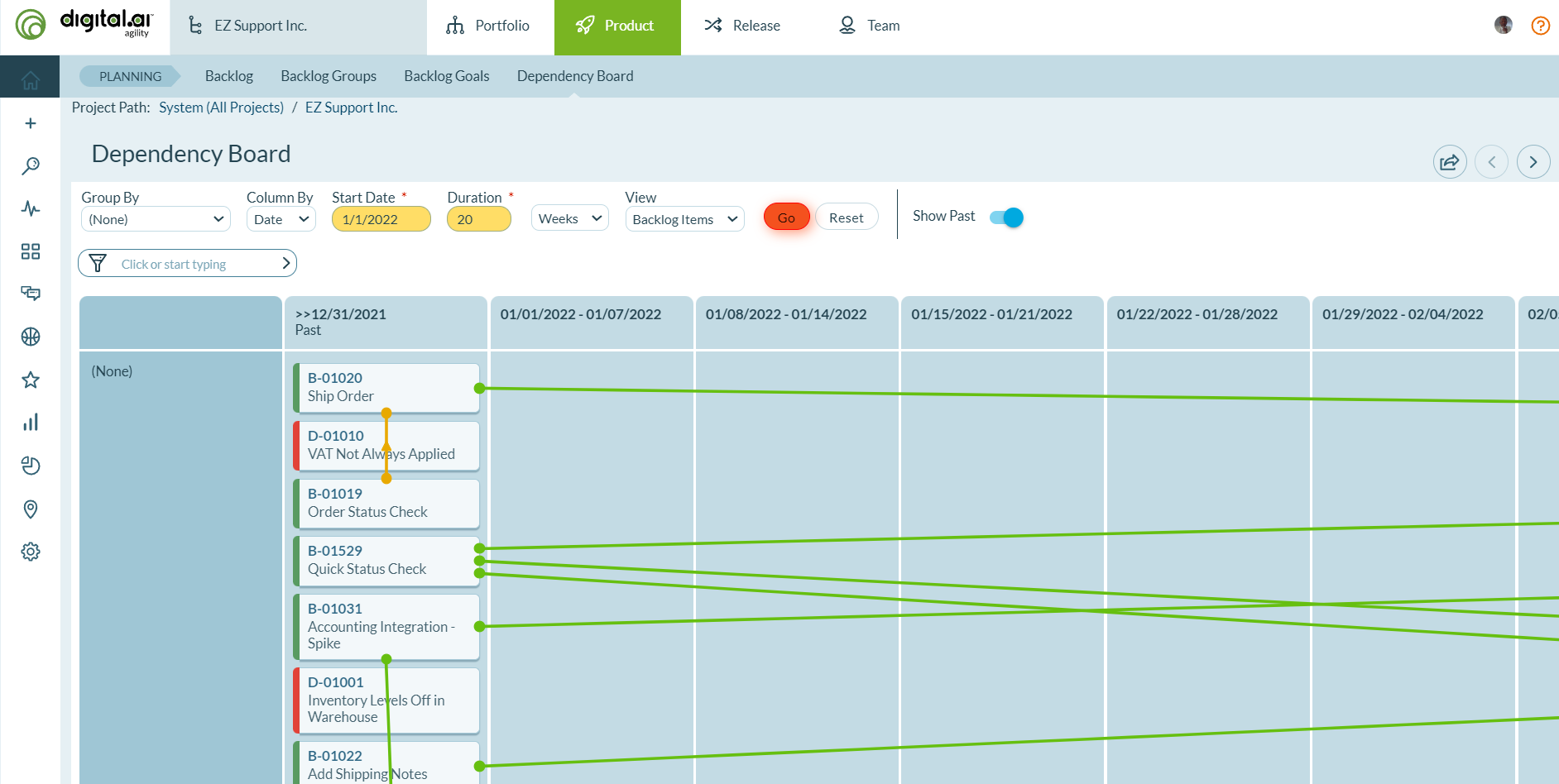
Access the Dependency Board from:
- Planning Rooms
- Team Rooms
- Product menu in the main application
Configure Board Parameters
Use these parameters to customize how dependencies are displayed:
| Parameter | Description |
|---|---|
| Group By | Specify how portfolio items or backlog items are grouped. Options vary based on the view selected (see sections below for details). |
| Column By | Specify whether each column represents a date range or sprints/iterations. |
| Start Date | When columned by date, this parameter determines the starting date for columns. The first column contains items planned prior to this date. |
| Duration | When columned by date, this parameter determines how many days are represented in each column. |
| View | Specify whether to view portfolio items or backlog items. |
| Show Past | Toggle to display or hide data from weeks prior to the selected start date. |
View Portfolio Item Dependencies
When viewing portfolio items, the Dependency Board shows all tracked portfolio items in the selected context and direct dependencies between these portfolio items.
Key behaviors:
- Dependency lines are color-coded using rules similar to the dependency status icon on the Portfolio Item Grid.
- Portfolio items are always placed in columns based on their Planned End Date attribute value, even when the board is columned by sprint or iteration.
- Tracked portfolio items are portfolio items in context that don't have a parent portfolio item in the same context. These are the portfolio items visible in a Portfolio Tree when all nodes in the hierarchy are collapsed and there are no filters on the grid.
Group By options for portfolio items:
- Parent Portfolio Item
- Priority
- Project or Planning Level
- Source
- Status
- Target Team
- Type
- Any custom single-value dropdown
View Backlog Item Dependencies
When viewing backlog items, the Dependency Board shows all backlog items in the selected context that have been planned into sprints or iterations and dependencies between them. It also shows dependencies between planned backlog items and unplanned work. It doesn't show all dependencies between all unplanned work.
Key behaviors:
- Dependency lines are color-coded using the rules used to color-code the Dependency Status icon on Backlog Grids.
- Backlog items are always placed in columns based on the sprint or iteration where they're planned. When the board is columned by date, the end date of the sprint or iteration is used to determine backlog column placement.
Group By options for backlog items:
- Class of Service
- Delivery Category
- Portfolio Item
- Priority
- Source
- Status
- Team
- Type (Backlog Item, Defect, TestSet)
- Story Risk
- Story Type or Category
- Defect Resolution
- Defect Type or Category
- Any custom single-value dropdown
Use Cases
PI Planning Cross-ART Dependency Identification
Scenario: Three Agile Release Trains planning together for Program Increment 5, need to identify and coordinate cross-ART dependencies.
Approach:
- Open Dependency Board during PI Planning Day 1.
- Configure: Group By "Team", Column By "Sprint/Iteration", View "Backlog Items".
- Filter to show current PI timeframe (5 sprints).
- Teams add dependencies in real-time as they identify cross-team work:
- ART 1 Payment Team: Story "Process Refunds" depends on ART 2 Accounting Team: Story "Create Refund API"
- ART 2 Inventory Team: Story "Update Stock Levels" depends on ART 3 Warehouse Team: Story "IoT Sensor Integration"
- Dependency lines color-code automatically:
- Green: Upstream scheduled before downstream (satisfied)
- Yellow: Scheduled in same sprint (warning)
- Red: Downstream before upstream (broken)
- ARTs negotiate sprint scheduling to minimize red/yellow dependencies.
- Assign dependency owners for cross-ART coordination.
Outcome: 12 cross-ART dependencies identified, visualized, and owners assigned. Teams coordinate deliveries to prevent integration failures.
Critical Path Analysis for Epic Delivery
Scenario: Product manager needs to determine the critical path for a large epic spanning 4 teams and 3 sprints.
Approach:
- Open Dependency Board.
- Configure: Group By "Portfolio Item", Column By "Sprint", View "Backlog Items".
- Filter to specific epic and timeframe.
- Visualize dependency chains:
- Backend API stories → Frontend UI stories → Integration Testing → Production Deployment
- Identify critical path (longest dependency chain):
- Sprint 1: Database Schema (Team A)
- Sprint 2: API Endpoints (Team B) - depends on Sprint 1
- Sprint 3: UI Components (Team C) - depends on Sprint 2
- Sprint 3: Integration Tests (Team D) - depends on Sprint 2
- Critical path: Database → API → UI = 3 sprints minimum.
- Optimization opportunities identified:
- Integration Tests can run parallel with UI (not on critical path)
- API work can start partial implementation before database completes (reduce serialization)
- Adjust sprint scheduling to compress critical path from 3 to 2.5 sprints.
Outcome: Epic delivery accelerated by half a sprint by optimizing critical path and parallelizing non-dependent work.
Dependency Risk Mitigation During Sprint Planning
Scenario: Team discovers multiple red (broken) dependencies during sprint planning that threaten sprint success.
Approach:
- Scrum Master opens Dependency Board before sprint planning meeting.
- Filter to show planned work for upcoming sprint.
- Identify problematic dependencies:
- 3 stories show red lines (downstream scheduled before upstream completes)
- 2 stories show yellow lines (dependencies in same sprint, tight timing)
- 1 story depends on external team that hasn't committed to timeline
- Team evaluates risk mitigation options:
- Red dependency 1: Move downstream story to next sprint (safest)
- Red dependency 2: Negotiate with upstream team to expedite (adds risk to their sprint)
- Red dependency 3: Remove dependency by implementing temporary workaround (technical debt)
- Yellow dependencies: Accept risk, add daily sync meetings
- External dependency: Escalate to product owner, may need to descope
- Decisions documented in sprint planning notes.
- Adjusted sprint backlog removes/moves 2 stories, keeps 1 with workaround.
Outcome: Sprint commitment adjusted to realistic delivery scope, teams coordinate actively on remaining dependencies.
Portfolio-Level Dependency Coordination for Strategic Initiative
Scenario: Portfolio manager overseeing strategic initiative spanning 5 epics across 3 business units and 2 program increments.
Approach:
- Open Dependency Board
- Configure: View "Portfolio Items", Group By "Strategic Theme", Column By "Date" (quarterly columns)
- Visualize portfolio-level dependencies:
- Infrastructure Epic (Q1) → Customer Portal Epic (Q2)
- Data Platform Epic (Q1) → Analytics Epic (Q2)
- Mobile App Epic (Q2) → App Store Approval (Q2)
- Identify cross-business-unit dependency bottlenecks:
- Critical: Infrastructure Epic delayed, blocks 3 downstream epics in Q2
- Warning: Analytics Epic and Reporting Epic both dependent on same Data Platform features
- Portfolio manager actions:
- Escalate infrastructure delay to executive team
- Add resources to Infrastructure Epic (hire contractors)
- Adjust Q2 epic planned dates to reflect infrastructure delay
- Create fallback plan: MVP versions of Q2 epics with reduced infrastructure dependency
- Update dependency status monthly during portfolio review
- Communicate revised timelines to all stakeholders
Outcome: Strategic initiative adjusted proactively to infrastructure delay, avoiding cascading failures across 3 dependent epics.
Frequently Asked Questions
What do the different dependency line colors mean and what should I do for each?
Green (Satisfied): Upstream work scheduled to complete before downstream work starts. No action required, continue monitoring.
Yellow (Warning): Upstream and downstream work in overlapping timeframes. Add daily sync meetings, have contingency plan, consider moving downstream to next sprint if risk is high.
Red (Broken): Downstream work scheduled before upstream completes. Choose: (1) Move downstream to later sprint (safest), (2) Expedite upstream to earlier sprint, (3) Remove dependency with workaround, or (4) Accept risk and manage closely.
No Color: Either no dependencies exist, or dates cannot be determined. Verify dependencies are correctly defined and dates/sprints are assigned.
How do I use the Dependency Board during PI Planning?
Configure board with Group By "Team", Column By "Sprint/Iteration", and set filters to show current PI timeframe. As teams draft sprint plans and identify cross-team work, add dependencies in real-time. Dependency lines color-code automatically (green/yellow/red), so teams immediately see when their plans create broken dependencies.
Hold ART sync meetings to negotiate scheduling conflicts. Teams adjust sprint commitments to minimize red/yellow dependencies and assign dependency owners for ongoing coordination. Export dependency report for Program Board and capture screenshots for PI planning retrospective.
Best practice: Have Scrum Masters or RTEs monitor the board continuously during PI Planning. When red lines appear, facilitate immediate discussion between affected teams rather than waiting for scheduled sync meetings.
Can I create or edit dependencies directly from the Dependency Board?
No, the Dependency Board is visualization-only. You cannot create, modify, or delete dependencies from the board. This prevents accidental changes during high-stakes events like PI Planning and ensures dependencies are consciously created in proper workflow with full context.
To manage dependencies:
- Create: Open predecessor story → Relationships tab → Add Dependency → Select downstream item
- Edit: Open either item → Relationships tab → Modify dependency details
- Delete: Relationships tab → Remove dependency
Pro tip: Open Dependency Board in one browser tab and backlog management in another. View dependencies visually, then switch to backlog to edit when needed.
Why don't I see all dependencies or why are dependency lines missing?
Common causes:
Filters too restrictive: Dependency Board filters apply to both upstream and downstream items. If either side is filtered out, the line won't display. Expand date ranges, remove team/project filters, or check "Include Inactive" if items are closed.
Column configuration: Board only shows columns within configured date range. Dependencies to items outside visible columns don't display. Extend timeframe to include all relevant sprints or use "All Items" for Column By setting.
Missing sprint/date assignments: Items without sprint or date assignments cannot be positioned on board. Assign all items to specific sprints or set planned/actual dates.
Wrong view setting: Toggle View setting between "Portfolio Items" and "Backlog Items" to see different relationship types.
Permissions: If you don't have read access to projects involved in dependency, lines won't display. Request necessary permissions from admin.
Troubleshooting: Click Reset Filters button, expand date range to include past and future work, verify all items have sprint/date assignments, and toggle View settings.
How do I identify the critical path?
The Dependency Board visualizes dependency chains but doesn't auto-calculate critical path. Filter to your target epic, use Group By "Portfolio Item" or "Team", and Column By "Sprint/Iteration". Trace dependency chains by starting with final deliverables and working backward following lines to identify predecessors. The longest sequential chain (most hops through dependencies) is your critical path.
For each item on the critical path, sum estimates (count sprints or calculate date spans). Any delay on critical path delays entire epic completion. Items not on critical path have slack time and can delay without impacting overall schedule.
Optimization opportunities: Challenge whether critical path work can be done in parallel, expedite upstream work, or allow downstream work to start earlier with partial deliverables.
Limitation: For complex dependency networks (10+ items), use dedicated project management tools that auto-calculate critical path. Dependency Board is best for visualizing and discussing, not computational analysis.
What's the difference between portfolio dependencies and backlog dependencies?
Portfolio Item Dependencies (epics, features, capabilities) represent strategic-level relationships between large initiatives, typically spanning quarters or PIs. Use these for portfolio planning and release train coordination. Set View to "Portfolio Items" to see these relationships. Product owners and portfolio managers typically manage these.
Backlog Item Dependencies (stories, defects) represent tactical-level relationships between team-level work items, typically spanning sprints or weeks. Use these for sprint planning and cross-team coordination. Set View to "Backlog Items" to see these relationships. Scrum masters and team members typically manage these.
Portfolio item dependencies define high-level sequence while backlog items inherit context from their portfolio item. You can have portfolio dependency without backlog dependencies (strategic constraint only) or backlog dependencies within same portfolio item (internal sequencing).
Pro tip: Start with portfolio dependencies during roadmap planning to sequence epics. As implementation approaches, decompose into stories and add backlog-level dependencies for detailed sprint planning.