Manage Templates
Templates are reusable portfolio items, stories, backlog items, defects, and requests that pre-fill commonly used fields and define a starting set of tasks or tests. Templates save time when creating common, repetitive work items.
Who Manages Templates
Product Owners create and maintain story templates for recurring feature patterns, defect templates for common bug types, and portfolio item templates for organizational initiatives.
Team Members build templates for technical tasks, testing scenarios, and routine development patterns, editing templates based on team feedback and evolving workflows.
Scrum Masters organize template libraries for their teams, copying useful templates from other projects and moving templates to appropriate projects as team needs change.
Administrators establish enterprise-wide templates for standardization, configure portfolio item template hierarchies, and manage template permissions across the organization.
Permission Requirement
To access and view templates: Members need Read access to the project.
To create, edit, copy, and move templates: Members need Edit access to the project.
To delete templates: Members need Edit access to the project. Deletion is permanent and removes the template along with all associated tasks and tests.
Access Templates
To access portfolio item templates:
Click the hamburger menu  > Portfolio > Portfolio Item Templates.
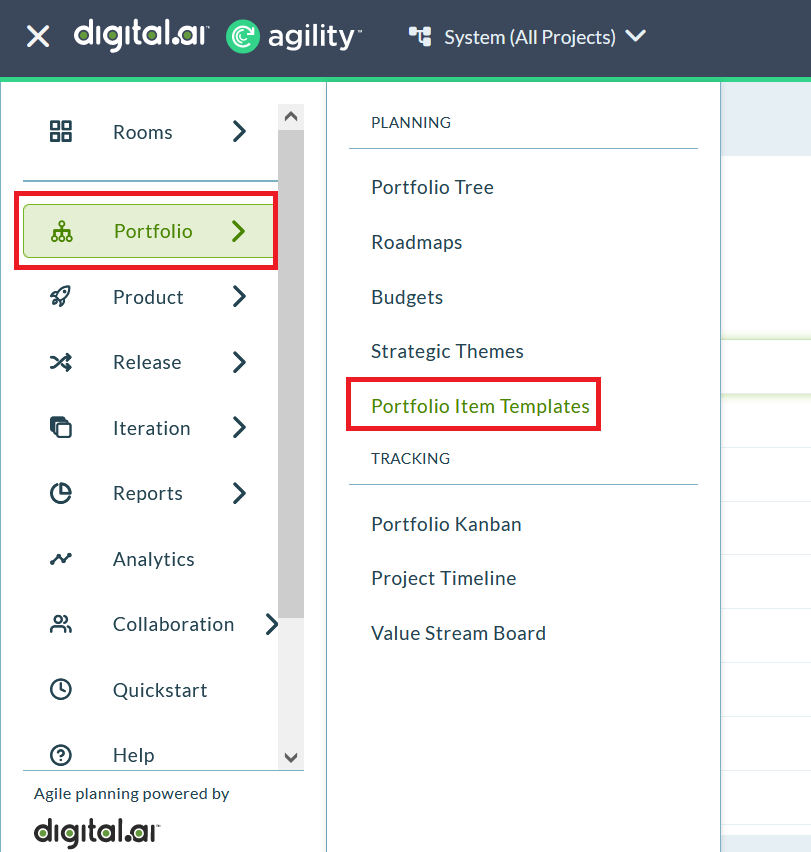
To access backlog item, defect, or request templates:
Click the hamburger menu > Product > Templates.
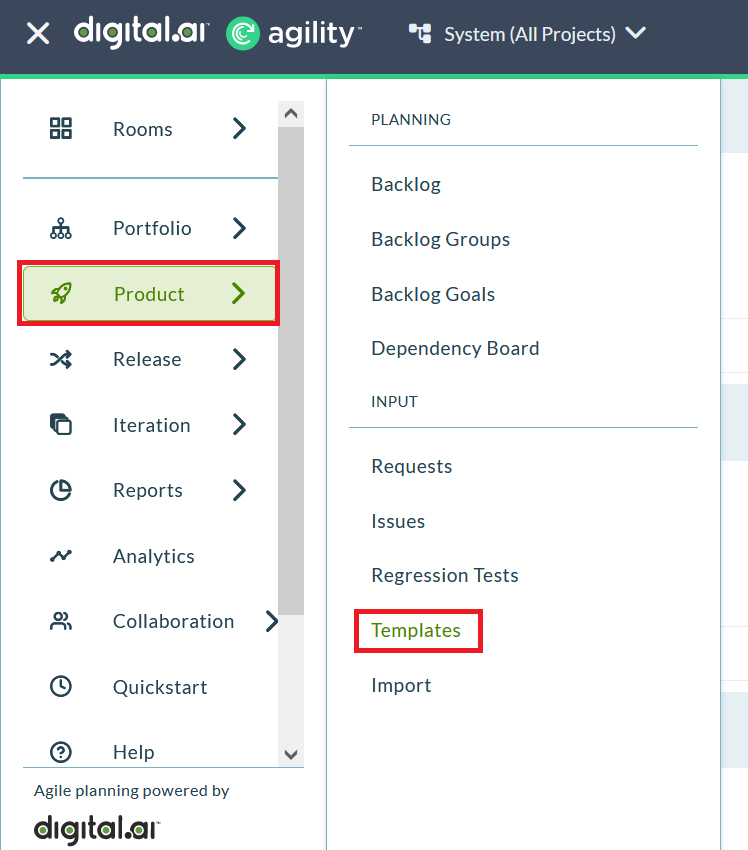
Templates should be created in the projects in which they will be used. The list of templates you see includes all those in your currently selected project and below in the project tree. Use the copy function if you need similar templates in different projects.
Create Portfolio Item Template
Portfolio Item Templates give you flexibility when managing common, repetitive portfolio initiatives (Epics, Capabilities, and Features). They allow you to pre-fill commonly used fields and define a starting set of portfolio-level tests and stories.
To create a portfolio item template:
- For Ultimate edition - Go to Portfolio > Portfolio Item Templates.
For Enterprise edition - Go to Product > Portfolio Item Templates. - Click Add Portfolio Item Template.
- Enter details in the appropriate fields and click Save.
Portfolio Item Template Relationships:
Once the portfolio item template is created, you can add child assets. When a portfolio item is generated, these assets are generated as well:
- Portfolio Item Tests
- Backlog Item Templates
You can also add relationships (when portfolio item is generated, relationships are created, not the assets):
- Upstream Dependencies
- Downstream Dependencies
- Blocking Issues
- Requests
- Links
- Attachments
Beginning in Winter 2019 (19.0) release, you can add or assign backlog item templates to a portfolio item template. Child portfolio items are not supported at this time on a template.
Create Backlog Item or Defect Template
To create a backlog item or defect template:
- Click the hamburger menu > Product > Templates.
- Click Add Story Template (or Add Backlog Item Template) or Add Defect Template.
- Enter details in the appropriate fields and click Save.
Edit Template
To edit a backlog item, defect, or request template:
- Click the hamburger menu > Product > Templates.
- Select the template you want to edit, then select Edit from the Generate Backlog Item, Generate Defect, or Generate Request drop-down menu.
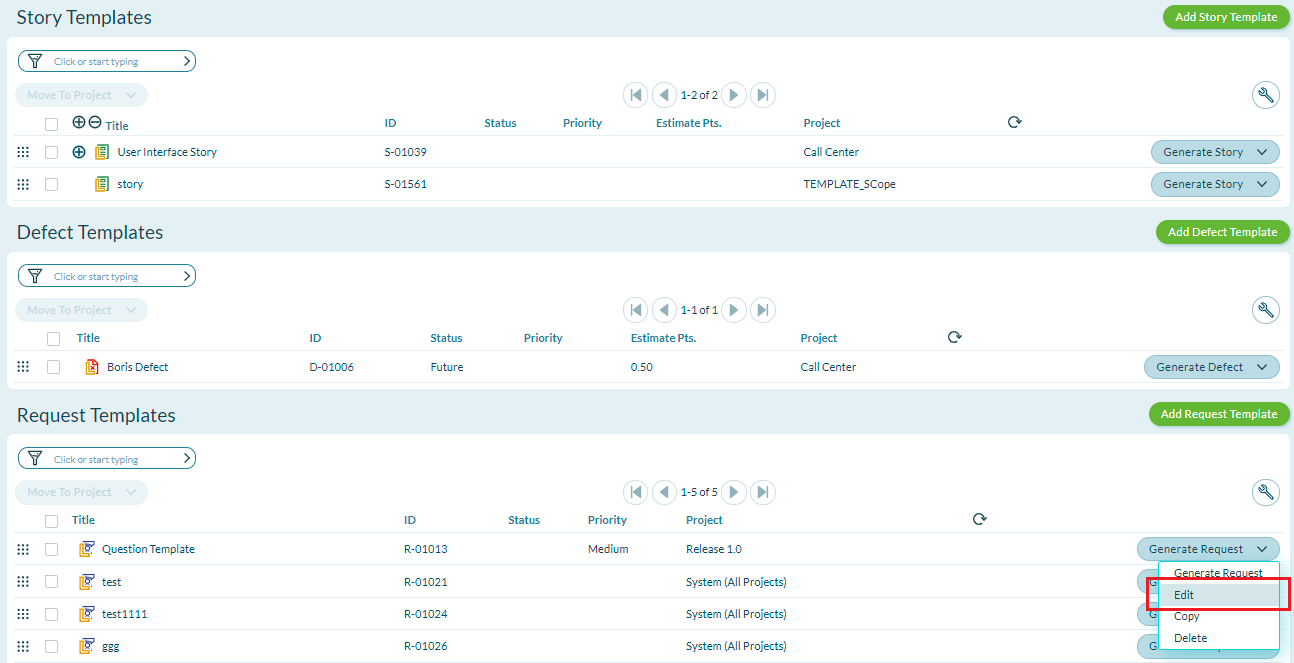
- Modify the template as necessary and click Save.
Note: Request templates are part of Digital.ai Agility 21.3 release and are not available in older releases.
Copy Template
You can create a duplicate copy of an existing story, defect, or request template. When you copy a template, a new unique ID is assigned, but the new template inherits all details, including associated tasks and tests.
To copy a template:
- Click the hamburger menu > Product > Templates.
- Select the template you want to copy, then select Copy from the Generate Story drop-down menu. The new template displays in the grid.
- Edit the template as appropriate.
Delete Template
When you delete a template, all associated details, tasks, and tests are also deleted.
To delete a template:
- Click the hamburger menu > Product > Templates.
- Select the template you want to delete, then select Delete from the Generate Story drop-down list.
- In the pop-up window, click Delete. The template is permanently removed from the system.
To delete multiple templates:
Select the checkboxes to the left of templates to be deleted, choose Delete from the Move to Project drop-down list, then click Delete on the Delete Items page.
Move Template to Another Project
When moving a template, all associated tasks and tests are moved as well.
To move a template to another project:
- Click the hamburger menu > Product > Templates.
- Select the templates you want to move by checking their checkboxes, then click Move to Project.
- Select another project from the Project drop-down list and click Move.
Troubleshooting
Why can't I create a portfolio item template?
Portfolio item template creation requires Edit access to the project. In Ultimate edition, access templates via Portfolio > Portfolio Item Templates. In Enterprise edition, access via Product > Portfolio Item Templates. Verify your edition and permissions with your administrator.
Why don't I see templates from other projects?
Templates display only for the current project and its sub-projects below in the project hierarchy. Use the Copy function to duplicate templates from other project branches, then Move them to your current project.
Why can't I delete a template?
Deleting templates requires Edit access to the project. If the Delete option is unavailable, verify your permissions. Note that deletion is permanent and removes all associated tasks and tests along with the template.
Can I add child portfolio items to a portfolio item template?
No. Beginning with Winter 2019 (19.0) release, you can add backlog item templates to portfolio item templates, but child portfolio items are not supported on templates. Only Portfolio Item Tests and Backlog Item Templates can be added as child assets.