Generate Work Items from Templates
Templates enable quick creation of new work items with pre-filled fields and associated tasks or tests. Templates maintain consistency and save time when creating similar work items.
Who Generates Work Items from Templates
Product Owners generate stories from templates for recurring feature types, creating consistent backlog items with pre-defined acceptance criteria and standard task breakdowns.
Team Members use defect templates to log bugs with standard fields populated, generate requests from templates for common enhancement patterns, and add template-based tasks to existing stories.
Scrum Masters help teams leverage templates during sprint planning and backlog refinement, demonstrating how to quickly create standard work items using template-based generation.
Business Analysts generate portfolio items from templates for organizational initiatives, ensuring consistent structure across related epics, capabilities, and features.
Permission Requirement
To generate work items from templates: Members need Edit access to the project.
To add tasks or tests from templates to existing work items: Members need Edit access to the backlog item and permission to modify its tasks and tests.
Generate Backlog Item from Template
There are two ways to generate a new story or backlog item from a reusable template. When you create a backlog item from a template, it inherits all details including title and associated tasks or tests.
Option 1: From the Sidebar
- Click the + icon in the sidebar.
- Select the type of asset you want to add.
- Enter the asset details and click Save.
Option 2: From the Templates Grid
- Click the hamburger menu
 > Product > Templates.
 - In the Backlog Item Details section, select a template, then click Generate Backlog Item. When the story details page opens, all backlog item information will be the same except the story ID.
- Edit the new story as necessary. The new story displays in the project's backlog.
Generate Defect from Template
There are two ways to generate a new defect from a template. When you create a defect from a template, it inherits all details from the template, including title.
Option 1: From the Sidebar
- Click the + icon in the header.
- Select the type of asset you want to add.
- Enter the asset details and click Save.
Option 2: From the Templates Grid
- Click the hamburger menu > Product > Templates.
- In the Defect Details section, select a template, then click Generate Defect. When the defect details page opens, all defect information will be the same except for the defect ID.
- Edit the new defect as necessary. The new defect displays in the project's backlog.
Generate Request from Template
There are two ways to generate a new request from a reusable template. When you create a request from a template, it inherits all details including title and associated tasks and tests.
Note: Request templates are part of Digital.ai Agility 21.3 release and are not available in older releases.
Option 1: From the Sidebar
- Click the + icon in the sidebar.
- Select the type of asset you want to add.
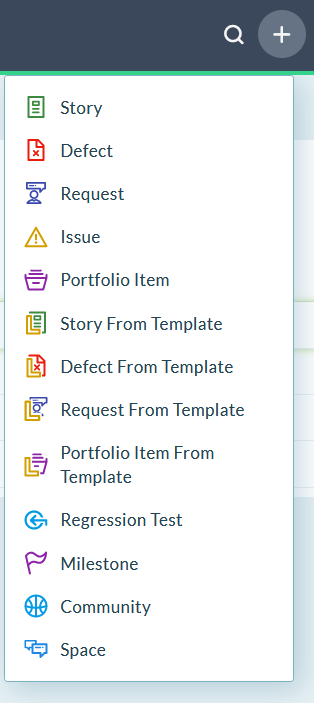
- Enter the asset details and click Save.
Option 2: From the Templates Grid
- Click the hamburger menu > Product > Templates.
- In the Request Templates section, click the Generate Request button next to a template.
- In the request template page, enter all necessary information.
- Edit the new request as necessary. The new request displays in the Requests page.
Add Tasks or Tests to Backlog Item Using Template
You can use a template to add tasks or tests to an existing story or backlog item.
To add tasks or tests from a template:
- Click the hamburger menu > Product > Backlog.
- For the story to which you want to add tasks or tests, select Plan Story from the Edit menu. The Story Planner page opens, showing tasks and tests already assigned to the selected backlog item.
- Open the Add Task drop-down menu and select Copy Tasks and Tests to choose from existing tasks and tests (the Copy Tasks and Tests from Templates grid populates with available project templates) OR select Add Task to create a new task for the selected backlog item.
- Expand a template, select the tasks or tests you want to assign to the selected backlog item, and click Copy to Story.
- The Story Planner window updates with the new tasks or tests you assigned to the selected backlog item.
Troubleshooting
Why can't I generate a work item from a template?
Generating work items from templates requires Edit access to the project. If the Generate Backlog Item or Generate Defect options are unavailable, verify your permissions with your project administrator.
Why don't I see request templates in the sidebar?
Request templates are only available in Digital.ai Agility 21.3 and later releases. If you're using an older version, you won't see request template generation options. Contact your administrator about upgrading.
Can I modify the generated work item before saving?
Yes. When you generate a work item from a template, the details page opens with all template information pre-filled. You can edit any fields before clicking Save. The template itself remains unchanged; only the new work item reflects your edits.
Why don't all tasks from a template appear when I copy them to a story?
When using Copy Tasks and Tests from the Story Planner, you must manually select which tasks and tests to copy. Expand the template, check the boxes for the items you want, and click Copy to Story. Only selected tasks and tests are added to the target story.