Configure Fields in Rooms 2
Agility allows users to customize which fields appear at the top of the Story or Defect details page in Rooms 2. This helps teams prioritize visibility of critical information such as Status, Sprint, Estimates, and more.
Why Configure Fields?
- Customize your work item layout based on team needs.
- Ensure key fields like Estimate Points or Team are always visible.
- Hide less-used fields to reduce screen clutter.
- Improves focus during daily stand ups and sprint planning.
Procedure: Access and Configure Fields
-
Click the hamburger menu
 > Rooms > All Team Rooms.
 -
Select a Team Room name and click Try Rooms 2 button
 on the right side of the selected Team Room.
 -
Navigate to the Storyboard, Taskboard, or Backlog.
-
Click on a Story or Defect card to open the asset detail view.
-
Click the three-dot menu (⋮) in the upper-right corner of the work item.
-
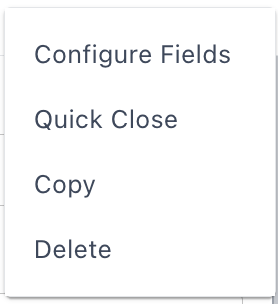
Open the Context Menu. A dropdown menu appears with the following options
- Configure Fields
- Quick Close
- Copy
- Delete
-
Select Configure Fields
-
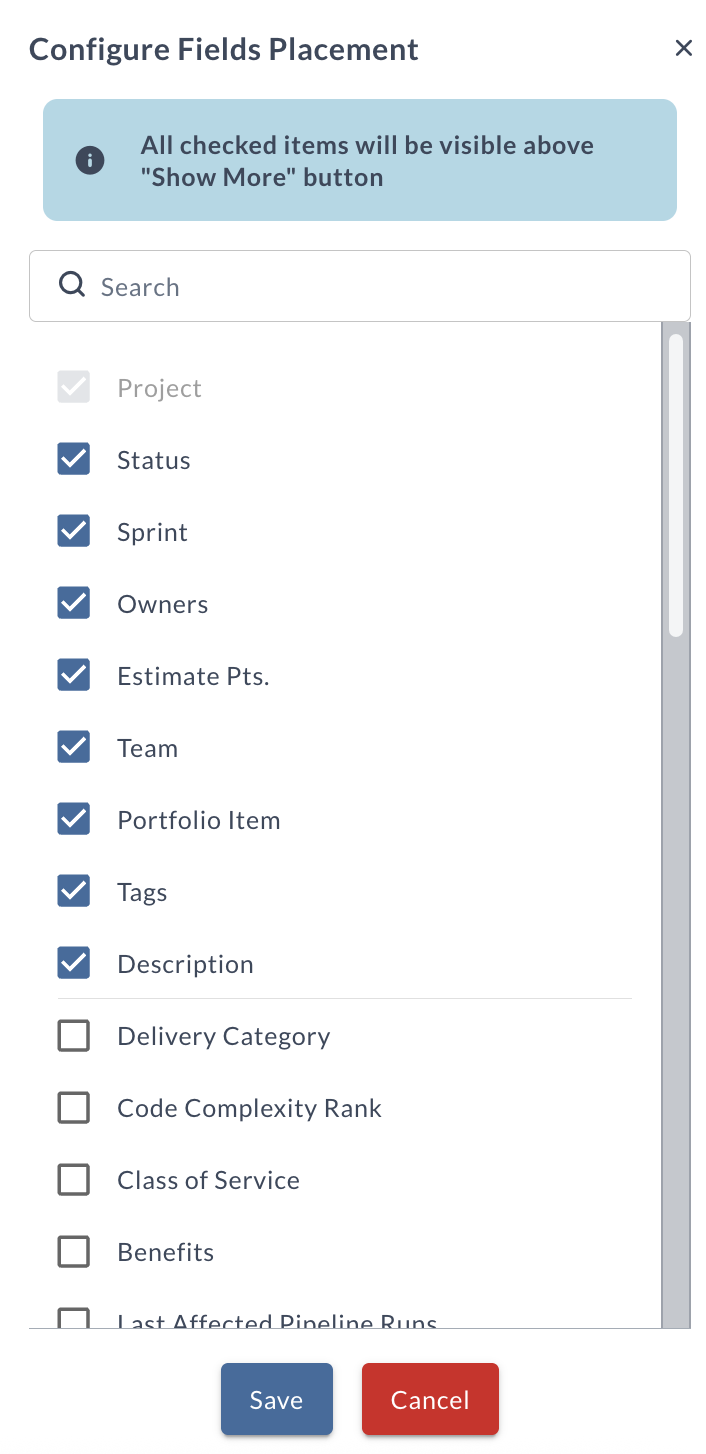
The Configure Fields Placement panel appears, select Fields to Display
-
Check or uncheck the boxes next to each field based on what you want to show above the "Show More" button
-
Click Save.
-
Configured fields are stored in the browser's local storage, so they won't persist across different browsers or devices. They will also be cleared if cookies are deleted.