Spinnaker Container Plugin
The Spinnaker container plugin integrates Spinnaker's continuous delivery platform with Digital.ai Release. It allows you to trigger and monitor Spinnaker pipelines directly from your release workflows, enabling end-to-end orchestration across your delivery pipeline alongside other tools and processes managed in Release.
Prerequisites
Before you set up the Spinnaker plugin, ensure you have:
- A running Spinnaker installation accessible from the Release server.
- Valid credentials to access the Spinnaker instance.
- A Connection to the Spinnaker server.
Set Up a Connection to the Spinnaker Server
To set up a connection to the Spinnaker server:
- From the navigation pane, select Configuration > Connections.
- Under HTTP Server Connections, next to Spinnaker: Server (Container), click
 .
. - Configure the connection with the following fields:
Field Description Title* Symbolic name for the configuration URL* Spinnaker API URL UI URL Spinnaker UI URL Authentication method* Authentication method. Default is Basic Username Login user ID on the server Password Login user password on the server Capabilities* Route jobs to specific remote runners - Click Test to verify the connection.
- Click Save to save the configuration.
Available Tasks
The Spinnaker plugin includes the following tasks:
Get Applications
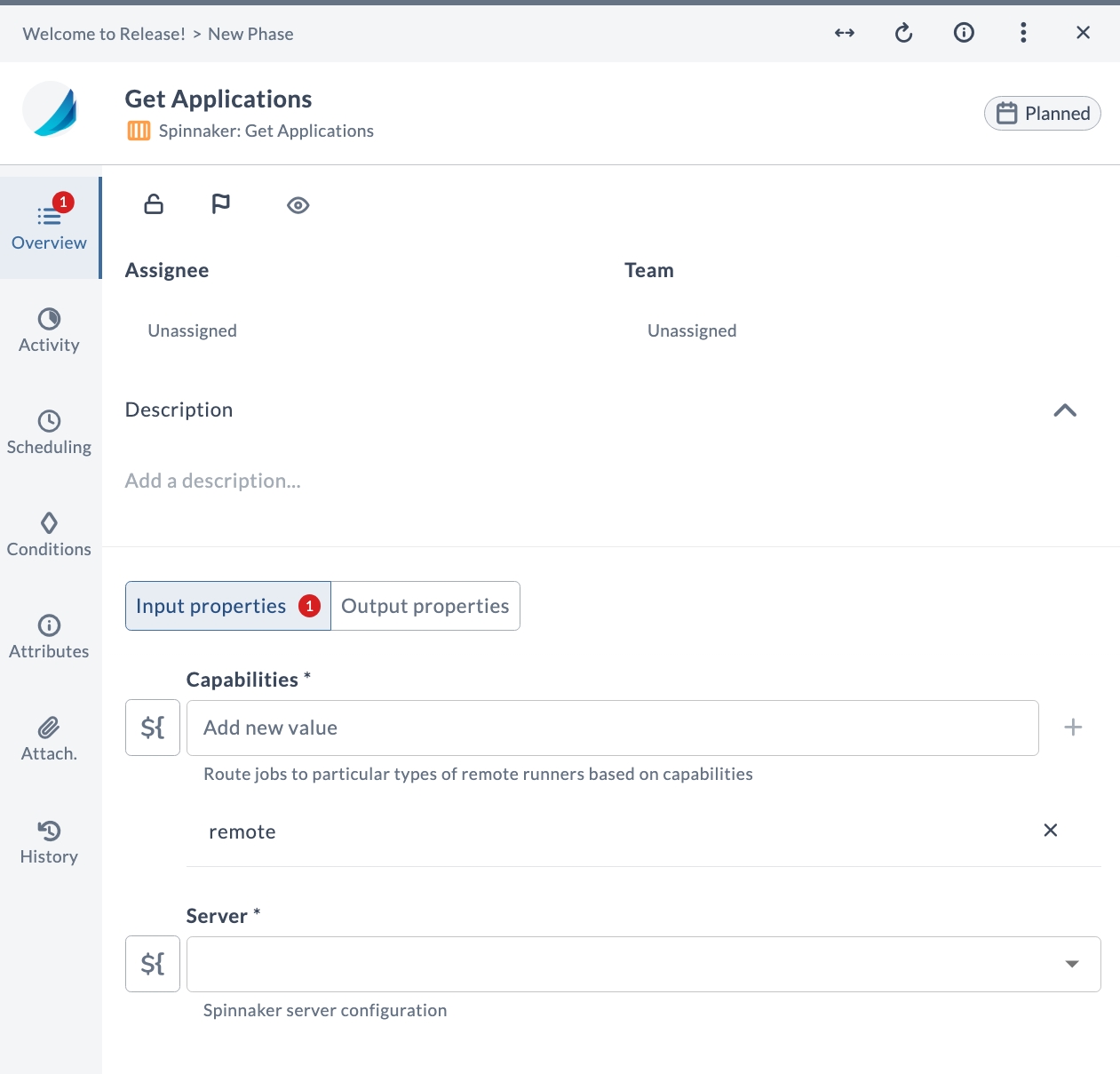
Use the Get Applications task to retrieve a list of all applications available in Spinnaker.
To add a Get Applications task:
- In your release template, add a task of type Spinnaker: Get Applications.
- Configure the task with the options described in the following table.
- Save the task.
Input Properties
| Option | Description |
|---|---|
| Capabilities* | Route jobs to particular types of remote runners based on capabilities |
| Server* | Spinnaker server configuration |
Output Properties
| Property | Description |
|---|---|
| Applications | List of application names available in Spinnaker |
Get Pipelines
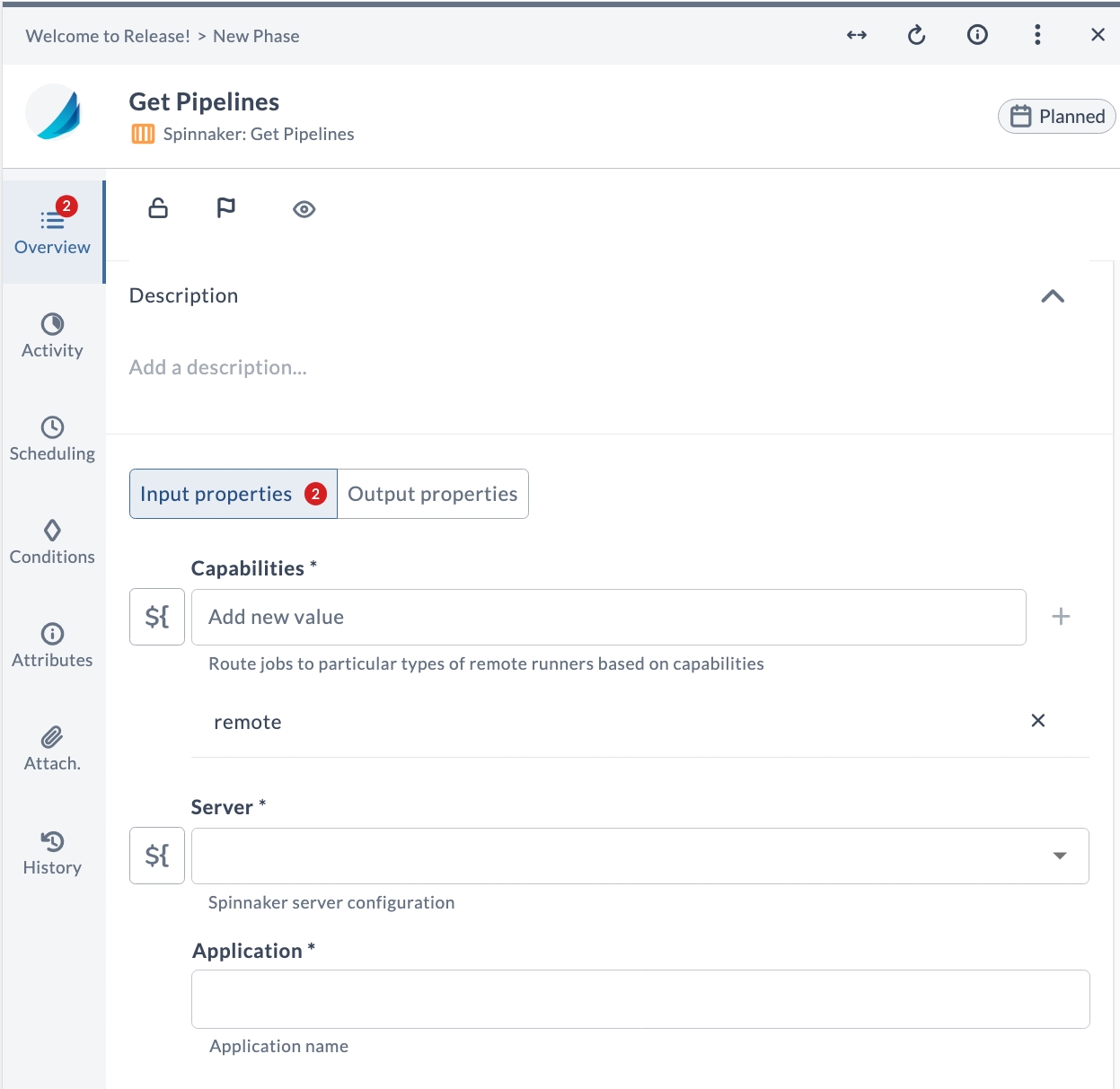
Use the Get Pipelines task to retrieve a list of pipelines for a specific application in Spinnaker.
To add a Get Pipelines task:
- In your release template, add a task of type Spinnaker: Get Pipelines.
- Configure the task with the options described in the following table.
- Save the task.
Input Properties
| Option | Description |
|---|---|
| Capabilities* | Route jobs to particular types of remote runners based on capabilities |
| Server* | Spinnaker server configuration |
| Application* | Application name |
Output Properties
| Property | Description |
|---|---|
| Pipelines | List of pipeline names for the specified application |
Get Pipeline Config
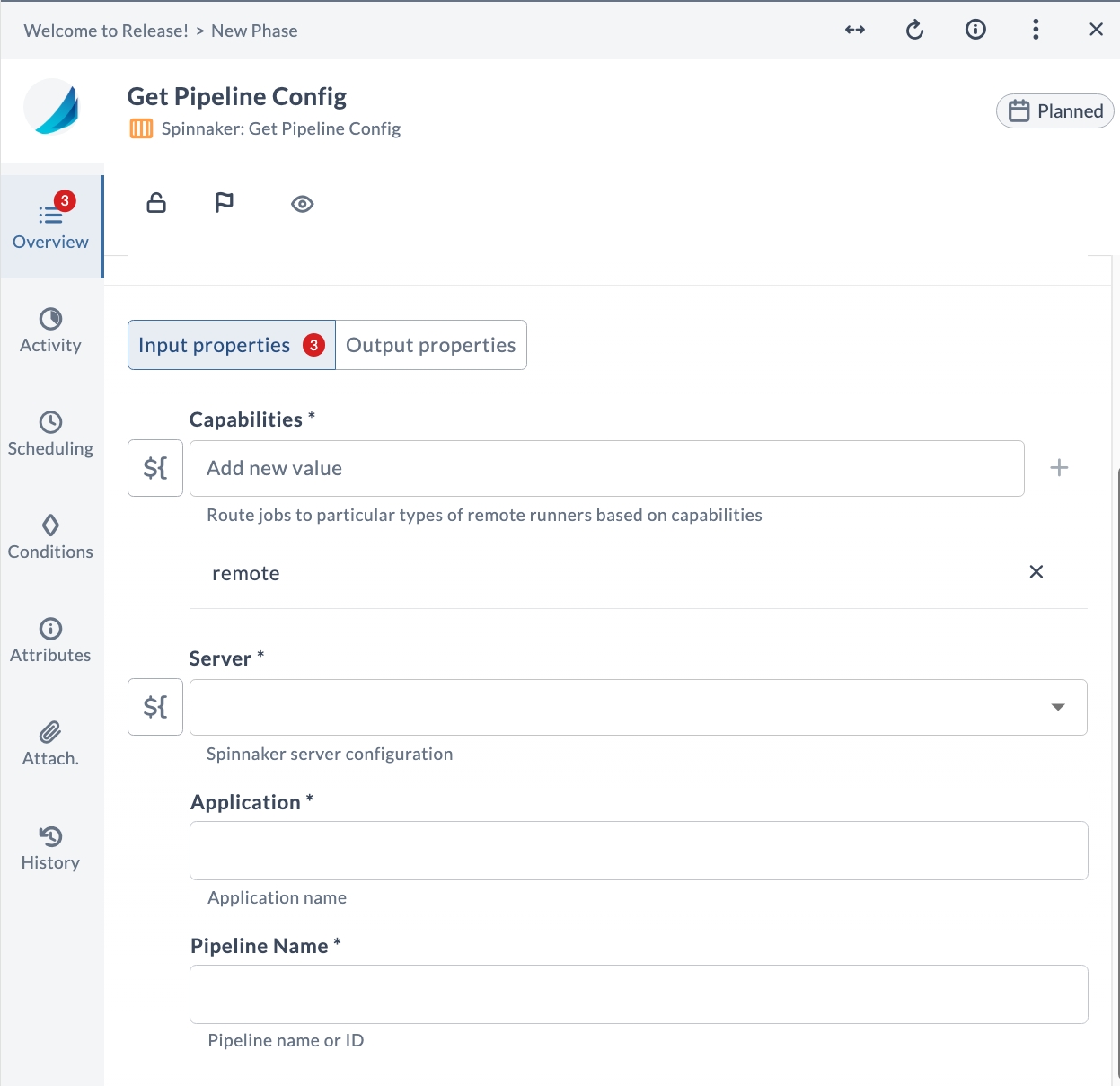
Use the Get Pipeline Config task to retrieve the configuration of a specific pipeline in Spinnaker.
To add a Get Pipeline Config task:
- In your release template, add a task of type Spinnaker: Get Pipeline Config.
- Configure the task with the options described in the following table.
- Save the task.
Input Properties
| Option | Description |
|---|---|
| Capabilities* | Route jobs to particular types of remote runners based on capabilities |
| Server* | Spinnaker server configuration |
| Application* | Application name |
| Pipeline Name* | Pipeline name or ID |
Output Properties
| Property | Description |
|---|---|
| Configuration | Pipeline configuration as JSON |
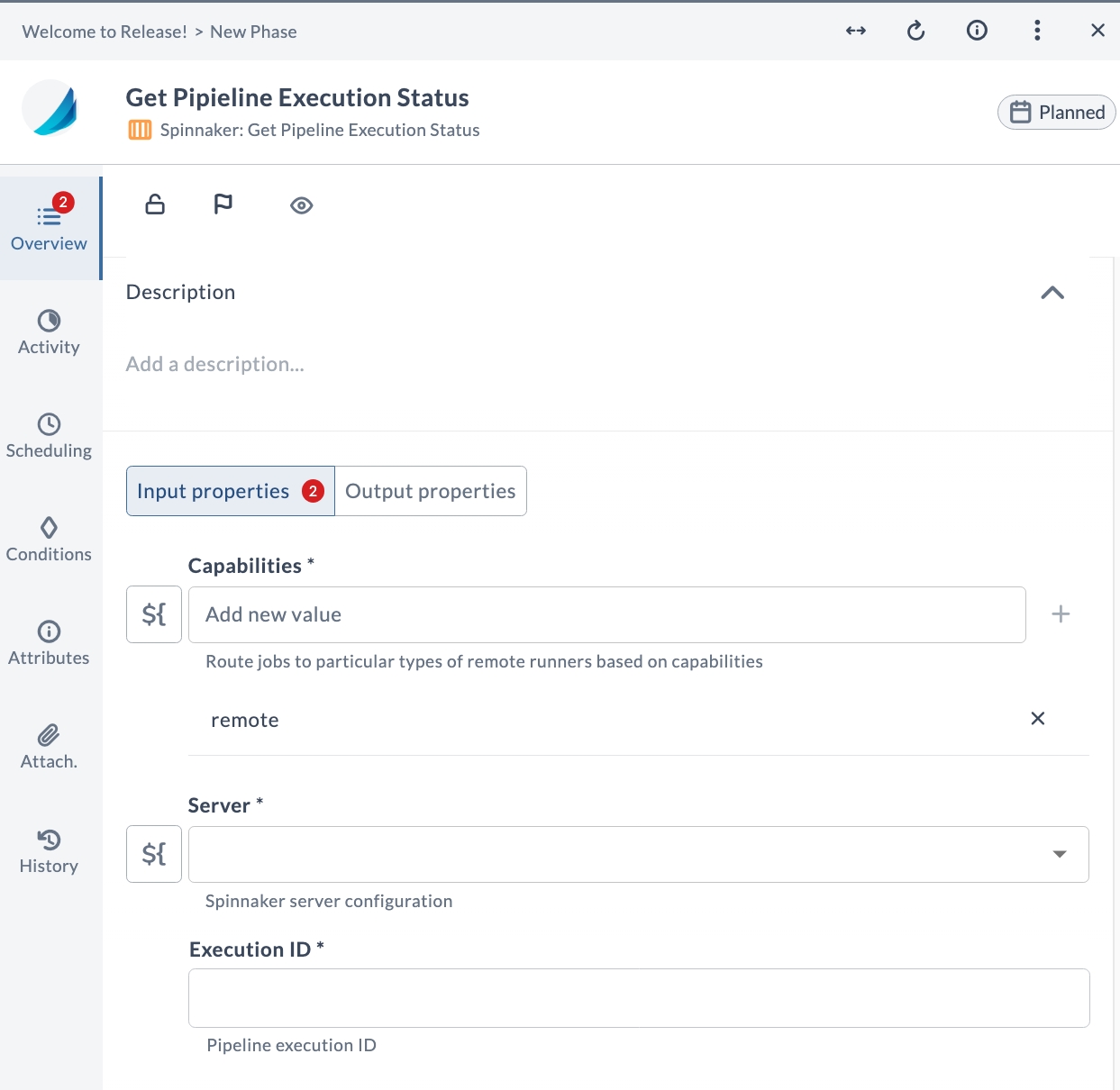
Get Pipeline Execution Status
Use the Get Pipeline Execution Status task to retrieve the status of a specific pipeline execution in Spinnaker.
To add a Get Pipeline Execution Status task:
- In your release template, add a task of type Spinnaker: Get Pipeline Execution Status.
- Configure the task with the options described in the following table.
- Save the task.
Input Properties
| Option | Description |
|---|---|
| Capabilities* | Route jobs to particular types of remote runners based on capabilities |
| Server* | Spinnaker server configuration |
| Execution ID* | Pipeline execution ID |
Output Properties
| Property | Description |
|---|---|
| Execution Status | The current status of the pipeline execution |
Trigger Pipeline
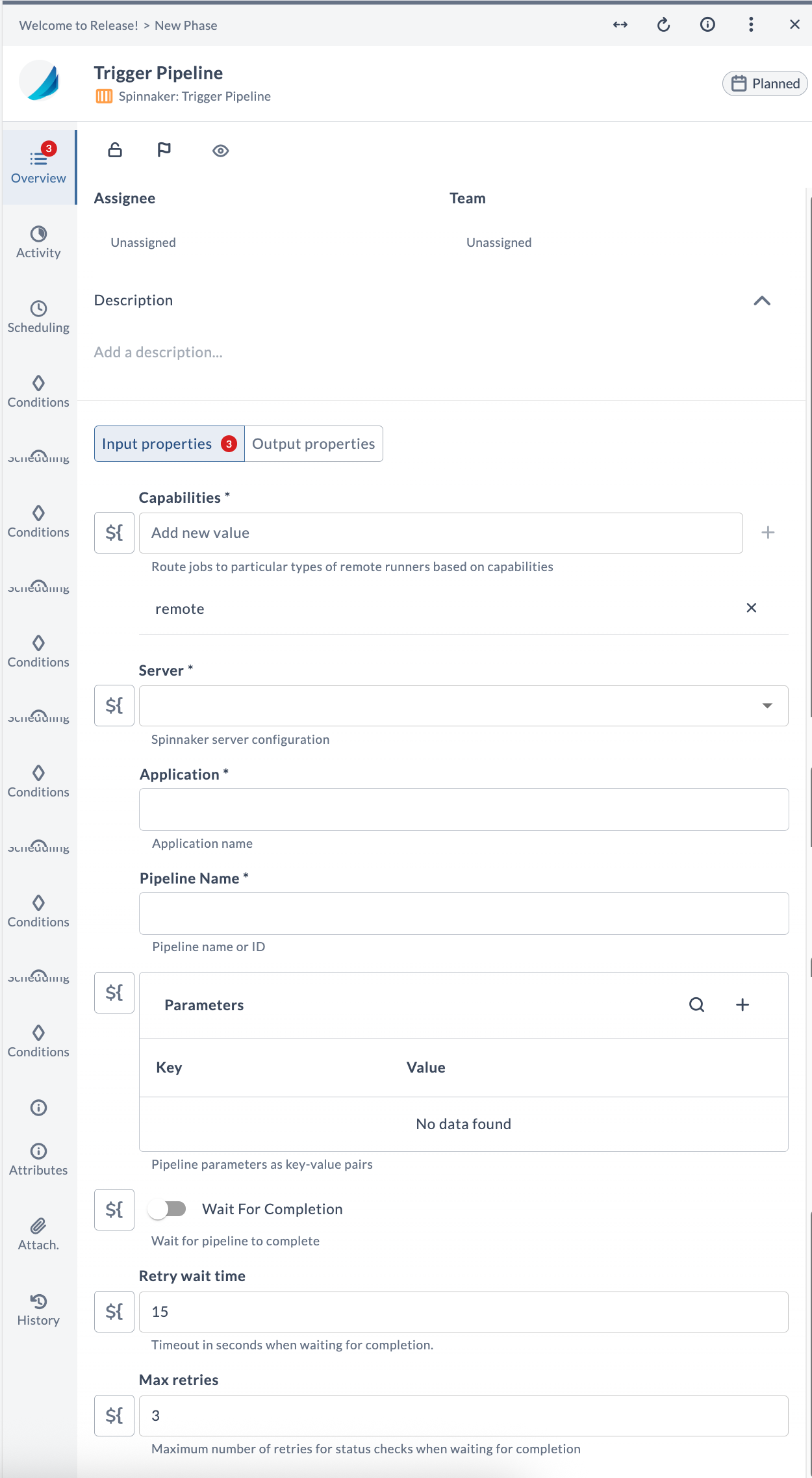
Use the Trigger Pipeline task to trigger a Spinnaker pipeline for a specific application.
To add a Trigger Pipeline task:
- In your release template, add a task of type Spinnaker: Trigger Pipeline.
- Configure the task with the options described in the following table.
- Save the task.
Input Properties
| Option | Description |
|---|---|
| Capabilities* | Route jobs to particular types of remote runners based on capabilities |
| Server* | Spinnaker server configuration |
| Application* | Application name |
| Pipeline Name* | Pipeline name or ID |
| Parameters | Pipeline parameters as key-value pairs |
| Wait For Completion | When enabled, waits for the pipeline to complete before proceeding |
| Retry wait time | Timeout in seconds between status checks when waiting for completion. Default is 15 |
| Max retries | Maximum number of retries for status checks when waiting for completion. Default is 3 |
Output Properties
| Property | Description |
|---|---|
| Execution ID | Pipeline execution ID |
| Execution Status | Execution status of the triggered pipeline |