Agent Orchestration Container Plugin
The Agent Orchestration Container Plugin (previously named Release LLM Integration Container Plugin) brings AI-powered automation to Digital.ai Release. With it, you can connect to any Large Language Model (LLM) provider, call tools on any MCP (Model Context Protocol) server, and build autonomous AI agents that combine reasoning and tool execution, all from within your release workflows, without writing integration code. Some technical identifiers and installation artifacts continue to use release-llm-integration for backward compatibility.
When configuring connections to LLM providers and MCP servers, use API tokens with the minimum permissions required. Avoid overly permissive tokens, as they can allow unintended actions by AI agents. Regularly rotate credentials and review access as needed.
What You Can Do
- Call any MCP server tool without writing an integration plugin — connect to GitHub, Jira, Agility, or your own custom MCP server and invoke its operations directly from a release task.
- Prompt any LLM and use the response as a variable in subsequent tasks — summarize output, classify status, extract data, or generate content as part of a pipeline.
- Run AI agents that autonomously plan and execute multi-step workflows, deciding which MCP tools to call based on their goal.
- Start interactive chats with an LLM from within a running release task — useful for approvals, troubleshooting, or human-in-the-loop decision making.
- Mix and match MCP servers and LLM providers per task to get the right tool for each job.
Prerequisites
Before you begin, ensure that you have the following:
- The Agent Orchestration plugin installed in Release. See Install the Agent Orchestration plugin.
- A Digital.ai Release Runner configured to run container-based tasks.
- Access to an LLM service (Google Gemini, OpenAI, Anthropic, Digital.ai LLM, or any OpenAI-compatible endpoint).
- An MCP server endpoint (optional; required only for MCP and Agent tasks).
Install the Agent Orchestration Plugin
- In Release, navigate to
 > Manage Plugins > Plugin Gallery.
 - Search for Agent Orchestration.
- Click Install next to the plugin.
Available Tasks
MCP Tasks
AI Tasks
Set Up a Connection to an MCP Server
-
From the navigation pane, under CONFIGURATION, click Connections.
-
Under HTTP Server connections, next to MCP Server, click
 .
. -
Fill in the following fields:
Field Description Title Name for the MCP server connection. URL The URL of your MCP server endpoint. Transport Protocol http(Streamable HTTP, the MCP default) orsse(Server-Sent Events).Authentication method None,Basic,Bearer,PAT, orOAuth2.Access token URL (OAuth2 only) The endpoint of the authentication server that issues access tokens. Grant type (OAuth2 only) ClientCredentialsorPassword.Username Username for Basic authentication, or the OAuth2 login user ID. Password Password or token for Bearer/ Basic / PAT authentication, or the OAuth2 login user password.Client ID (OAuth2 only) The client identifier issued during the Application registration process. Client secret (OAuth2 only) The client secret issued during the Application registration process. Scope (OAuth2 only) The scope of the access request. May contain multiple space-delimited values. Headers (Optional) Custom HTTP headers, for example custom bearer tokens passed as header values. Secret Header 1 Name / Secret Header 2 Name (Optional) Name of a header whose value must be stored encrypted. Secret Header 1 Value / Secret Header 2 Value (Optional) Encrypted value for the corresponding secret header. Capabilities Capability label that routes this task to the correct Runner. -
Click Test to verify the connection, then Save.
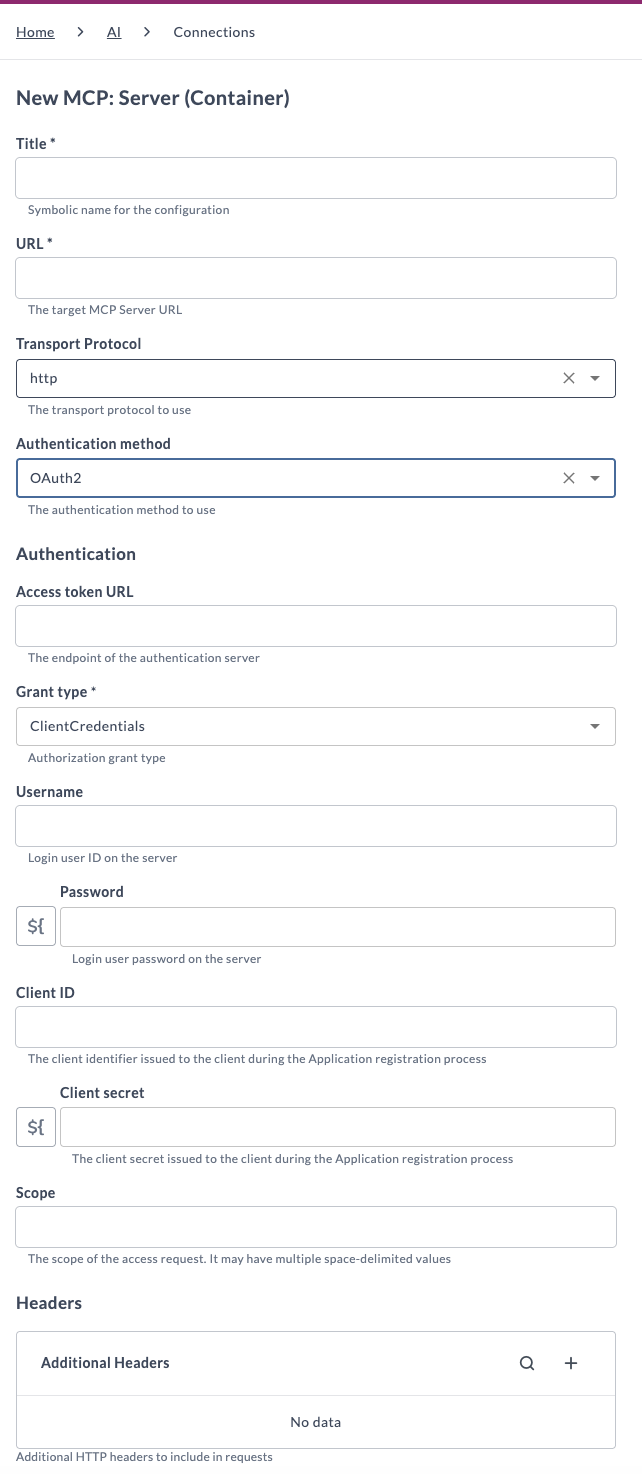
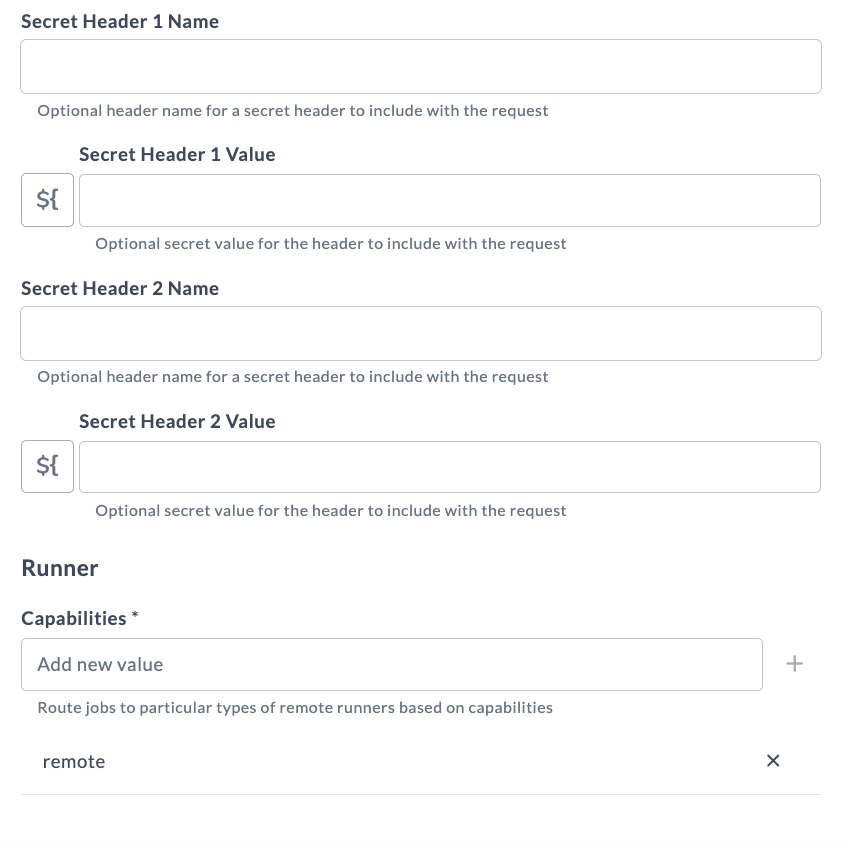
Some MCP servers require proprietary headers rather than a standard Authorization header. Use the Headers field for regular values, and a Secret Header field for values that must be stored encrypted, such as a bearer token. For example, the Agility MCP server sends its token via X-Agility-Bearer as a secret header, and its host via X-Agility-Host as a regular header.
Choose OAuth2 as the authentication method to have Release request an access token from the endpoint in Access token URL, using the selected Grant type. Both ClientCredentials and Password grant types use the same set of fields: Username, Password, Client ID, Client secret, and Scope.
Set Up a Connection to an LLM Provider
The plugin supports four provider types. Gemini and Anthropic do not have an API URL field but the others do.
- From the navigation pane, under CONFIGURATION, click Connections.
- Under AI Model connections, next to OpenAI, Gemini, Anthropic, or Digital.ai LLM, click .
- Fill in the following fields:
Field Gemini OpenAI Anthropic Digital.ai LLM Title ✓ ✓ ✓ ✓ API URL — ✓ (default: https://api.openai.com/v1)— ✓ (default: https://api.staging.digital.ai/llm)API Key ✓ ✓ ✓ ✓ Model ✓ (default: gemini-2.5-flash)✓ ✓ (example: claude-opus-4-5)— Model or Alias — — — ✓ - Click Test, then Save.
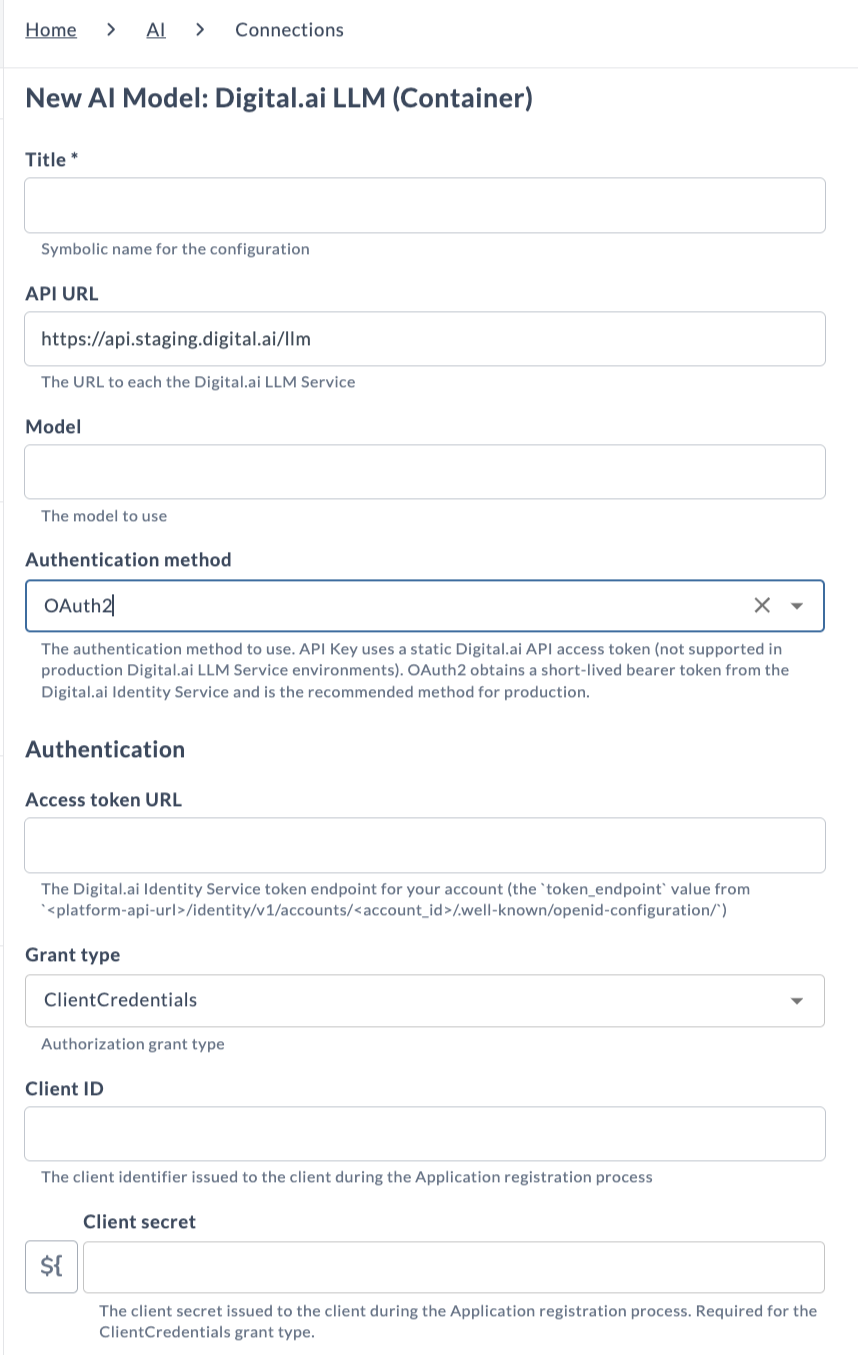
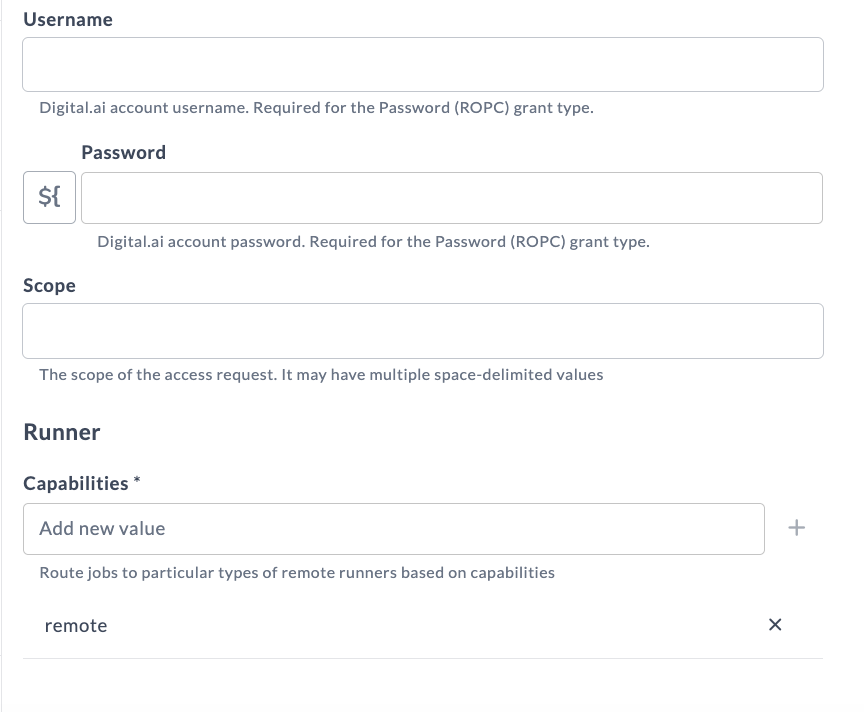
For Digital.ai LLM, choose OAuth2 as the authentication method to have Release request an access token instead of using a static API key. Select a Grant type (ClientCredentials or Password) and fill in Access token URL, Username, Password, Client ID, Client secret, and Scope.
The OpenAI connection type works with any OpenAI-compatible endpoint, including locally hosted models via Docker Model Runner. Point the API URL at http://model-runner.docker.internal/engines/v1 and set the model name accordingly (for example, smollm2 or llama3.2). No API key is required when using local models.
Use a Model Alias with the Digital.ai LLM Connection
For the Digital.ai LLM connection, the Model or Alias field accepts either a provider model ID or a system model alias, such as dai-chat-general. A model alias is a stable name that a Digital.ai platform administrator maps to a list of provider models in priority order, with the preferred model first and the rest as fallbacks. The plugin sends the alias to the LLM Service, which resolves it to a concrete model. Because the mapping is managed centrally, the connection keeps working when the underlying models change.
System alias names start with dai-. The alias must be defined in the LLM Service that the connection's API URL points to, so ask your platform administrator which aliases are available in your environment.
MCP: List Tools
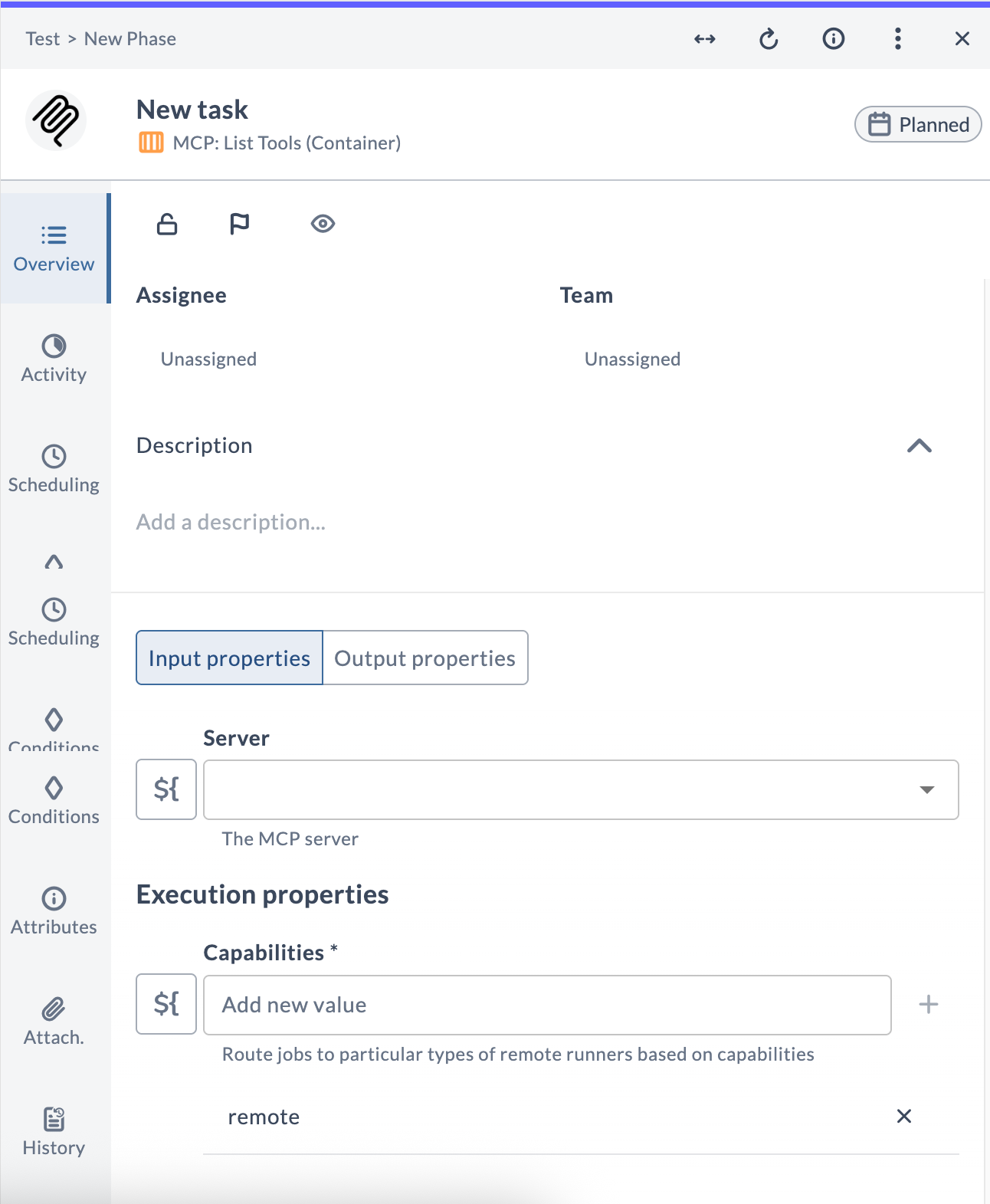
The MCP: List Tools task queries an MCP server and returns all the tools it exposes, including their descriptions and input schemas. Use this task to discover what is available on a server before calling specific tools.
Task fields
| Field | Description |
|---|---|
| Server | The MCP server connection to query. |
| Capabilities | Routes the task to a runner with matching capabilities. |
Output properties
| Property | Description |
|---|---|
| Tool definitions | Map of tool name → description. |
| Input schema | Map of tool name → JSON input schema. |
MCP: Call Tool
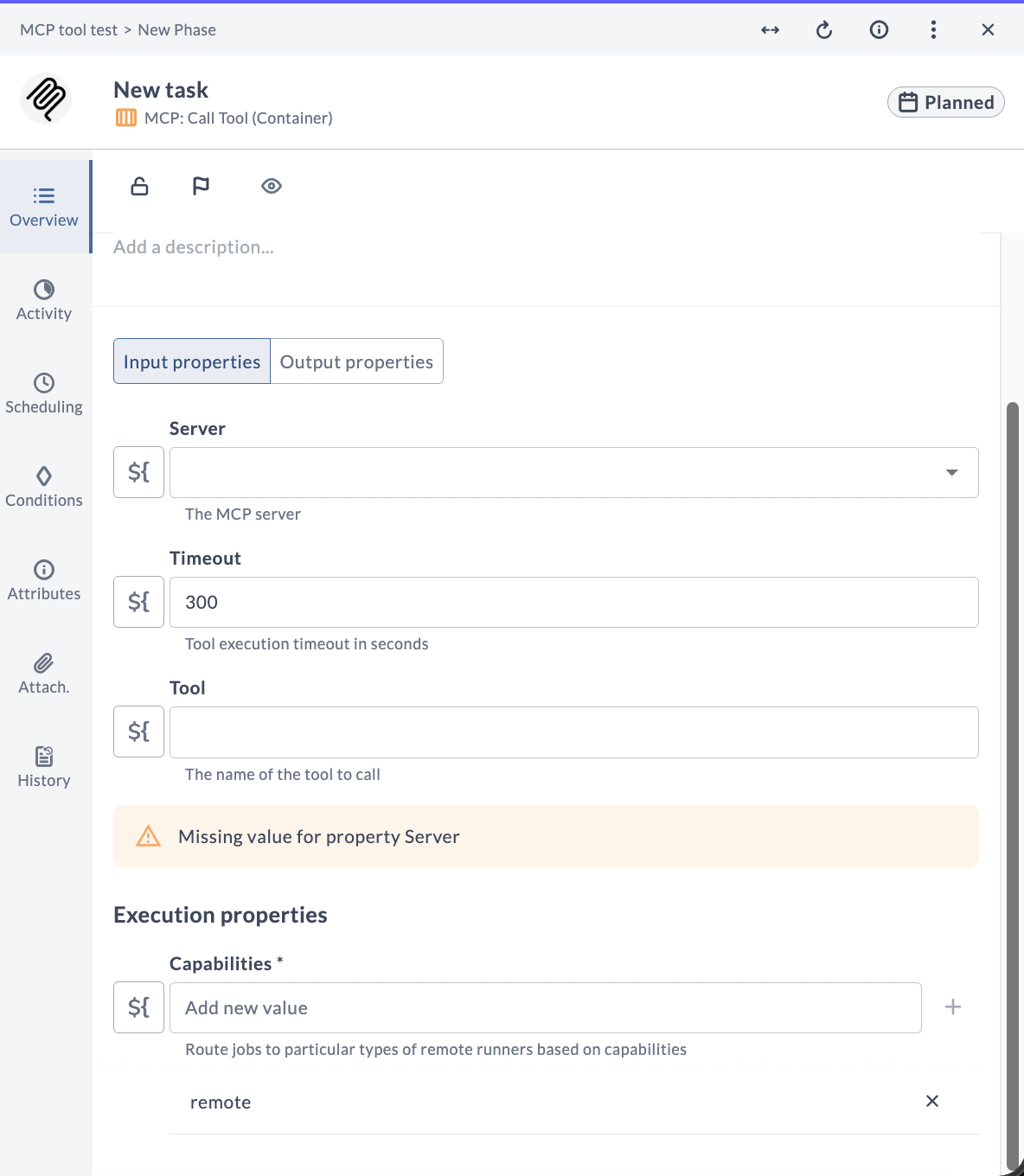
The MCP: Call Tool task executes a named tool on an MCP server and stores the output. No LLM is involved. It is a direct, deterministic invocation. Use it wherever you would ordinarily write an integration plugin.
Task fields
| Field | Description |
|---|---|
| Server | The MCP server connection to use. |
| Timeout | Maximum execution time in seconds (default: 300). |
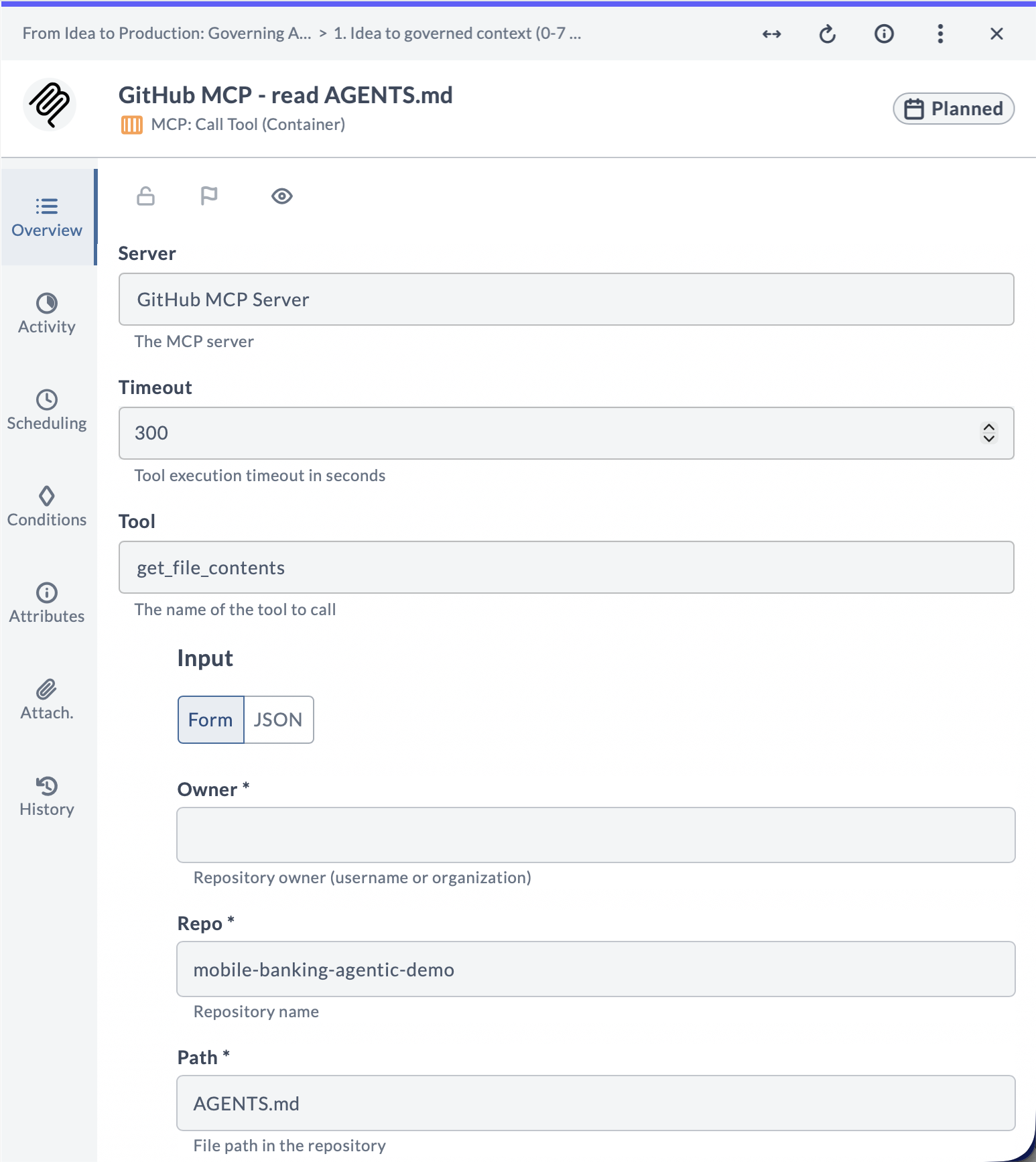
| Tool | The tool name to call. An interactive dropdown lists available tools from the selected server. |
| Input | Tool arguments, rendered as a Tool input form generated from the selected tool's JSON Schema. Falls back to a raw JSON textarea if the schema cannot be loaded, for example if the server is unreachable or the configured token is outdated. |
| Capabilities | Routes the task to a runner with matching capabilities. |
Tool Input Form
When a server and a tool are selected, Release fetches the tool's JSON Schema and renders a Tool input section with an individual field for each parameter, similar to how Execution Properties render for other tasks. Supported field types are text, number, checkbox, dropdown for enum values, and list. Required fields are marked as required, and fields with a schema default value are pre-filled automatically.
Fields with a complex or unsupported schema type, such as a nested object, an array of objects, or a oneOf/anyOf composition, fall back to an individual JSON textarea for that field.
If the tool's schema cannot be loaded, for example because no server or tool is selected, the server is unreachable, or the configured token is outdated, the entire Tool input section falls back to a single raw JSON textarea.
Output properties
| Property | Description |
|---|---|
| Result | The raw text output returned by the tool. |
The following examples show the resulting Input value, whether entered through the Tool input form or the raw JSON fallback.
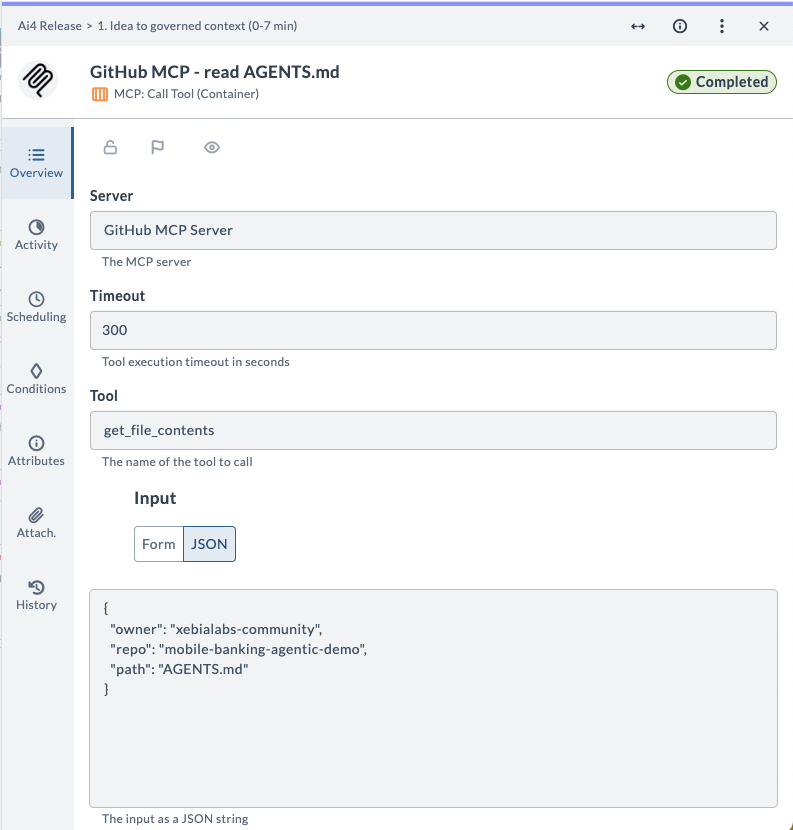
Example — read a GitHub issue
{
  "issue_number": 1,
  "method": "get",
  "owner": "xebialabs-community",
  "repo": "community-release-llm-integration"
}
Example — list failed releases from the Release MCP server
{
  "request": {
    "status": "FAILED"
  }
}
AI: Prompt
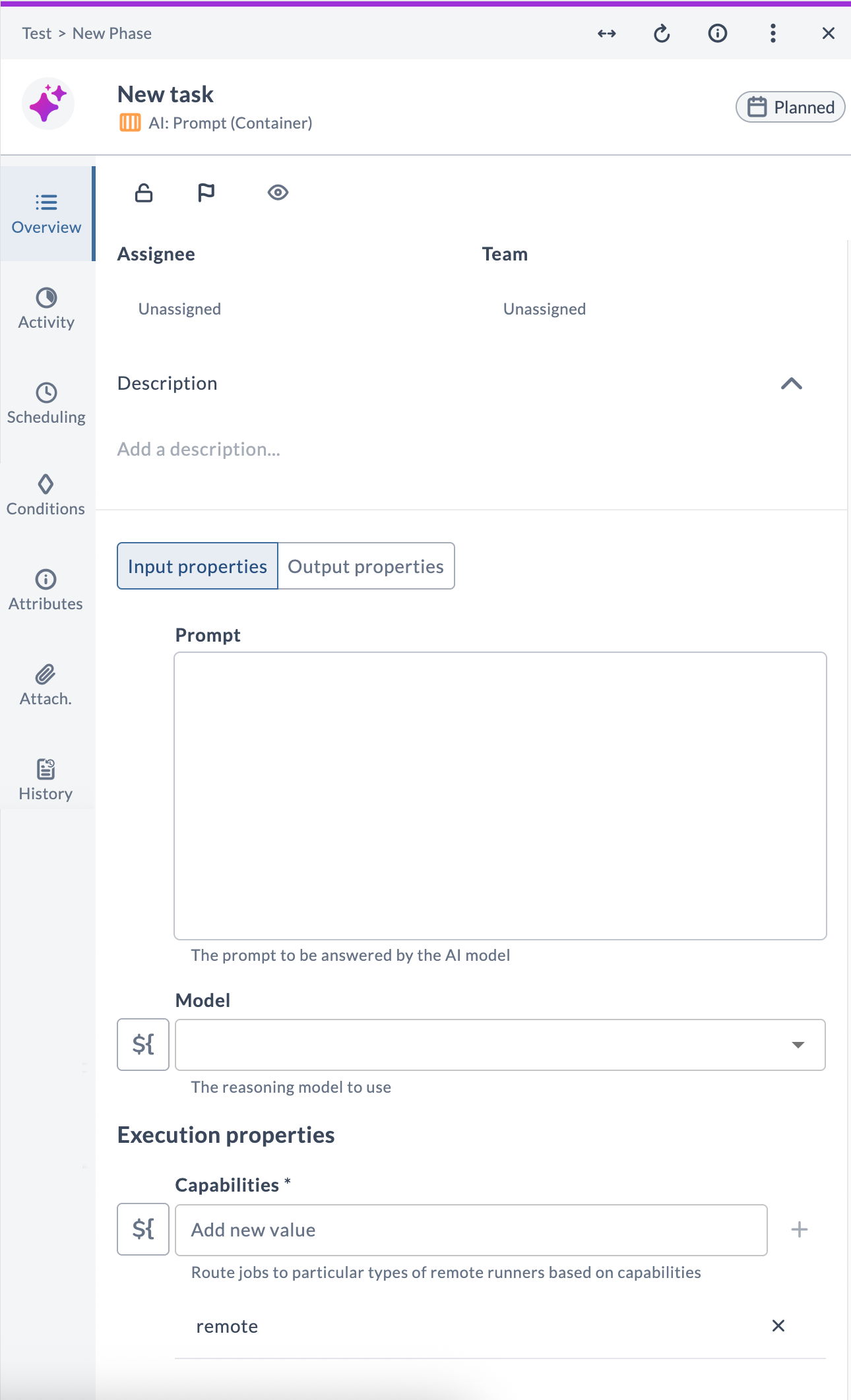
The AI: Prompt task sends a single prompt to an LLM and stores the response. Use it to process or transform text that came from an earlier step — summarize, classify, extract data, translate, or generate content.
Task fields
| Field | Description |
|---|---|
| Prompt | The text to send to the LLM. Supports Release variables using ${variable} syntax. |
| Model | The AI model connection to use. |
| Capabilities | Routes the task to a runner with matching capabilities. |
Output properties
| Property | Description |
|---|---|
| Response | The full LLM response text. |
Example pattern — MCP output → Prompt
A common pattern is to pipe the output of an MCP: Call Tool task into a Prompt task to make it human-readable.
Run an MCP: Call Tool task first to store JSON output in ${releases}. Then use an AI: Prompt task with a prompt like:
Make a summary of the failed releases: ${releases}
The generated summary is available in the task output property response.
AI: Chat
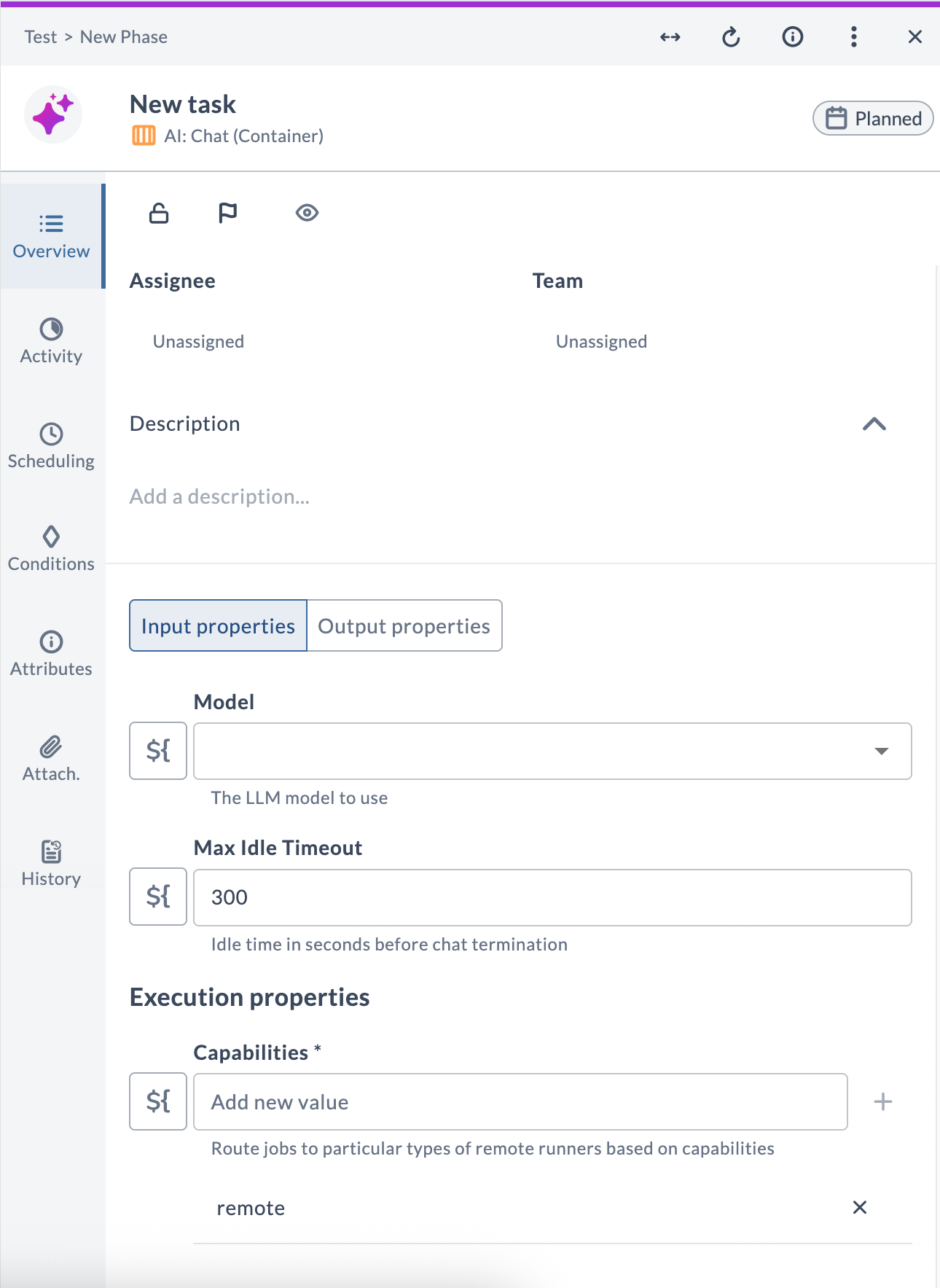
The AI: Chat task starts a live conversational session with an LLM, hosted inside the task's Activity section. The session persists until the user sends Stop chat or the idle timeout expires.
Task fields
| Field | Description |
|---|---|
| Model | The LLM model to use. |
| Max Idle Timeout | Seconds of inactivity before the session ends automatically (default: 300). |
| Capabilities | Routes the task to a runner with matching capabilities. |
Output properties
| Property | Description |
|---|---|
| Response | The last LLM message in the conversation. |
Each new comment you post in the task's Activity section is forwarded to the LLM as your next message. The model maintains the full conversation history for the duration of the session. Post Stop chat to end the session gracefully.
Typical use cases
- Collaborative troubleshooting — ask the model questions about a failed deployment while the release is paused.
- Human-in-the-loop decision making — have the model explain options and let an operator choose the next step.
- On-the-fly data analysis — paste log excerpts or JSON into the chat and ask the model to interpret them.
AI: Agent
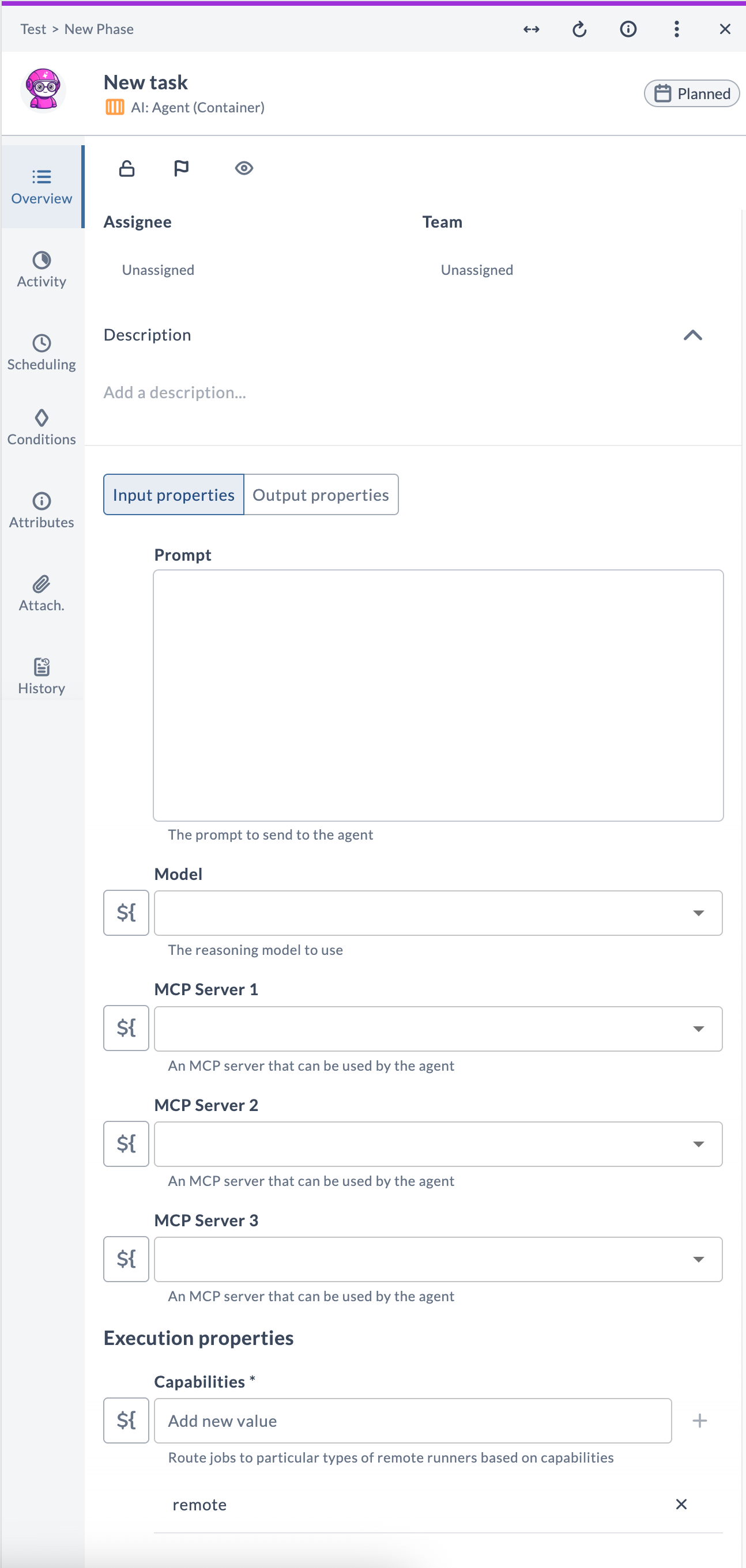
The AI: Agent task gives an LLM access to one or more MCP servers and lets it autonomously plan and execute multi-step workflows to accomplish a goal described in natural language. The agent decides which tools to call, in what order, and what to pass as input — you only need to provide the goal.
Task fields
| Field | Description |
|---|---|
| Prompt | A natural-language description of the goal. |
| Model | The reasoning model to use. Prefer larger, more capable models for complex goals. |
| MCP Server 1 | Primary MCP server the agent can use. |
| MCP Server 2 | Additional MCP server (optional). |
| MCP Server 3 | Additional MCP server (optional). |
| Capabilities | Routes the task to a runner with matching capabilities. |
Output properties
| Property | Description |
|---|---|
| Result | The agent's final response once the goal is completed. |
How it works
The agent receives your prompt together with a list of all tools available on the configured MCP servers. It iteratively calls tools, processes their output, and continues until it determines the goal is complete. Each step is recorded in a markdown report in the task's Activity section, so you can trace exactly what the agent did.
If the agent requires information it cannot obtain from the available tools, it ends its response with 🙋🏻 and the task is failed — prompting a human to re-run it with a clearer prompt or additional MCP access.
Example prompts
Create a nice summary for the currently logged-in user.(requires a GitHub or identity MCP server)Analyze all templates in the "AI Demo" folder and report on tasks that are duplicated across templates.(requires Release MCP server)List all releases in Digital.ai Release. For the last release in FAILED state, create a GitHub issue in owner/repo to fix it. Mention Release title, date, and cause in the ticket.(requires both Release MCP and GitHub MCP servers)
Best Practices
- Write specific prompts. Vague prompts produce vague results, especially for Agent tasks. Describe the goal, the expected output format, and any constraints (for example, do not modify production).
- Choose the right model for the task. Small local models (SmolLM2, Llama 3.2) are fast and free but less capable. Use a frontier model (Gemini Pro, GPT-4, Sonnet) for Agent tasks with complex reasoning requirements.
- Use Release variables to inject context. Reference
${variable}in prompts to include dynamic values such as environment names, previous task output, or release titles. - Store sensitive values as encrypted variables. Never hardcode tokens or passwords in a prompt. Use Release's encrypted variable type and reference them via
${variable}. - Set timeouts on MCP: Call Tool tasks. Some tools may be slow or hang. Set a conservative timeout to prevent tasks from blocking a release indefinitely.
- Add error-handling tasks after Agent tasks. Agent output is non-deterministic. Place a Gate or manual review task after critical agent steps so a human can verify the result before the release proceeds.
- Monitor LLM API usage. Agent tasks can make many tool and LLM calls in a single execution. Monitor API usage to avoid unexpected cost spikes.