Manage OKR Access and Visibility
All objectives are visible to all users in Agility. You control editing permissions through the Shared Access With field.
Access Control Model
- View Access: All users can view all objectives
- Edit Access: Users explicitly added to the Shared Access With field gain full editing rights to the OKR, including modifying fields, adding associated assets, linking objectives, commenting on key results, copying, and duplicating the OKR
- Close Access: Both the objective owner and users with shared access can close objectives
- Reopen Access: The objective owner, users with shared access, and system administrators can reopen closed objectives
- Delete Access: Only the objective owner, users with shared access, and system administrators can delete objectives
Owner vs. Shared Access With
The Owner field is read-only and automatically set to the objective creator. The Shared Access With field is multi-value and allows adding multiple users. For complete field explanations, see Owner and Shared Access With Fields.
Share an OKR with Other Users
Add users to the Shared Access With field to let them edit the objective, manage key results, add comments, close the objective, reopen closed objectives, and delete the objective.
Add Users with Shared Access
- Click the hamburger menu
 > OKRs.
 - Select the objective or key results you want to share with other users.
- In the Shared Access With field, enter the username and select the user.
- The selected user is added as a user with shared access in the Shared Access With field.
Result: Users with shared access can now edit, close, reopen, and delete the objective, as well as add or modify key results and add comments.
The Shared Access With field supports multiple values, so you can add as many users as needed to collaborate on the objective.
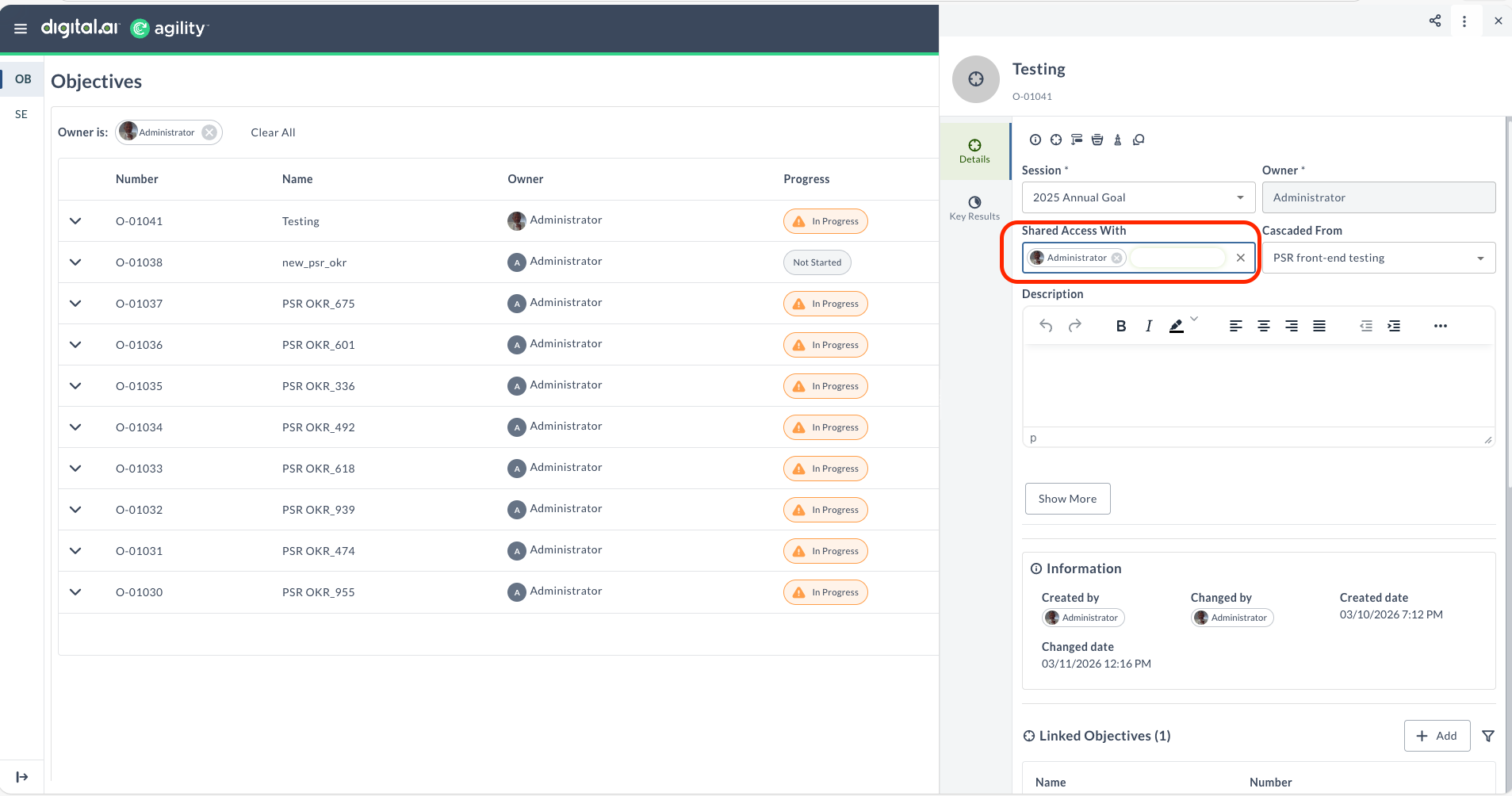
Remove Users with Shared Access
- Open the objective details drawer.
- Locate the Shared Access With field.
- Click the X icon next to the user's name you want to remove.
- The user is immediately removed from shared access.
Result: The user can still view the objective but can no longer edit it.
Permissions Summary
Objective owners can edit, close, reopen, and delete their objectives. Users with shared access can edit, close, reopen, and delete objectives. System administrators have full access to all objectives. For detailed permission information, see User Roles and Permissions.
Best Practices
- Add multiple users to collaborate on strategic objectives where several team members need to update progress.
- Use shared access to create collaborative OKRs for team-level or department-level objectives.
- Regularly review and update users with shared access as team compositions change.
- Combine shared access with cascading relationships to maintain clear ownership while enabling collaboration.
Related Topics
- Add a New OKR - Create objectives and key results.
- Edit or Delete OKRs - Modify or remove existing objectives
- Cascade OKRs - Create hierarchical objective alignment
- Add Comments to OKRs - Collaborate on objectives