Add a New OKR
Create objectives to set clear organizational or team goals, then add key results to measure progress toward your objective.
Create a New Objective
When you create a new objective, the Add Objective side panel opens where you can enter the basic objective details. You are automatically set as the owner of objectives you create.
- Log in to Agility, click the hamburger menu > OKRs.
- In the Objectives page, click Add OKR.
- In the Add Objective side panel, enter the Title.
- Click the Session drop-down and choose an existing session.
- The Owner field defaults to you (the creator of the objective).
- Click Save.
The objective details drawer opens with tabs for Details, Key Results, Map View, Comments, and Activity. You can now add more information such as a description, link objectives, or configure cascading relationships.
Required Fields: Title, Session, and Owner are mandatory fields when creating a new objective.
Add New Key Result
Add key results to measure progress toward your objective. Create and manage key results from within the objective details drawer, organized in a dedicated Key Results tab.
Create a Key Result from the Objective Details Drawer
To add key results to an objective:
- From the OKR list page, click on the objective to open the details drawer.
- In the objective details drawer, click the Key Results tab.
- Click Add.
- Enter the Name for the key result.
- Enter a Description for the key result (optional).
- Select the Type:
- Increase to - Metric grows from a starting point to a higher target
- Decrease to - Metric goes down from a higher number to a lower target
- Stay above - Maintain performance above a minimum level
- Stay below - Keep a metric under a maximum limit
- Achieved or Not - Qualitative key result measured by completion status (Not Achieved = 0, Achieved = 1)
- Based on the selected key result type, enter the required values:
- Current Value - The current value of the key result
- Initial Value - The starting value of the key result (required for "Increase to" and "Decrease to" types)
- Target - The target value or threshold to be achieved or maintained
- Select the Unit (Count, %, $, £, €).
- The system automatically calculates and displays the key result's progress based on the values entered.
- Select the Commitment from the drop-down menu:
- Aspirational - Objectives that might stretch beyond the session
- Committed - Objectives that must be achieved by the end of session
- Click Save.
The new key result is saved and associated with the selected objective.
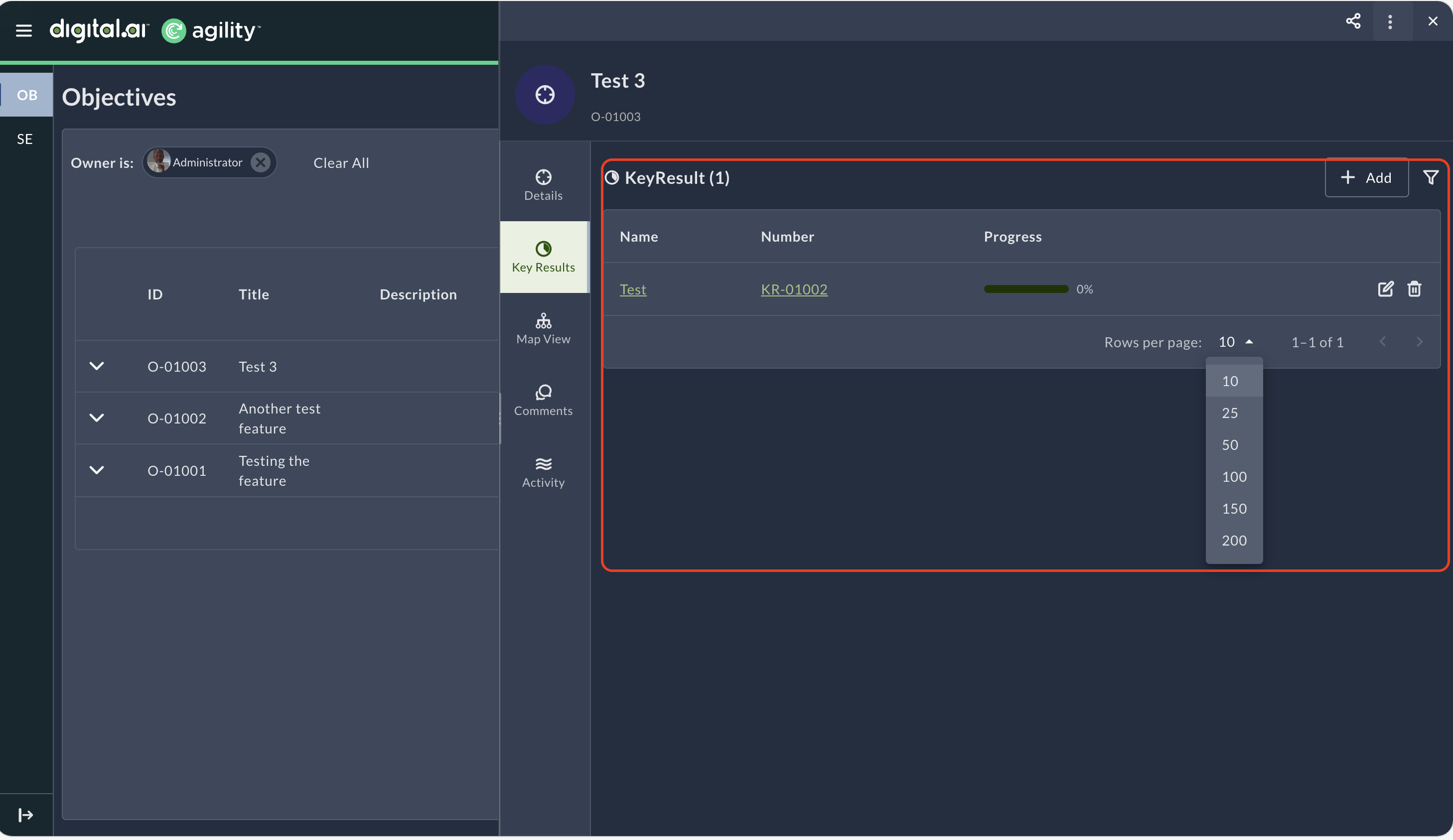
Required Fields: Name, Type, Current Value, Initial Value (for Increase to/Decrease to types), and Target are mandatory fields when creating a key result.
The Key Results tab supports pagination for better navigation when managing multiple key results. Display 10, 25, 50, 100, 150, or 200 key results per page. Key result titles automatically wrap to multiple lines, ensuring full visibility without horizontal scrolling.
View Key Result Details and Activity
When you click on a key result from the Key Results tab, the key result details drawer opens showing two navigation tabs:
- Details - Shows the key result's configuration fields including Name, Description, Type, Current Value, Initial Value, Target, Unit, and Commitment level
- Activity - Shows the complete history of changes and updates made to the key result, including:
- Field updates (Type, TargetValue, CurrentValue, InitialValue changes)
- Who made the change
- When the change was made
- Previous and new values for each field
The Activity tab provides full traceability of key result modifications, helping teams understand how progress has evolved over time.
Understanding Key Result Types
This section provides detailed explanations and examples for each key result type to help you choose the right approach for tracking your objectives.
Quantitative Key Result Types
A Quantitative Key Result uses numbers to track measurable progress toward an objective. Agility automatically calculates progress as you update values, so manual calculations are not required.
Choose the right type based on what you want to measure:
| Key Result Type | When to Use | Example Metrics |
|---|---|---|
| Increase to | When you want a number to grow | Active users, revenue, completed features |
| Decrease to | When you want a number to go down | Bug count, response time, customer complaints |
| Stay above | When you need to maintain a minimum level | Uptime %, customer satisfaction, quality score |
| Stay below | When you need to stay under a maximum limit | Churn rate, error rate, cost per user |
Understanding the values:
- Initial Value - Your starting point (where you are now)
- Current Value - Your latest number (update this as you make progress)
- Target - Your goal (where you want to be)
- Unit - How you measure (%, count, $, hours, etc.)
Increase to
Use this type when you want your metric to grow from a starting point to a higher target. This type works with any numeric values, including negative numbers moving toward zero or positive values.
What happens as you update:
- Start at your Initial Value = 0% progress
- Reach your Target = 100% progress
- Go beyond your Target = over 100% (exceeding your goal!)
- Fall below Initial Value = progress goes negative (moving backward)
Example 1: Growing Monthly Active Users
You want to grow your user base from 10,000 to 15,000 users.
| Field | Value | What It Means |
|---|---|---|
| Initial | 10,000 | Starting user count |
| Target | 15,000 | Goal to reach |
| Current | 11,000 | Latest count |
| Progress | 20% | You're 20% of the way to your goal |
The system calculates: You've added 1,000 users out of the 5,000 needed, which is 20% progress.
Example 2: Reduce NPS Detractors (Negative to Zero)
You want to reduce NPS detractors from -20 to 0.
| Field | Value | What It Means |
|---|---|---|
| Initial | -20 | Starting NPS detractor score |
| Target | 0 | Goal to reach |
| Current | -10 | Latest score |
| Progress | 50% | You're halfway to your goal |
The system calculates: You've improved by 10 points out of the 20 needed, which is 50% progress.
Decrease to
Use this type when you want your metric to go down from a higher number to a lower target.
What happens as you update:
- Start at your Initial Value = 0% progress
- Reach your Target = 100% progress
- Go below your Target = over 100% (you reduced more than planned!)
- Go above Initial Value = progress goes negative (the problem is getting worse)
Example: Reduce Average Page Load Time
You want to reduce average page load time from 5 seconds to 2 seconds.
| Field | Value | What It Means |
|---|---|---|
| Initial | 5.0 | Starting load time (seconds) |
| Target | 2.0 | Goal to reach |
| Current | 4.0 | Latest measurement |
| Progress | 33.33% | You're one-third of the way to your goal |
The system calculates: You've reduced load time by 1 second out of the 3 seconds needed, which is 33.33% progress. At 3.0 seconds, you'd be at 66.67% progress. When you reach 2.0 seconds, you'll be at 100% progress.
Stay above
Use this type when you need to maintain performance above a minimum acceptable level. This is a guardrail metric with simple pass/fail tracking.
What happens as you update:
- Stay at or above Target = 100% progress (you're meeting your goal!)
- Fall below Target = 0% progress (you've dropped below the acceptable threshold)
Example: Maintain Employee Engagement Score
You need to maintain employee engagement score above 70.
| Field | Value | What It Means |
|---|---|---|
| Target | 70 | Minimum acceptable threshold |
| Current | 75 | Latest measurement |
| Progress | 100% | You're meeting your goal |
If the current value is 75 or any value at or above 70, progress is 100%. If it drops to 65 or any value below 70, progress becomes 0%.
Stay below
Use this type when you need to keep something under control and below a maximum limit. This is a guardrail metric with simple pass/fail tracking.
What happens as you update:
- Stay at or below Target = 100% progress (you're meeting your goal!)
- Exceed Target = 0% progress (you've gone over the acceptable limit)
Example: Keep Monthly Support Refunds Below Budget
You need to keep monthly support refunds below $100,000.
| Field | Value | What It Means |
|---|---|---|
| Target | 100,000 | Maximum acceptable threshold |
| Current | 80,000 | Latest measurement |
| Progress | 100% | You're meeting your goal |
If the current value is $80,000 or any amount at or below $100,000, progress is 100%. If it exceeds $100,000 (e.g., $120,000), progress becomes 0%.
Qualitative Key Result Type (Achieved or Not)
For qualitative key results, Agility stores Achieved as 1 and Not Achieved as 0 in the current value field. Progress is calculated automatically based on this value.
:::tip Progress Calculation Agility automatically calculates progress based on the values you enter. The progress field is readonly and calculated by the system. You only need to update the Current Value as you track your progress; the system performs all required calculations. :::
By outlining your OKRs with these components, you create key results that are specific, measurable, achievable, relevant, and time-bound (SMART). This clarity helps teams understand success and track progress effectively.
Configure Required Fields for Objectives and Key Results
:::info Administrator Feature This configuration requires System Administrator privileges. Configure required fields through the Global Assets or Required Fields pages. :::
Administrators can configure which fields are required when creating or editing Objectives and Key Results. This ensures teams provide consistent information and enforces organizational OKR standards.
How to Configure Required Fields
- Log in to Agility as a System Administrator.
- Click the hamburger menu and navigate to Admin > Global Assets or Required Fields.
- Select Objective or Key Result from the asset type list.
- In the Require Globally affects all Projects or Planning Levels column, select the checkbox for any field you want to make required across all projects or planning levels.
- Save your changes.
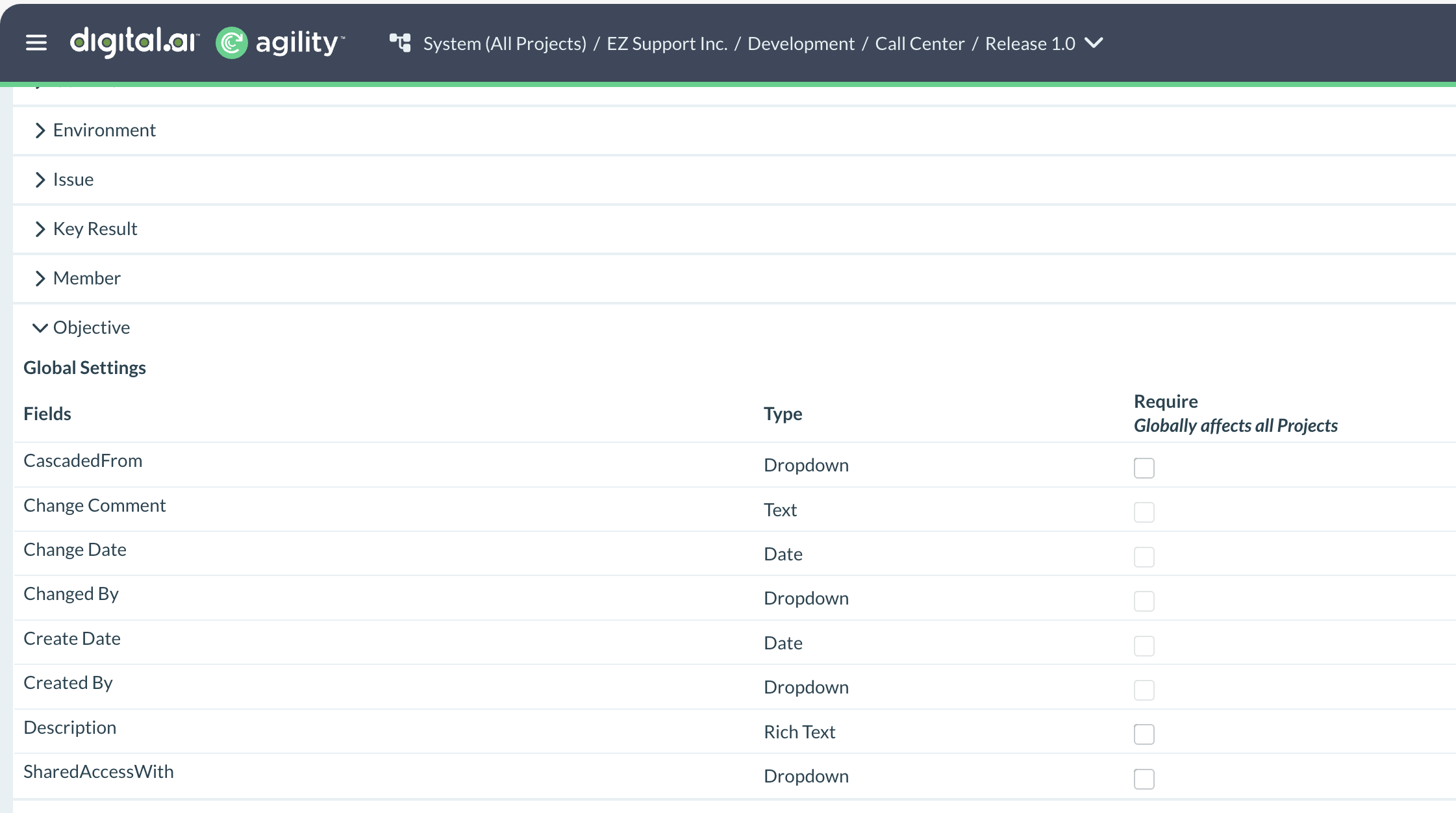
Understand Required Field Validation
When a field is marked as required:
- The field displays with an asterisk (*) in the user interface
- Users must provide a value before saving objectives or key results
- The system validates required fields upon save and displays error messages for any missing values
- Validation applies to both creating new OKRs and editing existing ones
Review Default Required Fields
Some fields are required by default and cannot be made optional:
- Objectives: Title, Session, Owner
- Key Results: Name, Type, Current Value, Target (and Initial Value for Increase to/Decrease to types)
Configure Display Settings
Administrators can control which fields appear in the user interface using the Display Globally affects all Projects checkbox in Global Assets.
Access an Objective or Key Result Directly
Agility allows you to access an objective or key result directly by copying its URL.
To access objectives or key results directly:
- From the OKR listing page, select an objective to open the details drawer.
- Copy the URL using one of these methods:
- Click the share icon in the top right corner of the drawer to copy the URL to your clipboard, or
- Click the URL in the browser address bar and copy it (Ctrl+C on Windows or Cmd+C on Mac)
- Open a new browser window and paste the URL and press Enter.
The selected objective or key result is displayed.
Add Comments to Objectives and Key Results
Comments enable collaboration and communication on objectives and key results. Add comments from the Comments tab in the details drawer.
Who Can Add Comments
The following users can add comments to objectives and key results:
- Objective Owners - Users who created the objective
- Shared Access Users - Users who have been granted shared access to the objective
- System Administrators - Administrators with full access to all objectives
Add a Comment to an Objective
To add comments to an objective:
- From the OKR listing page, click an objective to open the details drawer.
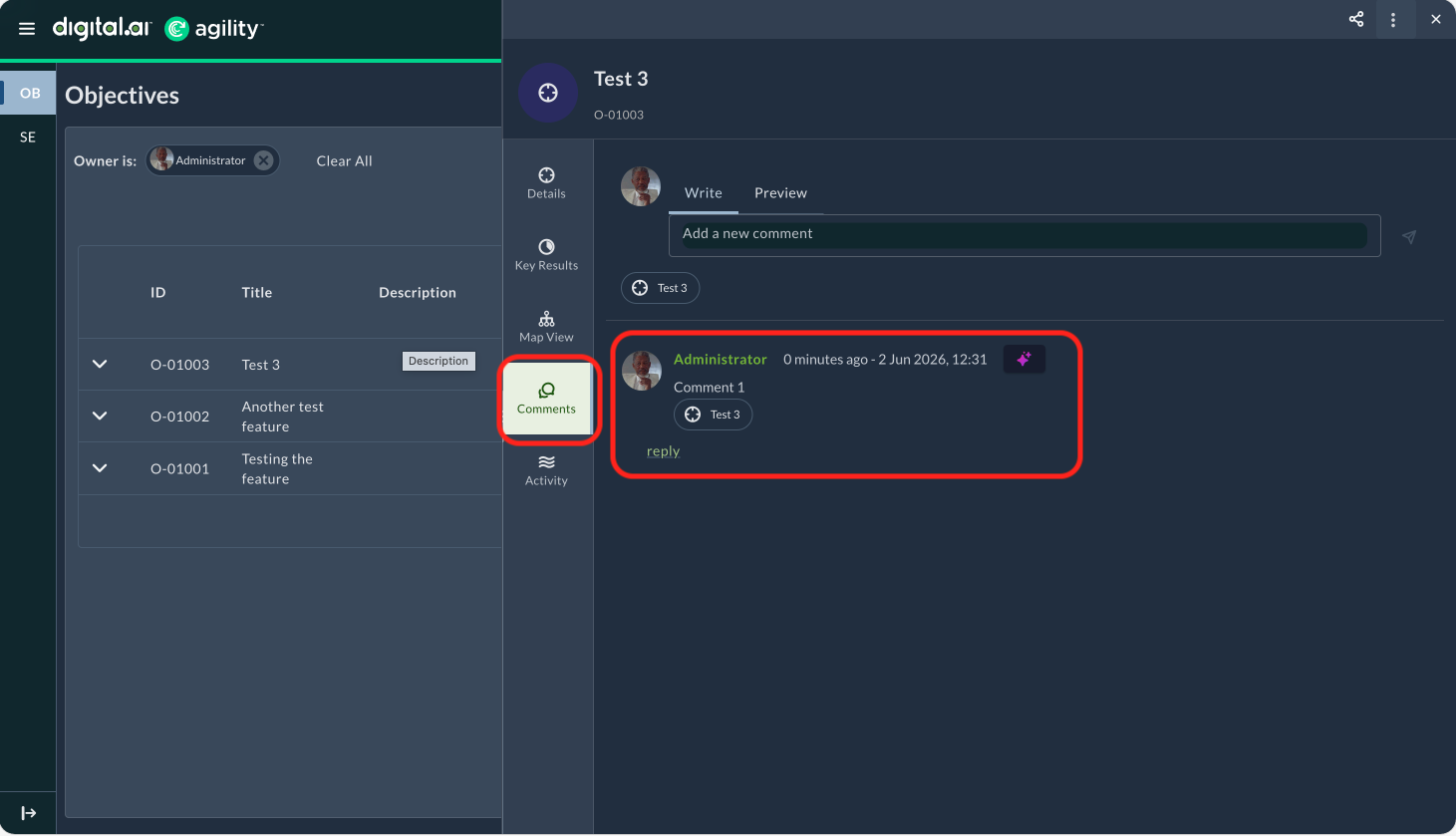
- Click the Comments tab.
- Enter your comment in the comment field.
- Click the send icon to post the comment.
The comment is added to the objective and visible to all users with access.
Add a Comment to a Key Result
To add comments to a key result:
- From the OKR listing page, click an objective to open the details drawer.
- Click the Key Results tab.
- Click the key result you want to comment on to open its details drawer.
- Click the Comments tab.
- Enter your comment in the comment field.
- Click the send icon to post the comment.
Comments on key results keep all users informed about progress, challenges, or updates related to specific measurable outcomes.
:::tip Collaboration Use comments to ask questions, provide updates, or share context about objectives and key results. :::