Get Started as Scrum Master or Team Lead
As a Scrum Master or Team Lead, you facilitate agile ceremonies, coach teams, and remove impediments to delivery. This overview covers the essential workflow: setting up your TeamRoom, facilitating sprint planning and daily standups, tracking blockers, and conducting retrospectives.
Digital.ai Agility uses "sprint" and "iteration" interchangeably to refer to fixed time periods for development work. Both terms describe the same concept: a timeboxed period (typically 1-4 weeks) where teams deliver completed work.
First day checklist
Use this checklist to verify your access and familiarize yourself with essential team facilitation features:
Access and setup
- Verify you have Project Lead or higher role to create TeamRooms.
- Confirm you can view your team's project and assigned sprints.
- Locate your team's existing TeamRoom (or create one if needed).
- Check that team members are assigned to the correct project.
Sprint facilitation
- Access hamburger menu > Rooms > All TeamRooms > select your team room, or use hamburger menu > Iteration > Detail Planning to review backlog with capacity metrics.
- Navigate to hamburger menu > Product > Issues to track impediments.
- Find the Sprint Dashboard (hamburger menu > Reports > Sprint Dashboard) for daily standup metrics.
- Locate Team > Close Sprint for end-of-sprint retrospectives.
You're ready when you can
- Create a TeamRoom and set team preferences.
- Facilitate sprint planning by reviewing backlog and capacity.
- Track and resolve blocked items using Issues.
- Run daily standups using TeamRoom boards with team member filters.
Step 1: Set up a TeamRoom
Create a TeamRoom where the team can plan, track, and collaborate. Your role must be Project Lead or higher.
- Click the hamburger menu
 > Rooms > All TeamRooms.
 - In the TeamRooms page, click Add TeamRoom.
- In the Add TeamRoom dialog box, provide all the necessary details such as Title for your TeamRoom, Schedule, Program, Team, Default Project, TeamRoom preferences, and a Description for your TeamRoom.
- Click Save.
Step 2: Facilitate sprint planning
Work with your product owner and team to plan each sprint:
- Click the hamburger menu > Rooms > your TeamRoom.
- Review the prioritized backlog with the product owner.
- Drag stories from the backlog into the current sprint until the team reaches capacity.
- Open each story and use the Plan Story view to break it down into specific tasks.
- Ensure each task has a clear owner and estimated hours.

For detailed planning guidance, see Sprint or Iteration Planning.
Step 3: Track blocked items
Use the Issues page (Product > Issues) to track issues and impediments requiring project-wide visibility:
- Go to the action menu of the affected item and select Block.
- Define a new issue or select an existing issue blocking this item.
- Click the red and white Blocked icon to see details.
Blocking issues are highlighted on board views.
Step 4: Facilitate daily standup meetings
Use the TeamRoom to drive daily standup meetings:
- Click the hamburger menu > Rooms > All TeamRooms and select your room.
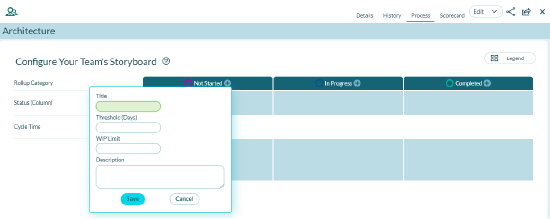
- Display the Storyboard, Taskboard, or Testboard.
- Click a team member's image to filter the view to their items.
- Use the Sprint Dashboard (hamburger menu > Reports > All Reports > Sprint Dashboard) for additional metrics.
Step 5: Review sprints
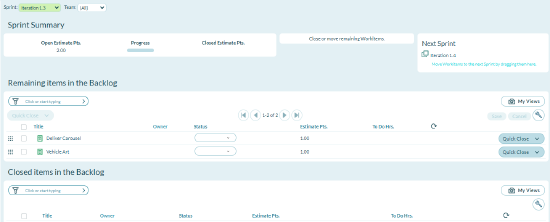
Use the Close Sprint page (hamburger menu > Iteration > Close Sprint) at the end of each sprint:
- Review completed items and close out remaining completed items.
- Split unfinished backlog items if necessary and move remaining tasks to the next sprint.
- Push forward any work that had not started.
- Close the sprint and roll forward to the next one.
Step 6: Capture retrospective details
Record retrospective meetings on the Retrospective page (hamburger menu> Rooms > All TeamRooms and select your room > Retrospectives):
- Add meeting agendas.
- Capture discussion notes.
- Document areas for improvement.
- Link to related backlog items or issues.
Step 7: Collaborate with the team
- Use Conversations in your TeamRoom for discussions.
- Create Communities to share agreements and best practices.
- Run Estimably estimation games in your TeamRoom.
- Use Mobile Connect from mobile devices.
Permission requirements
To perform Scrum Master or Team Lead tasks, you need specific project roles:
- Create TeamRooms: Project Lead or higher role required
- Facilitate sprint planning: Team Member role minimum to view; Product Owner or Project Admin to edit backlog
- Track issues: Team Member role minimum to create; Project Admin to configure issue types
- Close sprints: Project Admin or higher role required
Check your permissions: If you can't perform specific actions, contact your project administrator to verify your project role.
Troubleshooting
Can't create a TeamRoom?
You need Project Lead or Project Admin role. Contact your system administrator to verify your permissions.
Can't see sprint planning capacity metrics?
Ensure your team has capacity configured (Team > Configure Team Capacity) and that team members are assigned to the sprint.
Can't close a sprint?
Only Project Admins and System Admins can close sprints. Contact your project administrator if you need this access.
Missing Issues page?
The Issues feature may be disabled at the system level. Contact your administrator to enable Product > Issues functionality.
Related Topics
- Get started by role - Find guidance for other roles
- Team rooms - Collaborative planning spaces
- Sprint planning - Plan sprint iterations