Exercise 7: Close Your Story
This exercise shows you how to close (inactivate) a story using the REST API. In Agility, closing a story changes its AssetState to inactive, removing it from the default backlog view while preserving it in the system for historical purposes.
Prerequisites
Before starting this exercise, you need:
- Access to a Digital.ai Agility 7.0 instance or newer. We are using https://www16.v1host.com/api-examples from our previous exercises.
- Completion of the following exercises:
- Digital.ai Agility REST API Tutorial
- Exercise 1: Basic Use of the API Console
- Exercise 2: Find a Scope (Project) OID Token in the UI
- Exercise 3: Query a Scope (Project) for Specific Attribute
- Exercise 4: Create your own Story (Backlog Item) within a Scope
- Exercise 5: Query your Story
- Exercise 6: Update your Story
- Knowledge of the Agility API Console
- Basic knowledge of XML
What you'll learn
This exercise walks you through closing a story using the REST API Inactivate operation. You'll learn how to:
- Use the Inactivate operation to close a story
- Verify the story's closed state through the API response
- Confirm closure by querying the AssetState attribute
- View closed stories in the backlog
Step 1: Recall the OID of the newly created story
Recall the saved OID Story:1045 returned in the response from the output in Exercise 4: Create your own Story (Backlog Item) within a Scope and Exercise 5: Query your Story.
Step 2: Close the story using the Inactivate operation
- Change your URL to this:
rest-1.v1/Data/Story/1045?op=Inactivate. - Click Send.
This operation closes the story by changing its state to inactive. No payload is required.
Step 3: Verify the story is closed
Here are three ways to confirm the story was successfully closed.
- Response Body
The XML below is returned after a successful closure. It returns the Story with a brand new Moment appended marking its change of state.

- Query for the Story
Run this query rest-1.v1/Data/Story/1045?sel=AssetState. This shows the output indicating that the AssetState attribute of this story is equal to 128, which means that it is closed. If it were equal to 64, that would mean that the Story is open.
- Check in the Agility Backlog
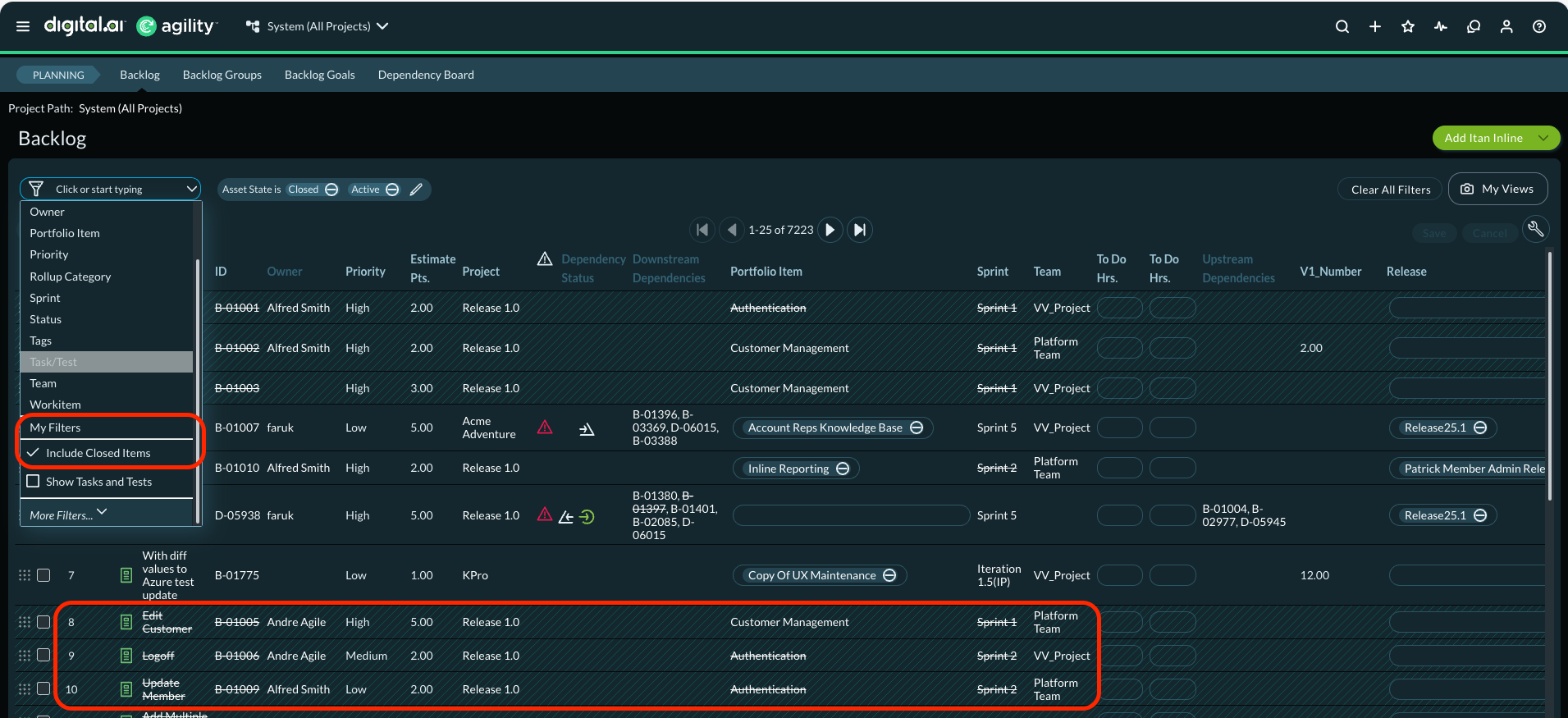
Go to your backlog. By default, you will not see My New Story (Story:1045) in the backlog because closed items are filtered out. To view closed stories:
- Click the Hamburger icon > Product > Backlog
- Click the filter icon (funnel) in the upper left corner of the backlog.
- Under My Filters, select the Include Closed Items checkbox.
- Close the filter panel.
The closed stories are now visible in the backlog, displayed with a strikethrough across the entire row.
Review
In this exercise, you:
- Closed a story using the Inactivate operation with its OID
- Verified the closure through the API response and AssetState query
- Confirmed the story no longer appears in the default backlog view