StartPerformanceTransaction - Automation Command
Description
The startPerformanceTransaction command allows you to capture performance metrics during automated test execution. This helps assess the performance of a specific user flow on a mobile device, making it easier to identify bottlenecks and optimize performance.
By default, this command captures metrics at the device level. If you need to focus on a specific application, consider using startPerformanceTransactionForApplication instead.
To learn more about performance transactions and the types of metrics captured, refer to the Record Performance Transactions documentation.
This command is available in Appium for iOS and Android devices and supports testing across Web, Native, and Hybrid applications.
- Use
endPerformanceTransactionto stop the transaction and generate the performance report. - If a transaction exceeds 5 minutes or if the test session ends, the transaction will be automatically canceled, and no performance data will be recorded.
Parameters
| Parameter Name | Value | Description |
|---|---|---|
nvProfile | String | The name of the network profile to simulate different network conditions. - Default: "3G-average" - Use "NONE" to disable network simulation. View Available Network Profiles |
Code Example
The startPerformanceTransaction command can be executed using the executeScript function:
- Java
- Python
- C#
- JavaScript
- Ruby
driver.executeScript("seetest:client.startPerformanceTransaction", "3G-average");
self.driver.execute_script("seetest:client.startPerformanceTransaction", "3G-average")
driver.ExecuteScript("seetest:client.startPerformanceTransaction", "3G-average");
driver.executeScript("seetest:client.startPerformanceTransaction", "3G-average");
driver.execute_script("seetest:client.startPerformanceTransaction", "3G-average")
Practical Example
Traditionally, performance testing requires separate tools and frameworks. By integrating performance tracking directly into your Appium scripts, you can streamline both functional and performance testing within a single workflow.
In the example below, we validate a simple login process with functional steps:
driver.navigate().to("https://demo-bank.ct.digital.ai/");

// Functional Steps to perform on the login page
wait.until(ExpectedConditions.elementToBeClickable(By.xpath("//*[@class='mobile-login-logo']")));
driver.findElement(By.xpath("(//*[@class='dx-texteditor-input'])[1]")).sendKeys("company");
driver.findElement(By.xpath("(//*[@class='dx-texteditor-input'])[2]")).sendKeys("company");

// Functional steps to perform for for validation of login
driver.findElement(By.xpath("//*[@class='dx-button-content' and contains(text(), 'Login')]")).click();
WebElement element = wait.until(ExpectedConditions.elementToBeClickable(By.xpath("//*[@class='total-balance']")));
assertTrue(element.isDisplayed(), "The 'total-balance' element is not displayed or clickable.");
To enhance this test and measure the performance of the login transaction, from clicking the login button to landing on the dashboard, we can implement startPerformanceTransaction as follows:
// Navigate to the login site
driver.navigate().to("https://demo-bank.ct.digital.ai/");

// Functional Steps to perform on the login page
wait.until(ExpectedConditions.elementToBeClickable(By.xpath("//*[@class='mobile-login-logo']")));
driver.findElement(By.xpath("(//*[@class='dx-texteditor-input'])[1]")).sendKeys("company");
driver.findElement(By.xpath("(//*[@class='dx-texteditor-input'])[2]")).sendKeys("company");

// Start Performance Transaction capturing
driver.executeScript("seetest:client.startPerformanceTransaction", "3G-average");

// Functional step(s) to perform for which Performance Metrics will be captured on
driver.findElement(By.xpath("//*[@class='dx-button-content' and contains(text(), 'Login')]")).click();
WebElement element = wait.until(ExpectedConditions.elementToBeClickable(By.xpath("//*[@class='total-balance']")));
assertTrue(element.isDisplayed(), "The 'total-balance' element is not displayed or clickable.");

// End the Performance Transaction capturing
driver.executeScript("seetest:client.endPerformanceTransaction", "login_transaction");
Once the test completes, a Performance Transaction Report is generated.
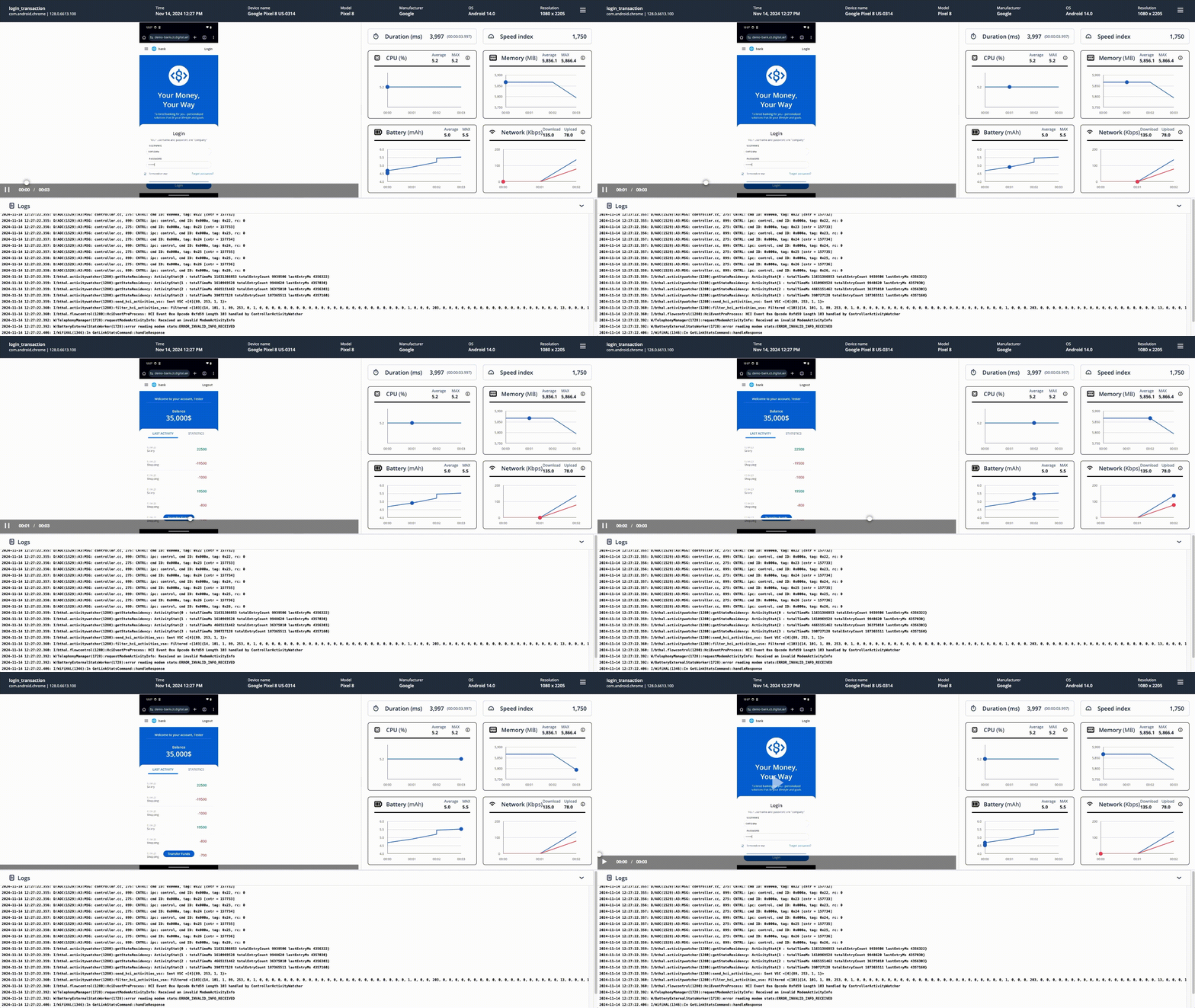
The Performance Transaction Report is generated separately from the Functional Test Report.
If you want to combine performance-related information into a single report, consider using the following:
- Performance Transactions REST API - View API Documentation
- Report Automation Command - View Documentation