Use the Program Board
The Program Board visualizes cross-team dependencies and feature delivery timelines throughout your iterations. Use this board to verify planning sessions before development starts and track delivery progress throughout the program increment.
Permission requirement: Viewing the Program Board requires read access to the selected increment, projects, and teams. Adding portfolio items requires modify permissions on portfolio items. Managing dependencies requires edit access to the work items involved.
Who Uses the Program Board
The Program Board supports coordination and risk visibility:
- Release Train Engineers (RTEs) use the Program Board during PI Planning to facilitate cross-team dependency identification, verify capacity alignment, and ensure all teams understand delivery sequences.
- Program Managers monitor the board throughout the increment to track cross-team feature delivery, identify delivery risks, and coordinate dependency resolution across teams.
- Product Owners review the board to understand when their features will be delivered, identify teams contributing to specific features, and assess scope fit within increment timeframes.
- Scrum Masters check the board to see upstream dependencies impacting their team's work, coordinate with other teams when dependencies share iteration boundaries, and track capacity utilization.
Key Capabilities
The Program Board enables you to:
- Visualize dependencies: See cross-team dependencies that could impact feature completion
- Track feature delivery: View which teams are delivering work for specific features and when
- Identify planning gaps: Spot portfolio items that haven't been planned into iterations
- Monitor team capacity: View capacity indicators comparing team commitments to anticipated delivery
- Detect out-of-order delivery: See features being delivered in unexpected sequences
- Spot scope issues: Identify work planned beyond the increment end date or in other increments
Access the Program Board
To open the Program Board:
- Click the hamburger menu
 > Release > Program Board.
 - Select a project or program from the Project Navigator.
Result: The board displays all portfolio items in the selected increment with their planned delivery dates and dependencies.
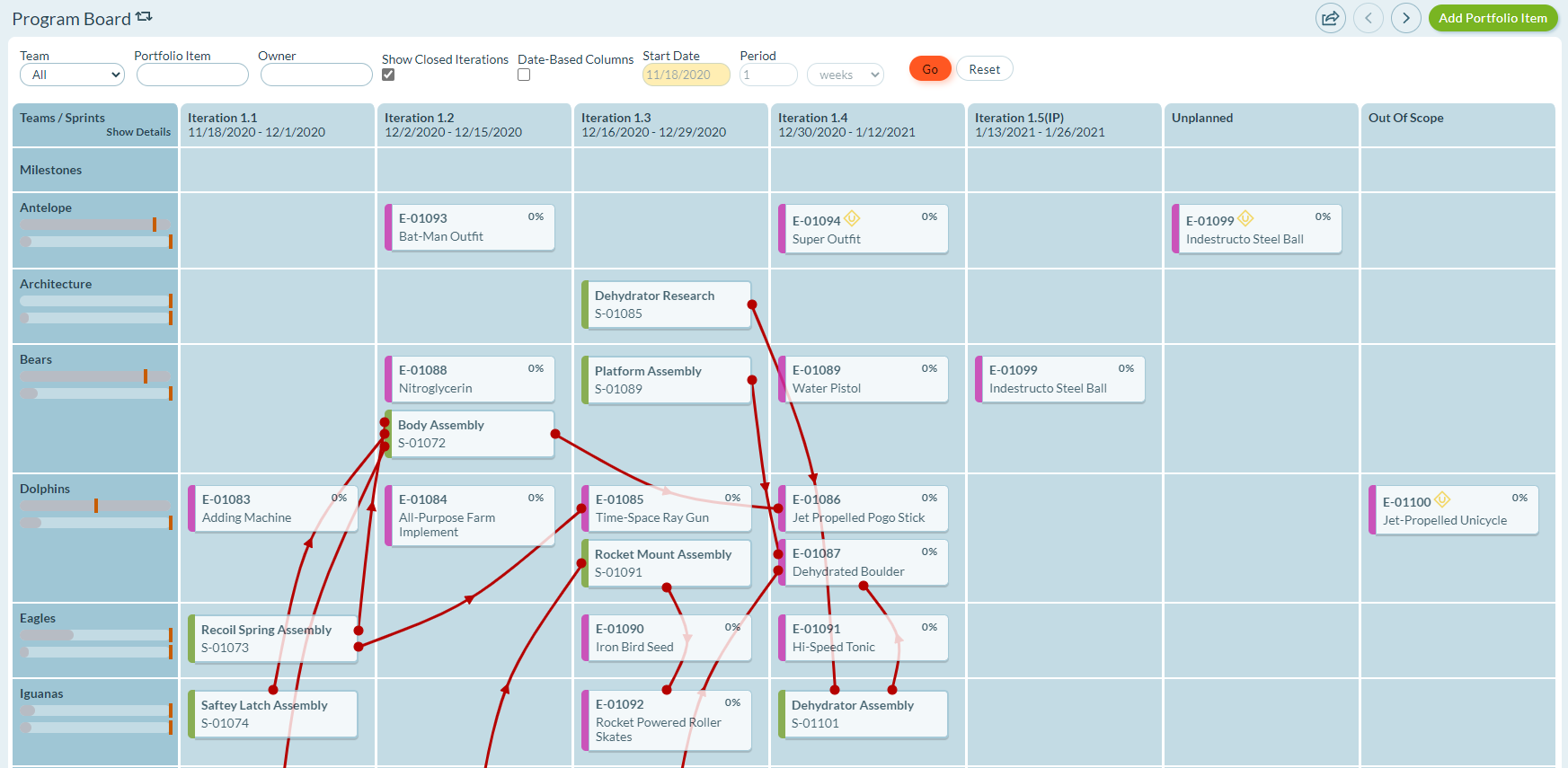
Understand the Board Layout
The Program Board uses a matrix layout to show work across teams and time:
| Element | Description |
|---|---|
| Rows | Represent teams that own project or program work |
| Columns | Represent sprints/iterations (default) or date ranges (date-based columns). Each column shows a sprint with begin/end dates in the increment date range. |
| Unplanned column | Shows work not yet planned into iterations. Portfolio items here have no stories assigned to iterations for that team. Upstream dependency items here have not been planned. |
| Out Of Scope column | Shows work intended for delivery outside the selected increment. Portfolio items here have some work not in scope. Upstream dependencies here are not being delivered in this increment. |
Date-Based vs. Iteration-Based Columns
- Default (Iteration-Based): Columns represent sprints or iterations with begin/end dates in the increment date range
- Date-Based Option: Columns represent date ranges defined by the Period option, enabling cadences different from team sprint schedules
Interpret Board Cards
Portfolio Item Cards
Portfolio item cards show features tracked in the selected increment (same items visible on the Kanban Board and top level of Portfolio Tree).
Card indicators:
- Colored left bar: Indicates portfolio item type
- Yellow "U" icon: Team has both planned and unplanned work for this item (may not be delivered in the shown iteration)
- Percent complete: Displays in top-right corner until item is delivered (based on count or estimate per tracking preferences)
- Progress shading: Card shades darker from left to right as work is completed
Card placement:
- Iteration-based columns: Displays in the last sprint where the team has work planned
- Date-based columns: Displays in the column containing the end date of the last sprint with planned work
Multiple teams: If multiple teams work on the same portfolio item, the card appears multiple times (once per team).
Upstream Dependency Cards
Upstream dependency cards show work items that must be completed before a team can complete their own work.
When dependencies display:
- Only shown when dependencies are satisfied by another team
- If a single team owns all dependencies, cards do not appear
Card indicators:
- Red line with arrow: Connects upstream dependency to impacted portfolio items (arrow points from source to dependent)
Card placement:
- Iteration-based columns: Displays in the sprint where the team plans to complete the work
- Date-based columns: Displays in the column containing the sprint end date
Understand Dependency Lines
Red lines with arrows visualize dependency relationships between teams.
Arrow Direction
The arrow always points from the upstream item (provider/source) to the downstream item (consumer/dependent).
Ideal vs. Problem Patterns
| Pattern | Meaning | Status |
|---|---|---|
| Right arrow (→) | Upstream dependency planned before downstream dependent | ✅ Ideal: dependency completes first |
| Left arrow (←) | Upstream dependency planned after downstream dependent | ⚠️ Problem: dependency order reversed |
| Up/down arrow (↑↓) | Both items in same iteration | ⚠️ Risk: requires close team coordination |
Recommendation: Aim for right-pointing arrows across iteration boundaries. Left-pointing arrows indicate planning problems that need immediate attention.
Monitor Team Capacity
Team capacity indicators show how commitments compare to anticipated delivery capability.
Capacity Calculation Factors
- Increment duration: Begin and End Date from the selected Planning Level
- Team anticipated capacity: Target Estimate and Target Swag values from Team Details page
- Portfolio item SWAG: Total SWAG on portfolio items associated to the team via Target Team attribute
- Story/defect estimates: Total Estimate on stories and defects associated to the team via Team attribute
View Capacity Details
Click Show Details at the top of a column to reveal capacity numbers.
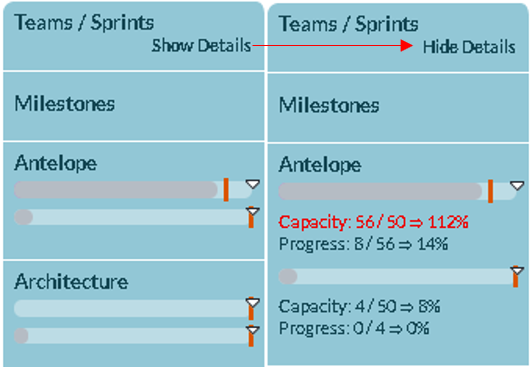
Capacity Example
Scenario: Antelope Team
- Increment duration: June 10 to August 18 = 10 weeks
- Team capacity: 5 points/week + 5 SWAG/week = 50 points and 50 SWAG in 10 weeks
- Portfolio commitments: 3 portfolio items with SWAG of 8, 8, and 40 = 56 total SWAG (112% of capacity)
- Story estimates: 4 points assigned = 8% of capacity
Analysis: Team is over-committed at the portfolio level (112%) but has only begun breaking down features into stories (8%).
Note: Use the Backlog grid to find total estimate, not portfolio item rollups, since backlog items may not be associated with committed portfolio items.
Add a Portfolio Item
To add a portfolio item directly on the Program Board:
- Click Add Portfolio Item in the top-right corner.
- Enter necessary information in the form.
- Click Save.
Result: The portfolio item appears on the board in the Unplanned column until you assign work to iterations.
Generate Reports from the Board
Access these reports directly from the Program Board:
- Portfolio Item Dependencies Report: Detailed view of all portfolio item dependencies
- Dependencies Report: Comprehensive dependency analysis across the increment
See Portfolio Item Dependencies Report and Dependencies for details.
Use the Program Board Effectively
During PI Planning
- Verify dependencies: Ensure all dependency arrows point right (upstream before downstream)
- Check capacity: Review team capacity indicators to identify over-allocation
- Fill gaps: Move portfolio items from Unplanned to planned iterations
- Coordinate teams: Identify teams needing close coordination (same-iteration dependencies)
During Increment Execution
- Track progress: Monitor portfolio item completion percentages
- Identify risks: Watch for items falling behind schedule
- Manage scope: Review Out Of Scope column for items slipping from the increment
- Update dependencies: Verify dependencies are completing as planned
Troubleshooting
Why don't I see some portfolio items on the Program Board?
The Program Board displays portfolio items that meet these criteria: (1) belong to the selected increment, (2) have work assigned to teams in that increment, and (3) match your current project scope and filters. Portfolio items without team assignments or stories scheduled to iterations won't appear. Verify the item is in the correct increment and has work planned for at least one team.
Why do dependency arrows point in unexpected directions (left instead of right)?
Left-pointing dependency arrows indicate a planning problem: the upstream dependency (provider) is scheduled after the downstream dependent (consumer). This means a team plans to complete work before the dependency it relies on is ready. Review these dependencies immediately and either reschedule the downstream work to a later iteration or move the upstream dependency earlier to restore proper sequencing.
Why does a portfolio item appear multiple times on the same board?
Portfolio items appear once per team working on them. If three teams contribute to a feature, the card appears three times (one row per team). Each card instance shows that team's planned delivery iteration and completion percentage. This is intentional: it visualizes which teams are delivering work for specific features and when each team expects to complete their contribution.
Why are some items in the "Unplanned" column even though we have stories for them?
Items appear in Unplanned when they have stories that are not yet assigned to specific iterations, or when the team shown in that row has no planned work for that portfolio item. To move items out of Unplanned, assign the stories to specific sprints/iterations using Sprint Scheduling or the backlog grid. Verify the Target Team on the portfolio item matches the team assignments on the stories.
Related Topics
Portfolio Item Dependencies Report
SAFe® and Scaled Agile Framework® are registered trademarks of Scaled Agile, Inc.