Portfolio Item Dependencies Report
The Portfolio Item Dependencies report is a visualization report that rolls up backlog level dependency relationships to show the resulting portfolio item-level dependencies within a project or program:
- Upstream dependencies: portfolio items that must be completed prior to the current portfolio item.
- Downstream dependencies: portfolio items that cannot be completed prior to the current portfolio item.
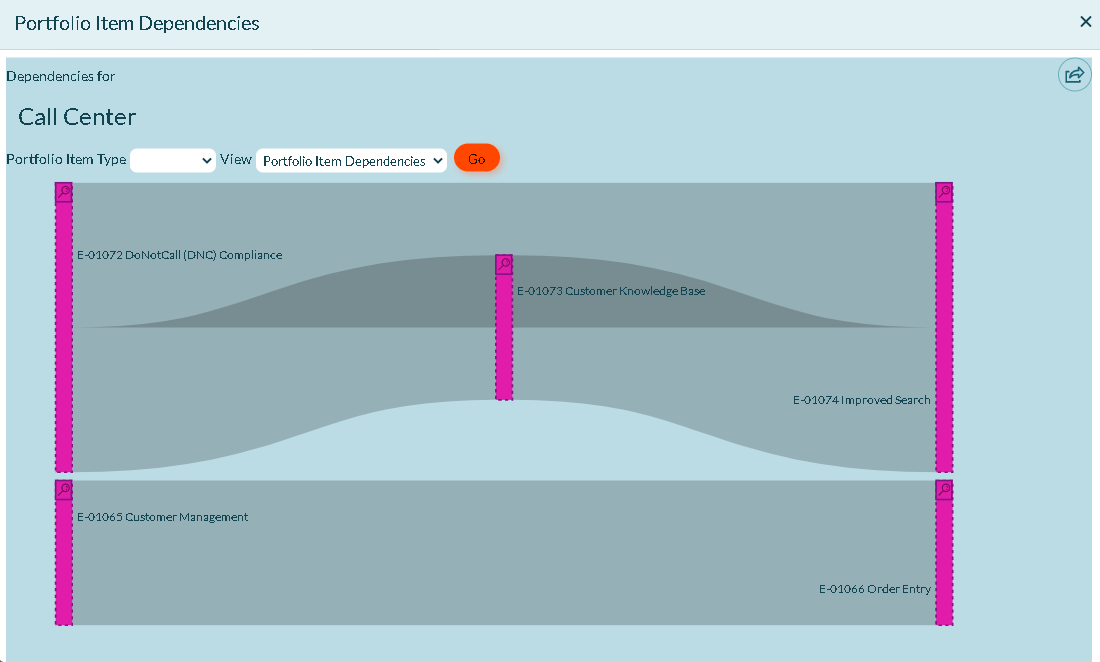
This information is available as a report in the Open Portfolio Item Dependency List. To understand how to create Portfolio Item dependencies, please read the help article on Adding a Portfolio Item Dependency.
Accessing This Report
-
While on the following pages, click the hamburger menu
 > Reports and click one of these reports in the "On This Page" section:
 -
- Portfolio > Portfolio Kanban
- Portfolio > Portfolio Tree
- Portfolio > Roadmaps > Timeline Layout
- Team > Sprint Scheduling (or Iteration Scheduling)
-
Select a Portfolio Item Type and click Go. If you leave the type blank, the highest-level portfolio item available displays.
| Item | Description |
|---|---|
| Portfolio Item Type | Specify the Type of Portfolio Item to consider. This list is populated with the Portfolio Item Type values. There is an entry labeled "None" that is used to select Portfolio Items with no type. When the blank value is chosen, the report considers Portfolio Items in context that do not have a parent in context (Tracked Portfolio Items). |
| View | Determines if the report shows Portfolio Item dependencies based on the Portfolio Item dependency relationship or the dependency relationship on Backlog Items. |
Interpreting the Report
The Portfolio Item Dependencies report is read from left to right. portfolio items on the left (upstream dependencies) can start immediately, while portfolio items in the center and on the right (downstream dependencies) are waiting for other work to be completed before work can begin.
Hover over any area of the chart to view basic information and to click through to the details view.
-
Purple Blocks represent portfolio items.
-
Green Blocks represent backlog items that either don't roll up into any portfolio item or don't roll up into a portfolio item at or below the specified Type.
-
Red Blocks represent defects that either don't roll up into any portfolio item or don't roll up into a portfolio item at or below the specified Type.
-
Blue Blocks represent test sets that either don't roll up into any portfolio item or don't roll up into a portfolio item at or below the specified Type.
-
- Dotted Lines represent items outside of the selected project scope.
-
Ribbons indicate relationships, as follows:
-
- Gray ribbons connecting green blocks represent a normal dependency.
- Yellow connecting ribbons indicate that the item on the right is scheduled in an sprint or iteration before the item on the left. This is called a broken dependency. Placing your mouse over the ribbon shows additional details, including the number of sprints that separate each item.
- Red connecting ribbons indicate a circular dependency. Circular dependencies occur when an item on the right is dependent on something on its left. For example, if A depends on B, and B depends on A, then we have a circular dependency. A cannot start before B, and B cannot start before A.
-
Blocking Issues icon
 displays only when a blocking issue exists.
 -
Drill-Through Icon
 allows you to drill through to workitem-level detail for any portfolio item to see all the open workitems with active dependency. relationships that roll up into the selected portfolio item plus any direct upstream or downstream dependencies that fall outside the portfolio item.
 -
Dotted Lines represent items that do not roll up into the selected portfolio item.
Use Cases
Program Manager Identifying Cross-Team Dependencies Before PI Planning
Before PI Planning, a program manager generates the Portfolio Item Dependencies report to identify cross-team dependencies at the epic level. They select Portfolio Item Type "Epic" and click Go. The report displays eight epics as purple blocks arranged left to right based on dependencies. Two gray ribbons show normal dependencies: "API Infrastructure" (left) connects to "Mobile Features" (right), and "Payment Gateway" (left) connects to "Checkout Flow" (right). The program manager reviews these dependencies with the teams during PI Planning to ensure work is sequenced appropriately and teams coordinate when upstream work completes.
Release Train Engineer Using View Toggle to Analyze Backlog-Level Dependencies
An RTE wants to understand if backlog-level dependencies align with portfolio item-level dependencies. They open the Portfolio Item Dependencies report from the Portfolio Kanban board, select View "Backlog Item Dependencies", and click Go. The report now shows dependencies based on individual story and defect relationships rather than rolled-up portfolio item relationships. They see several gray ribbons connecting green blocks (stories) that weren't visible at the epic level. This backlog-level view reveals detailed dependencies the teams created during sprint planning, helping the RTE understand the full dependency landscape beyond high-level portfolio planning.
Scrum Master Identifying and Resolving Broken Dependencies
A scrum master generates the Portfolio Item Dependencies report and sees a yellow ribbon connecting two epics. Hovering over the yellow ribbon reveals "Broken dependency: Downstream item scheduled 2 sprints before upstream item". The downstream epic "User Profile Enhancements" is scheduled for Sprint 15, but its upstream dependency "Authentication Service Upgrade" is scheduled for Sprint 17. The scrum master meets with the product owner to discuss this conflict. They decide to move "User Profile Enhancements" from Sprint 15 to Sprint 18, resolving the broken dependency and preventing rework or blocked work.
Portfolio Manager Detecting Circular Dependencies Blocking Progress
A portfolio manager reviews the Portfolio Item Dependencies report and sees a red ribbon connecting two epics in a loop. Hovering over the red ribbon shows "Circular dependency: Epic A depends on Epic B, and Epic B depends on Epic A". This circular dependency prevents both epics from progressing logically. The portfolio manager calls a meeting with both teams and the architect to discuss the design. They discover the circular dependency resulted from poor interface design. The teams agree to break the circle by extracting a shared component into a third epic, resolving the circular dependency and unblocking both teams.
Team Lead Using Drill-Through to View Workitem-Level Dependencies
A team lead reviewing the Portfolio Item Dependencies report sees their epic "Reporting Dashboard" in the middle of the dependency chain. They click the drill-through icon on the epic's purple block. The report drills down to show all open backlog items (stories, defects, test sets) that roll up to the Reporting Dashboard epic, plus any direct upstream or downstream dependencies for those workitems. Green blocks represent stories with gray ribbons showing dependencies. This drilled-down view helps the team lead understand which specific stories have dependencies requiring coordination, enabling more detailed sprint planning and sequencing.
Frequently Asked Questions
What's the difference between Portfolio Item view and Backlog Item view?
Portfolio Item view (default) rolls up backlog-level dependencies to show portfolio item-level relationships. If Story A depends on Story B, and both roll up to different epics, a dependency ribbon appears between the two epics. Backlog Item view shows the actual story, defect, and test set dependencies without rolling them up. Use Portfolio Item view for high-level program planning and PI Planning. Use Backlog Item view for detailed sprint-level dependency analysis and understanding the specific stories involved in cross-team coordination.
Why are some blocks connected with dotted lines?
Dotted lines indicate that a connected item is outside the selected project scope. For example, if you generate the report for "Mobile App" project but a dependency exists with a story in the "Backend Services" project, the Backend Services item appears with a dotted line border. This visual distinction helps you identify external dependencies requiring cross-project coordination. Dotted lines don't indicate a problem; they simply show that the dependency crosses project boundaries, alerting you to coordinate with teams outside your immediate project.
How do I resolve a broken dependency (yellow ribbon)?
Broken dependencies occur when a downstream item is scheduled before its upstream dependency completes. To resolve: reschedule the downstream item to a later sprint/iteration (after the upstream item completes), or reschedule the upstream item to an earlier sprint (before the downstream item starts), or remove the dependency if it's no longer valid. After adjusting schedules, regenerate the Portfolio Item Dependencies report to verify the yellow ribbon is now gray (normal dependency) or gone (schedule conflict resolved).
What causes circular dependencies and how do I fix them?
Circular dependencies occur when two or more items depend on each other in a loop (A depends on B, B depends on A). Common causes include poor interface design, unclear work breakdown, or incorrectly created dependency relationships. To fix: review the design with both teams and the architect to identify the actual dependency direction, break the circle by extracting shared components into separate work items, or remove invalid dependency relationships that were created in error. Circular dependencies are system design issues requiring architectural discussion, not just scheduling adjustments.
Can I generate this report for a specific program or portfolio?
Yes, the Portfolio Item Dependencies report respects your context navigator selection. Select a specific program or portfolio before generating the report to see only dependencies within that scope. This scoped view is useful for large organizations with multiple programs running simultaneously. By filtering to your program, you focus on the dependencies relevant to your teams without noise from unrelated programs. You can also use additional filters (Strategic Theme, Team, Status) when generating the report to further narrow the scope.
What do the different colored blocks represent in the report?
Purple blocks represent portfolio items (epics, features, capabilities). Green blocks represent backlog items (stories) that don't roll up into a portfolio item at the specified type level. Red blocks represent defects that don't roll up into a portfolio item. Blue blocks represent test sets without portfolio item rollup. These color distinctions help you quickly identify the type of work in the dependency chain. Most organizations focus on purple blocks (portfolio items) for program-level dependency management and drill into workitem details (green, red, blue blocks) for sprint-level coordination.
How often should we review the Portfolio Item Dependencies report?
Review the Portfolio Item Dependencies report before PI Planning to identify cross-team dependencies requiring coordination. Review it during PI Planning when sequencing work and determining which teams need to collaborate. Review it mid-PI or mid-increment when teams report blockage or when epics aren't progressing as expected (check for broken or circular dependencies). Ad-hoc reviews are useful when adding new epics or features to ensure new work doesn't create unintended dependency conflicts. Most organizations review this report weekly during active planning and monthly during execution phases.
What's the blocking issues icon and how is it different from dependency ribbons?
The blocking issues icon (🚫) indicates someone explicitly marked a portfolio item or backlog item as blocked by adding a blocking issue description. This is different from dependency relationships shown by ribbons. Dependencies represent planned "this work must complete before that work" relationships. Blocking issues represent current impediments preventing progress (e.g., "Waiting for vendor approval" or "Resource unavailable"). A portfolio item might have dependencies (ribbons) and also be blocked (icon) simultaneously. Address blocking issues immediately to unblock work; manage dependencies through schedule coordination and sequencing.