Configure Webhooks and Verify Integration
Configure webhooks in your GitHub repository to send commit events to Digital.ai Agility, then verify the complete CommitStream integration is working correctly.
Overview
This guide covers two essential steps:
- Configure GitHub Webhooks - Set up webhooks to send commit events from GitHub to Digital.ai Platform
- Verify Integration - Test the complete integration and confirm commits appear in Agility work items
Prerequisites
Completed all previous setup steps:
- GitHub repository with admin access
- Webhook URL copied from Digital.ai Agility CommitStream configuration
- Platform Personal Access Token (PAT) from Digital.ai Platform
- Digital.ai Platform GitHub integration configured
- Digital.ai Agility backend configuration completed
- Repository connection added in Digital.ai Agility
Part 1: Configure GitHub Webhook
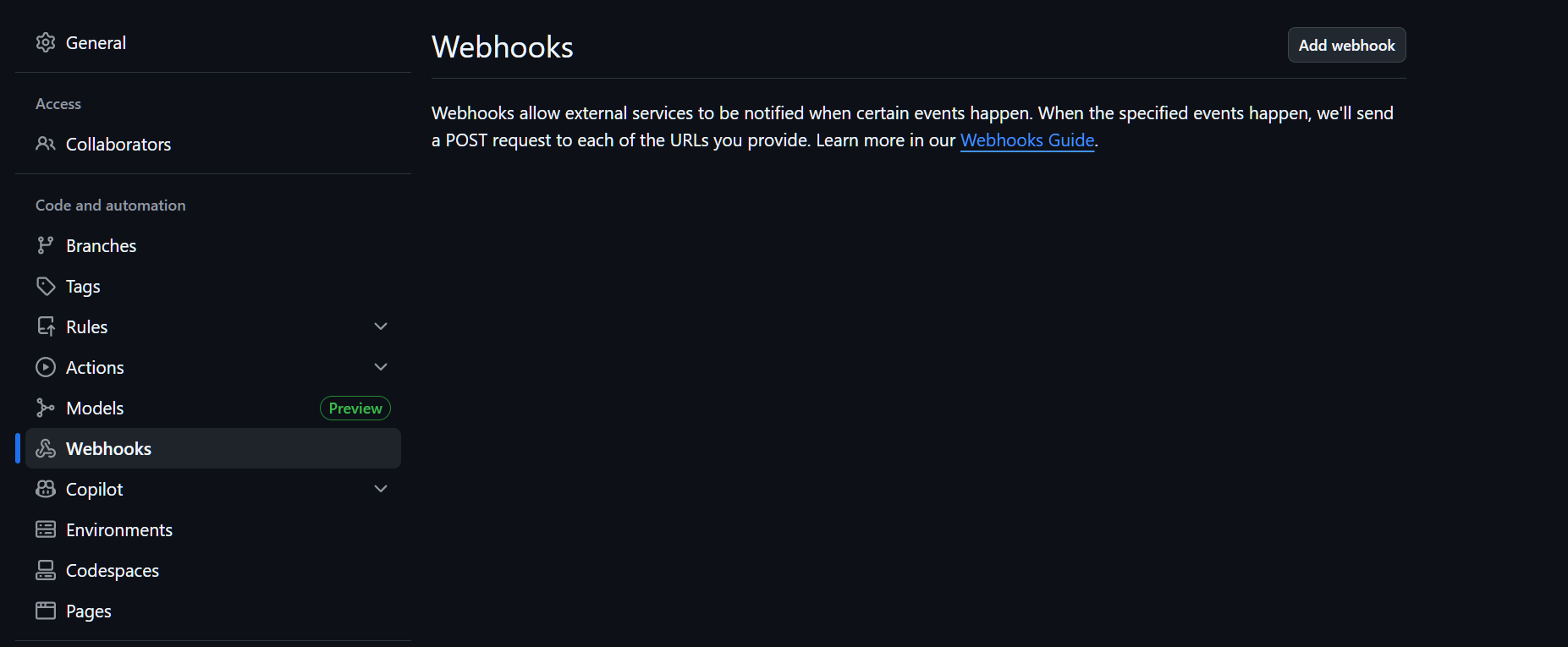
Step 1: Access Webhooks Settings
- Open your GitHub repository in a web browser
- Click on the Settings tab
- In the left sidebar, click Webhooks from the Code and automation section.
Step 2: Add Webhook
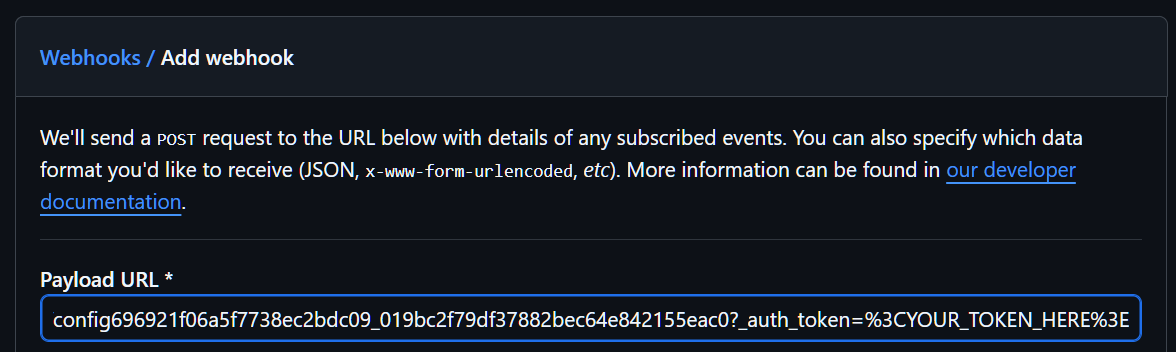
- Click the Add webhook button
- The Add webhook form appears
Step 3: Enter Payload URL
- In the Payload URL field, paste the webhook URL you copied from Agility
- Append your Digital.ai Platform Personal Access Token as a query parameter:
- Format:
?_auth_token=YOUR_TOKEN_HERE - Replace
YOUR_TOKEN_HEREwith the Digital.ai Platform PAT you generated - This token authenticates the webhook requests to Digital.ai Platform
- Format:
Example complete URL:
https://api.staging.digital.ai/domain/v1/incoming_webhook/stream-id?_auth_token=abc123xyz789
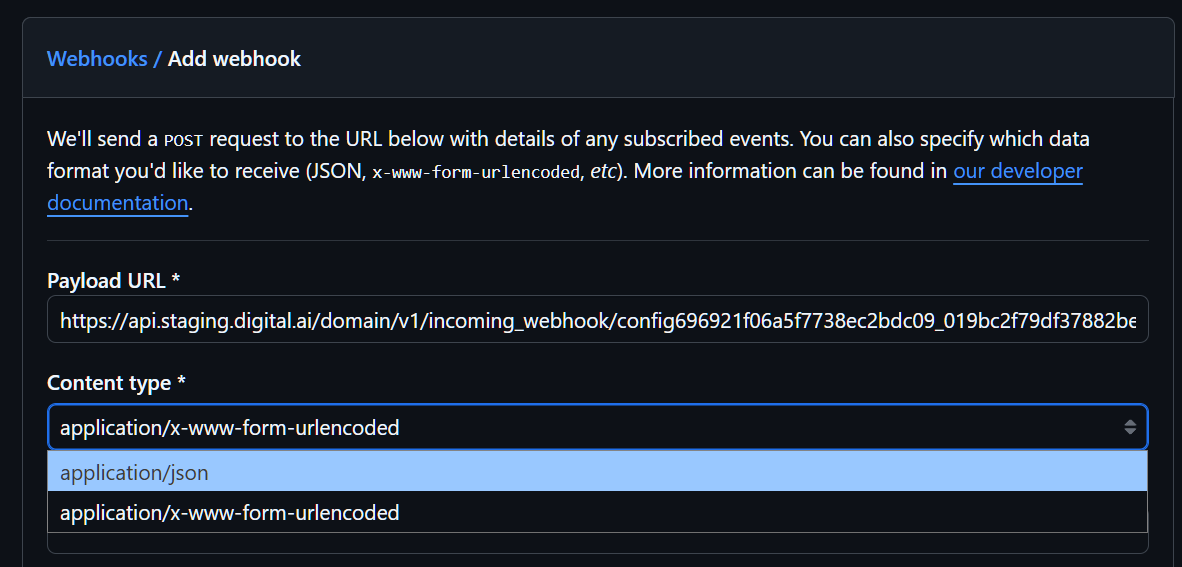
Step 4: Select Content Type
- In the Content type dropdown, select application/json
- This ensures GitHub sends webhook data in JSON format
Step 5: Configure Webhook Settings
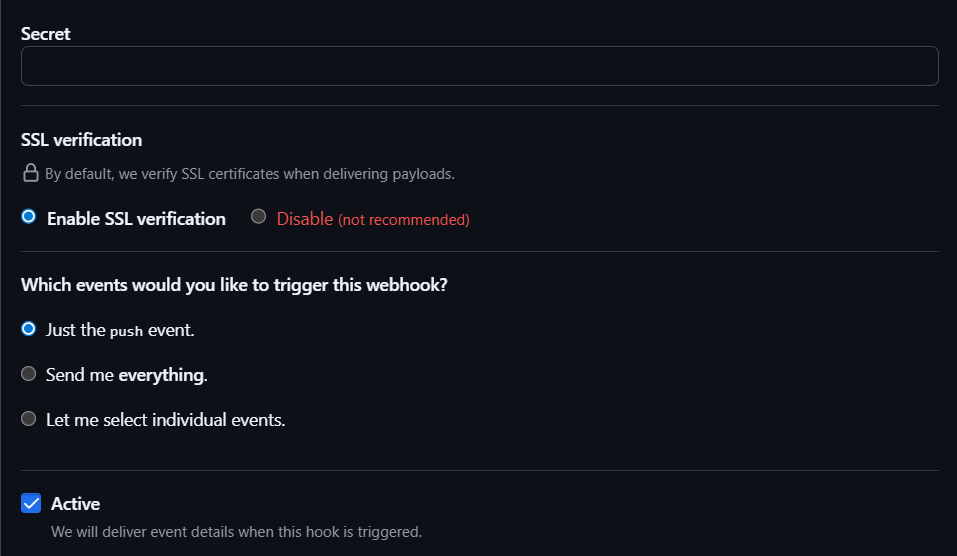
- Secret (optional): Leave this field empty - authentication is handled by the Digital.ai Platform PAT in the URL
- SSL verification: Keep Enable SSL verification selected (recommended)
- Which events would you like to trigger this webhook?: Select Just the push event
- This option sends webhooks only when code is pushed to the repository
- Alternative: Select Send me everything for comprehensive tracking of all repository events
- Active: Ensure the Active checkbox is checked
- This ensures webhook events will be delivered when triggered
- Click Add webhook to save the configuration
Result: GitHub creates the webhook and sends a test ping event to verify connectivity.
Step 6: Check Webhook Status
After adding the webhook, GitHub displays the webhook details page:
- Look for a green checkmark next to the webhook URL
- Green checkmark indicates successful delivery of the test ping
- Red X indicates delivery failure
- Check the Recent Deliveries section:
- Shows webhook delivery attempts
- Displays response codes and timestamps
Step 7: Review Recent Deliveries
Click on a delivery entry to view details:
Request information:
- URL: The webhook endpoint
- Method: POST
- Headers: Request headers sent by GitHub
- Payload: JSON data sent with the webhook
Response information:
- Status code: HTTP response code (200 = success)
- Headers: Response headers from Digital.ai Platform
- Body: Response content
Successful delivery indicators:
- HTTP status code: 200 OK
- No error messages in response body
- Delivery timestamp shows recent activity
Alternative Repository Configurations
For BitBucket Repositories
- Navigate to your repository in BitBucket
- Click Repository settings → Webhooks
- Click Add webhook
- Configure:
- Title: "CommitStream Integration"
- URL: Your complete webhook URL with PAT
- Triggers: Select "Repository push"
- Active: Ensure checkbox is checked
- Click Save to create the webhook
- Verify webhook appears in the list with active status
For GitLab Repositories
- Navigate to your project in GitLab
- Click Settings → Webhooks
- Add GitLab Project Hook:
- URL: Your complete webhook URL with PAT
- Trigger: Check "Push events"
- SSL verification: Enable if using HTTPS (recommended)
- Click Add webhook
- Verify webhook is created and shows in the list
Part 2: Verify CommitStream Integration
Step 8: Create a Test Commit
Make a commit to your GitHub repository that references an Agility work item:
-
Navigate to your repository:
cd /path/to/your/repository -
Make a simple change:
echo "# CommitStream Test" >> README.md -
Create commit with work item reference:
git commit -m "S-01004 Fix formatting in README.md"- Replace
S-01004with an actual work item ID from your Agility instance - The story number format must match your Agility work item IDs
- Replace
-
Push to GitHub:
git push origin main
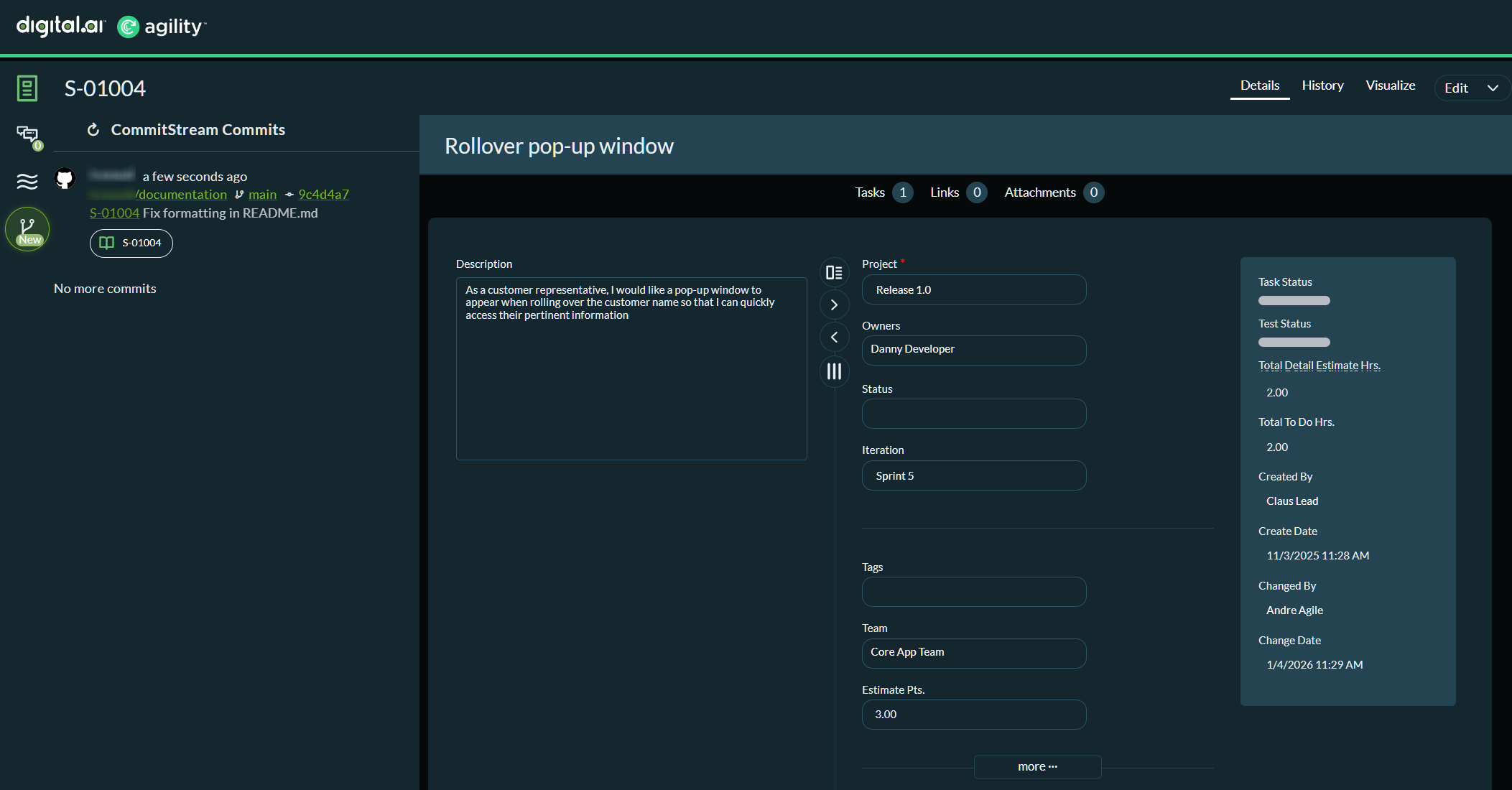
Expected result: The commit is pushed to GitHub and triggers the webhook.
Step 9: Verify Webhook Delivery
- Navigate to your GitHub repository's webhook settings
- Click on the Webhooks section
- Select your CommitStream webhook
- Check Recent Deliveries:
- Look for the push event from your test commit
- Verify HTTP status code is 200 OK
- Note the timestamp of the delivery (should be within 30 seconds of push)
Expected result: Webhook delivery shows successful with 200 status code.
Step 10: Check Commit in Agility Work Item
- Log in to Digital.ai Agility
- Navigate to the work item you referenced (e.g., S-01004)
- Look for the CommitStream Commits section in the left panel
- Wait 2-5 minutes for the commit to appear
What you'll see:
In the left panel of the story, the CommitStream Commits section displays:
- Author name and timestamp (e.g., "lremedi a few seconds ago")
- Repository path (e.g., "lremedi/documentation")
- Branch name (e.g., "main")
- Commit hash (e.g., "9c4d4a7")
- Full commit message (e.g., "S-01004 Fix formatting in README.md")
- Story reference tag (e.g., "S 01004")
Multiple commits referencing the same story will all appear in this list, showing the complete development history for that work item.
Commit Message Format
To ensure commits link to Agility work items, follow this format:
Format: [WORKITEM-ID] Commit message description
Examples:
git commit -m "S-12345 Add new authentication feature"
git commit -m "D-67890 Fix login validation bug"
git commit -m "B-11111 Update documentation for API endpoints"
git commit -m "T-22222 Refactor database connection logic"
Supported Work Item ID Formats:
- S-##### - Stories
- D-##### - Defects
- B-##### - Backlog items
- T-##### - Tasks
- TE-##### - Tests
- RQ-##### - Requests
Multiple Work Item References:
You can reference multiple work items in a single commit:
git commit -m "S-12345 D-67890 Fix authentication and update tests"
The commit will appear in both work items (S-12345 and D-67890).
Comprehensive Integration Tests
Test 1: Single Work Item Reference
Commit:
git commit -m "S-12345 Implement user authentication"
git push origin main
Expected result: Commit appears in story S-12345 within 2-5 minutes.
Test 2: Multiple Work Item References
Commit:
git commit -m "S-12345 D-67890 Fix authentication and update tests"
git push origin main
Expected result: Commit appears in both S-12345 and D-67890.
Test 3: Different Branches
Commit to feature branch:
git checkout -b feature/new-login
git commit -m "S-12345 Add OAuth support"
git push origin feature/new-login
Expected result: Commit appears in S-12345 with branch name "feature/new-login" displayed.
Test 4: Multiple Commits
Make several commits:
git commit -m "S-12345 Add login form"
git commit -m "S-12345 Add validation logic"
git commit -m "S-12345 Update tests"
git push origin main
Expected result: All three commits appear in S-12345 in chronological order.
Test 5: Different Work Item Types
Commit to various work items:
git commit -m "S-12345 Implement feature"
git push origin main

git commit -m "D-67890 Fix critical bug"
git push origin main

git commit -m "T-11111 Add unit tests"
git push origin main
Expected result: Each commit appears in the appropriate work item (story, defect, or task).
Integration Health Check
Health Check 1: Verify CommitStream Panel
- Navigate to a story in Agility
- Look for the CommitStream Commits section in the left panel
- Verify commits are listed with complete metadata
Indicators of healthy integration:
- Commits appear within 2-5 minutes of pushing
- All commit metadata is visible (author, timestamp, message, hash)
- Repository and branch information is correct
- Work item references are properly linked
- Commit messages are complete and readable
Health Check 2: Monitor Webhook Deliveries
- Access GitHub webhook settings regularly
- Check Recent Deliveries for patterns:
- All deliveries show 200 OK status
- No failed deliveries or errors
- Delivery timestamps match commit times (within 30 seconds)
Indicators of webhook health:
- Consistent 200 OK responses
- No authentication errors (401/403)
- No timeout or connection errors (504)
- Response times under 3 seconds
Health Check 3: Test Integration Performance
Note the time between:
- Commit push: When you push to GitHub
- Webhook delivery: When GitHub sends webhook (< 30 seconds)
- Platform processing: When Digital.ai Platform processes commit (1-3 minutes)
- Agility display: When commit appears in Agility (2-5 minutes total)
Expected performance:
- Webhook delivery: < 30 seconds
- Total time to display: 2-5 minutes
- Subsequent commits: Faster processing after initial setup
Webhook Payload Structure
GitHub sends webhook data in this format:
{
  "ref": "refs/heads/main",
  "commits": [
    {
      "id": "abc123...",
      "message": "S-12345 Fix authentication bug",
      "author": {
        "name": "Developer Name",
        "email": "developer@example.com"
      },
      "timestamp": "2026-01-27T10:30:00Z",
      "url": "https://github.com/org/repo/commit/abc123..."
    }
  ],
  "repository": {
    "name": "repository-name",
    "full_name": "organization/repository-name"
  }
}
Digital.ai Platform processes this payload to extract:
- Work item references (S-12345, D-67890, etc.)
- Commit metadata (author, timestamp, message, hash)
- Repository information (name, organization, branch)
Troubleshooting
Webhook Delivery Fails
Problem: Red X indicator or non-200 status codes in GitHub
Solutions:
- Verify the webhook URL is complete and correct (including stream ID)
- Check that the Digital.ai Platform PAT is valid and not expired
- Ensure there are no extra spaces or characters in the URL
- Test the webhook URL accessibility from external network
- Review GitHub webhook delivery details for specific error messages
401 Unauthorized Error
Problem: Webhook delivery fails with 401 status code
Solutions:
- Verify the
_auth_tokenparameter is included in the URL - Check that the PAT value is correct (no spaces or truncation)
- Ensure the PAT hasn't expired in Digital.ai Platform
- Generate a new PAT if necessary
- Update the webhook URL with the new PAT
403 Forbidden Error
Problem: Webhook delivery fails with 403 status code
Solutions:
- Check PAT permissions in Digital.ai Platform
- Verify the PAT has webhook access permissions
- Ensure the webhook endpoint is accessible
- Contact Digital.ai Platform administrator to verify permissions
- Review Platform integration status
404 Not Found Error
Problem: Webhook delivery fails with 404 status code
Solutions:
- Verify the webhook URL is correct (check stream ID)
- Check that the repository connection exists in Digital.ai Agility
- Ensure the stream ID in the URL is valid
- Recopy the webhook URL from Agility CommitStream configuration
- Verify GitHub integration is active in Digital.ai Platform
Webhook Not Triggering
Problem: No webhook deliveries showing in Recent Deliveries
Solutions:
- Verify the webhook is marked as "Active" in GitHub settings
- Check that "Push events" trigger is selected
- Make a test commit to trigger the webhook
- Review repository permissions
- Check GitHub service status
- Verify webhook wasn't accidentally deleted
SSL Verification Errors
Problem: Webhook fails with SSL certificate errors
Solutions:
- Verify SSL certificate is valid for the webhook URL
- Check that the certificate chain is complete
- Temporarily disable SSL verification for testing (not recommended for production)
- Contact network team to review SSL configuration
- Ensure firewall isn't interfering with HTTPS connections
Commits Not Appearing in Agility
Problem: Webhook delivery successful (200 OK) but commits not visible in Agility
Solutions:
- Wait up to 10 minutes for initial commit processing
- Verify work item ID in commit message matches existing Agility item (case-sensitive)
- Check Agility backend configuration is correct (Platform.CommitStream.Enabled = true)
- Verify Digital.ai Platform integration is active
- Review Digital.ai Platform API connectivity from Agility
- Check Agility application logs for processing errors
Work Item Reference Not Recognized
Problem: Commit appears but isn't linked to work item
Solutions:
- Verify work item ID format is correct (S-12345, not S12345 or S 12345)
- Check that the work item exists in Agility and isn't deleted
- Ensure work item ID is at the beginning of commit message or clearly separated
- Use uppercase letters for work item prefix (S-, not s-)
- Verify hyphen is used (S-12345, not S_12345)
Delayed Commit Display
Problem: Commits take longer than 5 minutes to appear in Agility
Solutions:
- Check Digital.ai Platform service status
- Verify network connectivity between all systems
- Review Digital.ai Platform processing queue
- Check for high API load or rate limiting
- Contact support if delays persist beyond 10 minutes
Partial Commit Information
Problem: Some commit metadata is missing in Agility
Solutions:
- Verify GitHub integration permissions in Digital.ai Platform
- Check webhook payload contains all required data (review Recent Deliveries)
- Review Digital.ai Platform integration configuration
- Test with a new commit to confirm issue persists
- Check GitHub PAT has appropriate repository access permissions
Commits from Wrong Repository Appearing
Problem: Commits from unexpected repositories appear in work items
Solutions:
- Verify repository connections in Digital.ai Agility are correct
- Check webhook URLs are unique per repository
- Review GitHub integration configuration in Digital.ai Platform
- Ensure stream IDs are properly configured
- Remove and re-add repository connections if needed
Security Best Practices
Webhook Configuration:
- ✓ Always use HTTPS for webhook URLs
- ✓ Keep Digital.ai Platform PAT secure and rotate regularly (quarterly recommended)
- ✓ Enable SSL verification in webhook settings
- ✓ Monitor webhook delivery logs for suspicious activity
- ✓ Limit webhook access to authorized repositories
- ✓ Use GitHub webhook secrets for additional security layer (optional)
- ✓ Audit webhook configurations periodically
Access Control:
- ✓ Restrict webhook configuration to repository administrators
- ✓ Document which repositories have CommitStream configured
- ✓ Remove webhook configurations for archived repositories
- ✓ Monitor webhook delivery patterns for anomalies
Integration Complete
Your GitHub repository is now successfully integrated with Digital.ai Agility. All commits referencing work item IDs will automatically appear in the corresponding stories, providing full traceability between code changes and work items.
What you've accomplished:
- ✅ GitHub webhooks are configured and delivering commit events
- ✅ Webhook deliveries show consistent 200 OK responses
- ✅ Digital.ai Platform is processing commit data
- ✅ Digital.ai Agility is displaying commits in work items
- ✅ Complete integration is tested and verified
- ✅ Development and planning teams have full visibility
Next Steps
Optional: Configure TeamRoom Display
Set up TeamRoom-specific CommitStream panels to display repository activity at the team level:
Configure TeamRoom CommitStream Panel
Customize CommitStream display options:
- Global Mode: Show all commits from configured repositories
- Custom Mode: Show only commits from TeamRoom-specific repositories
- None Mode: Hide CommitStream panel for specific teams
Best Practices for Ongoing Use
Developer Training:
- Train developers on work item reference format in commit messages
- Provide commit message examples and templates
- Include CommitStream in developer onboarding documentation
- Share best practices for meaningful commit messages
Monitoring:
- Check webhook delivery health weekly
- Review commit tracking coverage monthly
- Monitor integration performance and response times
- Set up alerts for webhook delivery failures
Maintenance:
- Plan for PAT expiration and rotation (quarterly or as per security policy)
- Update webhook URLs when tokens are rotated
- Remove webhook configurations for archived repositories
- Audit repository connections quarterly
Team Adoption:
- Encourage consistent use of work item references in commits
- Celebrate teams with high commit tracking adoption
- Share success stories and benefits with teams
- Gather feedback for continuous improvement
Verification Checklist
Confirm all aspects of the integration are working:
- ✅ Webhook is configured in GitHub with correct URL and PAT
- ✅ Webhook shows active status with green checkmark
- ✅ Recent deliveries show 200 OK responses
- ✅ Test commit was pushed with work item reference
- ✅ Webhook delivery succeeded within 30 seconds of push
- ✅ Commit appears in Digital.ai Agility work item within 2-5 minutes
- ✅ All commit metadata is visible (author, timestamp, message, hash, branch)
- ✅ Multiple test scenarios passed successfully
- ✅ Integration health checks are all positive
- ✅ Team is trained on commit message format