CommitStream Integration Setup
CommitStream enables seamless integration between Digital.ai Agility and source control systems (GitHub, BitBucket, GitLab), providing real-time visibility of code commits directly within your work item tracking. When developers include work item references (e.g., S-01004) in their commit messages, those commits automatically appear in the corresponding Agility work items, providing complete development traceability.
Key Benefits:
- Automatic tracking of GitHub commits within Agility work items
- Complete development traceability and audit history
- Real-time visibility of code changes linked to stories
- Improved collaboration between development and planning teams
- Support for GitHub, BitBucket, and GitLab repositories
Prerequisites
Before beginning the CommitStream setup, ensure you have:
Digital.ai Platform:
- Administrative access to Digital.ai Platform
- Platform Identity Service integration enabled
- Active Platform license
Digital.ai Agility:
- Administrative access to Digital.ai Agility
- Admin access to configuration files (for backend setup)
- Active Agility license
GitHub
Before you begin, ensure your GitHub administrator completes these tasks:
- Create a dedicated GitHub service account for the integration. For setup instructions, see Set Up GitHub Service Account.
- Use a shared distribution list email (not a personal email) for the service account.
- Grant the service account read access to your organization's repositories.
- Generate a GitHub API Token from the service account with read-only permissions.
You also need:
- Ability to configure webhooks in your GitHub repositories.
The GitHub service account setup is a prerequisite. Contact your GitHub administrator if this is not yet complete.
Architecture Overview
CommitStream creates a bridge between three systems:
- Digital.ai Platform - Manages source control integrations and webhook endpoints.
- Source Control Repository - Sends commit data via webhooks (GitHub, BitBucket, or GitLab).
- Digital.ai Agility - Displays commit information within work items and team boards.
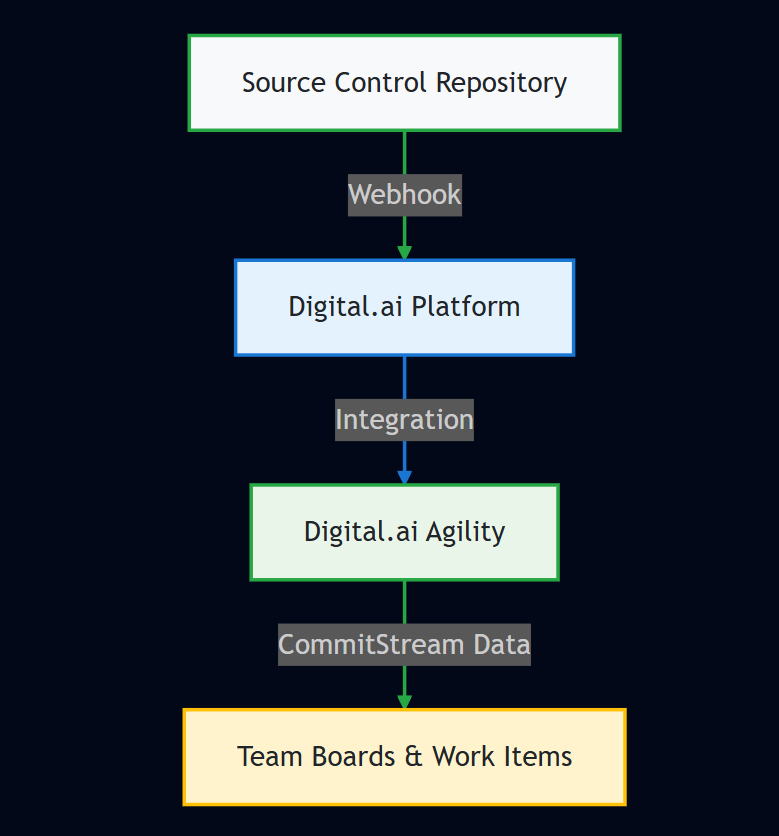
How It Works:
-
Developer commits code with work item reference in message:
git commit -m "S-01004 Fix formatting in README.md" -
Repository sends webhook to Digital.ai Platform endpoint
-
Digital.ai Platform processes commit data and extracts work item references
-
Digital.ai Agility displays commit in the referenced work item
-
Team members see complete development history in the story
Complete Setup Workflow
The complete setup process follows these seven phases:
Phase 1: Configure Digital.ai Platform Integration
Set up the GitHub SCM integration in Digital.ai Platform and generate authentication tokens.
Tasks:
-
Configure GitHub SCM Integration in Digital.ai Platform
- Add GitHub as an SCM system
- Provide a GitHub API Token from the service account
- Configure repository access
- Test the connection
-
Generate Platform Token
- Create authentication token for webhook security
- Store token securely for webhook configuration
See Configure Digital.ai Platform Integration for details.
Phase 2: Configure Digital.ai Agility Backend
Enable CommitStream in Agility configuration files and connect to Digital.ai Platform.
Tasks:
- Enable CommitStream feature in configuration.
- Configure Platform API endpoint.
- Set up integration authentication.
- Restart Agility services.
See Configure Digital.ai Agility for CommitStream for details.
Who Performs: Operations/Admin team with server access
Phase 3: Setup Repository Connections in Agility UI
Add GitHub repositories to Digital.ai Agility and generate webhook URLs.
Tasks:
- Enable CommitStream in Agility UI.
- Add repository connections.
- Configure SCM system settings.
- Copy webhook URLs for each repository.
See Configure Digital.ai Agility for CommitStream for details.
Who Performs: Agility administrators
Phase 4: Configure Repository Webhooks
Set up webhooks in your GitHub repository to send commit events to Digital.ai Agility.
Tasks:
- Access webhook settings in GitHub repository.
- Add webhook with Platform endpoint URL.
- Attach Platform Personal Access Token for authentication.
- Configure webhook triggers (push events).
- Verify webhook delivery.
See Configure Webhooks and Verify Integration for details.
Who Performs: Repository administrators
Phase 5: Verify Integration
Test the complete CommitStream integration end-to-end.
Tasks:
- Make a test commit with work item reference.
- Verify webhook delivery in repository settings.
- Confirm commit appears in Agility work item.
- Validate commit data accuracy.
Documentation: Configure Webhooks and Verify Integration for details.
Phase 6: Configure TeamRoom Display (Optional)
Customize CommitStream display at the TeamRoom level.
Tasks:
- Access TeamRoom settings.
- Choose display mode (Global, Custom, or None).
- Configure custom repositories if needed.
See Configure TeamRoom CommitStream Panel for details.
Who Performs: TeamRoom administrators
Phase 7: Team Rollout
Train your team on using CommitStream and establish commit message standards.
Tasks:
- Train developers on commit message format.
- Establish team conventions for work item references.
- Share troubleshooting resources.
- Monitor initial adoption and address issues.
Commit Message Format
To link commits to Agility work items, include the work item ID in your commit message:
Format: [WORKITEM-ID] Commit message description
Examples:
S-12345 Add new authentication featureD-67890 Fix login validation bugB-11111 Update documentation for API endpointsT-54321 Update unit tests for user service
Supported Work Item ID Formats:
- S-##### - Stories
- D-##### - Defects
- B-##### - Backlog items
- T-##### - Tasks
- TE-##### - Tests
- RQ-##### - Requests
Multiple Work Item References:
You can reference multiple work items in a single commit:
git commit -m "S-12345 D-67890 Fix authentication and validation bugs"
Expected Sync Times
- Webhook Delivery: Immediate (< 30 seconds)
- Platform Processing: 1-3 minutes
- Agility UI Update: 2-5 minutes total
Initial setup may take longer for first commit processing. Subsequent commits typically process faster.
Authentication & Security
The integration uses two types of authentication tokens:
GitHub API Token
- Purpose: Allows Digital.ai Platform to access GitHub APIs
- Permissions: Read-only repository access (public and private repos), generated by the service account
- Stored In: Digital.ai Platform integration configuration
Platform Token
- Purpose: Authenticates webhook requests from GitHub to Digital.ai Platform
- Permissions: Webhook write access
- Stored In: GitHub webhook URL as query parameter
Security Best Practices:
- Generate tokens by using service accounts backed by shared distribution list emails, not personal accounts.
- Store tokens securely in a shared secrets vault.
- Grant only the minimum required permissions.
- Rotate tokens regularly per security policies (recommended: quarterly).
- Monitor webhook activity and access logs.
- Use HTTPS for all webhook URLs.
- Enable SSL verification in webhook settings.
- Audit token usage and webhook configurations periodically.
Advanced Configuration
Multiple Repository Setup
To configure CommitStream for multiple repositories:
- Same project: Use the same webhook URL for all repositories in the same project.
- Different projects: Create separate CommitStream configurations per project or scope.
- Repository filtering: Configure Digital.ai Platform integration with repository-specific settings.
- Bulk configuration: Use Platform APIs to configure multiple repositories programmatically.
Custom Commit Message Parsing
Configure custom patterns for linking commits to work items:
- Default patterns:
S-12345,D-67890format. - Custom regex patterns: Available in Digital.ai Platform configuration for specific parsing rules.
- Multiple references: Support for multiple work item references per commit message.
- Case sensitivity: Work item IDs are case-insensitive (S-12345 = s-12345).
TeamRoom-Specific Configuration
- Global Mode: Show all commits from configured repositories.
- Custom Mode: Show only commits from TeamRoom-specific repositories.
- None Mode: Hide CommitStream panel in specific TeamRooms.
- Per-Room Settings: Configure different display modes for different teams.
Maintenance and Monitoring
Regular Maintenance Tasks
| Frequency | Task | Responsible Team |
|---|---|---|
| Monthly | Review and rotate Personal Access Tokens | Security/Admin |
| Quarterly | Verify integration health and connectivity | Operations |
| Quarterly | Audit webhook configurations | Security |
| As Needed | Update webhook configurations for new repositories | Admin |
| As Needed | Remove configurations for decommissioned repositories | Admin |
Monitoring Points
Digital.ai Platform Integration Status:
- Check source integration health dashboard
- Monitor connection status and error rates
- Review integration logs for anomalies
Webhook Delivery Rates:
- Monitor successful vs. failed deliveries in GitHub
- Track delivery response times
- Alert on persistent delivery failures
Data Processing Times:
- Track commit-to-display latency
- Identify processing bottlenecks
- Monitor Platform API performance
User Adoption:
- Monitor CommitStream data usage in Agility
- Track percentage of commits with work item references
- Gather user feedback on integration value
Health Check Procedures
Weekly Health Check:
- Verify at least one recent commit appears in Agility.
- Check webhook delivery success rate (target: >95%).
- Review integration status in Digital.ai Platform.
Monthly Health Check:
- Test end-to-end integration with new commit.
- Verify all active repositories are sending webhooks.
- Review and address any error patterns.
- Update documentation for any configuration changes.
Next Steps
Ready to begin the setup? Start with Phase 1:
- Configure Digital.ai Platform Integration - Set up GitHub SCM and generate authentication tokens.
- Configure Digital.ai Agility for CommitStream - Enable CommitStream in Agility backend and UI.
- Configure Webhooks and Verify Integration - Set up repository webhooks and test integration.
- Configure TeamRoom CommitStream Panel - Customize TeamRoom display (Optional).
Support and Resources
For issues or questions:
- See the Digital.ai Agility documentation for additional help.
- Contact your Digital.ai Agility support team for assistance.
- See the Digital.ai Platform documentation for platform-specific guidance.