Confluence Plugin
The Digital.ai Release Confluence plugin integrates your Confluence workspace with Release, making it easy to manage documentation as part of your release pipeline. It enables you to automate page creation, updates, and related actions so your Confluence content stays aligned with your delivery workflow.
Prerequisites
- Digital.ai Release 25.1 or later.
- Digital.ai Confluence Plugin
- Keep Confluence identifiers like
Page IDandSpace Keyhandy. For more information, see Retrieving Confluence Identifiers.
Install the Digital.ai Confluence Plugin
To install the plugin:
- Open Release.
- Click the
 on the top right.
 - Select Manage Plugins.
- Search for
Confluence. - Click Install Now next to the Confluence Plugin.
For more information on plugin installation, see Plugin Manager.

Setup Connection to Confluence Server
-
Log in to Digital.ai Release.
-
Select Connections from the sidebar navigation menu.
-
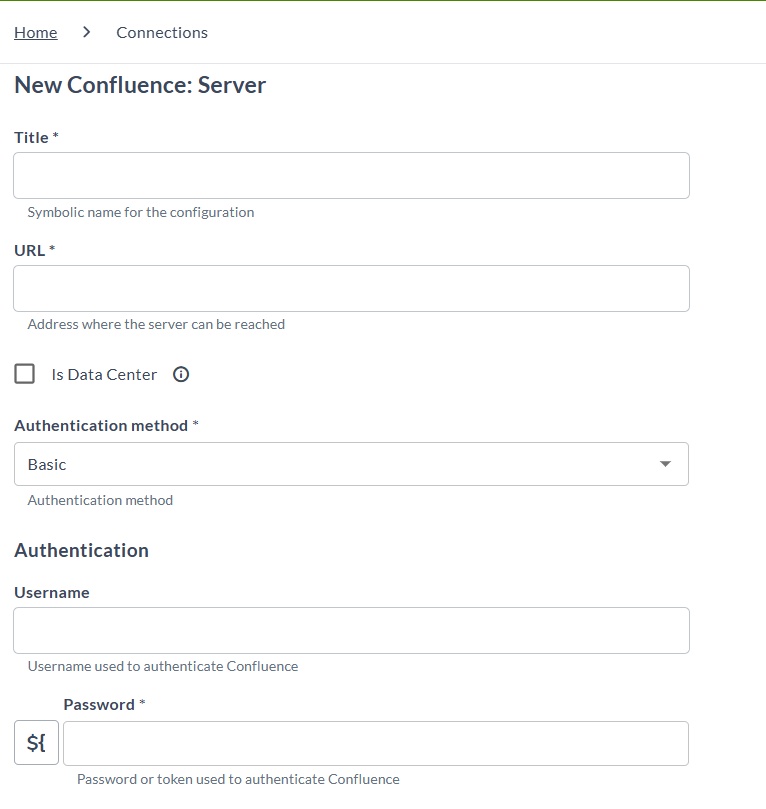
Under Digital.ai connections, click the + icon next to Confluence: Server.
-
Enter the required details:
- Title: A name for the Confluence server connection.
- URL: The base API URL for Confluence. For example,
https://{your-domain}/wiki. - Is Data Center: Enable this checkbox if your Confluence instance is running on Data Center.
note
When Is Data Center is enabled, Release uses Confluence Data Center–compatible endpoints.
When disabled, it uses Cloud-compatible endpoints.
-
Enter authentication details based on your Confluence instance type:
For Confluence Cloud:
- Authentication Type: Select Basic.
- Username: Enter the email address associated with your Confluence Cloud account.
- Password: Enter the API token generated from your Atlassian account.
noteTo generate an API token for Confluence Cloud, go to your Atlassian account security settings and create a new API token.
For Confluence Data Center:
- Authentication Type: Supports both Bearer and Basic authentication.
- Personal Access Token: Select Bearer Authentication type and enter the Personal Access Token (PAT) generated from your Confluence Data Center instance.
noteTo generate a PAT for Confluence Data Center, navigate to your profile settings in Confluence, select Personal Access Tokens, and create a new token with appropriate permissions.
-
If your Digital.ai Release server is using a proxy, specify the necessary values.
-
Click Test to verify your connection.
-
Click Save.
Retrieving Confluence Identifiers
To use the plugin, you need to have Page ID and Space Key.
Finding the Space Key
- Open your Confluence workspace.
- Go to the space where the page is located.
- Look at the URL in your browser's address bar.
The`https://your-domain.atlassian.net/wiki/spaces/SPACEKEY/overview`.
SPACEKEYin the URL is the required Space Key.
Finding the Page ID
-
Open the Confluence page you want to reference.
noteEnsure that the user has permissions to view and edit the page.
-
Click the ellipsis menu
 at the top-right.
 -
Select Advanced Details and click Content Information.
-
The Page ID is displayed in the URL.
`https://your-domain.atlassian.net/wiki/pages/viewinfo.action?pageId=123456`.The
pageIdin the URL is the required Page ID.
Available Tasks
The following tasks are available for the Confluence plugin:
- Confluence: Add Wiki Page
- Confluence: Add Comment To Wiki Pages
- Confluence: Update Wiki Pages
- Confluence: Delete Wiki Pages
- Confluence: Add Content Watchers
- Confluence: Add Restriction To Pages
- Confluence: Add Labels To Pages
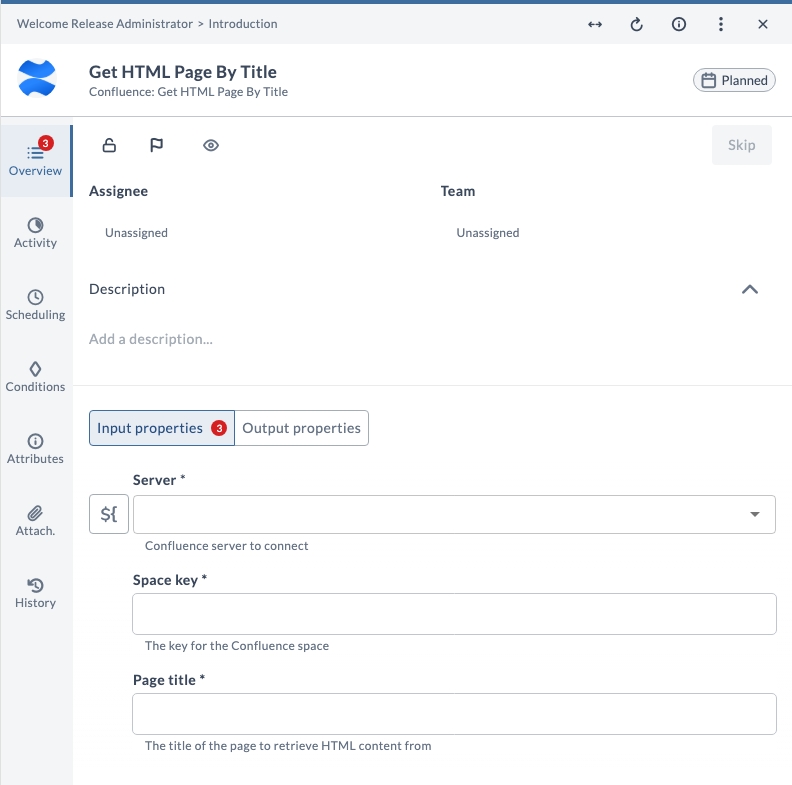
- Confluence: Get HTML Page By Title
Tasks in the Confluence plugin include input properties and output properties. Input properties pass in parameters required for execution, while output properties capture the results returned by Confluence.
Output properties can be mapped to Release variables for later use. For more information, see Mapping Task Output Properties to Variables.
Each task includes optional credential override fields (Username and Password or token) that allow you to override the credentials configured at the connection level. Leave these fields empty to use the connection's default credentials.
Fields marked with (*) are mandatory.
Add Wiki Pages
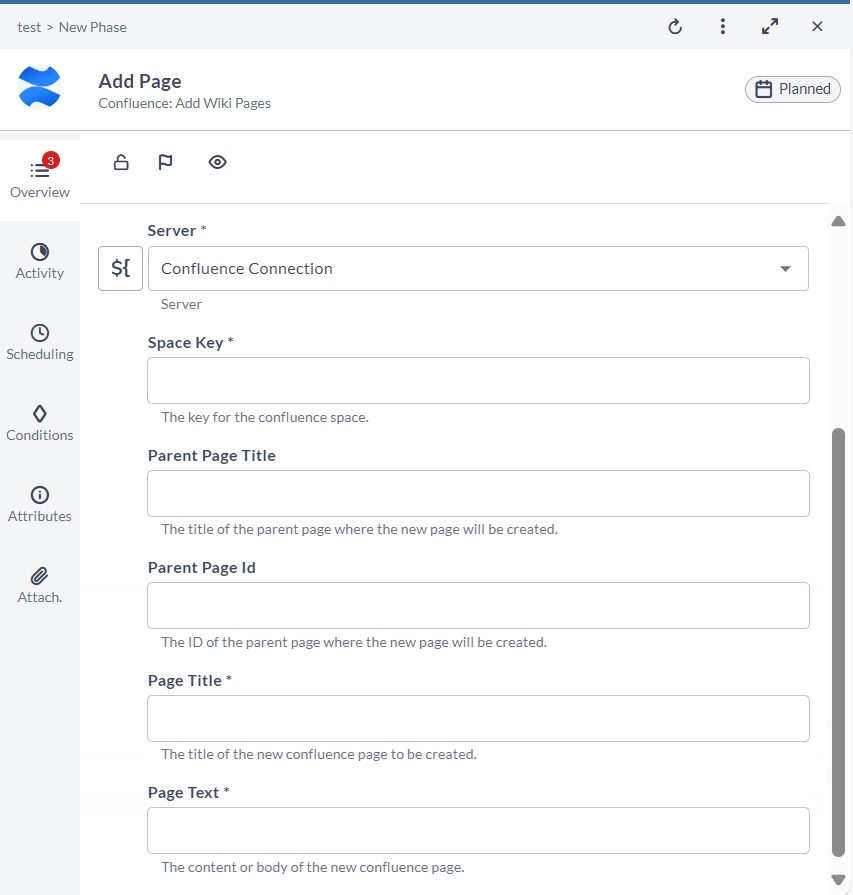
This task creates a new page in Confluence under a specified space or parent page.
To create a page:
- In the release or template, click Add task.
- Click All types and select Confluence > Add Wiki Pages.
- Open the added task.
- Enter the required details:
| Field | Description |
|---|---|
| Server | Select the Confluence server connection. |
| Space Key | Enter the Confluence space key where the page should be created. |
| Parent Page Title | Enter the title of the parent page under which the new page will be created. |
| Parent Page Id | Enter the ID of the parent page under which the new page will be created. |
| Page Title | Enter the title of the new page. |
| Page Text | Enter the content or body of the new Confluence page. |
Once the task executes, a new Confluence page is created under the specified space. The output variable contains the newly created Page ID.
Add a Comment to a Wiki Page
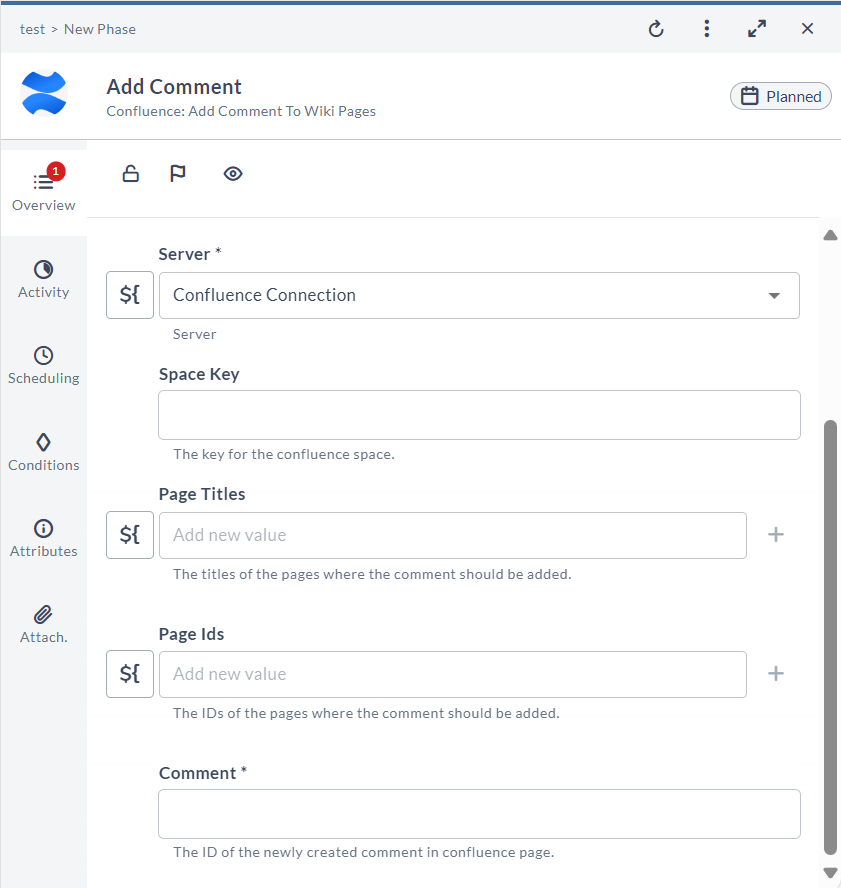
This task adds a comment to a specified Confluence page.
To add a comment:
- In the release or template, click Add task.
- Click All types and select Confluence > Add Comment To Wiki Pages.
- Open the added task.
- Enter the required details:
| Field | Description |
|---|---|
| Server | Select the Confluence server connection. |
| Space Key | Enter the key for the Confluence space. |
| Page Titles | Enter the titles of the pages where the comment must be added. |
| Page Ids | Enter the IDs of the pages where the comment should be added. |
| Comment | Enter the comment text. |
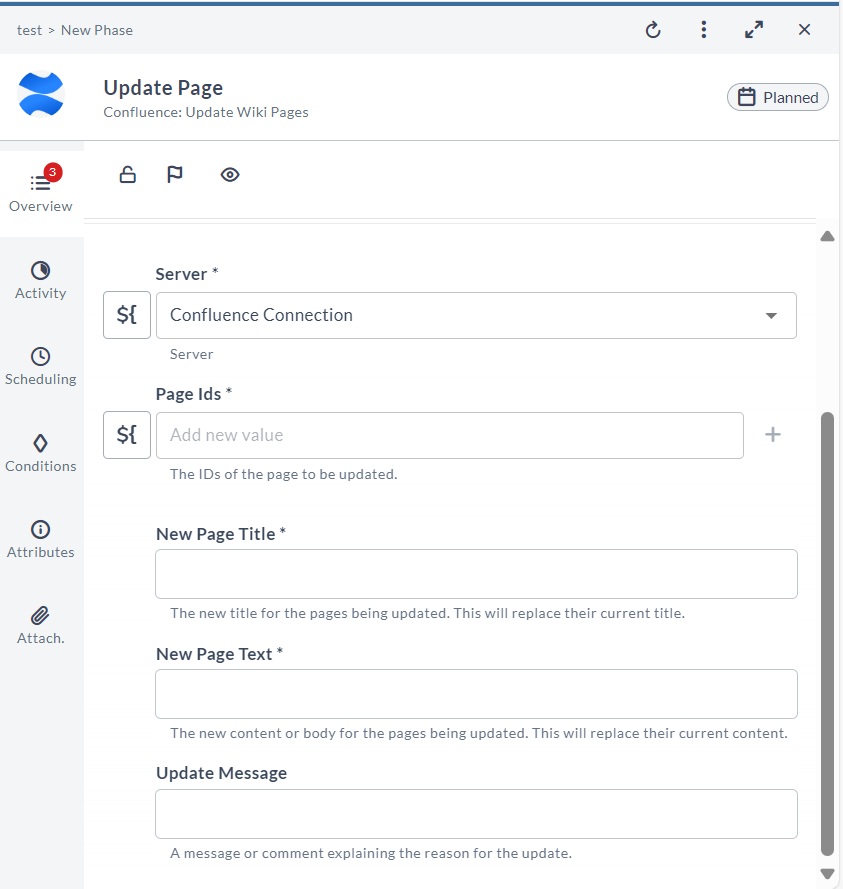
Update a Wiki Page
This task updates the title and content of an existing Confluence page.
To update a page:
- In the release or template, click Add task.
- Click All types and select Confluence > Update Wiki Pages.
- Open the added task.
- Enter the required details:
| Field | Description |
|---|---|
| Server | Select the Confluence server connection. |
| Page Ids | Enter the Confluence page IDs to update. |
| New Page Title | Enter the new page title. |
| New Page Text | Enter the new content or body for the page. |
| Update Message | Enter a message explaining the reason for the update. |
The specified Confluence page is updated with the new title and content.
Delete a Wiki Page
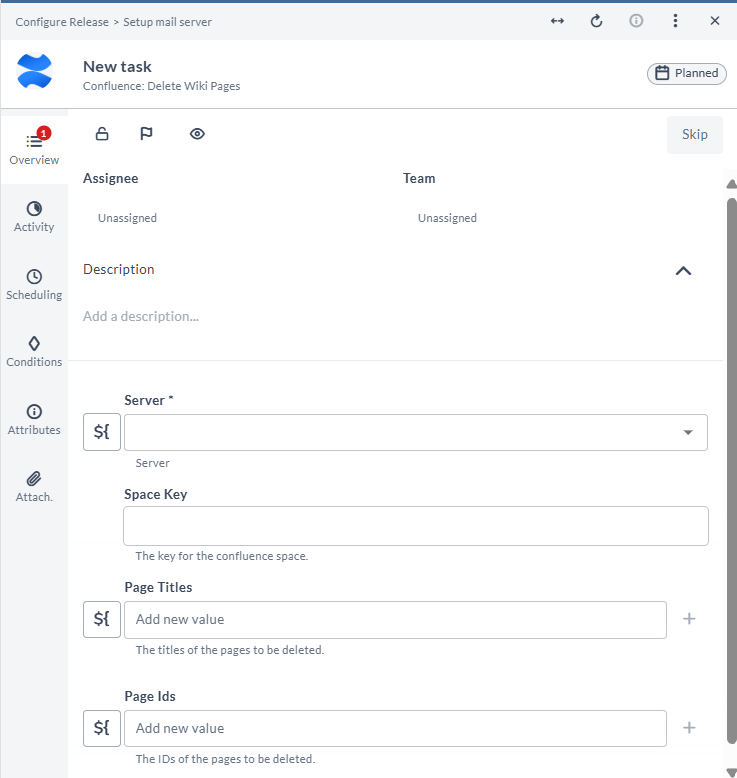
This task deletes an existing Confluence page using its page ID.
To delete a page:
- In the release or template, click Add task.
- Click All types and select Confluence > Delete Wiki Pages.
- Open the added task.
- Enter the required details:
| Field | Description |
|---|---|
| Server | Select the Confluence server connection. |
| Space Key | Provide the space key for the Confluence space. |
| Page Titles | Enter the titles of the pages to be deleted. |
| Page Ids | Enter the Confluence page IDs to delete. |
The specified page is deleted from Confluence.
Add Content Watchers to Wiki Pages
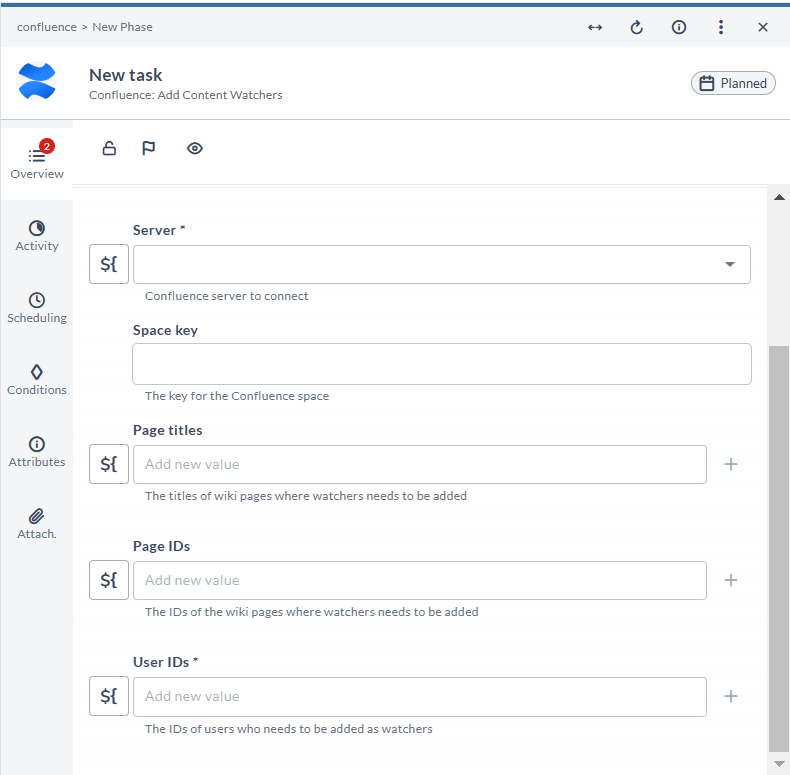
This task adds users as watchers to specified Confluence pages.
To add watchers:
- In the release or template, click Add task.
- Click All types and select Confluence > Add Content Watchers.
- Open the added task.
- Enter the required details:
| Field | Description |
|---|---|
| Server | Select the Confluence server connection. |
| Space Key | Enter the Confluence space key where the page is located. |
| Page Titles | Enter the titles of the pages where watchers need to be added. |
| Page IDs | Enter the IDs of the pages where watchers need to be added. |
| User IDs | Enter the IDs of the users to add as watchers. |
The specified users are added as watchers for the selected Confluence pages.
Add Restrictions to Wiki Pages
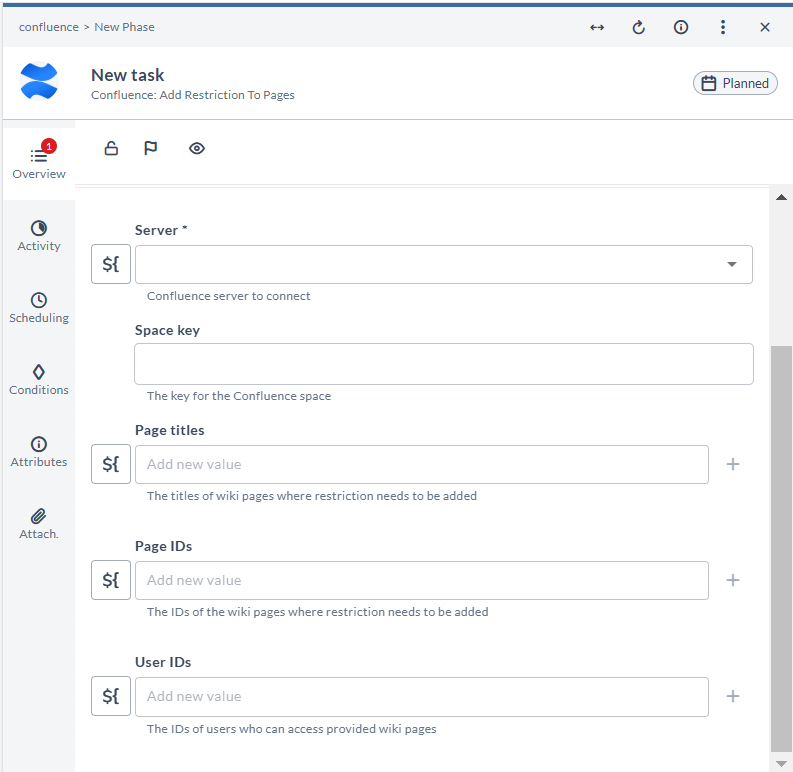
This task adds restrictions to Confluence pages, limiting access to specified users.
To add restrictions:
- In the release or template, click Add task.
- Click All types and select Confluence > Add Restriction To Pages.
- Open the added task.
- Enter the required details:
| Field | Description |
|---|---|
| Server | Select the Confluence server connection. |
| Space Key | Enter the Confluence space key where the page is located. |
| Page Titles | Enter the titles of the pages where restrictions need to be added. |
| Page IDs | Enter the IDs of the pages where restrictions need to be added. |
| User IDs | Enter the IDs of the users who can access the pages. |
The task applies restrictions so that only the specified users can access the selected Confluence pages.
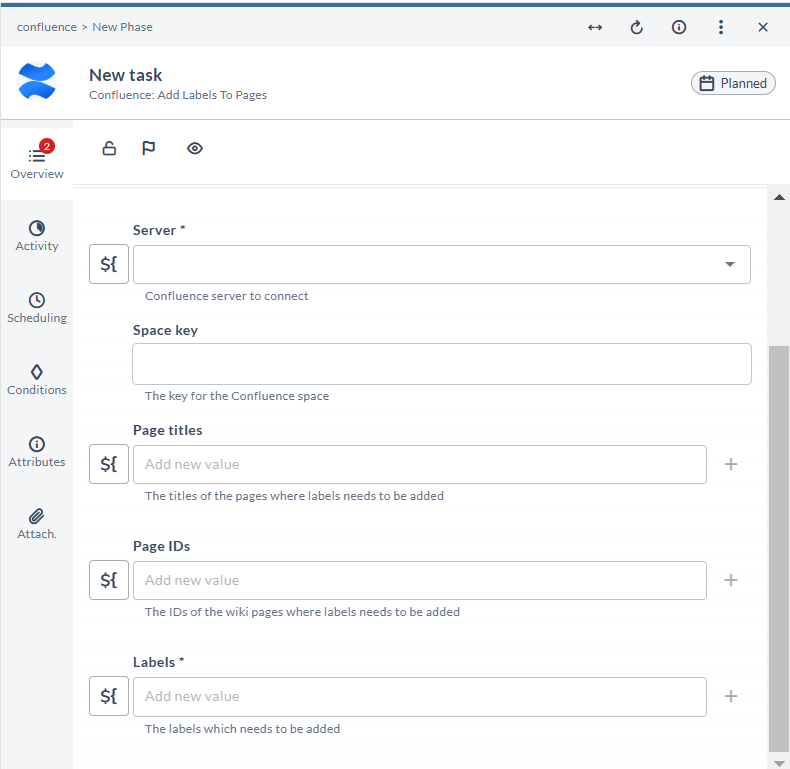
Add Labels to Wiki Pages
This task adds labels to existing Confluence pages.
To add labels:
- In the release or template, click Add task.
- Click All types and select Confluence > Add Labels To Pages.
- Open the added task.
- Enter the required details:
| Field | Description |
|---|---|
| Server | Select the Confluence server connection. |
| Space Key | Enter the Confluence space key where the page is located. |
| Page Titles | Enter the titles of the pages where labels need to be added. |
| Page IDs | Enter the IDs of the pages where labels need to be added. |
| Labels | Enter the labels to assign to the pages. |
The specified labels are added to the selected Confluence pages.
Get HTML Page By Title
Retrieving very large pages will impact release performance. If you expect the page content to be large, increase the Output variable size to avoid truncation.
The default limit is 32,768 bytes.
This task retrieves the HTML content of a Confluence page by its title.
To get a page by title:
- In the release or template, click Add task.
- Click All types and select Confluence > Get HTML Page By Title.
- Open the added task.
- Enter the required details:
| Field | Description |
|---|---|
| Server | Select the Confluence server connection. |
| Space key | Enter the key for the Confluence space. |
| Page title | Enter the title of the page whose HTML content you want to retrieve. |
When the task runs, it retrieves the HTML content of the specified page and stores it in the task output variable.