Connections
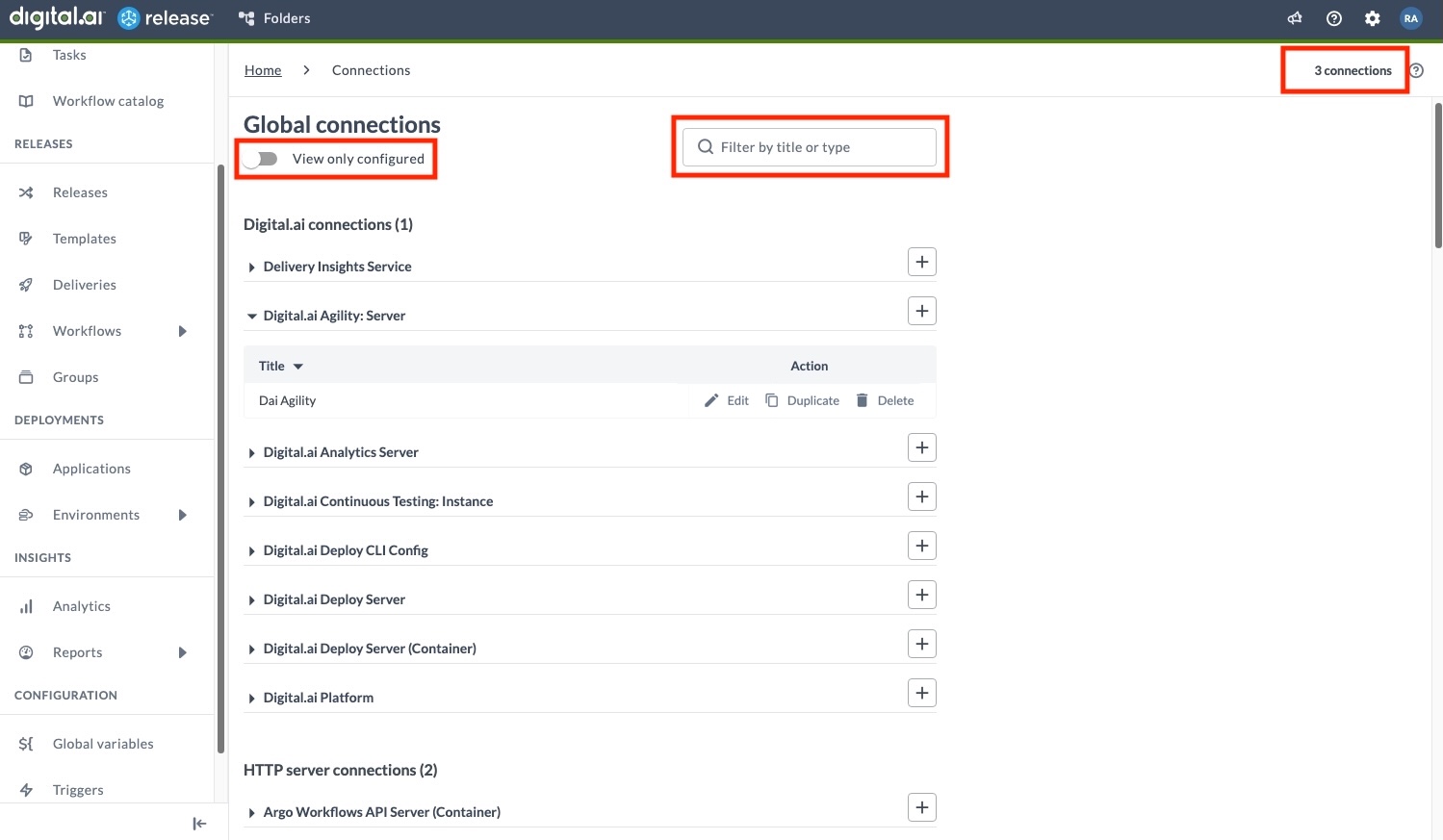
The Connections page provides a centralized view of connection configurations in Release. It is available at both the Global level and within individual Folders, with identical functionality in both contexts.
Connections are organized into categories, such as Digital.ai connections or HTTP server connections, with counts displayed for each category. Multiple connections of the same type may exist, for example, connections for different environments like DEV, STAGE, or PROD.
To create a new connection, click the + icon next to the desired connection type. The total number of connections within the current scope is shown at the top right, providing a quick overview of available connections.
Global and Folder-level Connections
You can create connections both at the global and folder levels.
While global connections, as the name implies, are available to all folders, templates, triggers, and releases globally, folder-level connections are specific to the folder and its child folders, if any are available.
Here's an illustration on how global and folder-level connections are inherited by templates, for example.
(Global, root folder)
├──> Connection Global
├──> Template Global (inherits Global connection only)
│
├──> [Folder A]
│   ├──> Connection A
│   ├──> Template A (inherits Global connection + Connection A)
│   │
│   ├──> [Folder A1]
│   │   ├──> Connection A1
│   │   ├──> Template A1 (inherits Global connection + Connection A + Connection A1)
│
├──> [Folder B]
    ├──> Connection B
    ├──> Template B (inherits Global connection + Connection B)
The following table summarizes which connections are available in the templates for each folder:
| Template | Inherited Connections |
|---|---|
| Template Global | Global connection |
| Template A | Global connection, Connection A |
| Template A1 | Global connection, Connection A, Connection A1 |
| Template B | Global connection, Connection B |
Let's break down how connection inheritance works in this structure:
- Template Global is at the root level and therefore inherits only the global connection
- Template A, located in Folder A, inherits both the global connection and Connection A defined in that folder
- Template A1 is in Folder A1 (a subfolder of Folder A) and inherits the global connection, Connection A from its parent folder, and its own Connection A1
- Template B in Folder B inherits the global connection along with Connection B defined in that folder
Connections are also used in triggers and follow the same inheritance pattern as in templates and releases.
For example, a Git: Poll trigger initiates a new release when it detects a new commit in a Git repository, requiring a Git: Repository connection. Similarly, other trigger types may need specific connections, such as Jira, Nexus, or HTTP endpoint configurations, depending on their requirements.
Each trigger can access connections based on the same inheritance rules - global connections plus any folder-level connections defined in its folder hierarchy.
For example, if you create a Git: Poll trigger in Folder A1 from our previous example, it would have access to:
- Any global Git connections
- Git connections defined in Folder A
- Git connections defined in Folder A1
Duplicate Connection Title Check
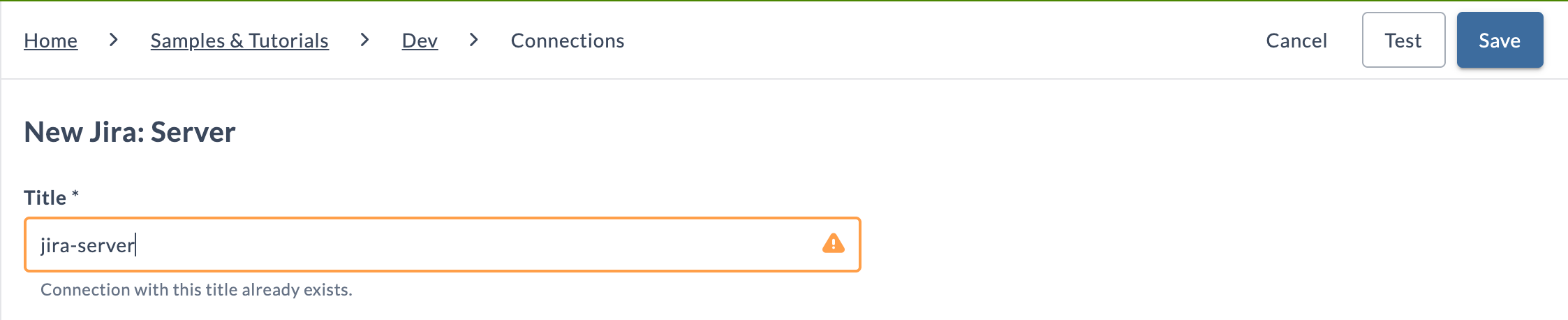
When creating or editing a connection, Release warns if another connection of the same type already uses that title. A warning icon appears in the Title field, with the message "Connection with this title already exists." below it. The warning is informational, and the connection can still be saved.
- Global connections are checked against other global connections.
- Folder-level connections are checked across the folder hierarchy, including parent folders and subfolders.
- Capitalization and leading or trailing spaces are ignored in the comparison.
For example, the Samples & Tutorials folder has a Jira Server connection titled jira-server. Creating a Jira Server connection with the same title in Dev, one of its subfolders, shows the following warning:
Authentication Protocols
A connection typically contains user credentials or authentication tokens needed to access external systems. Depending on the target integration, Release supports various authentication protocols:
- Username and password authentication
- OAuth and OpenID Connect (OIDC)
- API keys and tokens
- Certificate-based authentication
- SSH keys
For example, when connecting to a Jenkins server, you might use username/password credentials, while connecting to cloud services often requires OAuth or API tokens. These credentials are securely stored and managed within Release, allowing plugins to authenticate and interact with external systems without exposing sensitive information to end users.
Permissions Needed to Set up Connections
Administrator users can set up and edit connections at both the global and folder levels.
Other team users can be granted permission to view or manage connections at the folder level by assigning them the View connections permission to view connections or the Edit connections permission to manage connections on the Teams and Permissions page for the folder.
Working With Connections
You can create connections at the global level (available across all folders and templates) or at the folder level (available only within that folder and its subfolders). Both options follow similar setup process.
Create Global-Level Connection
- Log in to Release
- Select Connections from the sidebar
- Set up one or more connections for the integrations you need
These global connections are available to all folders, templates, and releases globally.
Create Folder-level Connection
See Configure Release Teams and Permissions to learn more about how folder, template, or release-level permissions can be assigned to one or more teams.
- Log in to Release
- Select Folders from the sidebar
- Select the folder you want to set up connections for
- Select Connections from the sidebar
- Set up one or more connections for the integrations you need
Now, these connections created in a specific folder are available to that specific folder (and sub-folders, if any exist) only. That is, these folder-level connections are available to the templates and releases in that folder and also to the templates and releases in any new sub-folder that you may create.
Test Connection
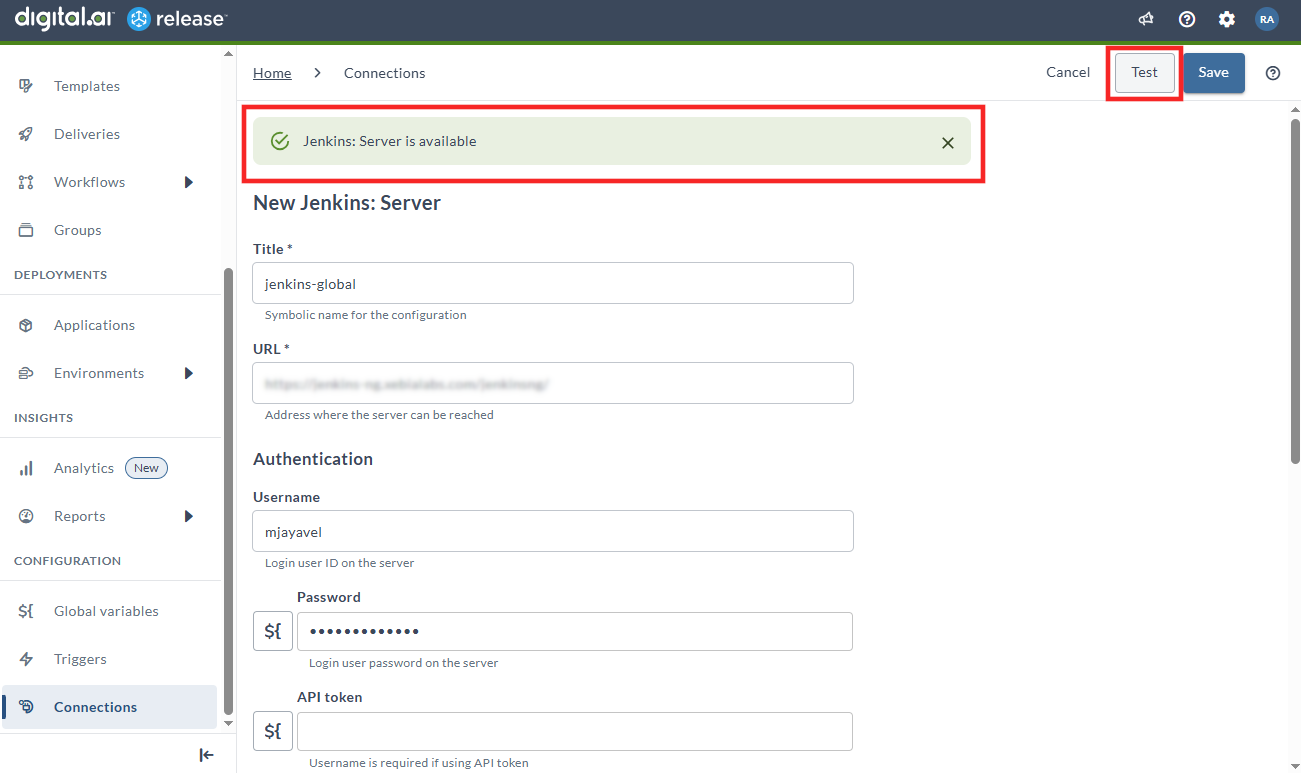
Use Test button to verify that Release can reach and authenticate with the third-party application using the details you entered.
If the test fails, review your URL, credentials, tokens, or network settings before testing again.
Save Connection
Use the Save button to register the connection in Digital.ai Release. Saving makes the connection available for tasks, templates, and workflows that rely on this integration.
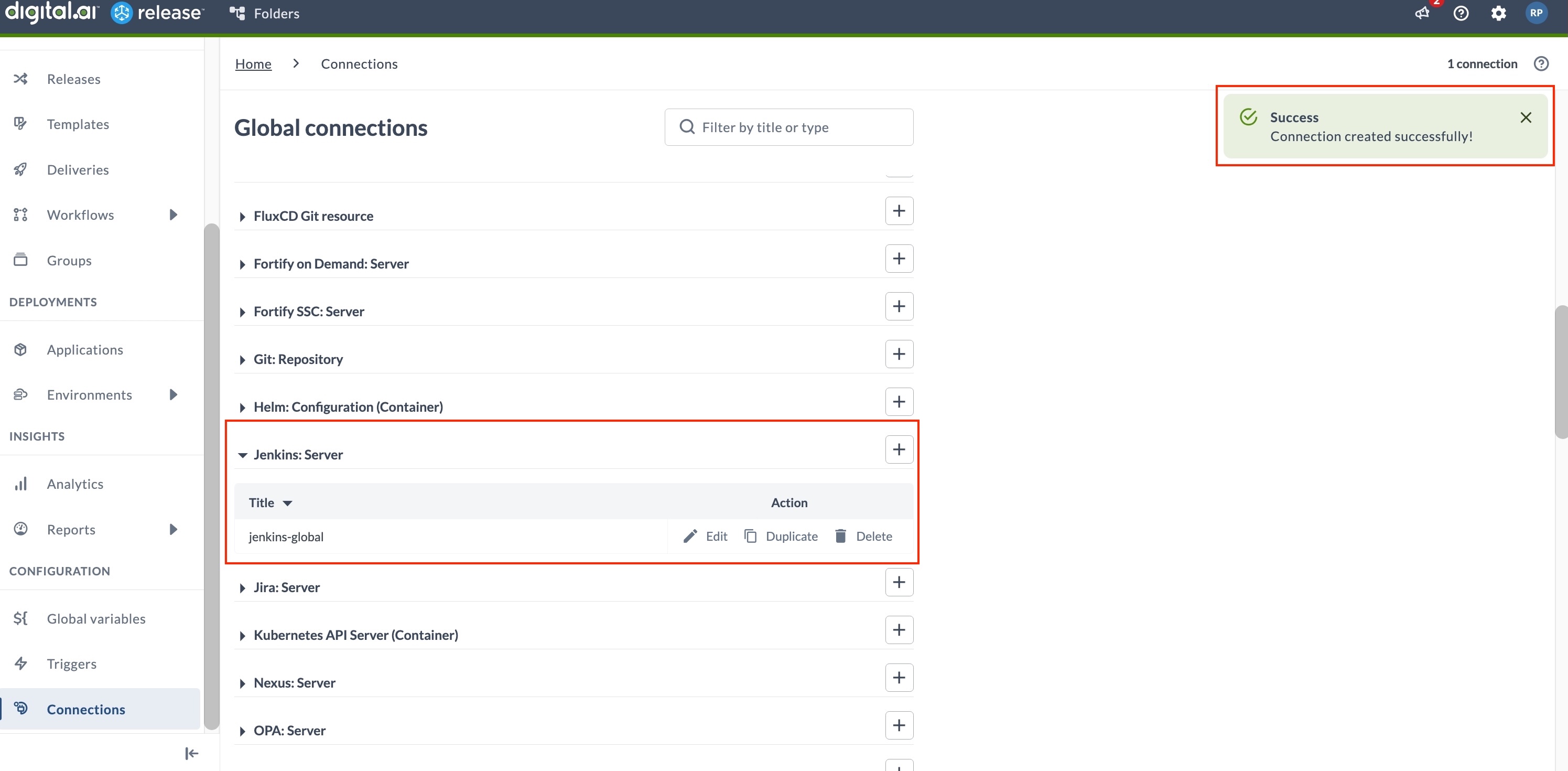
After saving the connection, you can:
- Edit - Use the Edit button to update the connection details whenever needed.
- Duplicate - Use the Duplicate button to create a copy of the connection. For more information, see Duplicating a Connection.
- Delete - Use the Delete button to remove the connection from Release. For more information, see Deleting a Connection.
Saved connections have a direct link that you can share by copying the URL from the browser.
Remember to Test the connection again if you make any changes before saving.
Filtering Connections
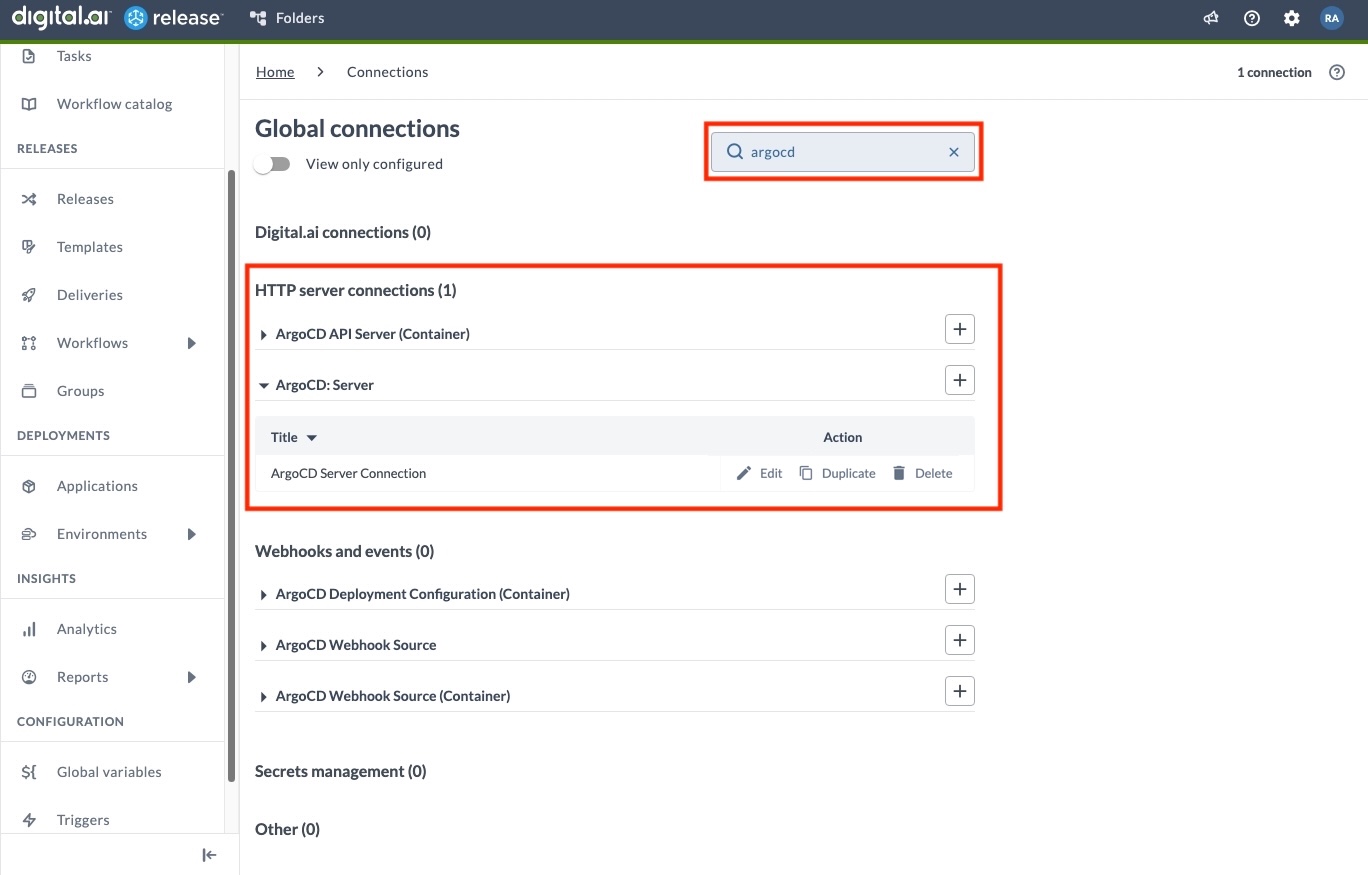
Use the search bar at the top of the page to filter connections by type or name. Filters are applied instantly, and connection counts update dynamically, making it easy to locate specific connections or connection types.
View Only Configured Connections
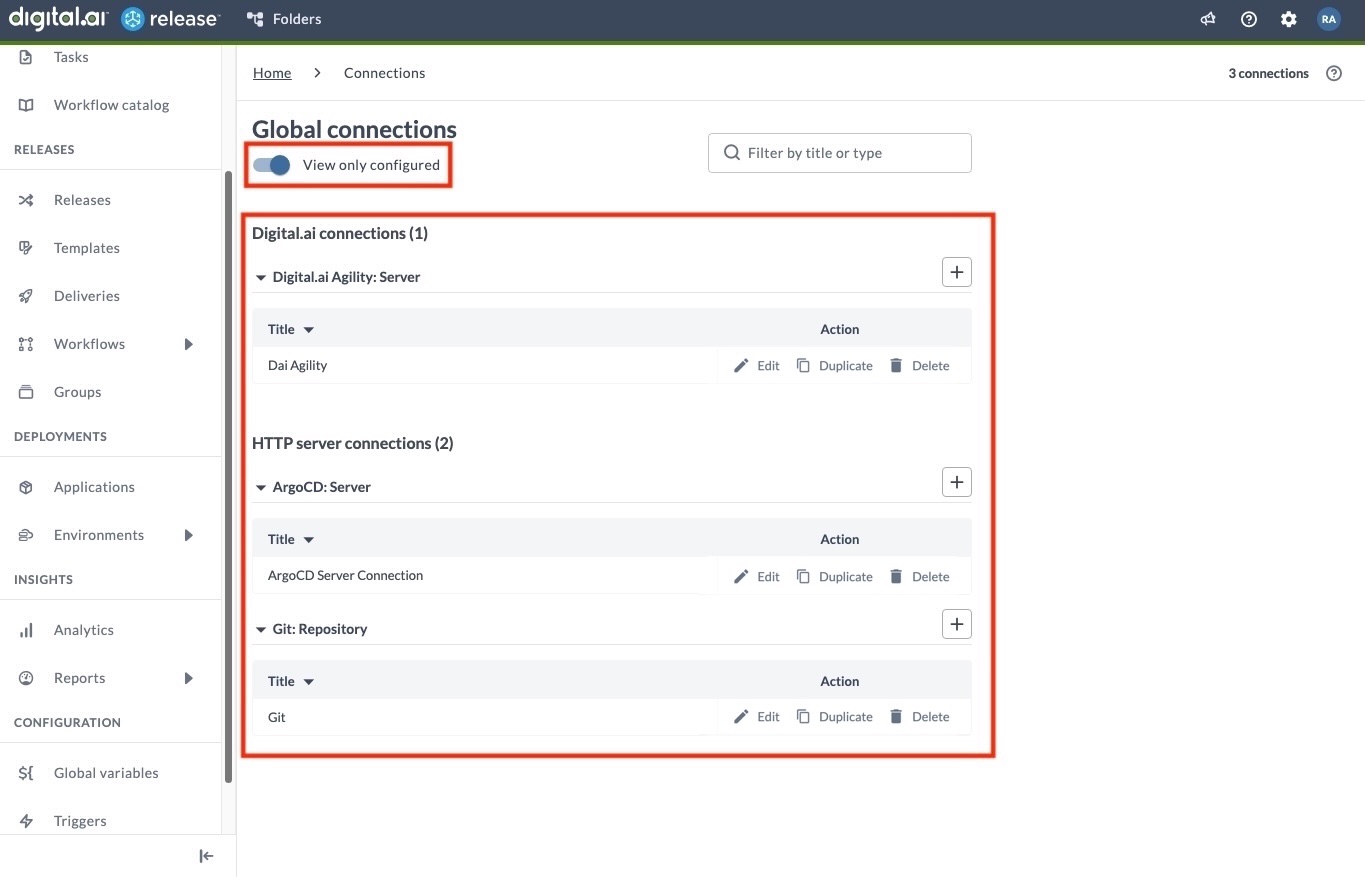
Enable View only configured to switch the page into Configured Connections view. This view shows only the connections that have already been set up. All other connection types are hidden.
Duplicating a Connection
You can duplicate an existing connection to create a new one with the same configuration. This is useful when setting up similar connections for different environments (for example, DEV, STAGE, PROD) without manually re-entering all fields.
To duplicate a connection, click the Duplicate button on the connection entry. The duplicated connection:
- Copies all configuration data from the source connection
- Appends "copy" to the original title
- Does not copy credential fields such as passwords and API keys
- Copies password variables if the source connection uses variable references for credential fields
After duplicating, update the title, credentials, and any environment-specific settings, then Save the new connection.
- Folder-level connections — Requires the Edit connections permission on the folder.
- Global connections — Requires the Admin global permission.
If you do not have the required permissions, the Duplicate option is not shown.
Deleting a Connection
You can delete a connection from the Connections page using the Delete button. This permanently removes the configuration and makes it unavailable to any tasks, templates, or workflows that depend on it.
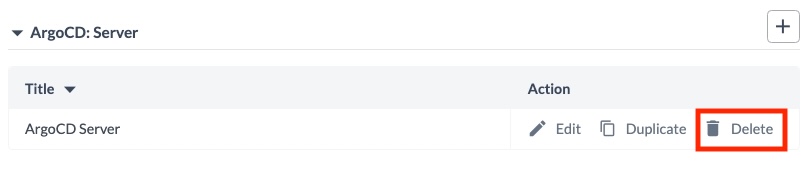
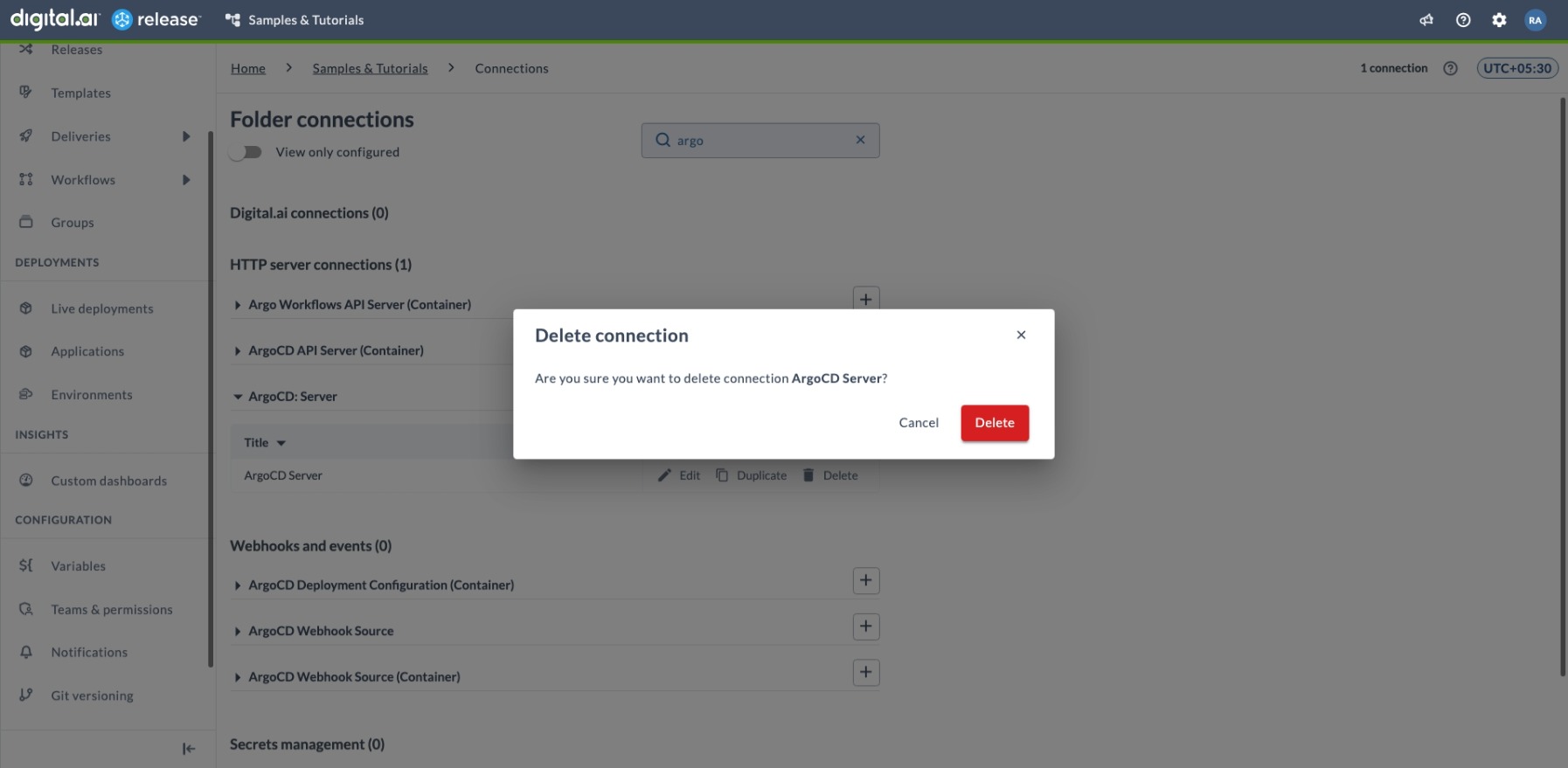
When you click Delete, a Delete connection confirmation modal appears. Click Delete in the modal to remove the connection from your Release.
When a Connection Cannot Be Deleted
Digital.ai Release prevents you from deleting a connection if it is still referenced by other configurations—such as webhook sources, webhook endpoints, or templates (for example, when a server connection is assigned through a template variable).
If you attempt to delete such a connection, Release displays an error pop-up listing the entity that references the connection.
The error message identifies the referencing entity, such as a webhook, trigger, template, or active release. This helps you find and update or remove the dependent configuration before retrying the deletion.
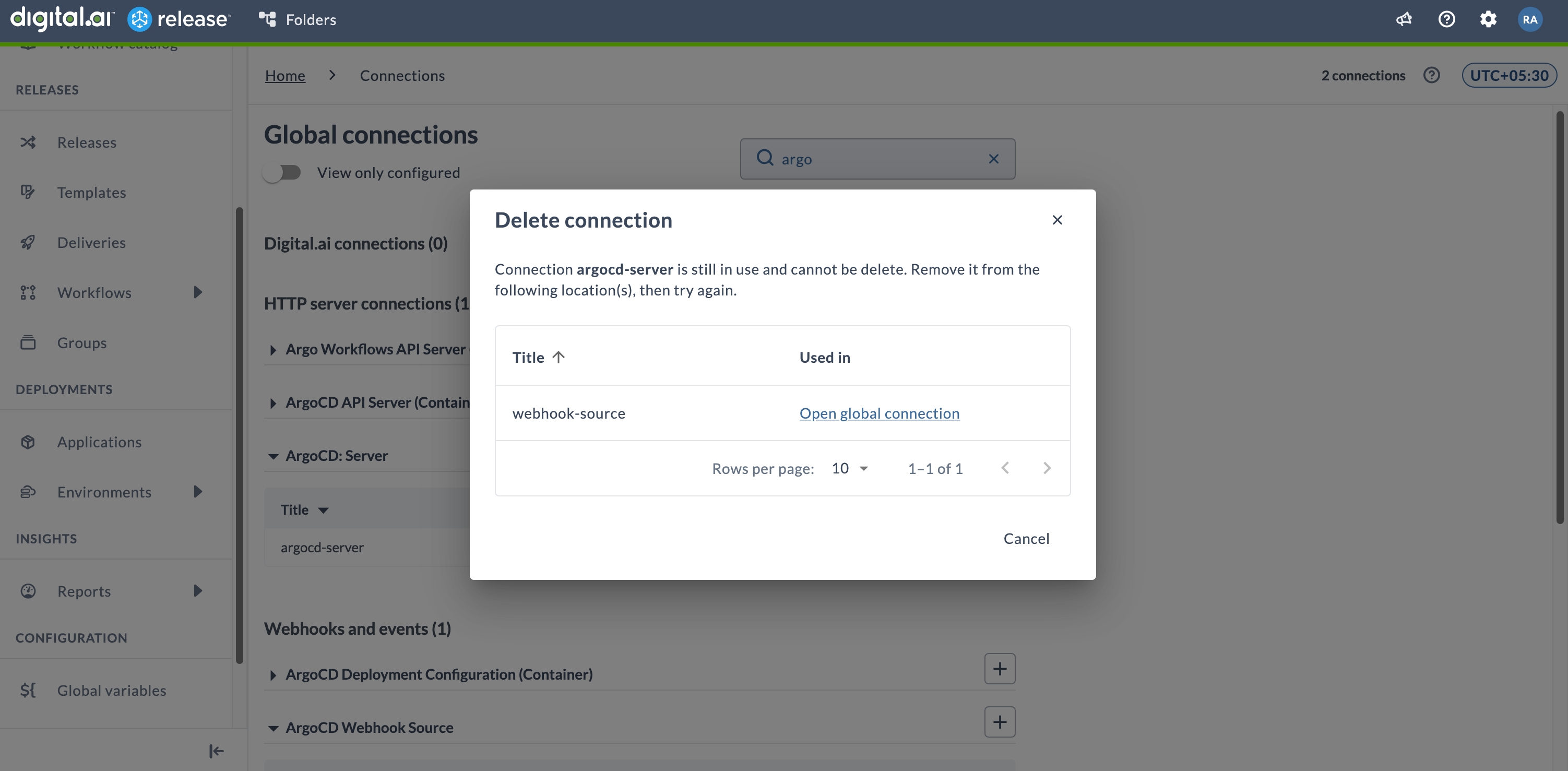
To proceed, update or delete the listed entity or configuration, then retry deleting the connection.
Releases that are completed or aborted do not prevent a referenced connection from being deleted. A connection can be deleted as long as it is not referenced by an active release, trigger, or other active configuration.
Example: When a Connection Cannot Be Deleted
The example below illustrates a typical scenario where a connection cannot be deleted because it is still referenced:
- Create a connection - For example, add and save a new ArgoCD Server connection.
- Create a webhook endpoint - Add a POST endpoint and save it.
- Create a webhook source using the connection - Add an ArgoCD Webhook Source and select the previously created connection.
- Attempt to delete the connection - Go back to the Connections page and click Delete.
- Error pop-up appears - Release shows a message indicating that the connection cannot be deleted because it is referenced by one or more webhooks.
- Resolve the reference - Edit or remove the referencing webhook(s).
- Delete successfully - Once all references are removed, the connection can be deleted.
Example: Using the Saved Connection
Here is an example to illustrate the connections available to a Jenkins build task in Template A1 that is in Folder A1.
Connections Available to Template A1 in Folder A1
Template A1 inherits connections from the Global scope, Folder A, and Folder A1. In this example, the three inherited connections are all named Jenkins, each pointing to a different environment: https://jenkins.prod.example.com (Global), https://jenkins.staging.example.com (Folder A), and https://jenkins.dev.example.com (Folder A1).
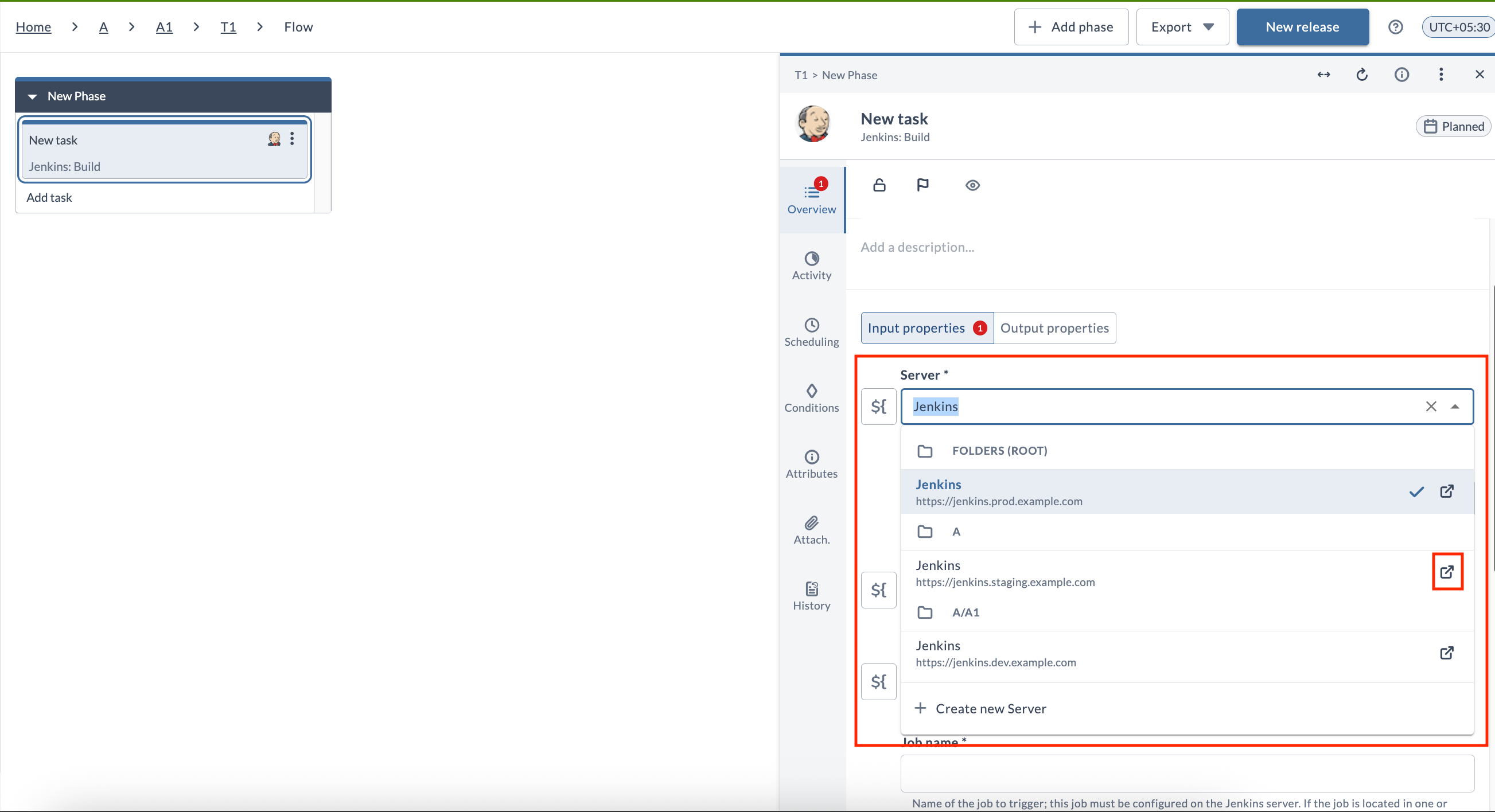
The connection picker in the Task Drawer groups them by folder so you can identify the right one. Global connections are listed under FOLDERS (ROOT), and folder-level connections are listed under their folder path (for example, A/A1 for Folder A1).
The URL value is displayed when it is configured in the connection settings. If the connection has a URL field but no value, the picker shows "URL is not provided". If the connection type has no URL field, the URL row is not shown. Most connection types include a URL field.
Each entry also includes a link to open the connection details, which is available if you have the View connections or Edit connections permission for the folder where the connection is defined.