Global Permissions
This topic provides an overview of global permissions in Release and their relationship to users and roles.
Understanding Users, Roles, and Permissions
Users, roles, and permissions form the core of Release’s access control model. This section explains what each element is and how they work together in Release.
What are Users?
A user is an individual who can log in to Release with valid credentials. Username acts as a unique identifier for the user. Authentication ensures that only authorized users can access the system.
For more information on creating and managing users, see Configure user settings.
What are Roles?
A role is a way to group users who need similar access. Instead of giving permissions to each user one by one, you assign permissions to a role and then add users to that role. This makes managing access easier and more consistent.
For more information, see Configure roles.
What are Permissions?
A permission defines what actions a user can perform in Release. Permissions control access to specific features, operations, and areas of the application.
Permissions are not assigned directly to users. Instead, they are assigned to roles, and users inherit permissions through the roles they belong to.
To perform an action, a user must be part of a role that includes the required permissions.
Permissions help organizations:
- Give users only the access they need to do their work.
- Protect sensitive data and functionality.
- Manage access consistently across teams.
Release also supports fine-grained permissions, including global permissions that apply across the entire system. This ensures that administrators can tightly control access where needed while still enabling efficient workflows for all users.
The Permissions Page
The Permissions page in Users and Permissions is visible only to users with the Admin or Edit Security global permission.
To view the Permissions Page, navigate to Settings > Users and permissions > Permissions.
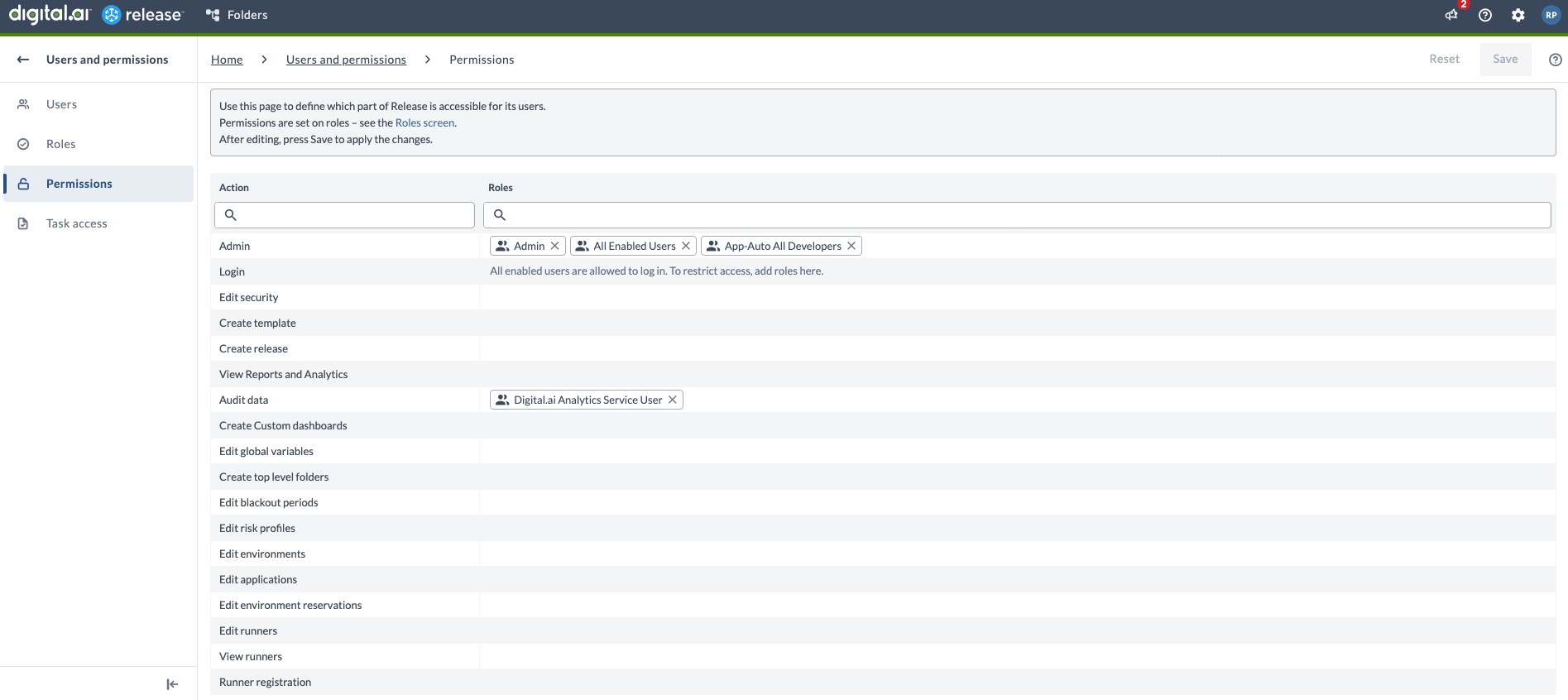
Users who have the Edit security permission but not the Admin permission do not see roles that include the Admin permission. Such a role is not listed in the Roles column and does not appear in the dropdown when you type a role name, so these users cannot assign permissions to it or remove permissions from it.
Available Permissions
The following global permissions are available:
| Permission | Description |
|---|---|
| Admin | All permissions. Only visible to users logged in as Admin. Non-admin users cannot see, assign, or modify this permission for themselves or others. |
| Login | Release role-based access control includes a dedicated Login permission that defines which roles are allowed to log in to the Release application. If no roles are assigned, all users can log in. The Admin role is always allowed to log in. |
| Edit security | Access to the Roles and Permissions pages and permission to edit security on releases and templates. Provides view-only access to Manage plugins. |
| Create template | Create a new template. Note: This permission also includes global triggers. |
| Create release | Create a release from any template. Additionally, see the Create Release template permission. |
| View Reports and Digital.ai Analytics | View global and analytics dashboards. Required for the AI Assistant Reporting Agent to query and return data. |
| Audit data | Read-only permission for data access and view audit reports. This permission is tied to the Digital.ai Analytics Service User role. |
| Create Custom dashboards | Create, edit, or delete a custom dashboard. |
| Edit global variables | Edit global variables (available in Release 4.8.0 and later). |
| Create top level folders | Create folders. |
| Edit blackout periods | Create, edit, or delete a blackout period. |
| Edit risk profiles | Create, edit, or delete a risk profile. |
| Edit environments | Create, edit or delete an environment. Permission is required to create stages and create environment labels. |
| Edit applications | Create, edit, or delete an application. |
| Edit environment reservations | Access the scheduling pages, make a schedule, or reserve an environment. |
| Edit runner | Allows users to edit and runner configurations. When granted, this permission enables the Edit and Delete options for runners in the runner list. |
| View runner | Allows users to access the Runners page in  > Runners. > Runners. |
| Runner registration | Allows users to register runners. This permission is a subset of Edit runner and provides the user access only for registering release runner. |
| Create and Edit Scripts | Create and edit scripts and script-based configuration. This includes Jython, Groovy, and External Script tasks, as well as Jython preconditions, script failure handlers, webhook script filters, and scripted authentication. By default, all authenticated users have this permission. If one or more roles are assigned, only users with those roles can create or edit scripts and script-based configuration. It does not affect execution of existing scripts. This permission is particularly important for JDK 25 deployments, where the Java Security Manager is not available. For more information, see Configure Script Security. |
Assign Global Permissions
- On the Permissions page, you can view the list of permissions in the Action column and the roles assigned to each permission in the Roles column.
- To assign a role to a permission, type part of the role name in the Roles column. Matching roles appear in a dropdown list.
- Select the appropriate role from the list. You can assign multiple roles to the same permission.
- Click Save to apply your changes.
Click Reset to discard your changes and reload the current settings from the server.
Filter Permissions and Roles
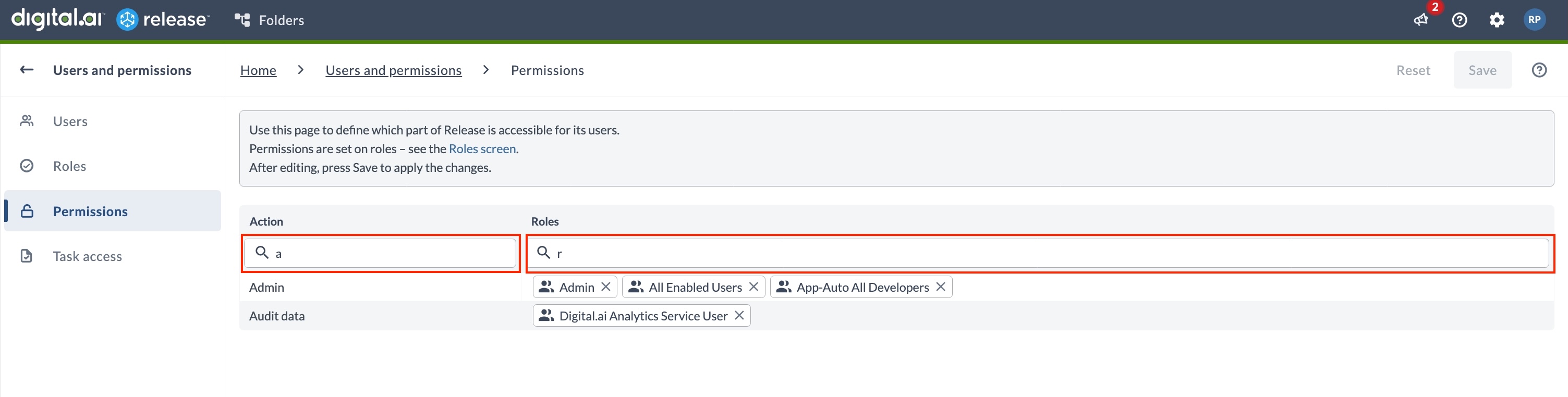
You can use the Action and Roles search boxes to filter your permissions and roles respectively. This filtering becomes very helpful when you have multiple number of permissions.
Folder, Template, and Release Level Permissions
In addition to global security, you can enforce security on the folder, template, and release level. For more information, see Configure Teams and Permissions.
Login Permission
Release role-based access control includes a dedicated Login permission that simplifies security configuration by defining which roles are allowed to log in to the Release application.
| Scenario | Login Access |
|---|---|
| No roles assigned to the Login permission | All users can log in. |
| Some roles assigned to the Login permission | Only users belonging to the assigned roles and users with the Admin role can log in. |
| Admin role | Users with the Admin role can always log in, irrespective of whether the Admin role is assigned to the Login permission. |
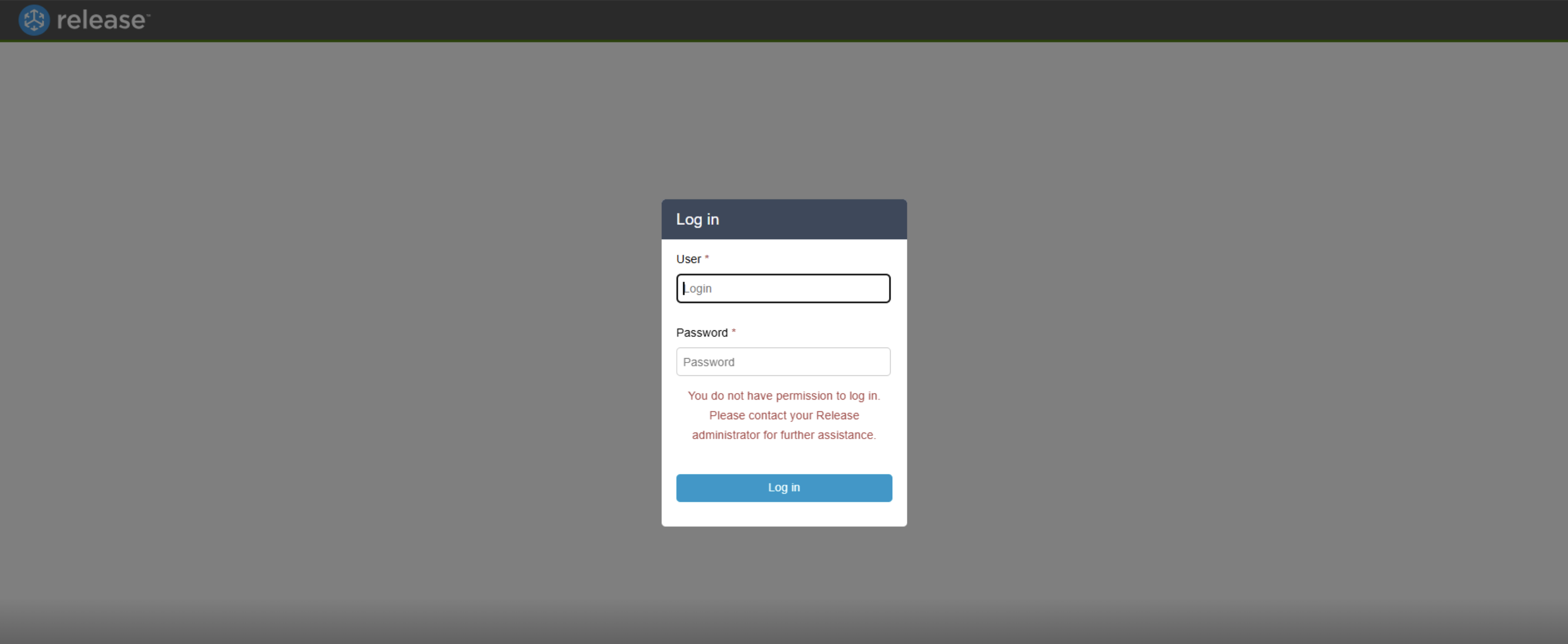
If a user is prevented from logging in because their role is not assigned to the Login permission, they will see the following message:
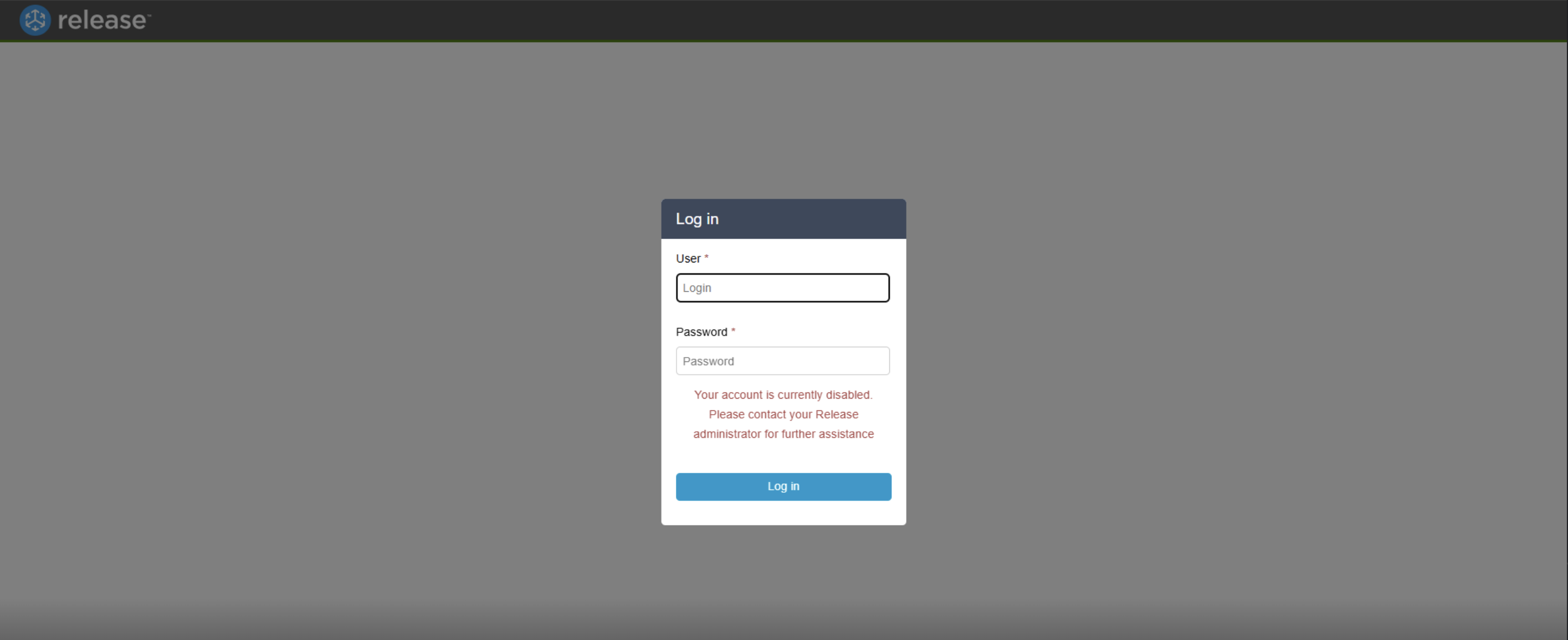
If a user's account is disabled, they will see the following message when attempting to log in: