Watch Assets
Watch an asset to receive automatic alert notifications when updates are made to that specific item. This allows you to keep track of changes as they occur.
Who watches assets: All team members can watch work items they're interested in. Watching is commonly used by team members tracking specific defects, scrum masters monitoring high-priority stories, and product owners following critical features.
Watch vs. Subscriptions
Digital.ai Agility offers two ways to receive notifications about work items.
Watch an Asset for Item-Specific Tracking
Use Watch when you want to track a specific individual item such as a particular story, defect, or test. Watching is ideal for:
- Tracking a high-priority defect you need to monitor closely
- Following a specific story you're collaborating on
- Monitoring a particular test or test set
- Keeping tabs on an individual portfolio item or request
How it works: You watch individual assets one at a time from their detail page or from a grid. You receive notifications for all changes to that specific item, including updates to core and custom fields.
Quick setup: Click Watch from the asset's action menu—no configuration needed.
Use Subscriptions for Event-Based Tracking
Use Subscriptions when you want to receive notifications based on specific events or criteria across multiple items. Subscriptions are ideal for:
- Get notified when any defect is assigned to you
- Track when any story in a specific project changes status
- Monitor when any test owned by your team is closed
- Receive alerts for backlog items that meet certain filter criteria
How it works: You create subscription rules that define which types of events trigger notifications. One subscription can monitor many items based on your criteria.
Setup: For configuration details, see Manage Notification Subscriptions.
Key Differences
| Feature | Watch | Subscriptions |
|---|---|---|
| Scope | Single specific item | Multiple items based on criteria |
| Setup | One click per item | Configure once, applies to many items |
| Use Case | "I need to track this defect" | "I need to know when any defect is assigned to me" |
| Flexibility | All changes to watched item | Specific events (status change, assignment, etc.) |
| Management | Watch/unwatch individual items | Create and manage subscription rules |
You can use both features together. For example, subscribe to all defects assigned to you, and also watch specific high-priority defects for more detailed tracking.
Watch an Asset from an Asset's Details Page
Watch an asset while reviewing its full details. This method is useful when you're already examining a specific work item.
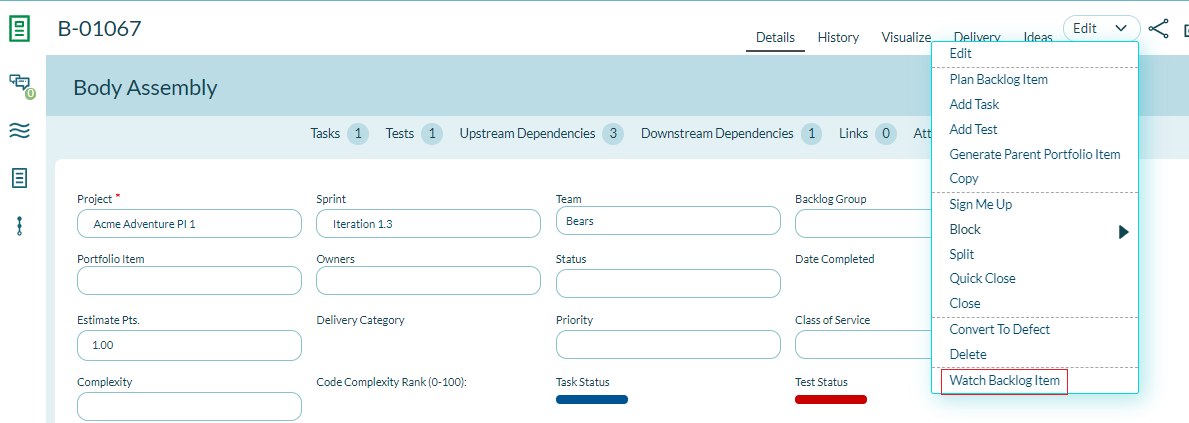
To watch an asset from its details page:
- Open the Details page of the asset.
- From the Edit menu, choose Watch Backlog Item (or Watch Defect, Watch Test, etc., depending on the asset type).
Watch an Asset from a Grid View
Watch an asset directly from list views such as the Backlog, reports, or planning pages. This method allows you to quickly watch multiple items without opening each one.
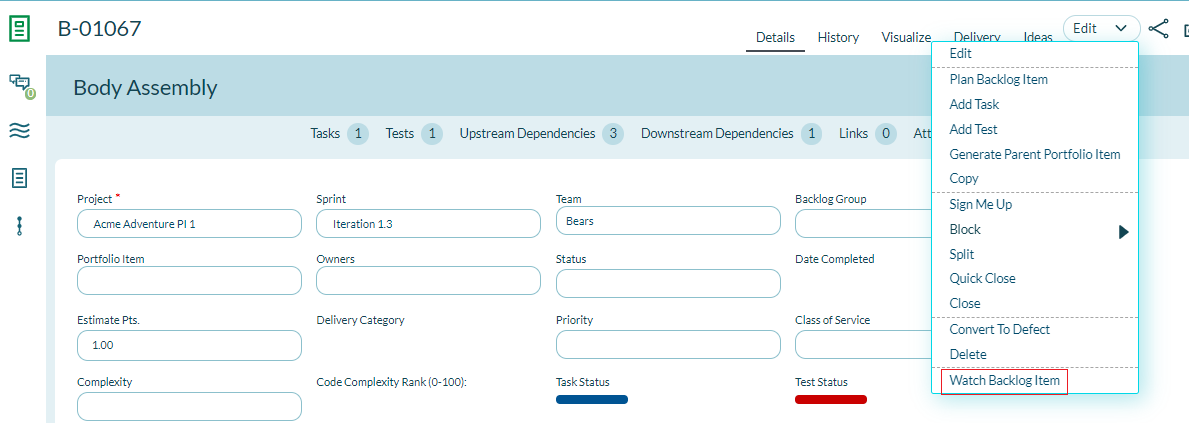
To watch an asset from a grid:
- Open the grid page displaying the asset (such as Backlog, Reports, or Planning pages).
- Select the asset in the grid.
- From the Edit menu, choose Watch Backlog Item (or the appropriate watch option for the asset type).
View Watched Assets
All assets you're watching appear on your Subscriptions page alongside your subscription rules.
To view your watched assets:
- Click the Messages icon
 on the header.
 - Select Subscriptions.
Your watched assets display in the list along with your subscription rules.
Stop Watching an Asset
When you no longer need to track an asset, you can stop watching it from the asset's details page or from your Subscriptions page.
Stop Watching from an Asset's Details Page
To stop watching from the asset's page:
- Open the details page of the asset.
- From the Edit menu, select Stop Watching.
Stop Watching from the Subscriptions Page
To stop watching from your Subscriptions page:
- Click the Messages icon on the header.
- Select Subscriptions.
- Find the watched asset in the list.
- Select Delete from the Edit dropdown.
Notification Triggers
When you watch an asset, you receive notifications for:
- Changes to core fields (status, owner, priority, etc.)
- Changes to custom fields (text fields, dropdown lists, numbers, checkboxes)
- Changes to the Owners field
Note: You will not receive notifications for:
- Changes you make yourself (only changes made by others)
- Changes to items that have multiple relationships (except the Owners field)
Troubleshooting
Not receiving notifications for watched assets
Verify you have at least one notification delivery method configured (email, RSS, push notifications, or check My Inbox). Also confirm you're not the one making the changes—you won't receive notifications for your own updates. If someone else made changes and you still didn't receive notifications, check that the asset is still active and not deleted.
Can't find Watch option in Edit menu
The Watch option appears as "Watch [Asset Type]" (such as "Watch Story" or "Watch Defect") based on the asset you're viewing. Ensure you're viewing a watchable asset type. Some asset types or custom assets may not support watching.
Receiving duplicate notifications for watched assets
If you're both watching an asset and have subscriptions that match the same asset, you'll receive separate notifications from each. Review your subscriptions on the Subscriptions page and consider removing subscriptions that overlap with your watched assets to reduce duplicates.
Watched assets not appearing on Subscriptions page
Watched assets display in the My Subscriptions section alongside subscription rules. If they're not visible, try refreshing the page. If the asset was recently deleted, it will no longer appear in your watched assets list.
Stop Watching option doesn't work
If Stop Watching doesn't remove the asset from your watch list, try unsubscribing from the Subscriptions page instead. Navigate to the Subscriptions page (Messages icon > Subscriptions), find the watched asset, and select Delete from the Edit dropdown.
Related Topics
Manage Notifications and Subscriptions