Relationships
Relationships refer to the connections or associations between different data entities in one application and their corresponding entities in another. These relationships are essential for ensuring that data is accurately synchronized and consistent across both systems.
Syncing the Parent-Child Relationships
Click the Relationships toggle button to define the parent-child relationship between the mapping you create or edit, and the other mapping.
Parent-Child relationship for defect is supported only with Portfolio Items and not with other asset types.
For example, if you have a mapping created to sync Digital.ai Agility and Jira Epics (parent), you can enable Relationships and select another mapping (from the drop-down list) created to sync Digital.ai Agility and Jira Stories, for example, as a child. Once done, any Story you create or update—as a child of an Epic—would be synced exactly with the same relationship on the other tool.
Setting up Relationships is not possible with ServiceNow.

Sync Strategy for Missing or Unsynced Parents
Click Show Relationship Mapping Details under Relationships to configure how a child work item syncs when its parent is missing or has not synced yet. Configure each option separately for each direction of the mapping. Both options are supported for the Azure DevOps/TFS, Agility, and Jira plugins.
Skip Sync if Parent Is Missing
This inbound validation applies when the child work item has no parent at all in the source system.
- Select Sync without parent to sync the child work item normally, without a skip condition.
- Select Skip creating workitem to skip the child work item when the parent is missing during a create event. Later updates to that work item sync successfully.
- Select Skip the workitem entirely to skip the child work item whenever the parent is missing, on both create and update events.
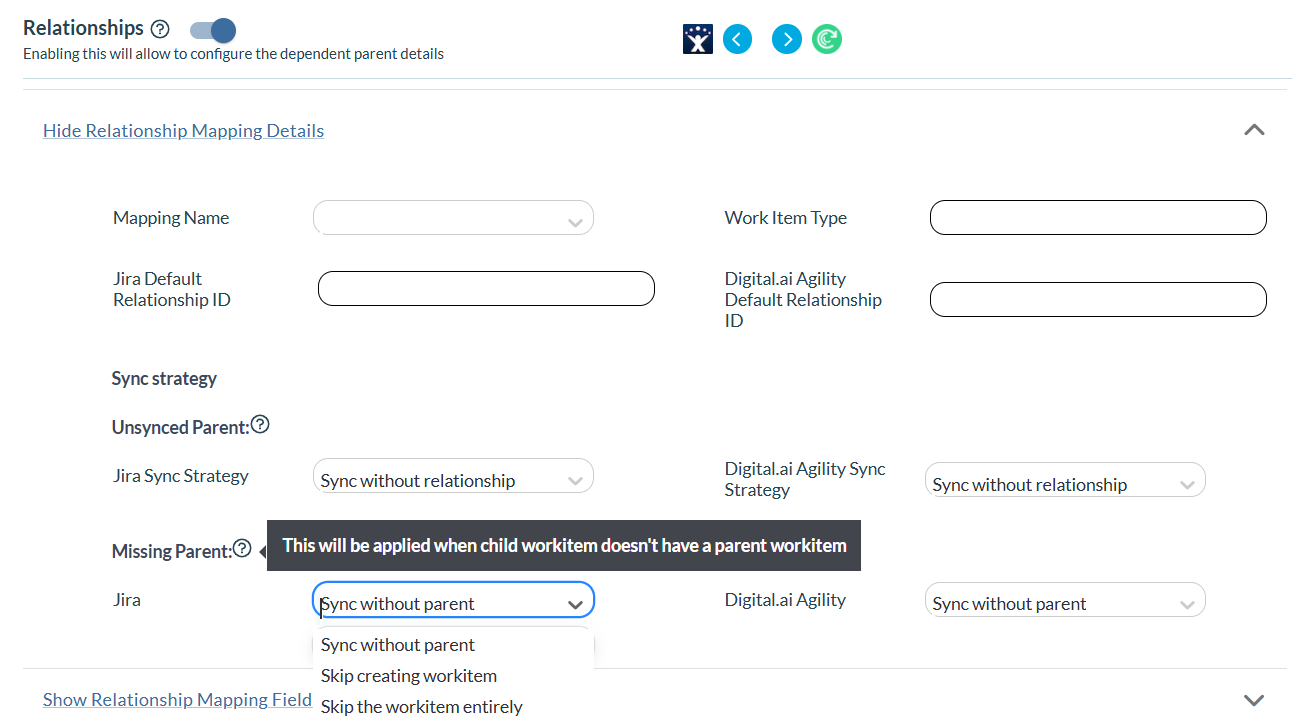
Sync Strategy
Sync Strategy applies when the parent work item exists in the source system but has not yet synced to the destination system.
- Select Sync without relationship to sync the child work item without a parent relationship. This is the default option.
- Select Sync with default relationship to sync the child work item using the default relationship ID you provide for the mapping.
- Select Sync fail to fail the sync and generate an error message in the log files.
- Select Skip sync to skip the child work item until its parent syncs successfully. Once the parent syncs, later updates to the child work item are processed.
Syncing the Linked Issues field in Jira to the Portfolio Item Field in Agility
The Relationships function has been extended to sync the Linked Issues field in Jira to the Portfolio Item field in Agility. The use case is to sync the Jira Linked Issued field of type "Parent of" with the Portfolio Item field in Agility.
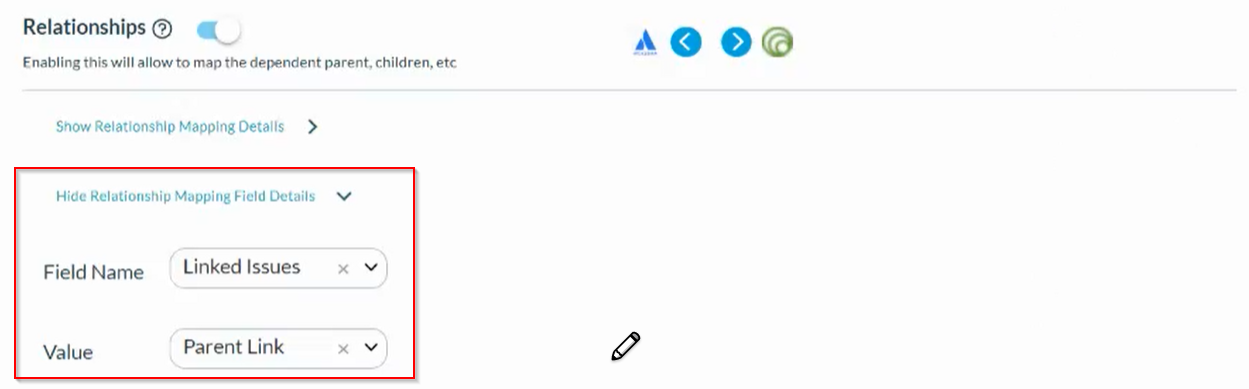
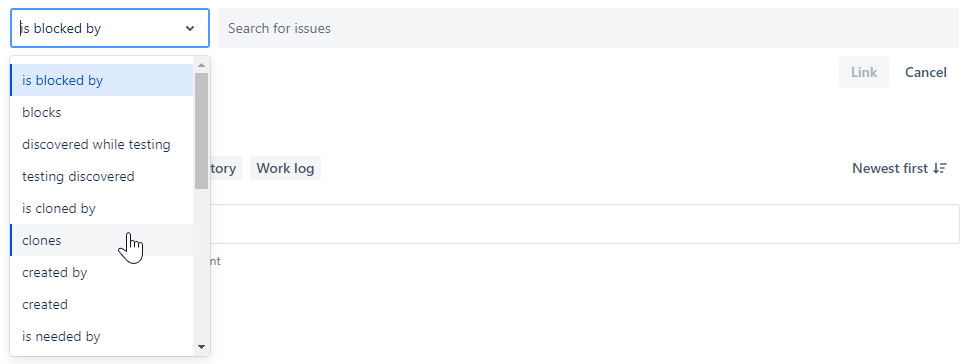
Regardless of the kind of link you create between two Jira issues using the Linked Issues field, the linked issue in Jira becomes the Portfolio Item in Agility. In other words, Agility Sync considers other types of links between Jira issues such as "clones", "is cloned by", "created by", etc., (including other custom link types) as "Parent of" link.
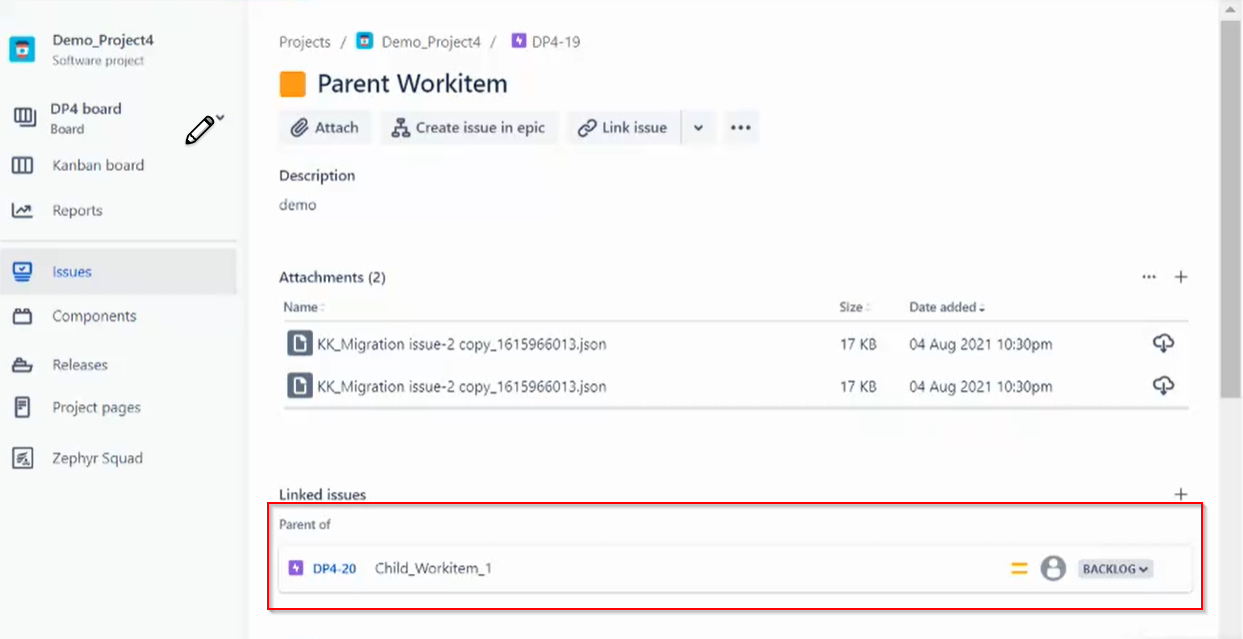
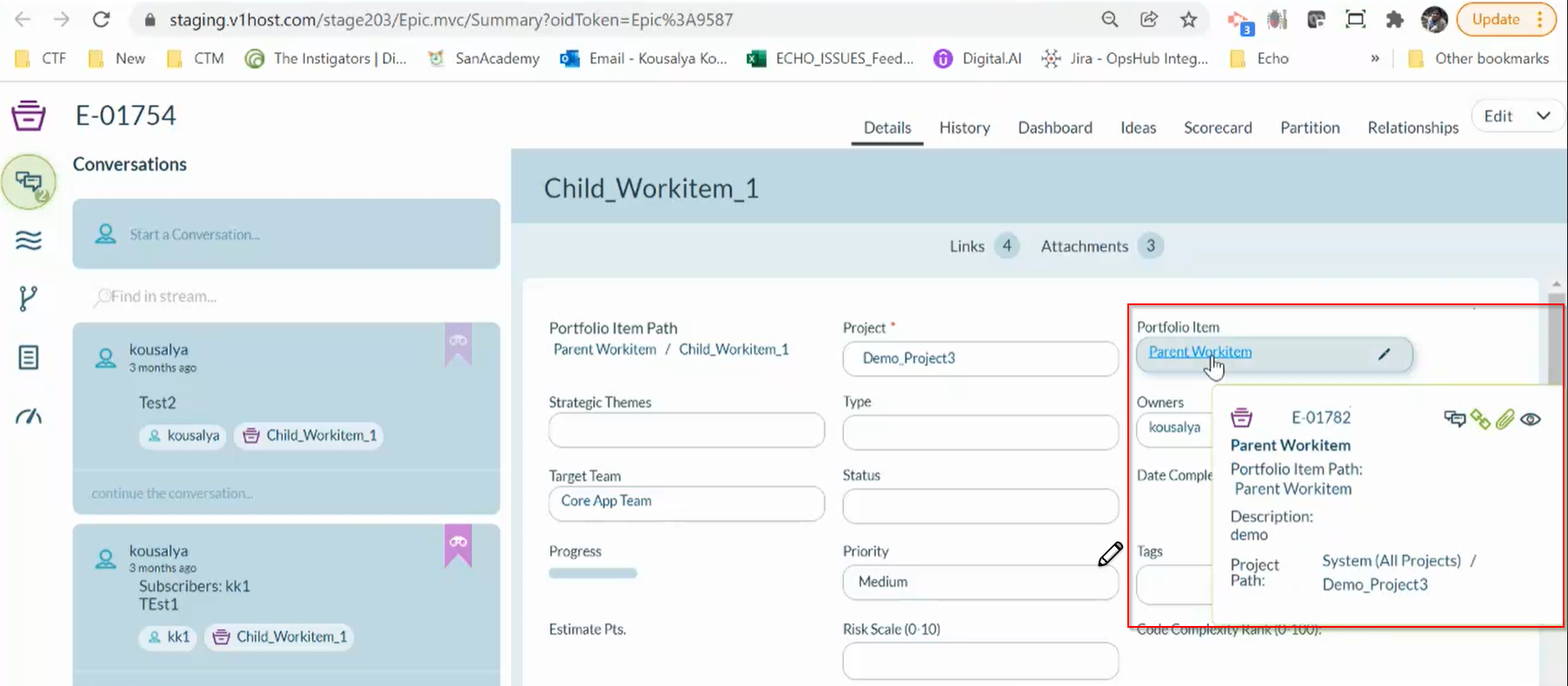
Here's an example where the Jira issue DP4-19 has been configured as the parent of DP4-20.
Once the Jira issues DP4-19 and DP4-20 are synced with Agility as E-01782 and E-01754 respectively, you can see that the Agility Epic E-01782 shows up as the Portfolio Item in E-01754 as illustrated in the following image.
Parent Child Relationship Supported from Related Links
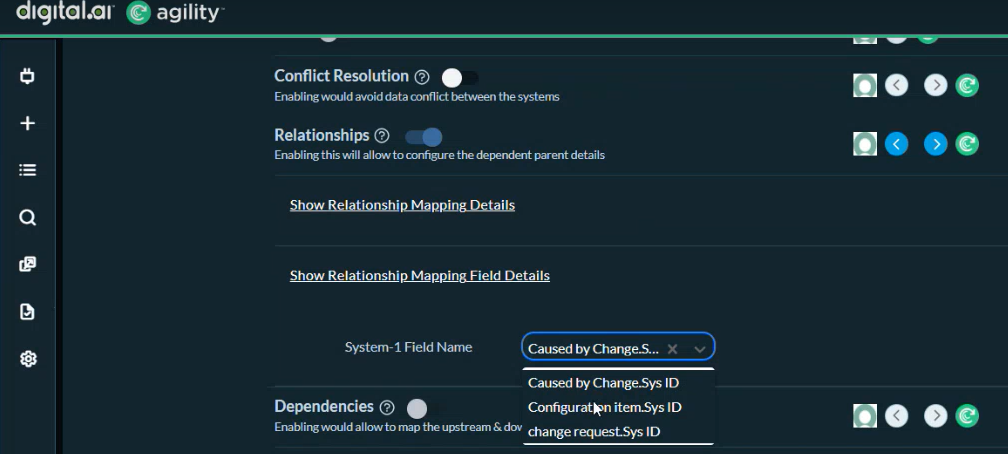
Agility Sync now supports parent and child relationship from Related Links section and at Field level as well. The configuration changes required for this relationship are done in the Relationship section.
If you have a reference field in your asset and you plan to add a child to that asset, then all the fields associated with the reference asset are included as options in the System Relationship Mapping Details section.
Support for Sync Selected Event for Every Field
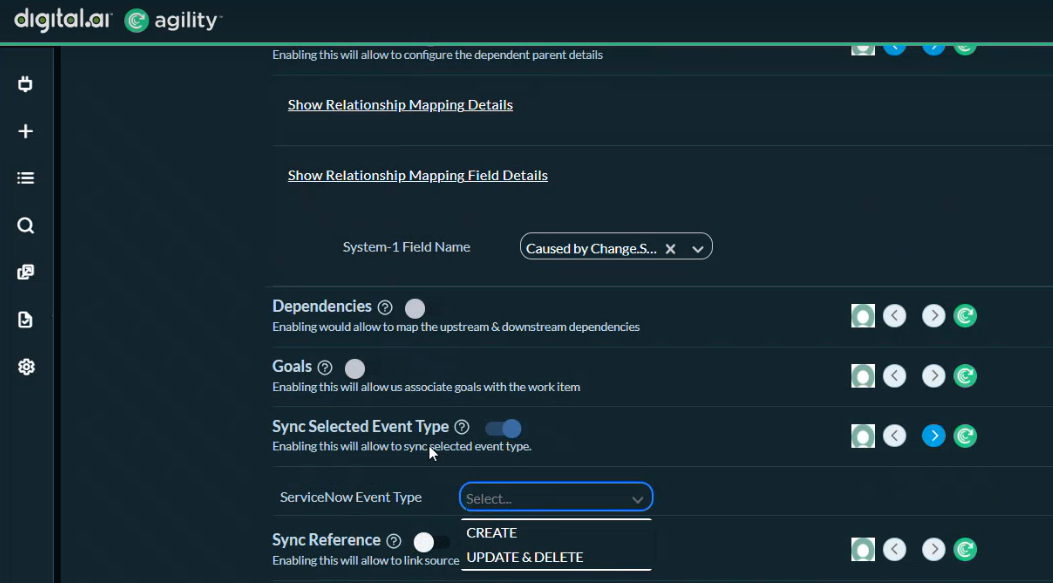
Agility Sync now has the option to Sync Selected Event Typefor all the fields. You can click the Settings icon next to the Create field and select either CREATE or UPDATE event type as per your requirement.
If you select CREATE event type the value in the field is synced only for Create event type the Update actions are skipped. Similarly, if you select UPDATE event type the value in the field is synced for Update event type the Create actions are skipped.
If you do not select either of these options Agility picks up all the actions and syncs the field values.
Conflict Resolution
For Conflict Resolution, the precedence is given to mapping level, even if field level mapping is selected. The field level mappings are ignored if Conflict Resolution is enabled at mapping level.